How to Hide the Time and Date on Your Windows 11 Taskbar

If you want to clean up your Windows 11 taskbar by hiding the clock and date, this guide shows you two ways to do it: the Settings app and the Registry Editor. Both are short, and both can be undone.
Open Settings Time & Language Date & Time, then toggle the switch next to Hide time and date in the System tray to On. The clock disappears from the bottom-right corner immediately without restarting.
What Is the System Tray Clock?
On Windows 11, the system tray is the area in the bottom-right corner of your screen. It holds the clock and date, along with the Wi-Fi , volume and battery icons.
By default, Windows always shows the time and date there. Newer Windows 11 versions let you hide them. Older builds do not have the option, so if it is missing on your PC, check the note at the end of this guide before you spend time looking for it.
How to Hide or Show the Time and Date Using Settings
The Settings app is the easiest way to hide or show the time and date. It needs no special permissions and works on both Home and Pro editions, as long as your build includes the option. The change takes effect straight away and does not need a restart.
- Open the Settings app: Click the Start menu button, then click Settings, or press Windows key + I on your keyboard. The Settings window opens.
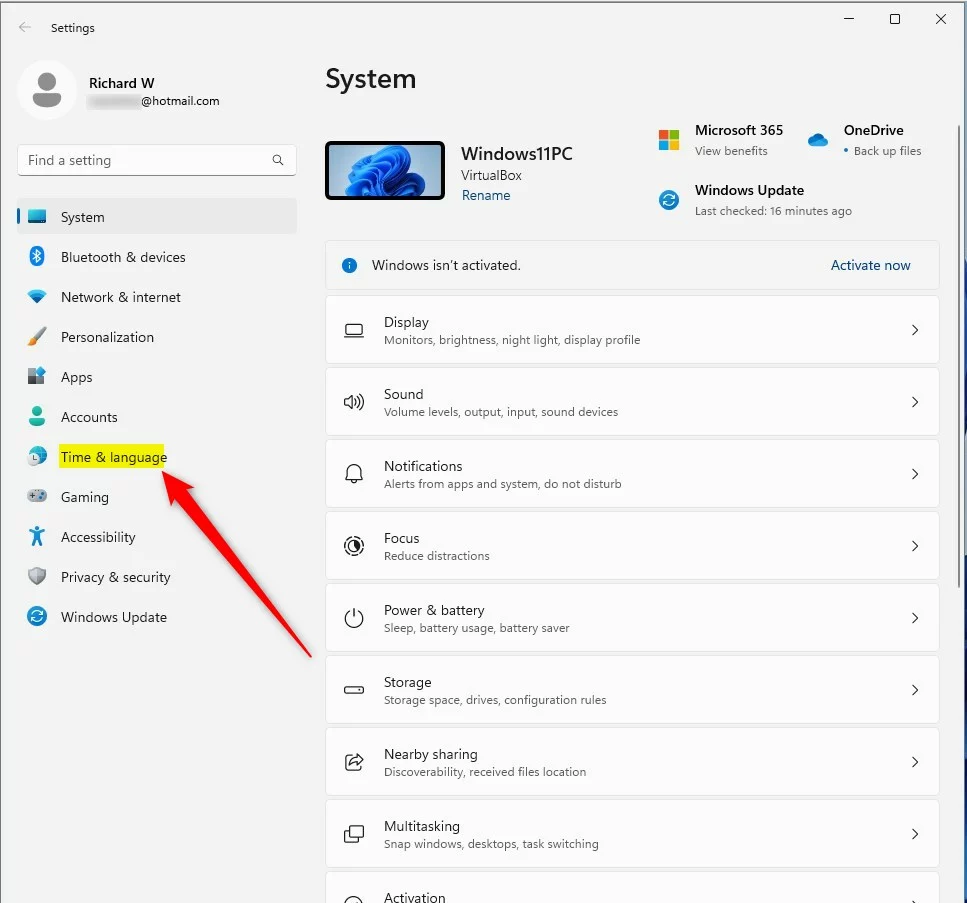
- In Settings, click Time & Language in the left menu.
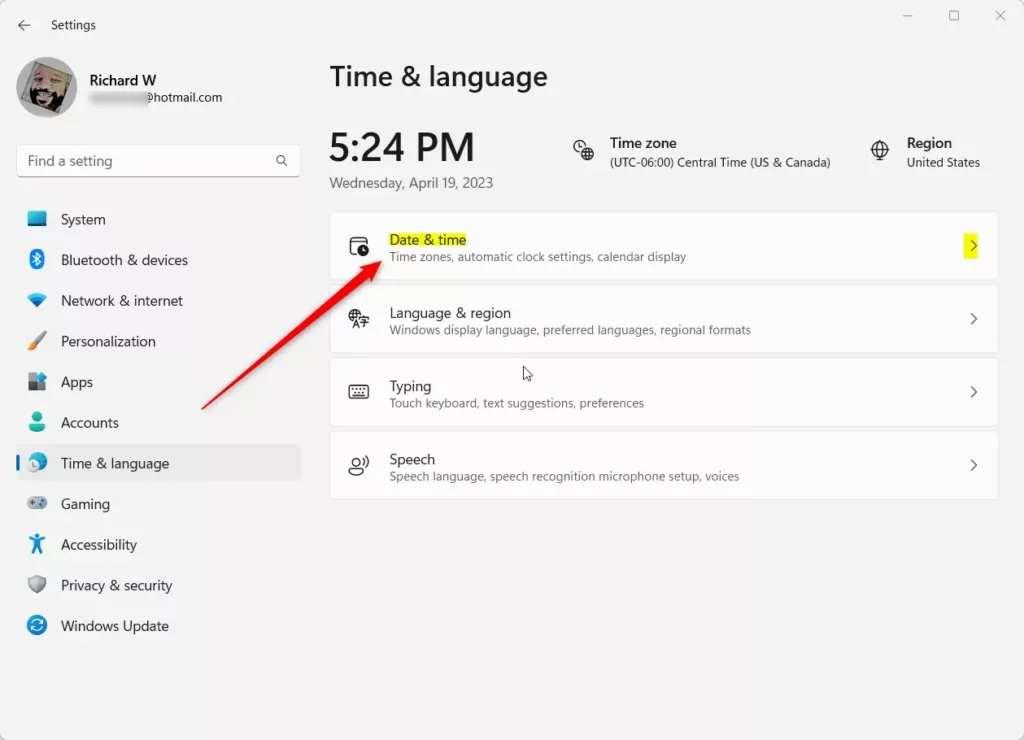
- Click Date & Time on the right side. You should now see the time zone, automatic time options and other clock settings.
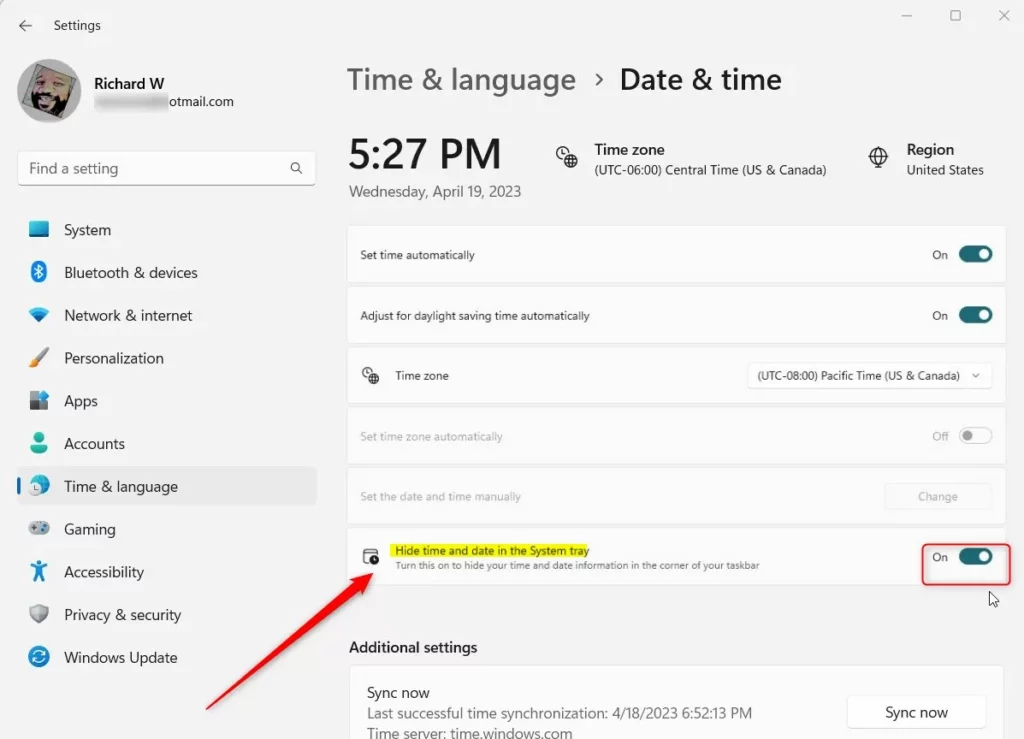
- Look for the option that says Hide time and date in the System tray . Depending on your build, the wording may differ slightly. If you can’t find it, scroll down the page first, as it may sit below the time zone settings.
- Toggle the switch On to hide the time and date. The clock should disappear from the bottom-right corner of the taskbar .
- To show the clock and date again, toggle the switch Off. The clock returns right away.
When you’re done, close the Settings window. If the option doesn’t appear at all, your Windows 11 build doesn’t include it yet. Check Settings Windows Update to see whether a newer build is available for your PC.
How to Hide or Show the Time and Date Using the Registry Editor (Advanced)
This method is for people who are comfortable working in the registry, because a wrong edit can cause problems. The change is made under your own user account (HKEY_CURRENT_USER), so it affects only you.
Before you start, make a backup. In the Registry Editor, click File Export, choose All as the export range, and save the file somewhere safe. You can double-click that file later to restore your settings.
Here's how:
- Press Windows key + R, type
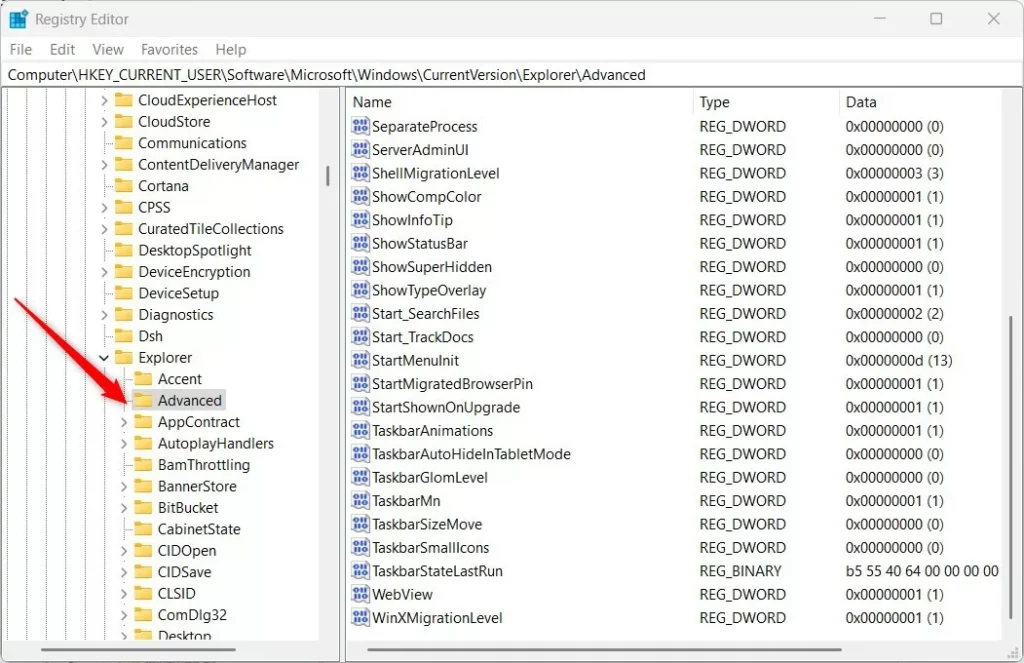
regedit, and press Enter to open the Registry Editor. If a User Account Control prompt appears, click Yes. - Navigate to this folder path. You can also paste it into the address bar at the top of the Registry Editor:Registry
HKEY_CURRENT_USER\Software\Microsoft\Windows\CurrentVersion\Explorer\Advanced
- If you don't see the
Advancedfolder, right-click onExplorerand create a new folder namedAdvanced. - Select the
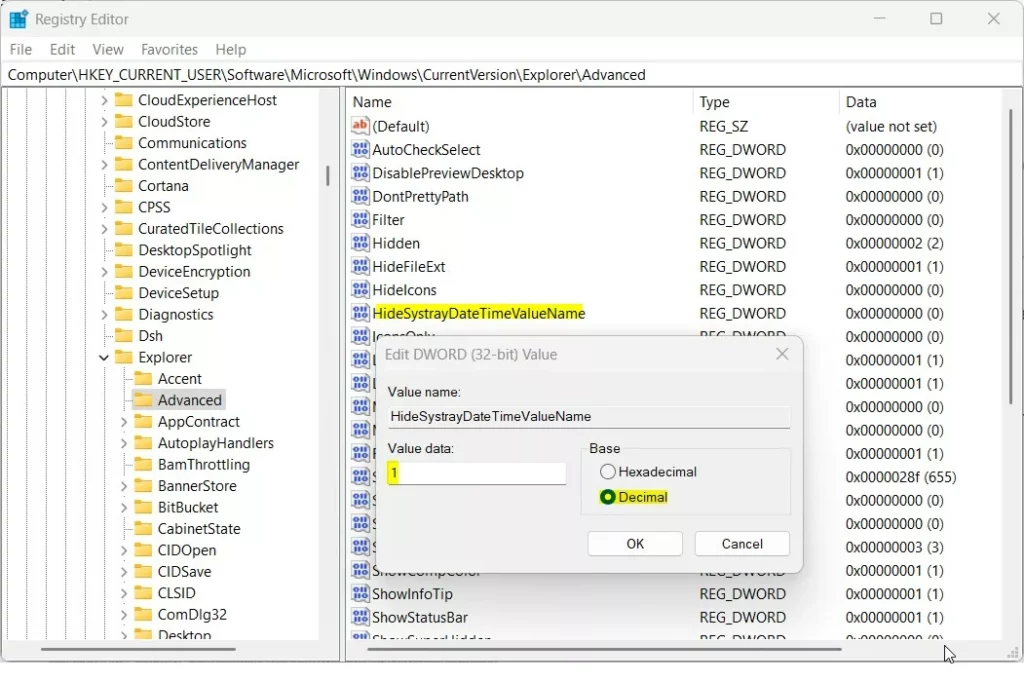
Advancedfolder. Right-click the empty space on the right side, select New DWORD (32-bit) Value, and name itHideSystrayDateTimeValue. Type the name exactly as shown. - Double-click this new item. In the window that opens, set the Base to Decimal.
- To hide the time and date, enter
1in the Value data box and click OK. - To show the time and date again, enter
0or delete the value. Deleting it puts things back to the default. - Close the Registry Editor and restart your computer to see the change.
If the clock doesn't change after the restart, your Windows 11 build probably doesn't support hiding it. In that case, remove the value you created so you don't leave unused entries behind.
Summary
- Using Settings: The easiest way to hide or show the time and date on the system tray. No restart needed.
- Using Registry Editor: An advanced method for users comfortable with the Windows Registry. Back up first, and restart afterwards.
You have two main ways to hide or show the time and date on your Windows 11 taskbar. The Settings app is the easiest method for most users, while the Registry Editor is an advanced option for those who need it.
If you don't see it, your Windows might not support this feature yet. Installing the latest updates from Windows Update is the first thing to try.
For more tips on Windows 11, visit Geek Rewind.
Was this guide helpful?

About the Author
Richard
Tech Writer, IT Professional
Richard is a writer at Geek Rewind who turns complex IT tasks into clear, step-by-step guides. He draws on years of hands-on experience in system administration and enterprise IT operations, focusing on Windows, Linux and WordPress: the problems people actually run into, and the fixes that work. His server and WordPress guides come from systems he runs himself. Richard builds and maintains the platform behind Geek Rewind, from its Ubuntu servers and Nginx configuration to its custom WordPress plugins. Many new tutorials start with readers' questions, and he's always glad to answer them in the comments.



No comments yet — be the first to share your thoughts!