Why Does Settings Time and Language Date and Time Show Set Time Zone Automatically Greyed Out

- 29 steps
- Needs administrator rights
- Group Policy needs Windows 11 Pro, Enterprise or Education
- Includes a restart or sign-out
The Set time zone automatically switch in Windows 11 and Windows 10 turns grey and stops responding when something is locking it. The cause is usually a work or school policy, a network rule, or a Windows location privacy setting. Windows uses location data to pick the time zone, so if location is blocked or managed by someone else, the switch is disabled.
Organisations lock this setting to keep clocks consistent for company software. Personal computers can end up with a frozen switch too, usually because location services are off. The sections below run from the most common and simplest fix to the least common. Work through them in order.
The Set time zone automatically switch turns grey when Windows location services are disabled, a work or school policy locks it, or a registry entry restricts the setting. Turn on Location services in Settings Privacy & security Location, or check 🗝️HKEY_LOCAL_MACHINE\
Checking Your Windows Location Privacy Settings
Check your Windows version before anything else. Windows 11 24H2 Home and Pro stopped receiving updates, including time zone updates, on October 13, 2026. Update to Windows 11 25H2 so your time zone data stays current. To see which version you run, open Settings System About. To install the update, open Settings Windows Update.
Next, look at location privacy. Windows needs location permission to work out where you are, and without it the automatic time zone switch stays locked. This is the most common cause on a home PC.
For a quicker route, press the Windows key and R together, type ms-settings:privacy-location in the Run box, and press Enter. You can also paste it into an address bar. This opens the location page directly, so you can skip steps 1 and 2 below.
- Click the Start button and open Settings (the gear icon).
- Click Privacy & security, then click Location. You should see the location page with a list of switches.
- Find the main switch labelled Location services. If it is off, click it to turn it on. If you cannot click it, your PC is probably managed by an organisation, so skip ahead to the Group Policy section.
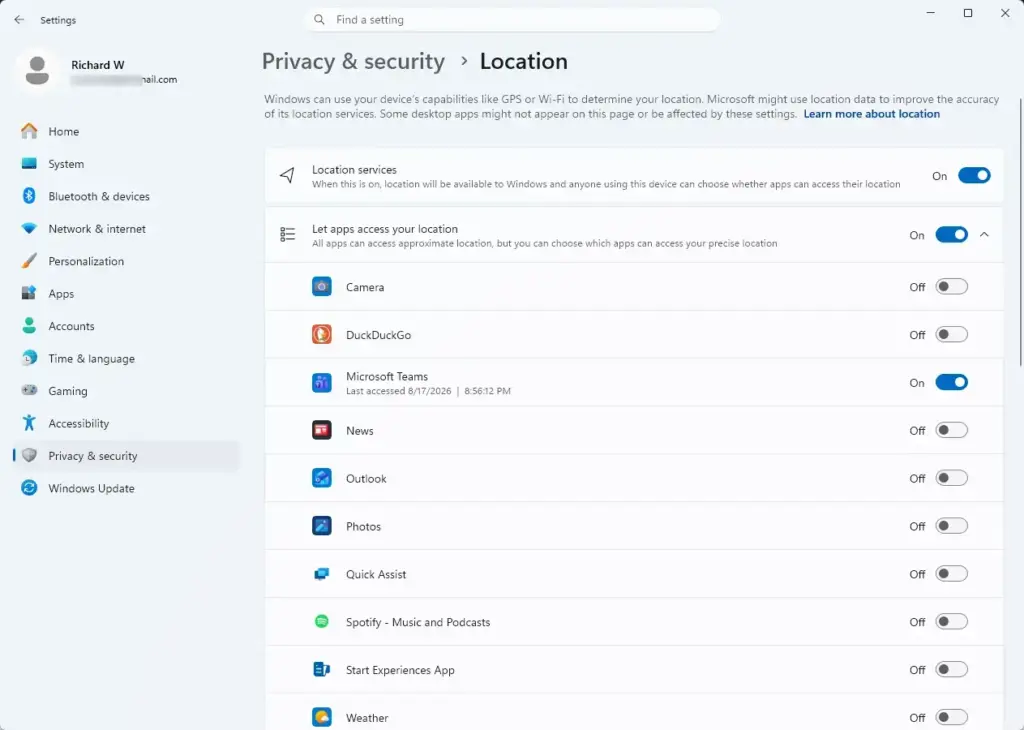
- Scroll down the list of apps and services. If you see an entry for date and time or time zone, make sure its switch is on as well. The exact list varies between Windows builds, so you may not see one. That is fine as long as Location services is on.
- Go to Settings Time & language Date & time. You can also type ms-settings:dateandtime into the Run box. Check whether Set time zone automatically can be clicked now.
You should now have location services on, and the automatic time zone switch should respond. Location changes usually take effect straight away, so a restart is not normally needed. To undo this, turn Location services off again. If the switch is still grey, carry on to the next section.
How to Change Your Time Zone Manually
While you track down the real cause, you can set the time zone by hand. This gets your clock right straight away. It does not fix the greyed-out switch.
- Open Settings Time & language Date & time, or enter ms-settings:dateandtime in the Run box. The Date & time page should appear.
- If Set time zone automatically is on and you can click it, turn it off. If it is greyed out, leave it. The Time zone dropdown below it is often still usable.
- Open the Time zone dropdown and pick your region. The clock should update at once.
That’s it. Your clock now shows the correct local time, even though the automatic switch may still be locked. To go back, pick your old region from the same dropdown.
If the Time zone dropdown is also greyed out, the block comes from your account type or from a policy. Changing the time zone is a system-wide setting, and a standard user account may not be allowed to do it. On a shared PC, or a work or school device, sign in with an administrator account or ask your IT support team to make the change.
Checking Registry Settings for Time Zone Restrictions
Next, look for registry restrictions. The registry is the database where Windows stores its settings. Security tools, old scripts or management software can leave policy entries there that lock your clock options.
- Open the Registry Editor. You need administrator rights to edit this part of the registry.
- Browse to 🗝️HKEY_LOCAL_MACHINE\
SOFTWARE\ in the left pane.Policies\ Microsoft - Look under it for entries that relate to time or location.
- Before you change or delete anything, right-click the key and choose Export to save a backup.
You should now know whether a leftover policy is present. Only remove entries you can identify. If the PC belongs to your employer, ask IT first, because the policy is probably there on purpose and may be recreated. To undo a change, double-click the exported backup file and confirm the merge.
Whether or not you find anything in the registry, check that the Windows Time service is running. A service is a background program that Windows starts automatically.
- Click the Start button, type Services in the search box, and open the Services app. You should see a long alphabetical list.

- Scroll down until you find Windows Time.
- Right-click Windows Time and select Properties. A small window opens.
- Open the Startup type dropdown and change it to Automatic if it is set to something else.
- If the service status says Stopped, click the Start button.
- Click Apply, then click OK.
You should now have the Windows Time service set to run automatically. Restart your computer after changing it. When it comes back up, open the date and time settings and check whether the switch works. You need administrator rights to change system services. To undo the change, return to the same Properties window and restore the previous Startup type.
Unique Fix: Checking Group Policy Restrictions
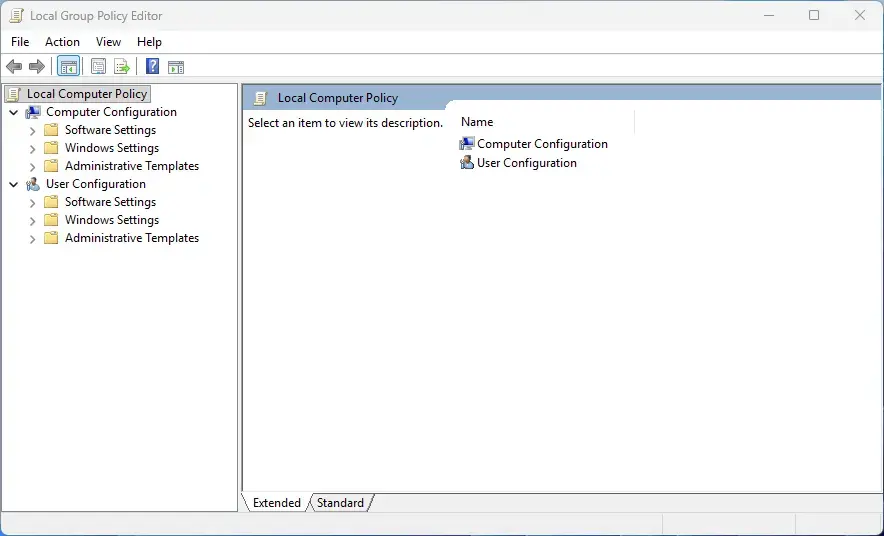
If the PC has a strict security policy, Group Policy may be locking the time zone selector. Group Policy is a set of rules that overrides your personal choices, so the switch stays frozen until the policy is cleared. The Local Group Policy Editor only exists on Windows Pro, Enterprise and Education. Windows Home does not include it, so Home users can skip this section.
- Press the Windows key and the R key together to open the Run dialog box.
- Type gpedit.msc into the box and press Enter. The Local Group Policy Editor should open. If Windows says it cannot find the file, you are on Home edition.
- In the left pane, expand Computer Configuration, then Administrative Templates, then System, and select Windows Time Service.
- Look at the settings in the right pane for anything that is Enabled and restricts time changes. If you find one, double-click it, select Not Configured, and click OK.
You should now have the restricting policy cleared. Restart your computer so the change applies. You need administrator rights to change local policies. To undo it, open the same policy and set it back to its earlier value.
If Settings shows the message “Some settings are managed by your organization”, the policy may come from a domain or device management system. A local change will not stick in that case, so contact your IT team.
Unique Fix: Syncing Your Clock with Internet Time Servers
If your PC cannot reach a time server, its clock can drift, and the automatic time features may stop working properly. Forcing a sync rules this out.
- Open the Start menu and go to Settings.

- Click Time & language, then select Date & time. Entering ms-settings:dateandtime in the Run box takes you to the same page.
- Scroll down to the related links and click Additional clocks. This opens the classic Date and Time window. You can also open the classic Control Panel, search for “Date and Time” and open it from there.
- Click the Internet Time tab at the top of the small window.
- Click Change settings. Windows will ask for administrator permission.
- Tick Synchronize with an Internet time server, choose a server such as time.windows.com from the dropdown list, and click Update now. You should see a message saying the clock was synchronized successfully. If you get an error, check your internet connection and any firewall that might block time traffic.
- Click OK to save your changes.
That’s it. Your clock is now synced with an internet time server. On current Windows 11 builds, the Date & time page also has a Sync now button under the additional settings. It does the same job with fewer clicks.
Once the clock has synced, go back to Date & time and check whether Set time zone automatically is available again. You need administrator rights to change internet time server settings.
Summary
To fix a locked automatic time zone switch, work through these in order: turn on location services, check the registry and the Windows Time service, clear any Group Policy rule, and sync your clock with an internet time server. Home users almost always solve it with the location privacy settings. Work and school PCs are usually locked by policy, and in that case the fix has to come from your administrator.
Keep Windows 11 on version 25H2 as well, since 24H2 Home and Pro no longer receive updates, including time zone updates.
Have a question about this guide?
Answered by AI from this guide. Good questions may be added to this page — please don't include personal details.
Did this guide fix your problem?

About the Author
Richard
Tech Writer, IT Professional
Richard is a writer at Geek Rewind who turns complex IT tasks into clear, step-by-step guides. He draws on years of hands-on experience in system administration and enterprise IT operations, focusing on Windows, Linux and WordPress: the problems people actually run into, and the fixes that work. His server and WordPress guides come from systems he runs himself. Richard builds and maintains the platform behind Geek Rewind, from its Ubuntu servers and Nginx configuration to its custom WordPress plugins. Many new tutorials start with readers' questions, and he's always glad to answer them in the comments.
No comments yet — be the first to share your thoughts!