How to Set Default Location Access for Apps in Windows 11 Location Settings

Default location access in Windows 11 controls where apps look when your PC has no GPS chip. Most desktops and many laptops don’t have one. In that case Windows estimates your position from your internet connection and nearby Wi-Fi networks. If that fails, it uses a fallback address that you save yourself.
Setting up these privacy controls lets you decide which programs can see your area and which stay blocked. You can keep your personal data private and still let trusted weather or map apps work normally. All the settings below are in one place, Privacy & security Location, in the Settings app. Everything here applies to both Windows 11 Home and Pro unless a section says otherwise.
To set a default location for apps in Windows 11, open Settings , go to Privacy & security Location, scroll to Default location, and click Set default. The Maps app opens, so enter your address or drag the pin, then click Save. Apps like Weather and Maps will use it when Windows can’t find your position.
How to Access Location Settings in 🪟 Windows 11
Everything in this tutorial starts from the Location page in Settings. From there you can switch location tracking on or off for the whole PC, set a default address, control individual apps, and clear your location history. Here is how to get to that page.
- Open Settings . Click the Start button on the taskbar and select the Settings gear icon, or press Win+I to open it directly. The Settings window opens with a list of categories on the left.

- Click Privacy & security. It is in the left-hand sidebar. The right side of the window now shows privacy options.
- Click Location. Scroll to the App permissions section on the right to find it. The Location page opens.
This page is the hub for everything location-related. You can turn location tracking on or off for the whole computer, manage app access, clear your history, and set a default location. If you can’t find the page, check that you are in Privacy & security and not following the Privacy pages of an older Windows 10 guide. The layout described here is for current Windows 11.
Turning Location Services On or Off Globally
The Location services switch is the master control. It blocks or allows location access for every app and system service on the PC at once. Use it when you want a quick, blanket change instead of going through apps one by one.
- Open Settings and go to Privacy & security Location. Press Win+I, click Privacy & security, then click Location.

- Find the Location services toggle. It sits at the top of the page, and its label shows whether it is currently on or off.
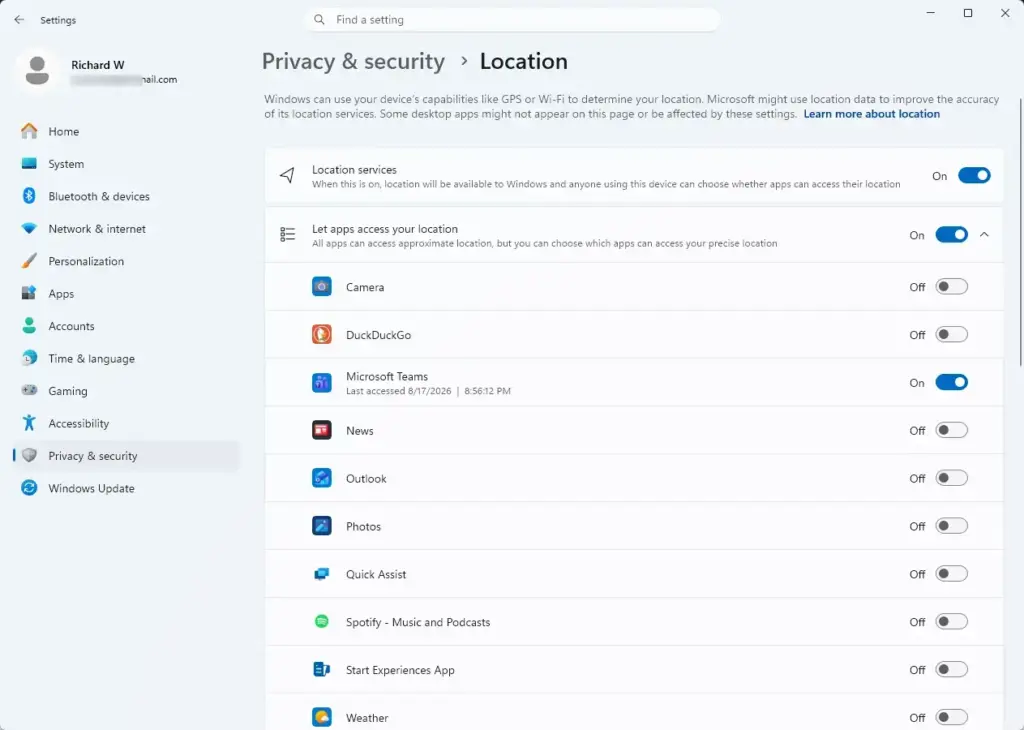
- Click the toggle to switch it Off or On. The label next to it changes to match. Changes apply immediately, and you don’t need to restart.
When the master switch is off, Windows blocks all apps and system services from requesting your coordinates. An app can have its own permission turned on and still receive no data while the master switch is off. If the options below the switch are greyed out, the master switch is usually the reason. On a work or school PC, an administrator’s policy can also lock these settings. In that case you will see a message that some settings are managed by your organization.
To undo the change, click the same toggle again.
How to Set a Default Location in 🪟 Windows 11
These steps set a default location for your apps, which is different from the default apps settings that choose your browser or file handlers. A default location gives Windows a fallback spot when it can't work out where you are. Apps that ask for your position, such as Weather or Maps, will use this address instead of showing nothing.
- Open Settings. Press Windows Key + I, or click Start and select the Settings gear icon.
- Click Privacy & security. It is in the left-hand sidebar.
- Click Location. It is under App permissions, and the Location page opens.
- Scroll down to Default location. This section sits below the app list. You should see a Set default button there.
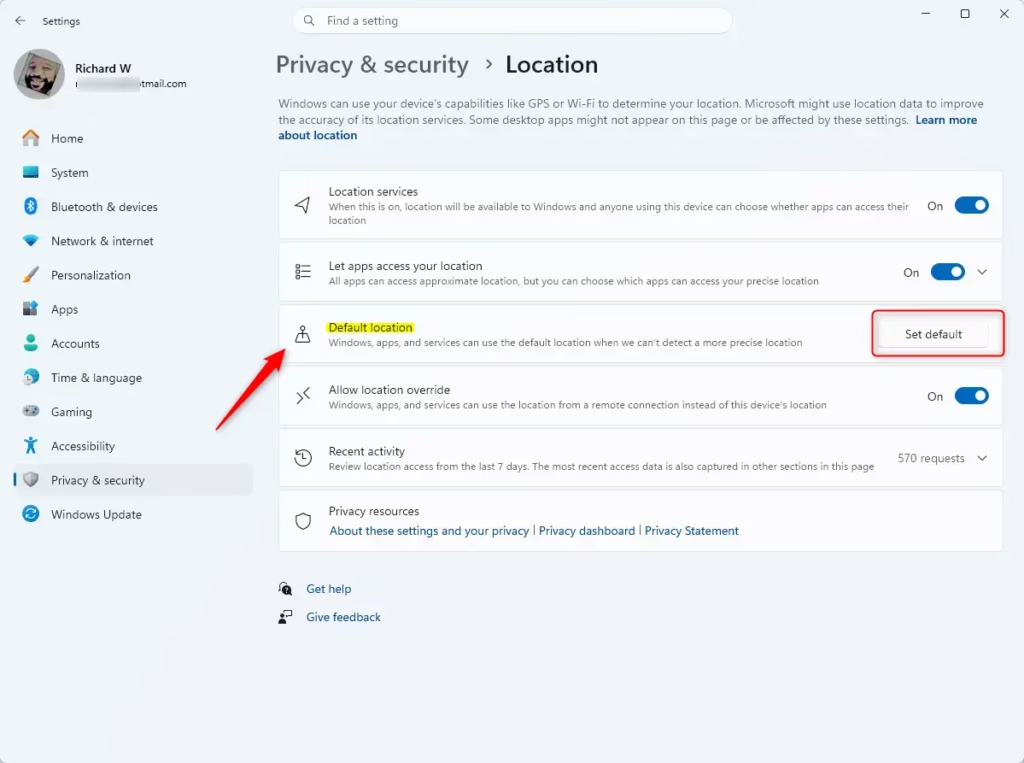
- Click Set default. The Maps app opens.
- Enter your address. Type it into the search box, or drag the location pin to the spot you want. Use an address close to where you really are, since apps will treat it as your position.
- Click Save. This confirms the address as your default location.
Whenever an app requests your position and Windows can't determine it through your Wi-Fi or network hardware, the system falls back to this address. The default location is only a fallback. It does not override a position Windows can already detect. To change the address later, return to the same page and click Set default again.
Managing Location Permissions for Individual Apps
Per-app permissions let you allow location for the apps you trust and block the rest. This is the most useful setting for everyday privacy.
- Open Privacy & security Location. Press Windows Key + I to open Settings, then click Privacy & security and Location.
- Check that Location services is On. If it is off, click the toggle once to switch it on.
- Check that Let apps access your location is On. You will find it below the master switch. If either toggle is off, the app list below stays unavailable.
- Scroll down to the list of individual apps. You may see Weather, Maps, or your web browser. Only apps that have asked for location at some point appear in this list.
- Click the toggle next to the app you want to change. This turns its location access On or Off, and the change takes effect straight away.
Keeping tight control over these permissions stops minor utilities from tracking your whereabouts in the background without your knowledge. If a map or weather app stops showing local results, come back to this list and check that its toggle is still on. To undo a change, click the same toggle again.
Clearing Location History
Windows keeps a short record of where your device has recently been. Clearing it removes that record from this PC.
- Open Privacy & security Location. Press Windows Key + I to open Settings, then click Privacy & security and Location.
- Scroll down to Location history. It is further down the page, below the app list.
- Click the Clear button. It sits next to the text "Clear location history on this device."
There is no undo, but nothing else changes. Your toggles and default location stay as they were. If you use a Microsoft account, some location data may also be kept in your online account, and you can manage that from your account's privacy dashboard.
Advanced Management Options: Group Policy and Registry Settings
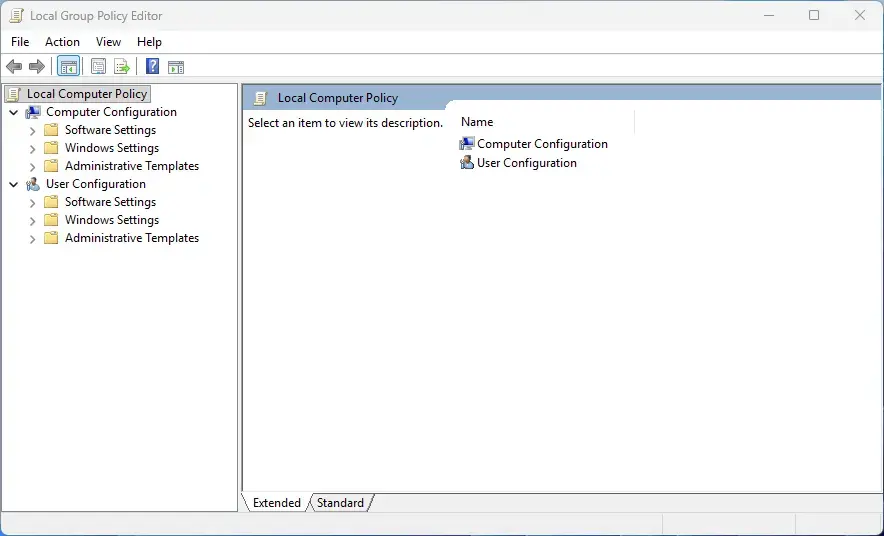
If you manage several computers or prefer system-level tools, you can control location access through the Registry Editor. The Registry is a database of low-level Windows settings. IT administrators often use it to enforce privacy rules across a shared environment. It works on both Windows 11 Home and Pro, but you need administrator rights. Editing the wrong value can cause problems, so only change the one described here.
In Registry Editor, right-click the key and choose Export to save a backup file. If something goes wrong, you can double-click that file to put the old values back.
- Press Windows Key + R. The Run dialog box opens.

- Type regedit and press Enter. If a User Account Control prompt asks for administrator permission, click Yes. The Registry Editor window opens.
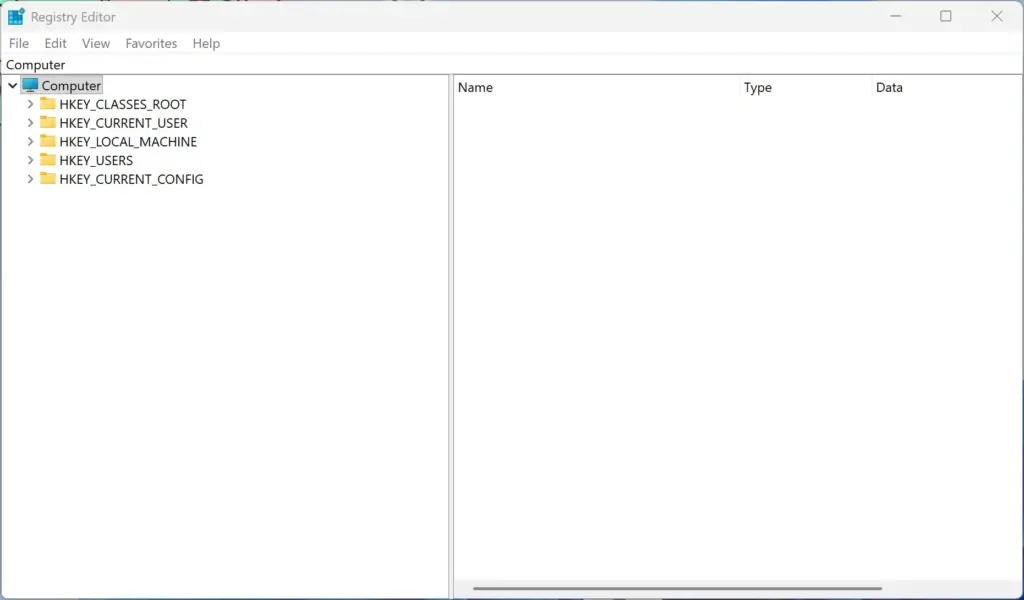
- Go to the location key in the left pane. Expand the folders to reach HKEY_LOCAL_MACHINE\SOFTWARE\Microsoft\Windows\CurrentVersion\CapabilityAccessManager\ConsentStore\location. You can also paste that path into the address bar at the top of the window and press Enter.
- Look for the string value named Value. It is on the right side of the screen.
- Double-click Value. Its properties window opens.
- Change Value data to Allow or Deny, then click OK. Enter Allow to enable access, or Deny to disable it entirely.
Close the Registry Editor when you are done. If the change doesn't show up in the Location page right away, close and reopen Settings, or sign out and back in. To reverse it, set the value back to its previous data.
Summary
Managing your location settings in Windows 11 protects your privacy while keeping helpful apps running properly. Using Privacy & security Location, you can control tracking for the whole PC, change per-app permissions, clear your history, and set a manual default location. Check the app list every so often, especially after installing new software.
Have a question about this guide?
Answered by AI from this guide. Good questions may be added to this page — please don't include personal details.
Did this guide fix your problem?

About the Author
Richard
Tech Writer, IT Professional
Richard is a writer at Geek Rewind who turns complex IT tasks into clear, step-by-step guides. He draws on years of hands-on experience in system administration and enterprise IT operations, focusing on Windows, Linux and WordPress: the problems people actually run into, and the fixes that work. His server and WordPress guides come from systems he runs himself. Richard builds and maintains the platform behind Geek Rewind, from its Ubuntu servers and Nginx configuration to its custom WordPress plugins. Many new tutorials start with readers' questions, and he's always glad to answer them in the comments.
No comments yet — be the first to share your thoughts!