How to Manage Camera, Microphone, and Location Access for Desktop Apps in Windows 11

Windows 11 now lets you allow or deny camera, microphone, and location access for each desktop app individually, instead of through one device-wide switch. The feature is only in Windows Insider preview builds, which are test versions of Windows that Microsoft releases to people who have joined its Insider Program. It starts with Beta Build 26220.9836, and the quickest way to reach it is Settings Privacy & security Camera, Microphone, or Location.
A desktop app is a traditional Windows program, such as one you install with an .exe or .msi file (the installer file types most traditional programs use), as opposed to an app from the Microsoft Store. Until now, Windows controlled these programs with a single “Let desktop apps access” switch for each resource. The new per-app controls replace that all-or-nothing choice.
This feature may change before it reaches a public release, so menu names and layout can differ from what is described here.
Open Settings Privacy & security Camera (or Microphone or Location) in a Windows 11 Insider preview build such as Beta Build 26220.9836 or later, then switch access on or off for each desktop app. Your choice takes effect straight away, and you can change it later on the same page.
What per-app access changes for desktop apps
On current public builds of Windows 11, the Camera, Microphone, and Location pages each have one switch that covers every desktop app on the PC. Turn it on and every classic program can use the device. Turn it off and none can. Microsoft Store apps already get their own per-app switches on those pages.
The Insider build gives desktop apps the same per-app treatment. You can let a video-calling program use your camera and microphone while blocking a photo editor that has no reason to ask for either. You can also allow location for a mapping tool and deny it everywhere else.
Apps that have not yet used the camera, microphone, or location ask you for permission the first time they need it. That means you do not have to pre-configure every program. You can answer as each one asks, then review your choices later on the same pages.
Before you start
Changing these privacy settings does not modify system files, and you can reverse every change from the same page. The only risk is that blocking an app can stop its camera, microphone, or location features from working until you allow it again.
How to manage camera, microphone, and location access for desktop apps
Start by checking that your PC runs a supported Insider build. Then open the Camera, Microphone, and Location pages and review the apps listed on each one. They run in one sequence, from checking your build to reviewing each of the three resources.
- Press Win+R, type winver, and press Enter. The About Windows dialog opens. Check that the build number is 26220.9836 or later. If it is lower, the per-app options for desktop apps are probably not available yet. See the troubleshooting section below.
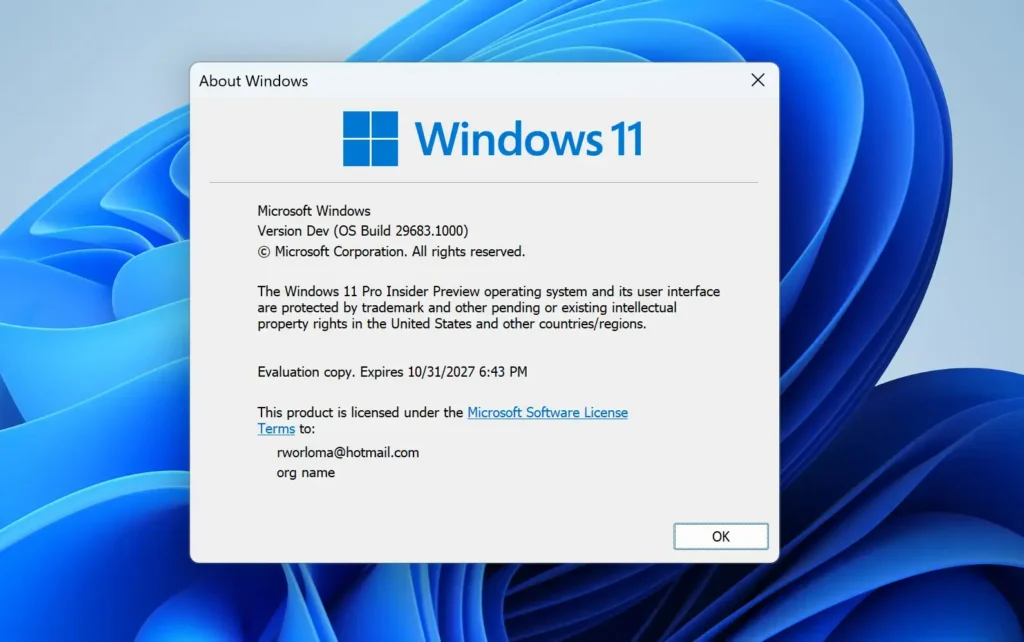
- Close the About Windows dialog. Select OK to return to your desktop.
- Open Settings. Press Win+I, or right-click Start and choose Settings.

Start Menu - Select Privacy & security in the left pane. The right pane lists privacy categories, including a group called App permissions.

- Scroll to App permissions and select Camera. The Camera page opens, with the access switches at the top.
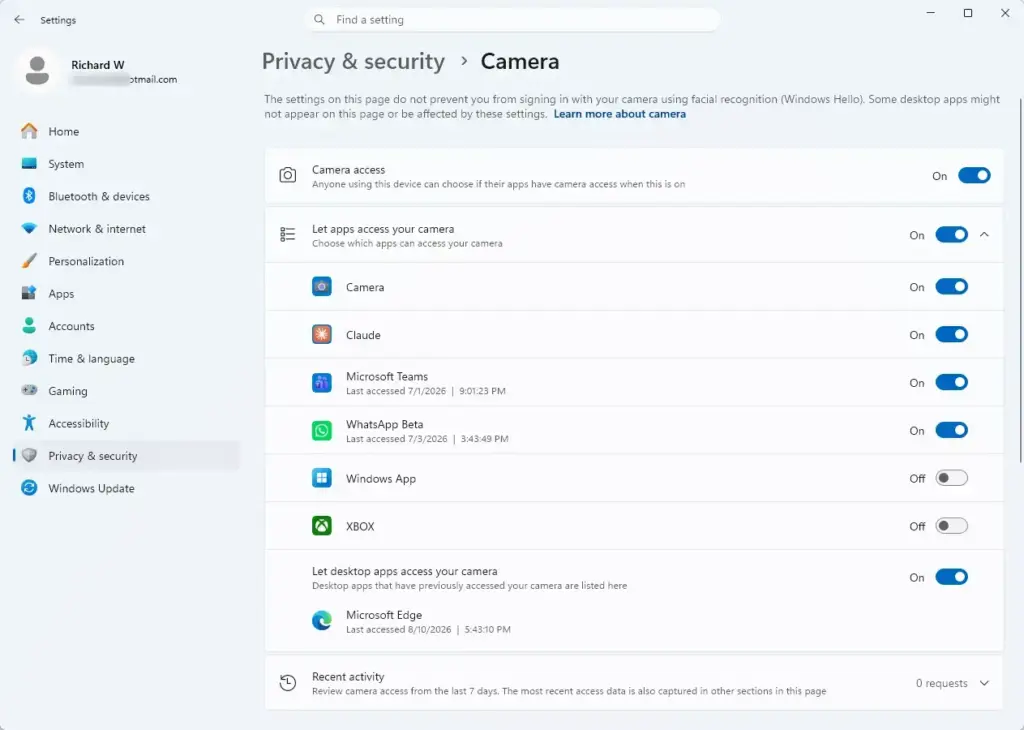
Settings › Privacy & security › Camera - Find the desktop app you want to control in the app list. The Insider build shows desktop apps individually, alongside any Microsoft Store apps that have used the camera.
- Set that app to allow or deny camera access. Use the control next to the app’s name. The exact control may change before release, so read the label on your build.
- Select the back arrow, then select Microphone. The Microphone page opens with the same layout.
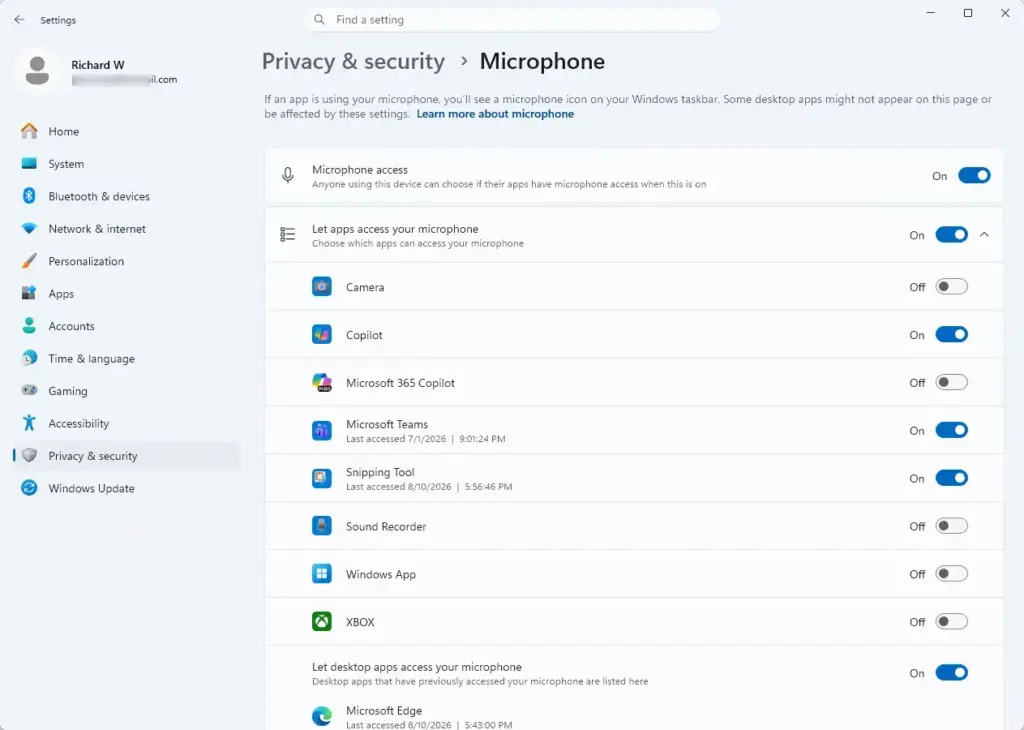
Settings › Privacy & security › Microphone - Find the desktop app in the list and set its microphone access. Choose allow for programs you use for calls or recording, and deny for the rest.
- Select the back arrow, then select Location. The Location page opens. It has its own switches, plus options for default location and location history that this process does not change.
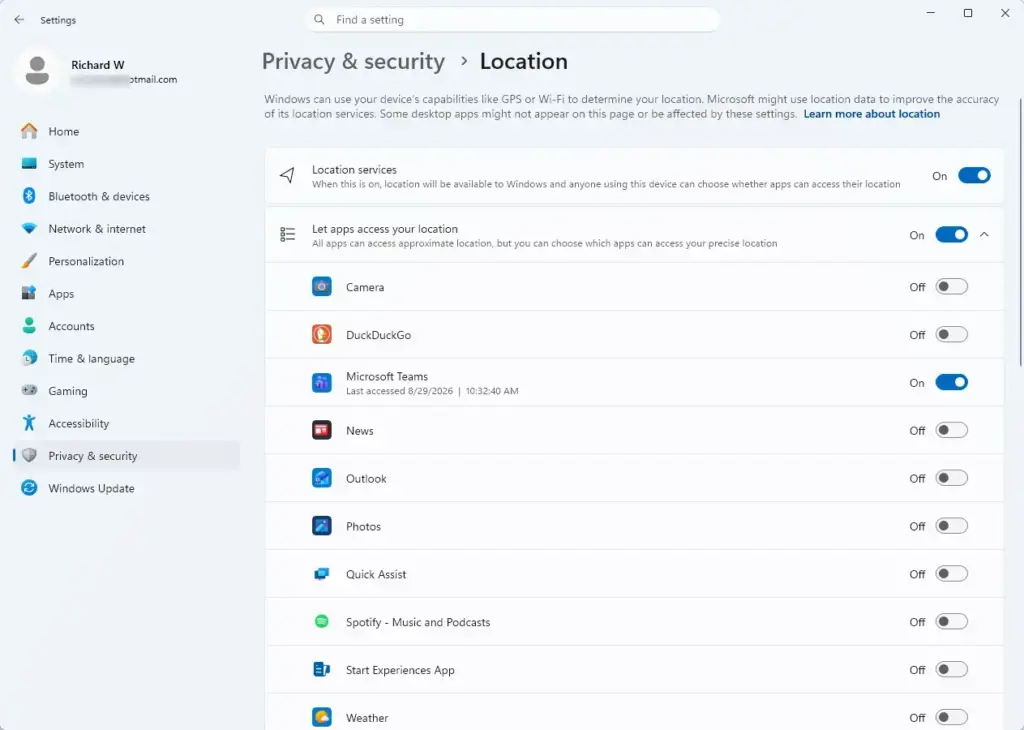
Settings › Privacy & security › Location - Find the desktop app in the list and set its location access. Allow it only for apps that need to know where you are, such as mapping or weather tools.
- Close Settings. The changes apply immediately, with no restart needed as far as Microsoft’s description goes.
If an app you expect is missing from a list, it has probably not requested that resource yet. Apps appear after they first try to use a device, or after you answer their first prompt. Open the app and trigger the feature, for example by starting a video call, and then check the page again.
What happens the first time a desktop app asks for access
When a desktop app that has not touched the camera, microphone, or location requests access, Windows shows a permission prompt. You choose to allow or deny it. That choice then appears on the matching page under Privacy & security, so you can change it later.
Deny the prompt if you do not recognize why the app needs the resource. A calculator, a file archiver, or a text editor has no ordinary reason to ask for your microphone. A video-conferencing tool, on the other hand, will not work properly without camera and microphone access.
If you deny a prompt by mistake, do not reinstall the app. Open the relevant page in Settings Privacy & security, find the app, and change its setting to allow.
If the per-app options are missing
Most problems come from the build you are running. Work through these checks in order, and stop at the first one that explains your problem.
- You are on a public build. Per-app controls for desktop apps exist only in Windows Insider preview builds so far. On a public release you see the single device-wide switches instead. There is no workaround in Settings.
- Your build is older than 26220.9836. Go to Settings Windows Update and select Check for updates. Install any available Beta Channel update, restart, and open the page again.
- You are in a different Insider channel. Check Settings Windows Update Windows Insider Program to see which channel you are in. Microsoft announced the feature in a Beta Channel build (one of the Windows Insider channels), so other channels may get it later or not at all.
- The feature has not reached your PC yet. Microsoft sometimes turns on Insider features for some devices before others, even on the same build. If your build number matches and the options are still absent, check back after the next update.
The release notes do not explain how the per-app choices interact with the main switch at the top of each page. If an app cannot reach your camera, microphone, or location even though you allowed it, check both the main switch and the app’s own setting. Turn both on, then test again.
Managing location beyond app permissions
Allowing an app to use your location is only part of how Windows handles location data. Other settings decide where Windows believes you are when no precise location is available, and which apps can watch for you entering or leaving an area.
To set the backup location that apps get when Windows cannot find your exact position, read how to set default location access for apps in Windows 11. If you no longer want that stored position, clearing your default location in Windows 11 removes it.
Some apps use geo-fencing, which means they react when your device enters or leaves a defined area. The guide to managing geo-fencing permissions in Windows 11 location settings covers that separately from the per-app list.
Two related settings also change what location apps see. Location override in Windows 11 controls whether another setting can override your location, and changing the geographic location in Windows 11 controls your region. Neither replaces the per-app permission described above.
How to undo or adjust a change
Every per-app choice is reversible. Open Settings Privacy & security, select Camera, Microphone, or Location, find the app, and switch its setting back. The change takes effect right away, with no restart needed.
If you block an app and later find a feature stopped working, check these pages first. A call that has no audio or a map that cannot find you often traces back to a denied permission. Reviewing the three pages once every few months is also a sensible habit, because new apps add themselves to the lists as they request access.
Because this feature is in preview, Microsoft may rename the controls, move them, or change how the first-time prompt behaves before release. If your screen does not match the steps above, the route through Settings Privacy & security is still the place to look.
What to do next
Once your camera, microphone, and location permissions are set, review the location settings that sit alongside them, starting with your default location. If you want to limit what Windows records about your use of apps and files, managing activity history in Windows 11 is the closest related privacy task. Check the Windows Insider release notes for later builds to see whether Microsoft changes these controls.
Frequently asked questions
How to pin apps to 🪟 Windows 11 taskbar efficiently?
Open the Start menu, find the app, right-click it, and select Pin to taskbar. To pin a program that is already open, right-click its icon on the taskbar and choose Pin to taskbar. Drag pinned icons left or right to reorder them. To remove one, right-click it and select Unpin from taskbar.
How to manage user accounts in 🪟 Windows 11?
Open Settings, select Accounts, then choose Other users to add, remove, or change an account. Sign-in options control how people log in. To add someone, select Add account. To change permissions, select the account, choose Change account type, and pick Administrator or Standard User. Removing an account deletes its files, so back them up first.
How to manage notifications in 🪟 Windows 11?
Open Settings, select System, then choose Notifications to turn alerts on or off. Scroll to Notifications from apps and senders to switch off alerts for a single app. Select an app to change its banner, sound, and lock screen options. Use Focus to silence alerts for a set time.
How to pin apps to start menu in 🪟 Windows 11?
Open the Start menu, select All apps, right-click the app, and choose Pin to Start. The app appears in the Pinned section at the top. To move it, right-click it and choose Move up or Move down. To remove it, select Unpin from Start. Pinned items are a shortcut only and do not uninstall anything.
Still have a question?
Answered by AI from this guide. Good questions may be added to this page — please don't include personal details.
Did this guide fix your problem?

About the Author
Richard
Tech Writer, IT Professional
Richard is a writer at Geek Rewind who turns complex IT tasks into clear, step-by-step guides. He draws on years of hands-on experience in system administration and enterprise IT operations, focusing on Windows, Linux and WordPress: the problems people actually run into, and the fixes that work. His server and WordPress guides come from systems he runs himself. Richard builds and maintains the platform behind Geek Rewind, from its Ubuntu servers and Nginx configuration to its custom WordPress plugins. Many new tutorials start with readers' questions, and he's always glad to answer them in the comments.
No comments yet — be the first to share your thoughts!