How to Manage Windows 11 Security and Privacy Settings

Windows 11 security and privacy settings control how Microsoft Defender blocks viruses, manages app permissions, and protects your personal files on version 23H2 and later. This central menu hub holds the tools you need to lock down your computer and stop apps from tracking your data.
Open the Settings app and select Privacy & security to change what personal information apps can see. At the top of that page, select Windows Security to run a virus scan. Both are in Settings Privacy & security. Some options depend on your edition (Home or Pro) and your hardware, and I note those differences as we go.
To run a virus scan in Windows 11, open the Windows Security app from your Start menu or system tray . Select Virus and threat protection, and then click Quick scan. You can also choose Full scan if you want to check every single file on your hard drive for threats.
Scan Your PC and Stop Threats
Check your computer for harmful files and use advanced isolation tools to browse the web safely. You will use these steps when you suspect a virus or want an extra layer of protection against risky websites.
Windows Security covers most of this on every edition. Real-time protection runs in the background all the time, and you can start a manual scan whenever something looks wrong. The app also has App & browser control, which holds reputation-based protection against dangerous downloads and sites. If you run Windows 11 Pro, Enterprise, or Education, you can also turn on Windows Sandbox. It opens a disposable copy of Windows where you can test a suspicious file or site. Everything inside it is deleted when you close it. Windows 11 Home does not include Windows Sandbox.


Control Windows AI and Privacy Settings
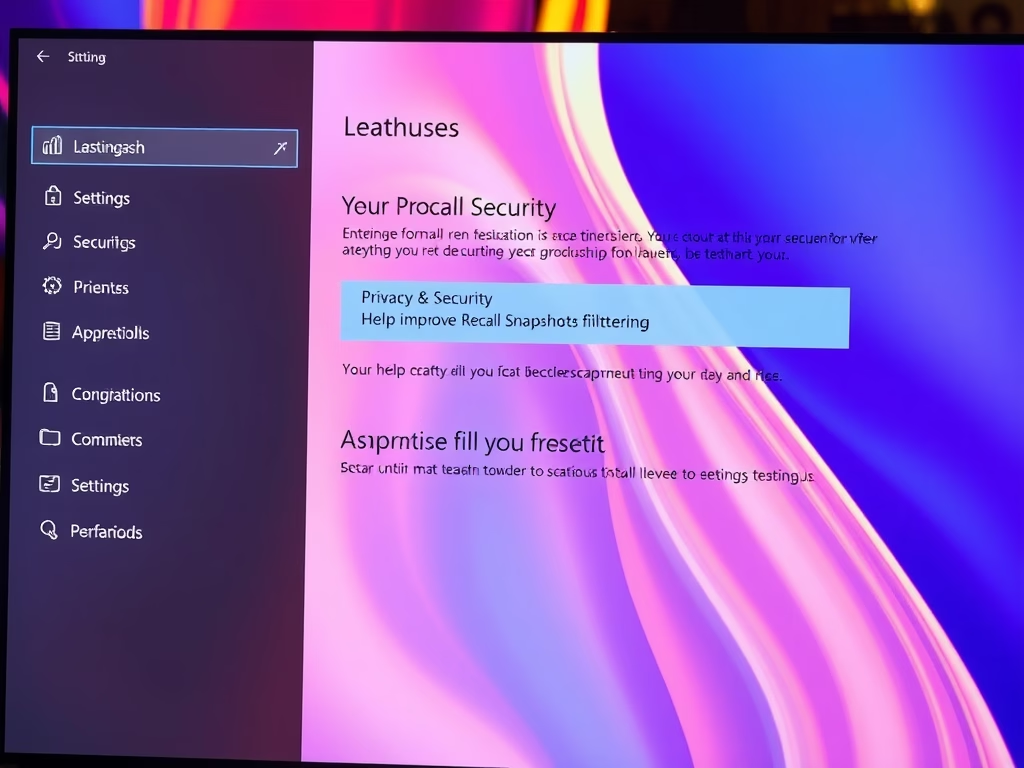
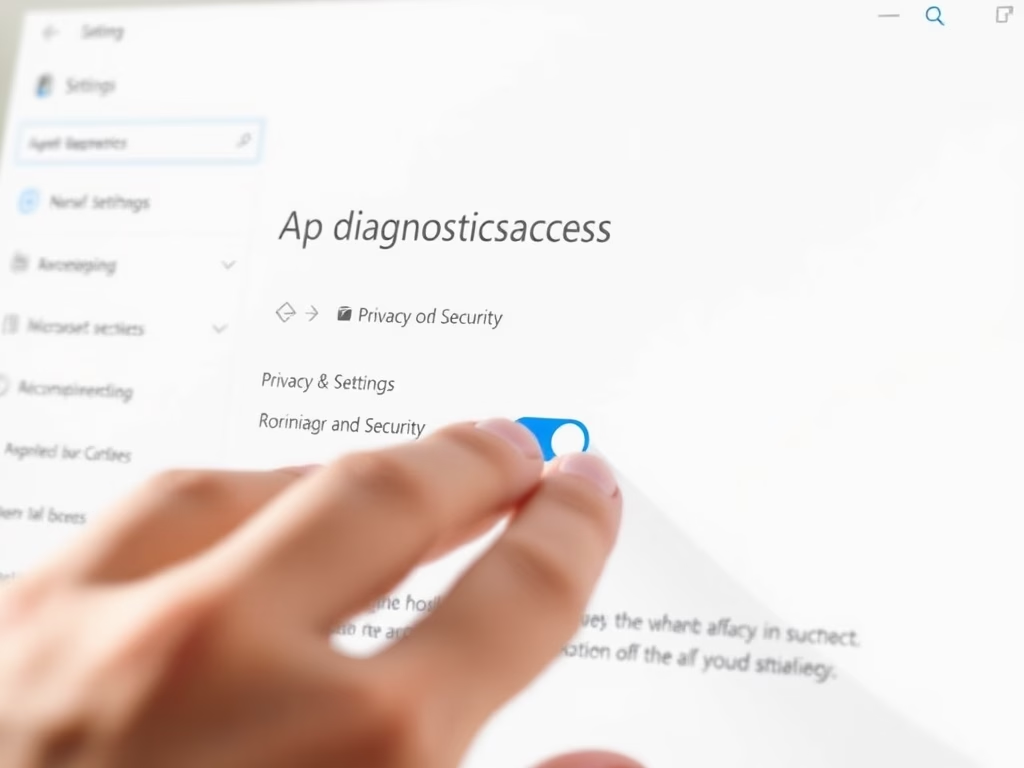
Manage new AI tracking features like Recall and control what diagnostic data your computer sends to Microsoft. Use these steps if you want to stop your PC from taking screenshots of your activity or sharing usage data.
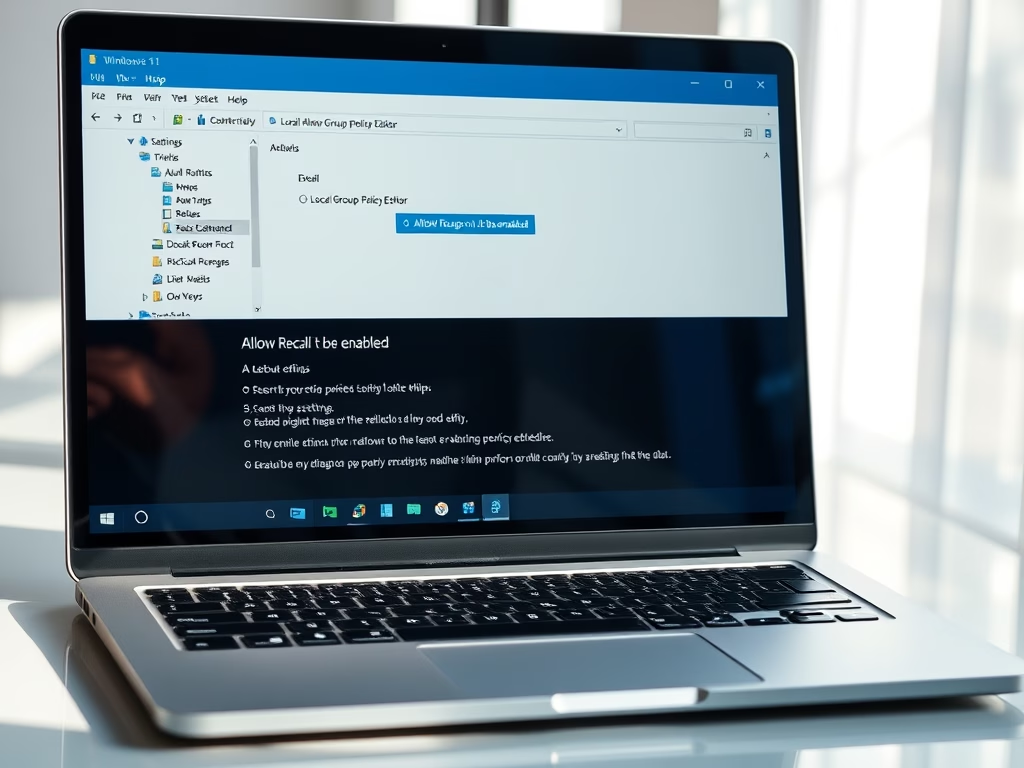
Recall only exists on Copilot+ PCs running Windows 11 24H2 or later. If you do not see it, your device probably does not support it, and there is nothing to turn off. Diagnostic data settings are available on all editions, but Home users cannot turn off required diagnostic data entirely. You can only turn off the optional part.
Manage User Accounts and Sign-In Rules
Set up administrator permissions, change password expiration rules, and control what standard users can do. These settings are important when multiple people share the same computer or when you want stricter account security.
The safest setup is one administrator account that you use only when needed, and standard accounts for everyday work. To change an account type, follow these steps:
- Open Settings Accounts Other users
- Select the account you want to change.
- Click Change account type.
- Choose Administrator or Standard User, then click OK.
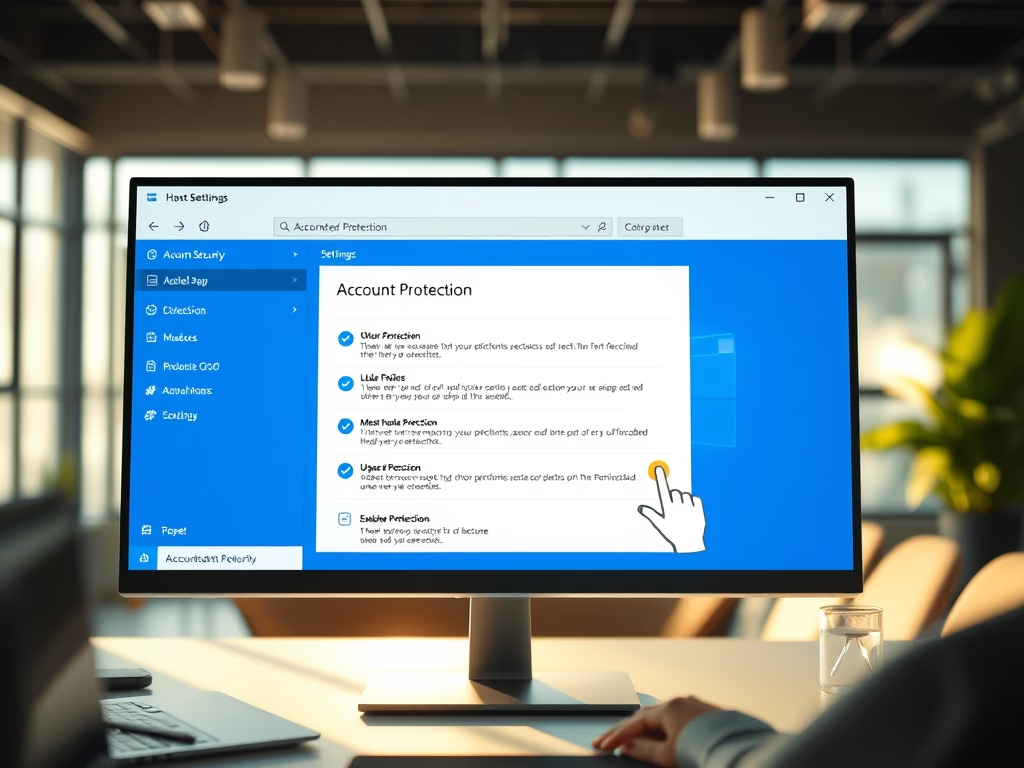
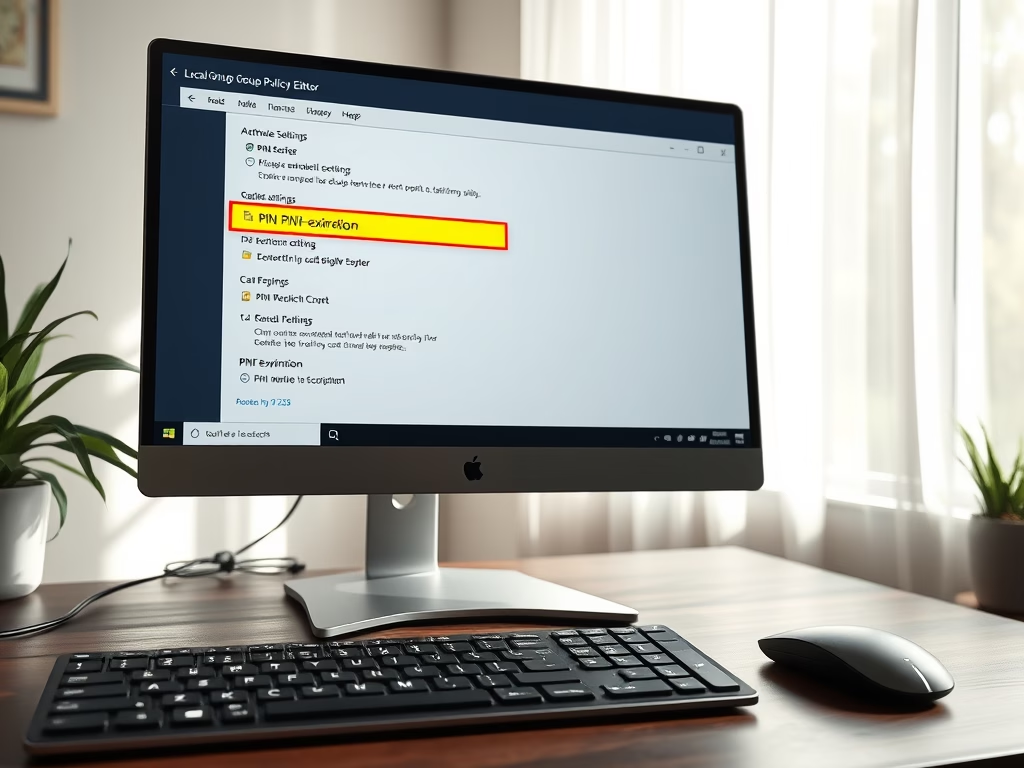
The account now has the new permissions the next time that person signs in. Password expiration rules are a separate matter. They apply to local accounts and are set through Local Security Policy (Account Policies Password Policy Maximum password age), which is available on Pro and higher. Microsoft accounts follow Microsoft’s own sign-in rules, so a local expiration setting does not apply to them.
Clean Up the Windows Security App
Hide specific security sections, family options, or notifications from view inside the Windows Security app. You might use these steps on a work computer or if you prefer a simpler security screen without clutter.
Hiding a section does not turn off the protection behind it. It only removes the page from the Windows Security window, so users cannot change those settings from there. Hidden sections can be restored by reversing the setting you used. The exact steps are in the last section of this tutorial.



Common questions
How do I run a virus scan in 🪟 Windows 11?
To run a scan, follow these steps:
- Open the Windows Security app from your system tray (the small icons near the clock) or from the Start menu . If you do not see the icon, click the small up arrow to show hidden icons.
- Select Virus & threat protection.
- Click Quick scan. Windows checks the places where threats usually hide, and this takes a few minutes.
- Wait for the result. You will see either “No current threats” or a list of detected items with options to remove or quarantine them.
If you want to check every file on your hard drive, click Scan options and choose Full scan, then click Scan now. A full scan can take an hour or more, but you can keep working while it runs. If you think malware is hiding from normal scans, the same page offers Microsoft Defender Offline scan, which restarts the PC and scans before Windows loads. Save your work first.
What is Windows Recall and how do I turn it off?
Recall takes periodic screenshots of your screen so you can search through past activity, but it raises privacy concerns for many users. You can disable this feature entirely through the Windows features menu or privacy settings.
The quick way to pause it is in the privacy settings. Open Settings Privacy & security, and look for Recall & snapshots. If you do not see that entry, your PC does not support Recall. If it is there, turn off the option to save snapshots, and Windows stops capturing your screen. You can also delete snapshots already saved from the same page.
To remove the feature entirely, search for Turn Windows features on or off in the Start menu , find Recall in the list, clear its check box, and click OK. Windows may ask you to restart. To bring Recall back, open the same window, tick the box again, and restart.
How do I stop lock screen notifications on 🪟 Windows 11?
Hide sensitive alerts from appearing on your locked screen by adjusting the notification settings in the Windows Personalization menu. This prevents people nearby from reading your private messages when you are away.
- Open Settings Personalization Lock screen
- Find Lock screen status and open its drop-down list.
- Choose None so no app shows detailed status on the lock screen.
The lock screen should now show only the time and your background. Also check Settings System Notifications, where you can open individual apps, such as your email or messaging app, and change how and where they show alerts. Locking your PC with the Win+L whenever you step away is still the best habit.
Should I turn off User Account Control in 🪟 Windows 11?
Turning off User Account Control (UAC) is risky. Leaving it enabled preserves the pop-up warnings that demand permission whenever apps try to change your system.
If UAC prompts annoy you, lower the level instead of switching it off. The slider in the UAC settings has four positions. The default, the second one from the top, is the right choice for most people. Setting it to Never notify removes the protection completely, and you will need to restart for the change to take full effect. If you did turn it off, move the slider back up and restart to get the warnings back.
Can I hide parts of the Windows Security app?
Administrators can hide specific tabs like Device Security or App & Browser Control using the Local Group Policy Editor or the Windows Registry. This is helpful if you manage multiple computers and want to hide settings your family or employees should not change.
The Local Group Policy Editor is only included in Windows 11 Pro, Enterprise, and Education. On Home, the Registry is the only route. Before you edit the Registry, create a restore point or export the key you plan to change, because a wrong edit can cause problems that are hard to trace. In Group Policy, the Windows Security policies sit under Computer Configuration Administrative Templates Windows Components Windows Security To undo a change, set the policy back to Not Configured, or delete the Registry value you added. After that, sign out and back in or restart so the hidden pages reappear.
Have a question about this guide?
Answered by AI from this guide. Good questions may be added to this page — please don't include personal details.
Did this guide fix your problem?

About the Author
Richard
Tech Writer, IT Professional
Richard is a writer at Geek Rewind who turns complex IT tasks into clear, step-by-step guides. He draws on years of hands-on experience in system administration and enterprise IT operations, focusing on Windows, Linux and WordPress: the problems people actually run into, and the fixes that work. His server and WordPress guides come from systems he runs himself. Richard builds and maintains the platform behind Geek Rewind, from its Ubuntu servers and Nginx configuration to its custom WordPress plugins. Many new tutorials start with readers' questions, and he's always glad to answer them in the comments.
No comments yet — be the first to share your thoughts!