How to Hide or Show Family Options in Windows Security


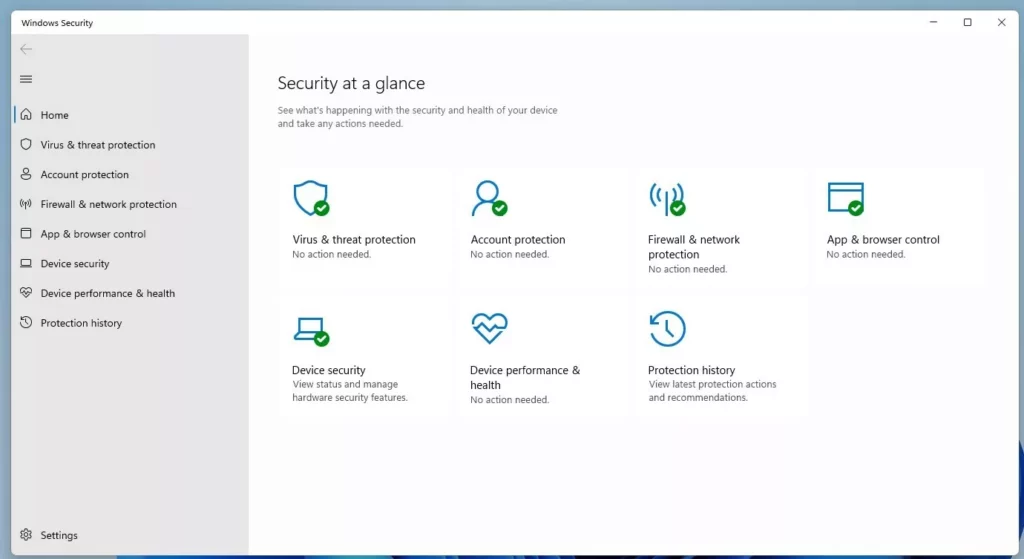
Family Options in Windows Security controls the visibility of the Microsoft Family Safety dashboard section, which lets you manage screen time and content filters for children on your PC.
This menu appears by default on Windows 11 systems, but you can hide it to clean up the security interface if you do not use parental controls.
Hide or show Family Options in Windows Security using the Local Group Policy Editor or Registry Editor. Navigate to Computer Configuration Administrative Templates Windows Components Windows Security Family options and adjust the “Hide the Family options area” setting, or modify the UILockdown value in the registry.
Applies To
This guide applies to both Windows 10 and Windows 11. Note that the interface may look slightly different between versions, but the underlying settings remain the same.
Important Warning: Registry Editor
A word of caution: Modifying the registry incorrectly can lead to system issues. Always back up your registry before making changes. Only proceed if you are comfortable with advanced settings.
Using the Local Group Policy Editor
Local Group Policy Editor lets you hide or show Windows Security Family options on Windows Pro and Enterprise editions. Open the Start menu , type gpedit.msc, and press Enter to start making changes to how these security settings appear on your computer.
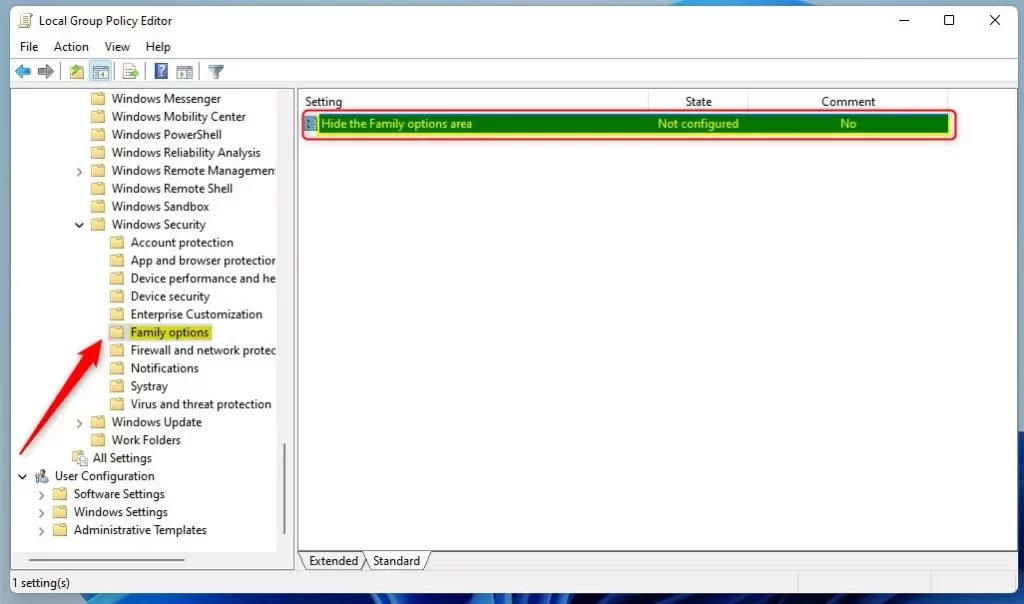
Press Win+R, type gpedit.msc, and press Enter to open the Local Group Policy Editor. Expand the left menu to Computer Configuration Administrative Templates Windows Components Windows Security Family options On the right pane, double-click the “Hide the Family options area” setting.

In the left menu, follow this path:
Computer Configuration Administrative Templates Windows Components Windows Security Family options
On the right side, double-click the setting named "Hide the Family options area."
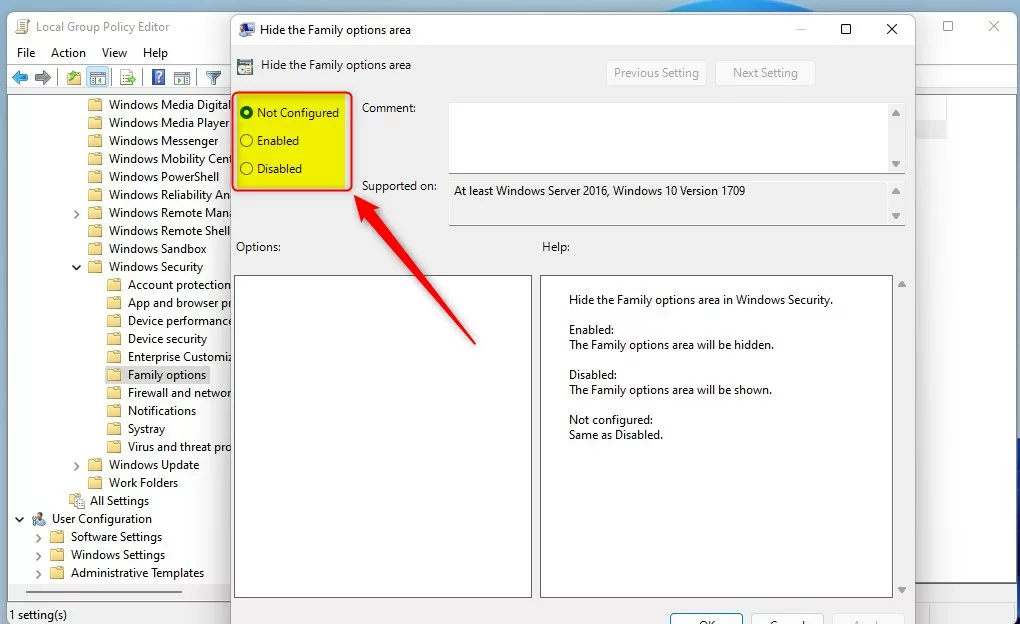
Choose one of these settings:
- Not Configured: This is the default setting.
- Enabled: Hides the Family options area.
- Disabled: Shows the Family options area.
Using the Windows Registry
Windows Registry Editor lets you hide or show Windows Security Family options if you use Windows Home and do not have the Group Policy Editor. Open the Start menu, type regedit, and press Enter to change the keys that control these security settings.
In this case, use the Windows Registry instead. Open the Registry Editor and navigate to this path:
HKEY_LOCAL_MACHINE\SOFTWARE\Policies\Microsoft\Windows Defender Security Center\Family options
You can create new registry keys if the necessary folders are missing. To do this, right-click the "Windows" key and select 'New' > 'Key'. This action allows you to add the required structure within the registry editor, such as the HKEY_LOCAL_MACHINE\SOFTWARE\Microsoft\Windows\CurrentVersion\Policies\FamilySafety registry path.
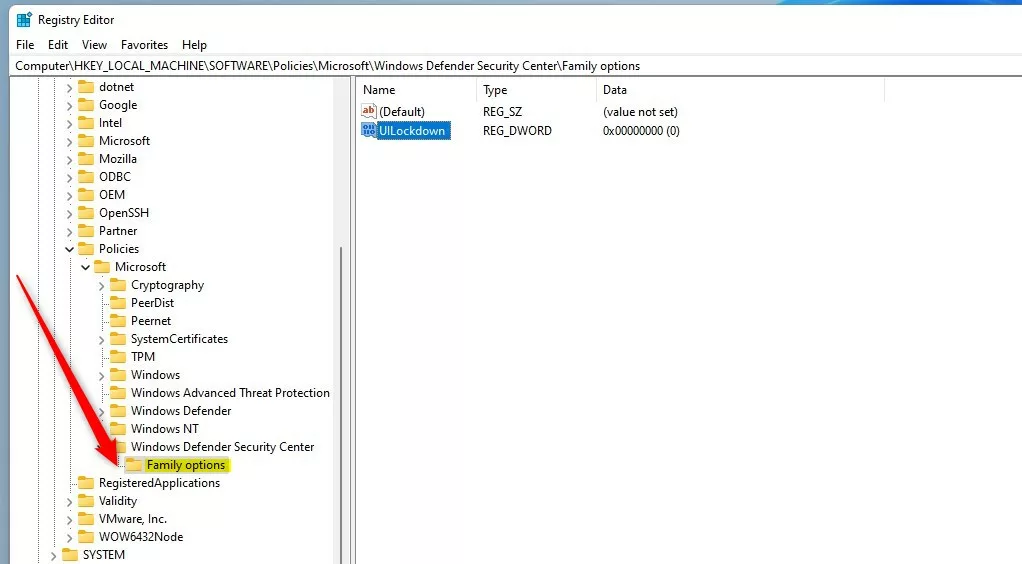
In the Windows Registry editor, right-click in the empty space on the right side. Select 'New,' then 'DWORD (32-bit) Value.' Name this new value `UILockdown`. This DWORD value controls whether the section appears.
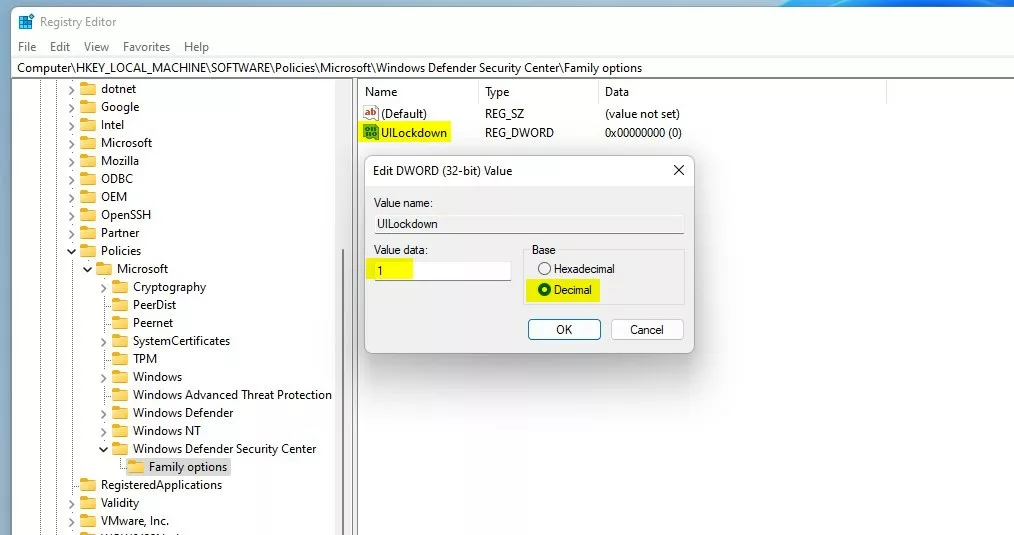
Double-click this new value and set its 'Value data' to:
- 0: Shows the Family options section in Windows Security app.
- 1: Hides the Family options section.
Summary
Managing the Windows Security Family options to hide or show them is achievable using either the Group Policy Editor or the Registry.
Was this guide helpful?

About the Author
Richard
Tech Writer, IT Professional
Richard is a writer at Geek Rewind who turns complex IT tasks into clear, step-by-step guides. He draws on years of hands-on experience in system administration and enterprise IT operations, focusing on Windows, Linux and WordPress: the problems people actually run into, and the fixes that work. His server and WordPress guides come from systems he runs himself. Richard builds and maintains the platform behind Geek Rewind, from its Ubuntu servers and Nginx configuration to its custom WordPress plugins. Many new tutorials start with readers' questions, and he's always glad to answer them in the comments.




No comments yet — be the first to share your thoughts!