How to Hide the Firewall &Amp; Network Protection Section in Windows 11 Security App


Hide the Firewall & Network Protection area in the Windows Security app to keep shared systems locked down. The goal is to streamline the security settings view, so people using the PC see fewer controls they could change by accident.
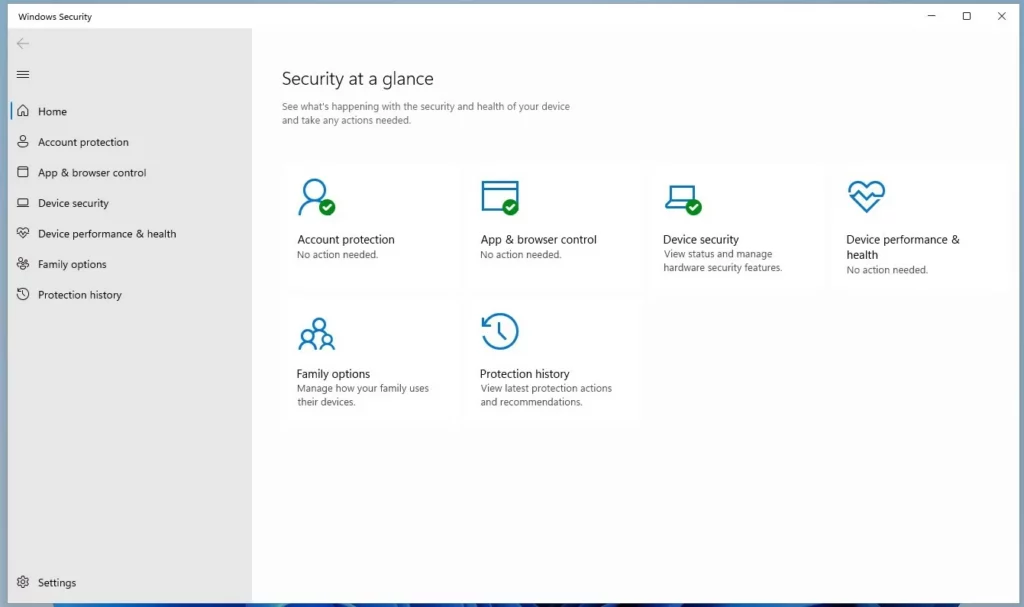
Hide the Firewall & Network Protection section by enabling “Hide the Firewall and network protection area” in the Local Group Policy Editor or by setting the UILockdown DWORD value to 1 in the Registry Editor. These methods prevent users from accessing or modifying firewall settings within the Windows Security app.
Before You Begin
Changing system configuration carries risk. Before you start, create a System Restore point so you can roll back if something goes wrong. To do that, search for Create a restore point in the Start menu and follow the prompts. Method 2 below involves editing the registry, so it needs one more safeguard, covered in that section.
This guide is for administrators and for users who manage shared computers. You need an administrator account for either method.
Why Hide the Firewall Section?
Hiding the Firewall & Network Protection area stops casual users from opening it and altering defensive settings. Office computers and family PCs benefit most. The Microsoft Defender Firewall stays active, and nobody is tempted to switch it off from the Windows Security app.
What Happens When You Are Done?
These steps remove the Firewall & Network Protection tab from Windows Security entirely. They hide only the user interface. They do not disable the firewall service. Background protection and firewall rules keep working as before.
Because the change hides the page rather than locking it, it is a visibility control, not a security boundary. Users with administrator rights can still manage the firewall by other means.
Method 1Using Local Group Policy Editor
The Local Group Policy Editor (a tool for managing system settings across your PC) handles this on Windows 11 Pro, Enterprise, and Education. Windows 11 Home does not include it, so Home users should skip to Method 2. You must be signed in as an administrator, or approve the prompt with administrator credentials.
- Press Win + R, type gpedit.msc, and press Enter. The Local Group Policy Editor opens. If Windows says it cannot find the file, you are on Home edition.

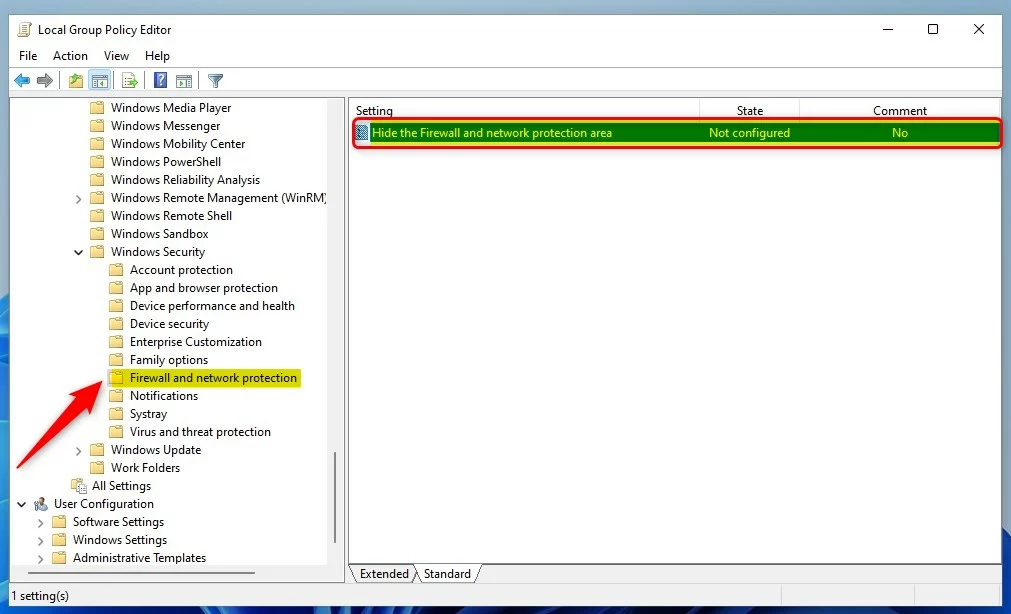
- In the left pane, go to Computer Configuration Administrative Templates Windows Components Windows Security Firewall and network protection. The policy settings for that folder appear in the right pane.
- Double-click Hide the Firewall and network protection area. A settings window for that policy opens.
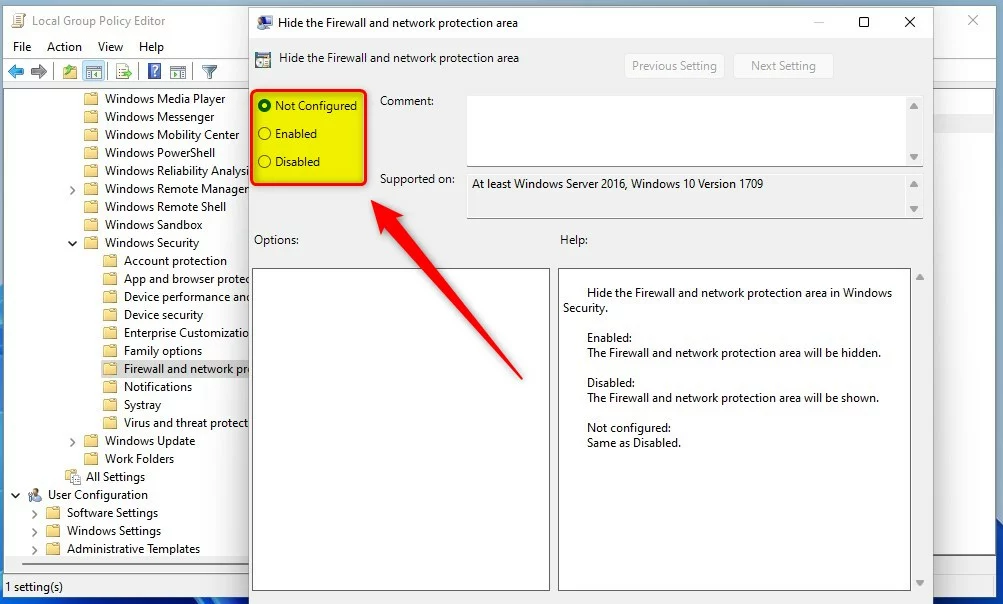
- Select Enabled to hide the section, or Not Configured to make it visible again. Then click Apply and OK.
Close Windows Security if it is open and launch it again. The Firewall & Network Protection tile should now be gone. If it still shows, sign out and back in, or restart the PC, so the policy is re-read.
To undo the change, return to the same policy and choose Not Configured. Choosing Disabled also leaves the section visible.
Method 2Using the Windows Registry
Windows 11 Home users manage this through the Windows Registry (a database storing low-level settings for the operating system and apps). Pro users can use it too, but Group Policy is the cleaner route. Take care here, because incorrect changes can cause system instability.
Administrator rights are required. This method writes to HKEY_LOCAL_MACHINE, so the Registry Editor must run as an administrator. If you are signed in as a standard user, enter an administrator's credentials when asked. If you are an administrator, click Yes on the User Account Control (UAC) prompt. Without elevation, Windows will refuse to create or change the value.
- Open the Registry Editor as an administrator. Press Win + R, type regedit, and press Ctrl + Shift + Enter to run it elevated. Alternatively, search for regedit in the Start menu, right-click the result, and choose Run as administrator. Approve the UAC prompt. The Registry Editor window opens.
Back up the registry before you change anything. A System Restore point, which was suggested only in the general introduction at the top of this guide, is not enough on its own. Create one now if you skipped it. Also export a copy of the registry:
- In the Registry Editor, click File Export.
- In the Export range section of the dialog, choose All to save the whole registry, or Selected branch to save only the key you have selected.
- Pick a location, type a file name, and click Save.
If something goes wrong, double-click the saved .reg file and confirm the prompt, or use File Import in the Registry Editor, to restore the exported settings.
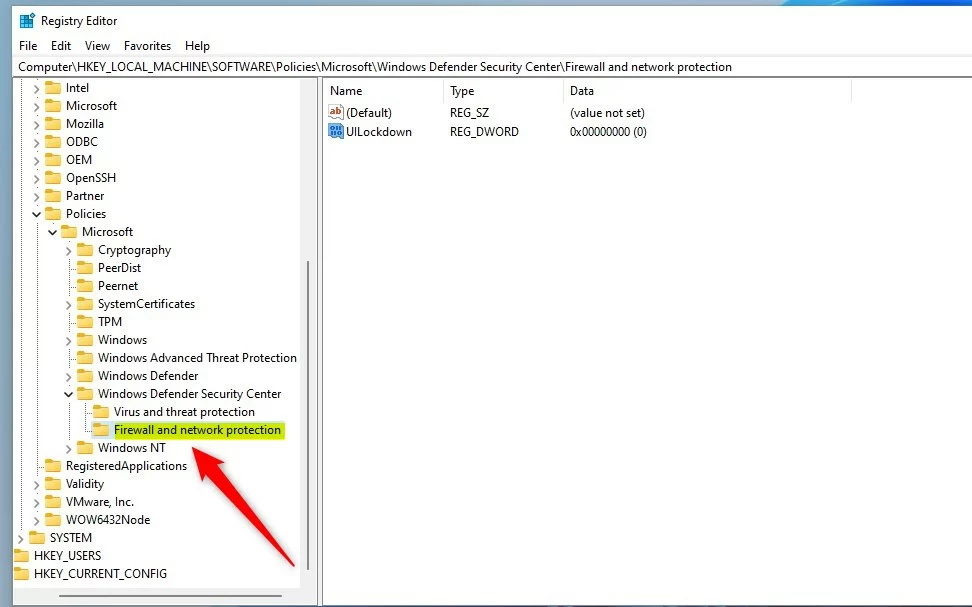
- Go to:
HKEY_LOCAL_MACHINE\SOFTWARE\Policies\Microsoft\Windows Defender Security Center\Firewall and network protection - If the entry is missing, right-click the parent folder and choose New DWORD (32-bit) Value (a common type of registry entry). Name it
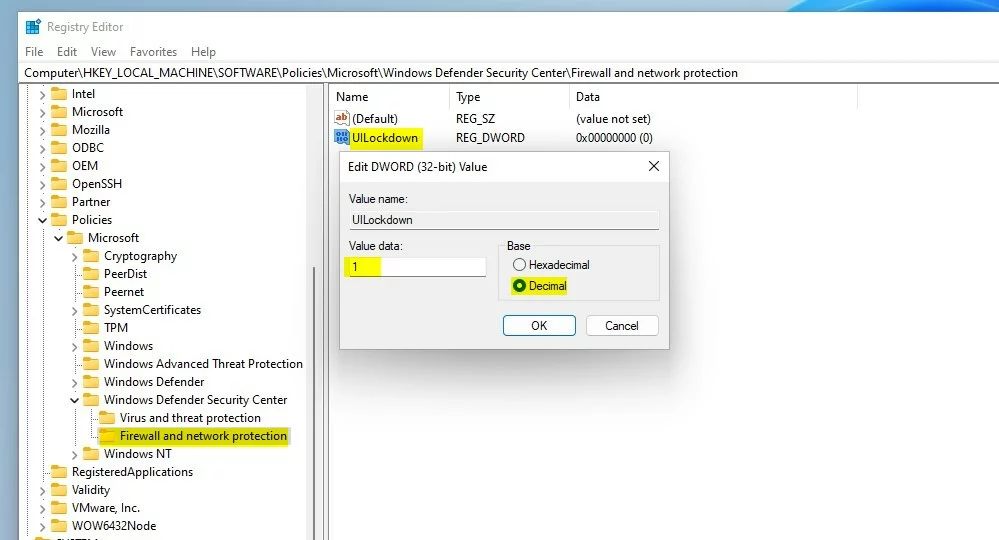
UILockdown. The new value appears in the right pane. - Double-click the value and set Value data to 1 to hide the section, or to 0 to show it. Click OK.
- Restart the computer to apply the changes. After signing in, open Windows Security and check that the Firewall & Network Protection tile is gone.
To undo the change, set the value back to 0, or delete the value, and restart again.
Summary
Hiding the Firewall & Network Protection section is a simple way to lock down security settings on shared PCs. Both the Group Policy Editor and the Registry control visibility reliably. Group Policy is the safer choice where it is available. If you edit the registry, run the editor as an administrator, export a backup first, and double-check each value before you restart.
Have a question about this guide?
Answered by AI from this guide. Good questions may be added to this page — please don't include personal details.
Did this guide fix your problem?

About the Author
Richard
Tech Writer, IT Professional
Richard is a writer at Geek Rewind who turns complex IT tasks into clear, step-by-step guides. He draws on years of hands-on experience in system administration and enterprise IT operations, focusing on Windows, Linux and WordPress: the problems people actually run into, and the fixes that work. His server and WordPress guides come from systems he runs himself. Richard builds and maintains the platform behind Geek Rewind, from its Ubuntu servers and Nginx configuration to its custom WordPress plugins. Many new tutorials start with readers' questions, and he's always glad to answer them in the comments.
[…] app has many sections that allow you to quickly see the status of your virus and threat protection, firewall and network security, device security controls, and […]
[…] app has many sections that allow you to quickly see the status of your virus and threat protection, firewall and network security, Account protection, App and Browser Control, Device Security, and […]
[…] app has many sections that allow you to quickly see the status of your virus and threat protection, firewall and network security, Account protection, App and Browser Control, and […]
[…] App has many sections that allow you to quickly see the status of your virus and threat protection, firewall and network security, Account protection, and […]