What Breaks When You Disable Reputation-Based Protection

- 16 steps
- Needs administrator rights
- Includes a restart or sign-out
Reputation-based protection is a set of Windows Security settings that check whether a file, app or website is known and trusted. It relies on Microsoft Defender SmartScreen, a Microsoft cloud service. When you download or open something, Windows asks that service if the item is known, new, rare or reported as harmful. If the answer looks risky, Windows shows a warning or blocks the item.
This is different from the scanning done by Microsoft Defender Antivirus. Antivirus looks inside a file for known bad code, using a stored fingerprint called a signature. Reputation checks look at how widely a file or site is known and trusted.
A brand-new piece of malware has no signature yet. It also has no reputation. That gap is the one reputation-based protection fills, so turning it off leaves that gap open.
Turning off reputation-based protection does not break Windows or your apps. It stops the cloud-based warnings that flag unknown downloads, dangerous websites and phishing attempts. To check what you would lose, open Windows Security, then App & browser control, then Reputation-based protection. Each toggle there controls a separate warning, so you can switch off only the one causing trouble.
What stops working when you turn it off
The Reputation-based protection page has several separate toggles. Each one controls a different warning. Turning off one does not turn off the others, so you can disable only the one that causes you trouble.
Check apps and files
This toggle controls the blue Windows protected your PC screen. Windows shows it when you run an unrecognised app or file that came from the internet. Windows tracks the origin with the Mark of the Web (a hidden tag added to files downloaded from the internet or received through some email and chat apps).
With Check apps and files off:
- The blue SmartScreen warning no longer appears for unrecognised downloads. Rare or new installers open without any reputation check.
- Known-bad files are no longer flagged by reputation. Windows does not stop you from launching a file the cloud service has already reported.
- Windows may still show its older Open File – Security Warning prompt for some file types. That prompt is a separate mechanism and does not judge reputation.
SmartScreen for Microsoft Edge
This toggle controls the warnings Microsoft Edge shows for malicious websites and risky downloads. With it off, Edge stops showing the red warning page for sites reported as phishing or malware. It also stops flagging downloads as unsafe or uncommon.
Edge has its own matching switch in its settings. If you turn off the Windows Security toggle but leave Edge’s switch on, Edge may still run its own check. Check both places for a consistent result. Check both places if you want a consistent result. This article does not cover Edge’s own menus, because their layout changes between Edge versions.
Phishing protection
Phishing protection warns you when you type your Windows account password into the wrong place. It is available in Windows 11 version 22H2 and later. It has three options:
- Warn me about malicious apps and sites flags apps and sites that try to capture your Windows password.
- Warn me about password reuse warns you when you type your Windows password into another app or site.
- Warn me about unsafe password storage warns you when you save your Windows password in an app such as a text editor.
Potentially unwanted app blocking
A potentially unwanted app (PUA) is software that is not strictly malware but behaves badly. Typical examples are adware, bundled toolbars, and cleaner tools that push upgrades. The setting has two options: Block apps and Block downloads.
With this off, Windows no longer stops these apps from installing or downloading. If the toggle was already off on your PC, nothing changes. Which default you get depends on your Windows build, so check the page before assuming.
SmartScreen for Microsoft Store apps
Some Microsoft Store apps load web content. This toggle checks the web addresses those apps use and blocks the ones reported as harmful. With it off, a Store app can load a reported site without a warning. This is a low-risk setting for most people, since Store apps are vetted before they are published.
What keeps working
Disabling reputation-based protection leaves the rest of Windows Security alone. These still run:
- Microsoft Defender Antivirus real-time scanning, which checks files as they are opened or saved.
- Windows Firewall.
- Windows Update and driver updates.
- Tamper protection and the other Virus & threat protection settings.
One setting is easy to confuse with this group: Smart App Control. It sits on the same App & browser control page, but it is a separate feature that blocks untrusted apps. It has its own on and off state. The toggles described here do not change it. Read the description on screen before you change it. On some builds, turning it off cannot be undone without a reset.
Why the toggles can be missing or greyed out
If you cannot change a toggle, the cause is usually one of these:
- Your organisation manages the setting. On a work or school PC, an administrator can lock reputation-based protection through a policy (a set of rules the organisation enforces on the PC). The page then shows a message that some settings are managed by your organisation. Ask your IT team. Changing it yourself is not possible without their policy change.
- You are not signed in as an administrator. Windows asks for administrator approval when you change these toggles. A standard user account cannot approve the change without an administrator’s credentials.
- Your Windows build is older. Phishing protection and its three options do not appear on Windows 11 builds before 22H2.
- Your edition is managed differently. Windows 11 Home and Pro both show the page. Pro, Enterprise and Education can also have the settings forced by policy. Home does not use organisation policy in the same way, so a greyed-out option on Home usually points to another cause.
If the whole App & browser control page is missing or blank, Windows Security may not be running correctly. Restart the PC, then open the page again.
How to turn off reputation-based protection
Turn off only the toggle that causes your problem. Leave the others on. Switch off only the one that causes your problem. This change requires administrator privileges. Windows shows a User Account Control prompt, and you must approve it.
Turning these off lowers your protection against malicious downloads and phishing. Do it only if you have a specific reason, and consider the alternatives in the next section first.
- Open Start, type Windows Security, and select the app. You can also go to Settings Privacy & security Windows Security and select Open Windows Security.
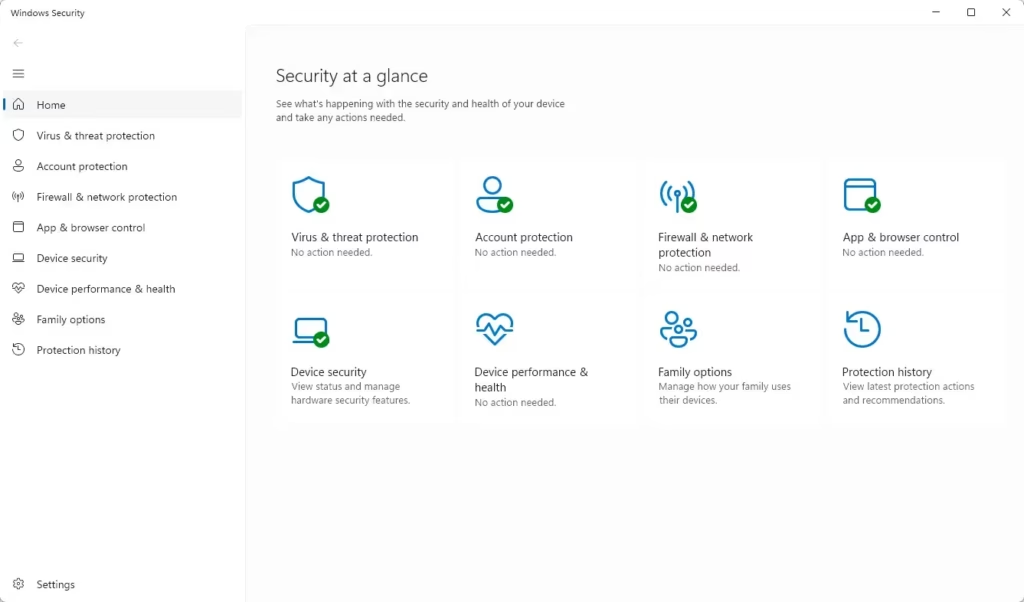
Windows Security dashboard showing an overview of PC protection status. - Select App & browser control in the left pane. The page shows Smart App Control and Reputation-based protection.
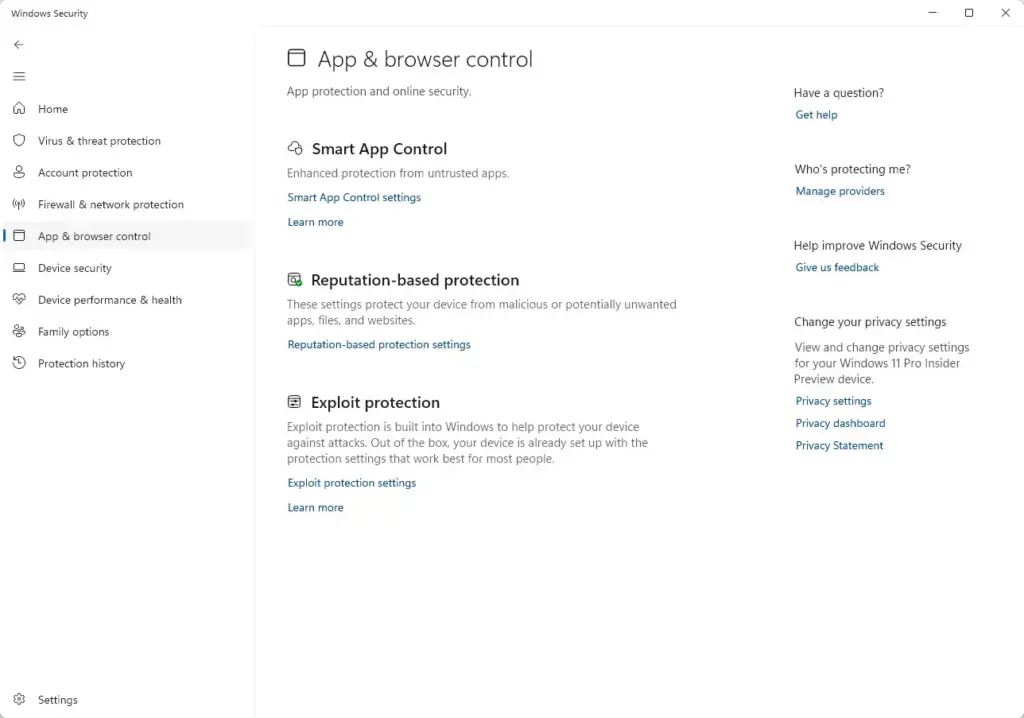
Windows Security - Under Reputation-based protection, select Reputation-based protection settings. The page lists the toggles described above.
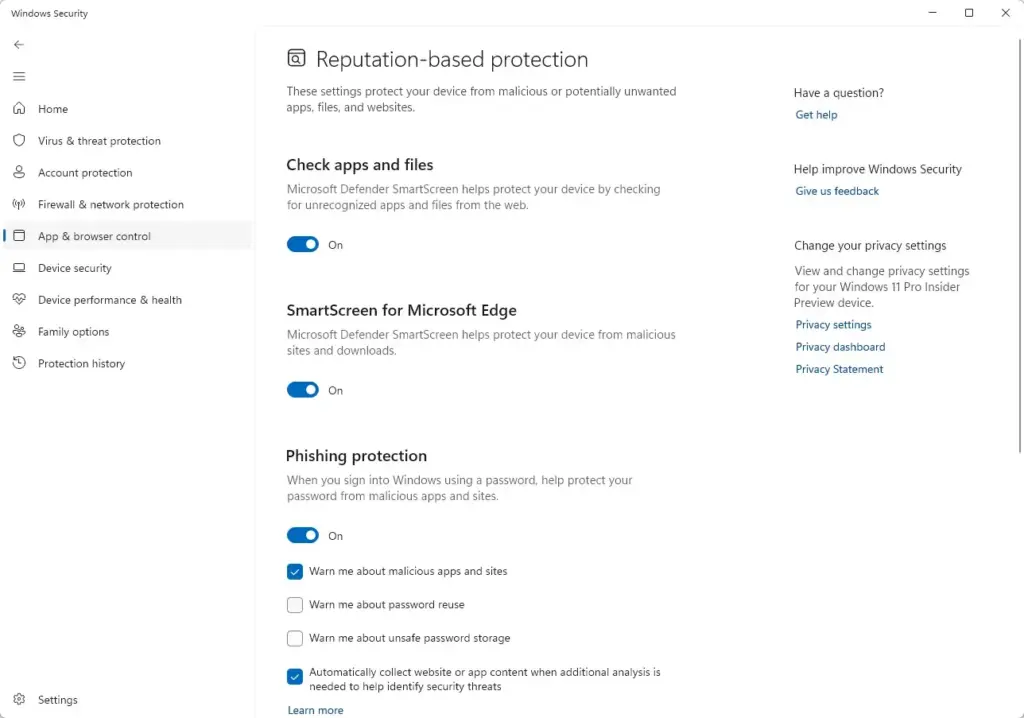
Windows Security - Switch off the toggle you want to disable, for example Check apps and files.
- Approve the User Account Control prompt if it appears. If you are signed in as a standard user, enter an administrator’s credentials. The toggle now shows Off.
- Repeat for each other toggle you want to disable. For Phishing protection and Potentially unwanted app blocking, you can switch off the individual options without disabling the whole group.
- Return to the Windows Security home page. The App & browser control tile may now show a warning marker, which tells you protection is reduced.
You do not need to restart. The change applies immediately, although a download that is already in progress keeps the check it started with. If a toggle snaps back to On, or the page says a setting is managed, a policy is overriding your choice. See the section above on missing or greyed-out options.
Try these before you turn it off
The most common reason people disable this feature is a trusted installer that SmartScreen keeps flagging. Often a narrower fix works better.
- On the blue Windows protected your PC screen, select More info. The app name and publisher appear, and a Run anyway button is added.
- Select Run anyway if you trust the source. The app starts, and this check does not repeat for that file.
If the same file keeps being flagged, remove the Mark of the Web from it:
- Right-click the file in File Explorer and select Properties.
- On the General tab, look near the bottom for a Security note that says the file came from another computer and might be blocked.
- Select the Unblock checkbox, then select OK. The tag comes off, and the file opens without a reputation prompt.
How to turn reputation-based protection back on
Turning the toggles back on needs administrator approval as well. Nothing needs to be reinstalled, and no data is lost.
- Open Windows Security and select App & browser control.
- Select Reputation-based protection settings.
- Switch each toggle you turned off back to On.
- Approve the User Account Control prompt. The toggle now shows On, and the warning marker on the App & browser control tile clears.
Windows does not check files you ran while protection was off. Run a scan if you are unsure about one of them. If you ran something you are unsure about, run a scan from Windows Security Virus & threat protection Scan options.
What can turn it back on or off later
A Windows feature update can reset some security settings, so check the page after a major update. A new user profile starts with its own default settings. It does not copy the choices you made in another profile, at least for settings that apply to one user. On a managed PC, a policy update can also turn protection back on after you have turned it off.
If you want to undo this or go further
To turn everything back on, follow the re-enable steps above and confirm the toggles show On. If a managed PC keeps overriding your changes, ask your IT team to adjust the policy instead of working around it. If your real goal is to keep the antivirus from interrupting a trusted tool, look at Microsoft Defender Antivirus exclusions (settings that tell the antivirus to skip a specific file or app) next. They cover one app without lowering protection everywhere.
Frequently asked questions
Should I have reputation-based protection on?
Yes, for most people. Reputation-based protection checks downloads, apps and websites against Microsoft's cloud data and warns you about items that are new, rare or reported as harmful. Antivirus signatures can't catch brand-new malware yet, so this check fills that gap. If it blocks something you trust, turn off only that one toggle instead of the whole setting.
How do I turn on system protection?
Open Start, search for "Create a restore point", and open it. Under Protection Settings, select your system drive (usually C:) and click Configure. Choose Turn on system protection, click Apply, then OK. Windows will now save restore points before major changes, so you can roll back if something breaks.
What happens if I turn off the Windows Defender firewall?
Microsoft Defender Firewall stops blocking unwanted connections on that network profile, so programs and other devices can reach your PC more easily. Keep it on. If you turn it off to fix a connection problem, turn it back on as soon as you finish.
Why isn't the Virus and Threat protection page showing up in Windows Security?
It usually means another antivirus program has taken over, or an admin policy has turned Microsoft Defender off. Open Settings, go to Apps, then Installed apps, and uninstall any third-party antivirus. Restart the PC and check Virus & threat protection again. If it is still missing, your organisation may be managing the device.
Still have a question?
Answered by AI from this guide. Good questions may be added to this page — please don't include personal details.
Did this guide fix your problem?

About the Author
Richard
Tech Writer, IT Professional
Richard is a writer at Geek Rewind who turns complex IT tasks into clear, step-by-step guides. He draws on years of hands-on experience in system administration and enterprise IT operations, focusing on Windows, Linux and WordPress: the problems people actually run into, and the fixes that work. His server and WordPress guides come from systems he runs himself. Richard builds and maintains the platform behind Geek Rewind, from its Ubuntu servers and Nginx configuration to its custom WordPress plugins. Many new tutorials start with readers' questions, and he's always glad to answer them in the comments.
No comments yet — be the first to share your thoughts!