What Breaks When You Disable Windows Security Tamper Protection Completely

Windows Security Tamper Protection is a built-in feature in Windows 10 and Windows 11 that locks your core antivirus settings. It stops malware, apps, and unauthorized scripts from turning off real-time virus scanning, cloud protection, and automatic security updates behind your back. On current Windows 11 it is switched on by default, and it is available in both Home and Pro.
Turning off Tamper Protection removes a safety net. Even when malware gets administrator-level access, Tamper Protection normally stops it from disabling your main defenses. Once the feature is off, a threat with admin rights can change those settings and bypass your normal antivirus controls.
This article covers what stops being protected, what that looks like in real life, and what to do instead of turning the feature off.
Disabling Windows Security Tamper Protection removes the lock that prevents malware and unauthorized scripts from turning off real-time protection, cloud-delivered protection, automatic security updates, and controlled folder access. With Tamper Protection off, advanced malware with administrator access can silently disable your antivirus defenses, block security definition updates, and bypass ransomware protection in seconds, leaving your PC vulnerable while you browse or check email.
Core Features Affected When Tamper Protection is Disabled
These include real-time protection, cloud-delivered protection, and automatic sample submission. With it off, malicious software and scripts can change those settings quietly, and the protection simply stops working without any obvious sign.
- Real-time Protection: This is your computer’s active shield. It scans every file you download, open, or run as it happens. Without Tamper Protection, a malicious script can turn this feature off instantly.
- Cloud-delivered Protection: This lets Windows check new and unknown files against Microsoft’s online security database. If it is disabled, your computer reacts much more slowly to brand-new threats.
- Automatic Sample Submission: When Windows finds a suspicious file, it sends a copy to Microsoft for analysis. If this setting is changed behind your back, those checks stop working properly.
- Definition Updates: Your computer downloads new data files regularly, often several times a day, so it can recognize new viruses. Without protection, malicious programs can block these updates and leave your security out of date.
- Controlled Folder Access: This protects your important files from ransomware. If the underlying settings are left unprotected, ransomware can get around these folders much more easily.
What Breaks When You Disable Windows Security Tamper Protection Completely?
So what actually breaks when you turn this feature off? Your PC will not crash, slow down, or refuse to boot. Nothing looks different on screen. What breaks is your ability to trust your own security settings. The problems below are the ones I see most often.
1Vulnerability to Advanced Malware and Automated Scripts
The risk from advanced malware and automated scripts goes up sharply when this lock is off. Many modern threats check for weak security configurations first. Their first job is to disable your antivirus, then take control of the system and run harmful code with nothing in the way.
With Tamper Protection on, the malware tries to turn off Windows Security, fails, and gets caught and blocked. With it off, the malware can run a simple background command that switches off real-time protection and changes other security settings. That takes a fraction of a second. After that, your computer is exposed while you browse the web or open email.
Note that Tamper Protection is not the only thing standing between you and malware. But it is the part that keeps the rest of Windows Security from being switched off.
2Loss of Protection Against Unwanted Apps and Potentially Unwanted Programs (PUPs)
You also lose protection against unwanted apps and potentially unwanted programs (PUPs). Without the lock, aggressive adware can change your browser's search engine, flood your screen with pop-up ads, and alter system settings without asking.
Windows Security normally flags and blocks aggressive installers before they change your settings. When Tamper Protection is off, those installers can override your security preferences. They can silently disable alerts, change security configuration, and install browser extensions that track your personal data without your knowledge or consent.
If you already have a stubborn browser hijacker, turning Tamper Protection back on is part of cleaning up. Do it before you start removing anything.
3Security Settings Become Vulnerable to Accidental Changes
Security settings also become easy to damage by accident. Third-party optimization tools, registry cleaners, and tweaking utilities make deep changes to the operating system. If the protective lock is off, those changes can break your built-in defenses.
These tools often change settings in Windows 11 or Windows 10 that they do not fully understand. With Tamper Protection disabled, a "cleaner" or "speed booster" can switch off vital security features while it tidies up. You might open Windows Security days or weeks later and find your antivirus has been disabled the whole time.
If a tool tells you to turn it off first, treat that as a red flag and look for a different tool.
4Compromised Enterprise and Multi-User Environments
Shared computers are the next problem. This applies to family PCs and small office machines where several people sign in. Standard user accounts are normally blocked from changing core security settings. Without Tamper Protection, that barrier is weaker, and anyone with access, including a curious child, can accidentally break your defenses.
Tamper Protection adds a second layer on top of account permissions. If it is disabled, a standard user with bad intentions, or a child poking around advanced settings, has a much easier time breaking the security configuration of the whole machine. That leaves every other user on the computer open to breaches and data theft.
In an office, this is also a compliance issue. If your organization manages your PCs, the setting is usually controlled centrally, so do not try to work around it.
Unique Angle 1: The Invisible Silent Failures (What Users Don't See)
The most dangerous failure is the silent one. When your security settings are changed without Tamper Protection, you usually get no warning message. A background script from a sketchy website might quietly disable your automatic definition updates, and you would assume everything is fine.
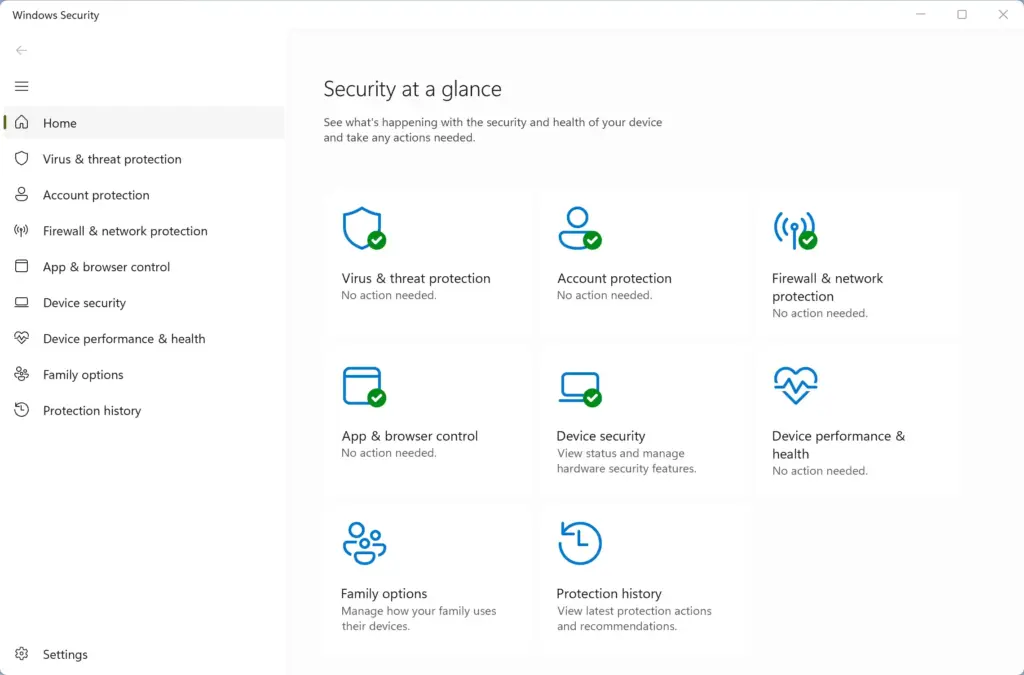
Days turn into weeks, and your computer stops learning about new threats. Meanwhile, Windows Security can still look reassuring. You see a green checkmark and believe you are protected, but your virus definitions are frozen in the past.
There is a second problem. If an unauthorized person or program gets into your system, it can clear the event logs that record security changes. You would have no history of what happened, which makes it very hard to work out how the machine was compromised. This false sense of security is often worse than an obvious crash, because it keeps you unaware of threats running in the background.
Unique Angle 2: Troubleshooting Conflicts Without Disabling Protection
You can fix software conflicts without turning off Tamper Protection. Many people believe they must disable Windows Security, even on Windows 11 version 23H2, to install a stubborn program. In most cases, adding a narrow exclusion or exception solves the problem.
Legitimate software rarely needs Tamper Protection disabled, because Windows Security allows trusted programs to run without changing core security settings. Instead of lowering your defenses, use a targeted workaround for the specific file, folder, or app that is causing trouble. That keeps the rest of your computer protected while you test.
- Use Controlled Folder Access Exceptions: If Windows blocks a safe program from saving files, add that program as an allowed app instead of turning off your security settings.
- Add File and Folder Exclusions: If your antivirus flags a file you trust, add that exact file or folder to the exclusion list in the Windows Security settings. Keep exclusions as narrow as possible, and remove them when you no longer need them.
- Run Programs in Compatibility Mode: If an older program struggles to run, right-click its shortcut, choose Properties, and use the Compatibility tab. This avoids changing any system-wide security rules.
- Temporarily Pause Real-Time Protection Safely: If you truly must install complex software, you can temporarily turn off real-time protection through the official Windows Security interface. Windows will automatically turn it back on after a while to keep you safe. Only do this for software you trust, and keep Tamper Protection on while you do it.
How to Check and Manage Tamper Protection (GUI Steps)
Checking Tamper Protection takes about a minute in the Settings app. You will need administrator privileges to change it. If you are signed in with a standard account, Windows will ask for an admin password.
- Click the Start button on your taskbar and open the Settings app (the gear icon). You should see the Settings window open.

Taskbar - Select Privacy & security from the left-hand menu. The privacy options appear on the right.
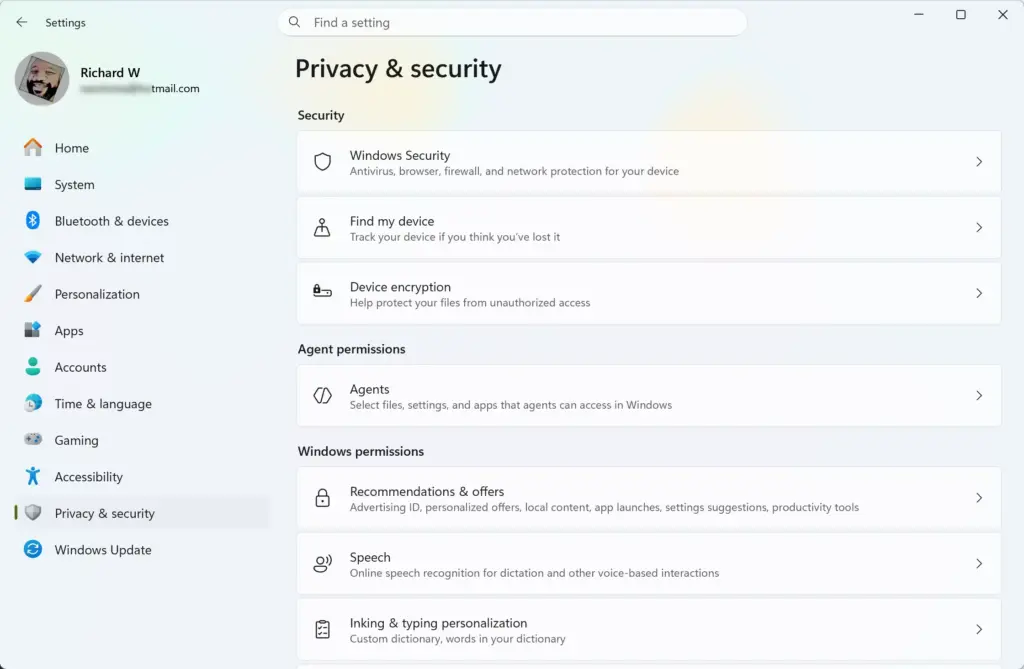
Settings › Privacy & security - Click Windows Security.
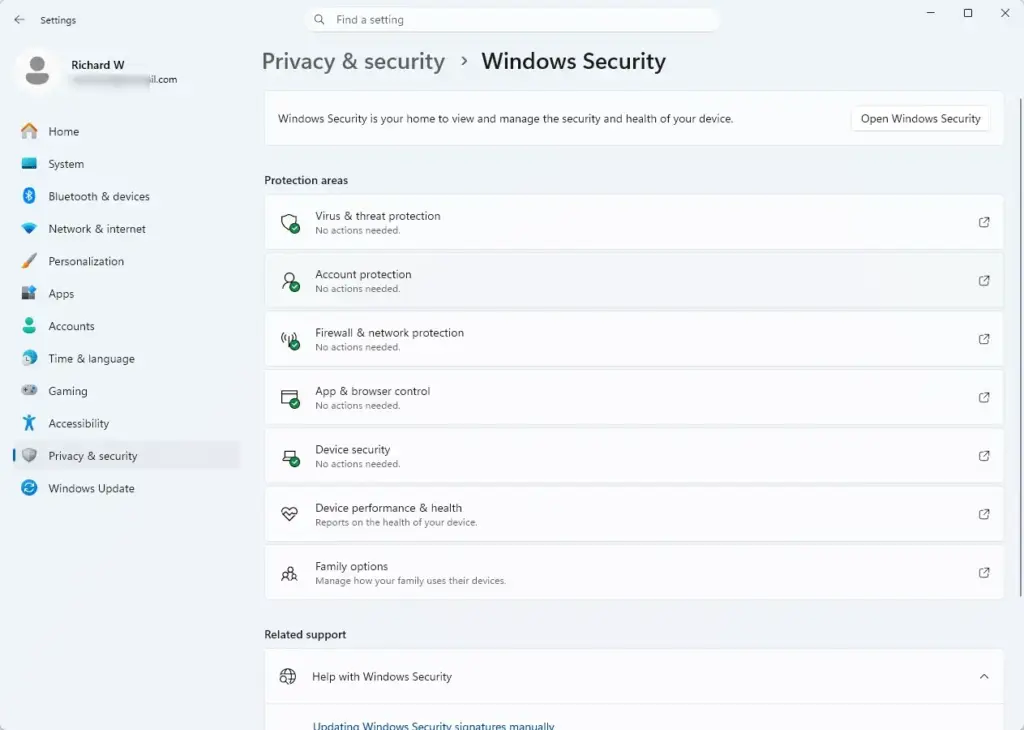
Settings › Privacy & security › Windows Security - Click the button labeled Open Windows Security. A separate Windows Security window opens.
- In that window, click Virus & threat protection on the left side.
- Under the Virus & threat protection settings heading, click the link for Manage settings.
- Scroll down until you find the section labeled Tamper Protection.
- Review the switch. If it is turned off, click the switch to turn it On. If Windows shows a User Account Control prompt, approve it. The switch should now read On.
If the switch is grayed out, or the setting is missing, one of two things is usually going on. Your organization may manage the computer, in which case an administrator controls the setting and you should ask them. Or a third-party antivirus is installed and has taken over from Windows Security. In that case, the Microsoft Defender settings may be limited or hidden. Uninstalling the other antivirus normally brings them back.
If you ever need to undo a change, come back to the same screen and flip the switch. No restart is needed.
Following these steps keeps the lock on your antivirus settings fastened, so malicious software cannot mess with your defenses.
Summary
Windows Security Tamper Protection acts as a lock on your antivirus settings. It stops malicious software and unauthorized users from turning off your defenses. Disabling it completely leaves your system open to silent failures, malware scripts that switch off protection, unwanted program installations, and accidental damage from third-party tools. If a program seems to need it off, use an exclusion or exception instead, and keep the switch on.
Have a question about this guide?
Answered by AI from this guide. Good questions may be added to this page — please don't include personal details.
Did this guide fix your problem?

About the Author
Richard
Tech Writer, IT Professional
Richard is a writer at Geek Rewind who turns complex IT tasks into clear, step-by-step guides. He draws on years of hands-on experience in system administration and enterprise IT operations, focusing on Windows, Linux and WordPress: the problems people actually run into, and the fixes that work. His server and WordPress guides come from systems he runs himself. Richard builds and maintains the platform behind Geek Rewind, from its Ubuntu servers and Nginx configuration to its custom WordPress plugins. Many new tutorials start with readers' questions, and he's always glad to answer them in the comments.
No comments yet — be the first to share your thoughts!