What Breaks When You Disable Windows Dynamic Lighting Completely

Disabling Windows Dynamic Lighting turns off the Windows 11 feature that controls RGB (color-changing) lights on keyboards, mice, and other gear from one page. You find it at Settings Personalization Dynamic Lighting Your hardware keeps working normally for typing, clicking, and gaming. What you lose is central control over device colors and effects from Windows.
Built-in effects such as fading and rainbow waves stop responding to Windows as soon as you switch the feature off. Games and media apps that use Dynamic Lighting can no longer match your room lighting to what is on screen. Most devices then fall back to the lighting stored on the device, which is usually the factory pattern, or they switch off. What you see depends on the model.
Dynamic Lighting is a recent addition to Windows 11. If you cannot find it in Settings, install the latest Windows updates first. It only affects devices that support the standard Windows lighting interface, so other RGB gear is not touched by this setting.
Disabling Windows Dynamic Lighting removes central control over RGB device colors and effects from Windows Settings . Built-in effects like fading and rainbow waves stop working, and games can no longer sync lighting to on-screen content. Most devices fall back to their factory lighting pattern or turn off completely. Alternative software from your keyboard or mouse maker can take control again if it is still installed.
Alternative Lighting Software May Take Over
When Windows steps back, the lighting software from your keyboard or mouse maker can usually take control of your devices again. This software is often called the vendor app. With Windows out of the way, your own colors and effects can run without being overridden.
Whether disabling the feature helps or hurts depends on your setup:
- It helps if the Windows controls kept overriding your custom profiles. With Dynamic Lighting off, your brand software can run without competition.
- It can hurt if you uninstalled the brand software to save memory. Your lights may then stay stuck in a pattern you do not want until you reinstall that software or turn Dynamic Lighting back on.
Before you switch the feature off, check that your vendor app is still installed and working. That way something is left to control your lights.
How to Turn Off Windows Dynamic Lighting Using Settings
These steps turn off Windows Dynamic Lighting from the Settings app. The method needs no system tweaks, works the same on Home and Pro, and you can reverse it at any time.
- Open Settings. Click the Start button on your taskbar, then click Settings, the app with the small gear icon. Pressing the Windows key and I together also works. The Settings window should now be open.

- Click Personalization. It sits in the menu on the left side of the window. The personalization options appear on the right.

- Click Dynamic Lighting in the list of options. If it is not listed, your version of Windows 11 does not have the feature yet. Open Settings Windows Update, install what is offered, and check again.
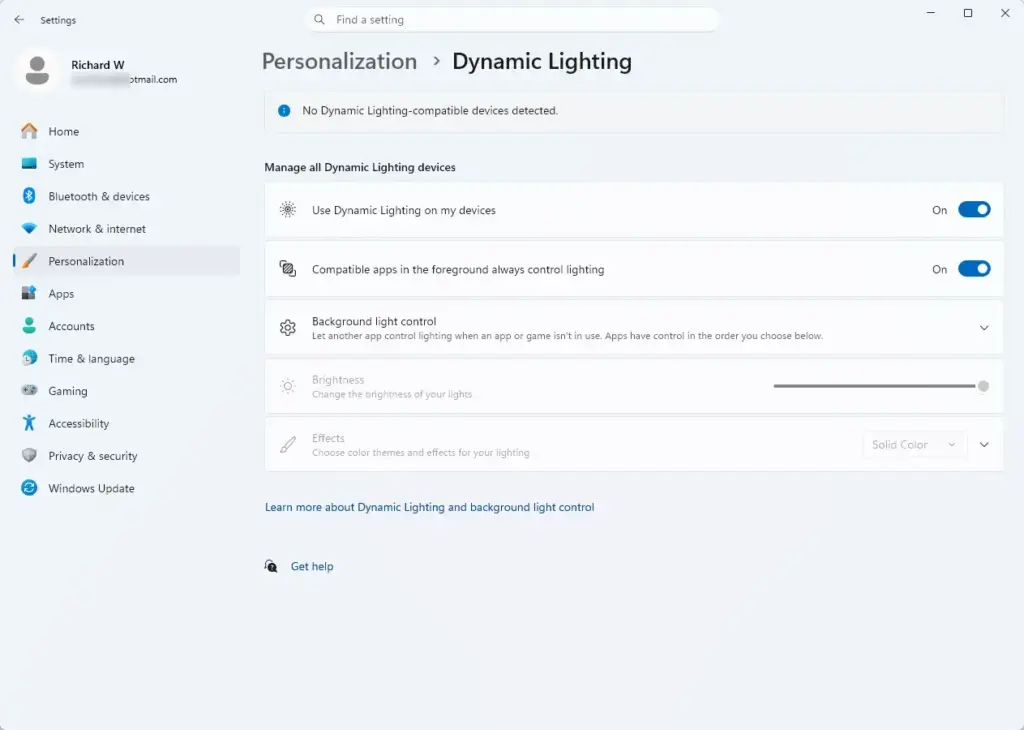
- Turn off Use Dynamic Lighting on my devices. This switch is at the top of the page, so click it until it reads Off. The lighting controls below it should grey out or collapse.
- Uncheck any extra options on the page. Scroll down the same page to find them, such as the one that lets background apps control your lighting. If you do not see any, skip this step.
To undo this, come back to the same page and turn the main switch on again. No restart is needed for the Settings method.
How to Disable Dynamic Lighting Using the Registry Editor
The Registry Editor method is the one to use if you want the feature to stay off, for example after a system update. The registry is the database where Windows stores its settings. You need an administrator account to make the change, and it takes effect after a restart.
The Registry Editor works on both Windows 11 Home and Pro. Be careful in it, because a wrong edit can cause system problems. Work only in the folder tree and follow the steps below exactly rather than importing files from unknown sources. For a safety net, click File and then Export to save a backup before you change anything.
These steps add one registry value that keeps the feature switched off:
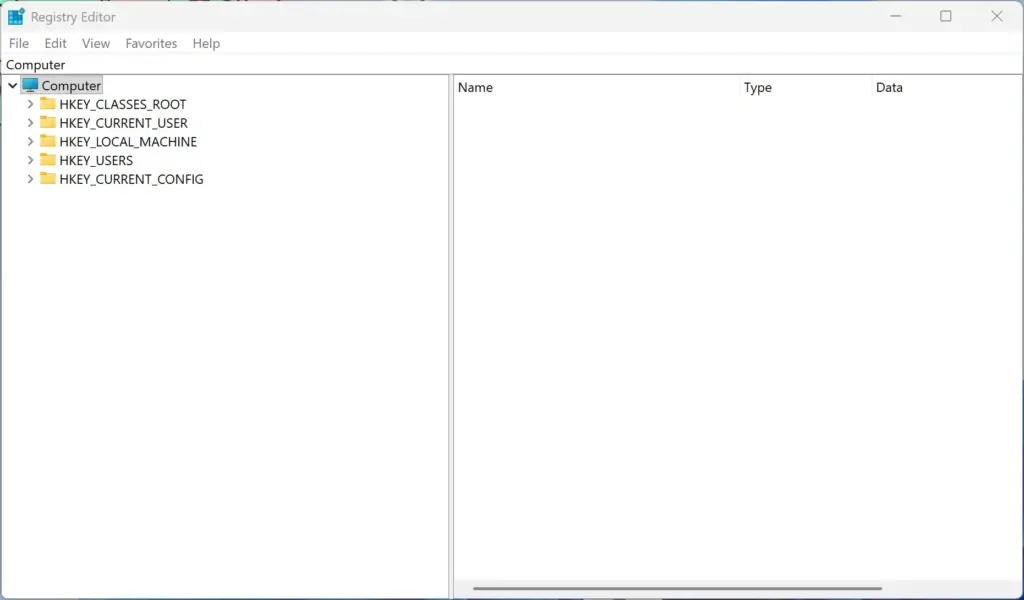
- Open the Registry Editor. Press the Windows key, type
regedit, and press Enter. If a User Account Control prompt asks whether you want to allow this app to make changes to your device, click Yes. The Registry Editor window should open.

- Browse to this location in the folder tree:
HKEY_LOCAL_MACHINE\SOFTWARE\Policies\Microsoft\Windows\Use the folder tree on the left side of the window and expand each folder in turn. - Check the Windows folder for a subfolder named
Lighting. If it is not there, right-click the Windows folder, point to New, click Key, and name the new folderLighting. - Select the
Lightingfolder. Click it once. The right pane should be empty or show only a default entry. - Create a new DWORD value. Right-click in the empty space on the right side of the window, point to New, and select DWORD (32-bit) Value. A DWORD is a value that holds a number. A new entry appears with its name highlighted.
- Name the new value
EnableDynamicLighting. Type the name and press Enter. - Set the value to zero. Double-click
EnableDynamicLightingand make sure the Value data box is set to0(zero). This tells Windows to keep the feature turned off. Click OK. - Restart your computer. Close the Registry Editor first, then restart so the change applies.
To undo this, go back to the same key and delete the value you created, or turn the feature back on from the Settings page described earlier. Restart afterward. If you exported a backup, you can also restore it by double-clicking the exported file.
Summary
Nothing essential to daily computer use breaks when you disable Windows Dynamic Lighting completely. The change only stops Windows from controlling your device colors and cuts off the background app connections to your lights. Your keyboard, mouse, and other accessories keep working normally for typing, gaming, and everyday tasks. The only real cost is the lighting, and your vendor software can still handle that.
Have a question about this guide?
Answered by AI from this guide. Good questions may be added to this page — please don't include personal details.
Did this guide fix your problem?

About the Author
Richard
Tech Writer, IT Professional
Richard is a writer at Geek Rewind who turns complex IT tasks into clear, step-by-step guides. He draws on years of hands-on experience in system administration and enterprise IT operations, focusing on Windows, Linux and WordPress: the problems people actually run into, and the fixes that work. His server and WordPress guides come from systems he runs himself. Richard builds and maintains the platform behind Geek Rewind, from its Ubuntu servers and Nginx configuration to its custom WordPress plugins. Many new tutorials start with readers' questions, and he's always glad to answer them in the comments.
No comments yet — be the first to share your thoughts!