What Breaks When You Disable Shared Experiences in Windows 11

The shared experiences settings in Windows 11 are at Settings System Shared experiences. Turning them off stops file sharing with nearby PCs and stops your other devices from opening or messaging apps on this one. Shared experiences is the group of features that lets your devices hand tasks to each other. It covers Nearby sharing (sends files between PCs over Bluetooth and Wi-Fi ) and Share across devices (lets apps on your other devices open and message apps on this PC).
Most people notice little change after they switch these off. That is why privacy guides often recommend them. A few features do stop, and some of those stops can be mistaken for a bug later. The sections below cover what breaks, what keeps working, and how to turn the settings back on.
The steps below need no administrator rights on a personal PC, and Windows applies the change without a restart. A work PC may lock the page, which the troubleshooting section covers.
Turning off shared experiences at Settings System Shared experiences stops Nearby sharing, which sends files between nearby PCs over Bluetooth and Wi-Fi , and Share across devices, which lets apps on your other devices open and message apps on this PC. The Share window, Bluetooth pairing, OneDrive sync and Microsoft Store downloads keep working. Some app handoffs may stop.
What Breaks When You Turn Off Shared Experiences
Two settings do the work: Nearby sharing and Share across devices. Each one controls a separate set of features, so the effects are easiest to follow one at a time. The label names below match current Windows 11 builds, but Microsoft moves these pages around between feature updates.
Nearby Sharing Stops Working
Nearby sharing sends files, photos and links from one Windows PC to another close by. It finds the other PC with Bluetooth LE (low-energy Bluetooth, used to detect nearby devices) and moves the data over Wi-Fi or Bluetooth. With Nearby sharing set to Off, your PC stops listening for incoming files and stops offering to send them.
In practice, this means three things:
- Other PCs no longer list yours as a share target, even on the same desk.
- Your own Share window in File Explorer and apps like Microsoft Edge no longer lists nearby PCs. It may show a prompt to turn Nearby sharing on instead.
- Any file transfer you started this way fails, and the other person needs another method.
The "My devices only" mode needs both PCs signed in with the same Microsoft account. "Everyone nearby" accepts shares from any PC within range, though you still approve each incoming file. Switching to Off removes both modes.
Share Across Devices Stops Working
Share across devices lets apps on one device open and message apps on another device signed in to the same account. Windows says the feature lets apps on your other devices open and message apps on this PC, and the reverse too. With the setting off, your PC no longer takes part in that handoff, where one device passes a task to another.
Microsoft does not publish a full list of apps that rely on this setting. Support depends on the app, so a feature that worked before may stop in one app and carry on in another. If you use Phone Link (the app that connects your phone to your PC) or another Microsoft app that passes tasks between devices, test it after the change rather than assuming it still works.
What Keeps Working
Switching off shared experiences does not disconnect your PC from the internet or from your Microsoft account. These features stay available:
- The Share window itself still opens. Email, Microsoft Teams and other app targets remain in the list.
- Normal Bluetooth pairing for headphones, mice and keyboards is unaffected. Those rely on the Bluetooth settings, not on Nearby sharing.
- OneDrive sync, Microsoft Edge sync and Microsoft Store downloads keep running.
- Third-party sharing tools, such as the Quick Share apps from phone makers, are separate programs with their own settings.
Clipboard sync across devices has its own page at Settings System Clipboard. Turning off shared experiences does not change it, so check that page separately if you want clipboard sync off as well.
A Feature You Will Not Find in 🪟 Windows 11
Older guides to this setting mention Timeline, the Windows 10 view that showed your past activity across devices. Windows 11 removed Timeline, so you will not lose it by turning shared experiences off. If a guide tells you to look for Timeline in Windows 11, it was written for Windows 10.
Decide Whether to Turn It Off
The right choice depends on how you use your devices. Turn the settings off if you never send files between PCs, if you share a PC with other people, or if you want to stop your PC from looking for nearby devices in the background. Leave them on if you regularly move files between two Windows PCs or rely on Phone Link.
Set Nearby sharing to My devices only instead of Off. This keeps file sharing between your own PCs and blocks strangers from sending to you. For many people, that is the safer setting rather than switching everything off.
Windows runs a Connected Devices Platform service (the background component behind device discovery) that other features can depend on. Stopping it can affect more than shared experiences. Use the Settings toggles instead, because they are the supported way to make this change.
How to Turn Off the Shared Experiences Settings
Open Settings System Shared experiences and set Nearby sharing to Off. Then set Share across devices to Off. Your PC will then stop sharing files with nearby devices and stop taking app handoffs from your other devices. The page names below match recent Windows 11 builds. If a name differs on your build, the notes in each step explain what to look for.
- Open Settings. Press the Windows key + I, or right-click Start and select Settings.

- Select System in the left pane. The System page opens with a list of sections on the right.
- Select Share in the list. On some builds, Nearby sharing has its own page in the same list. If you do not see Shared experiences, open Nearby sharing instead and look for the same options.
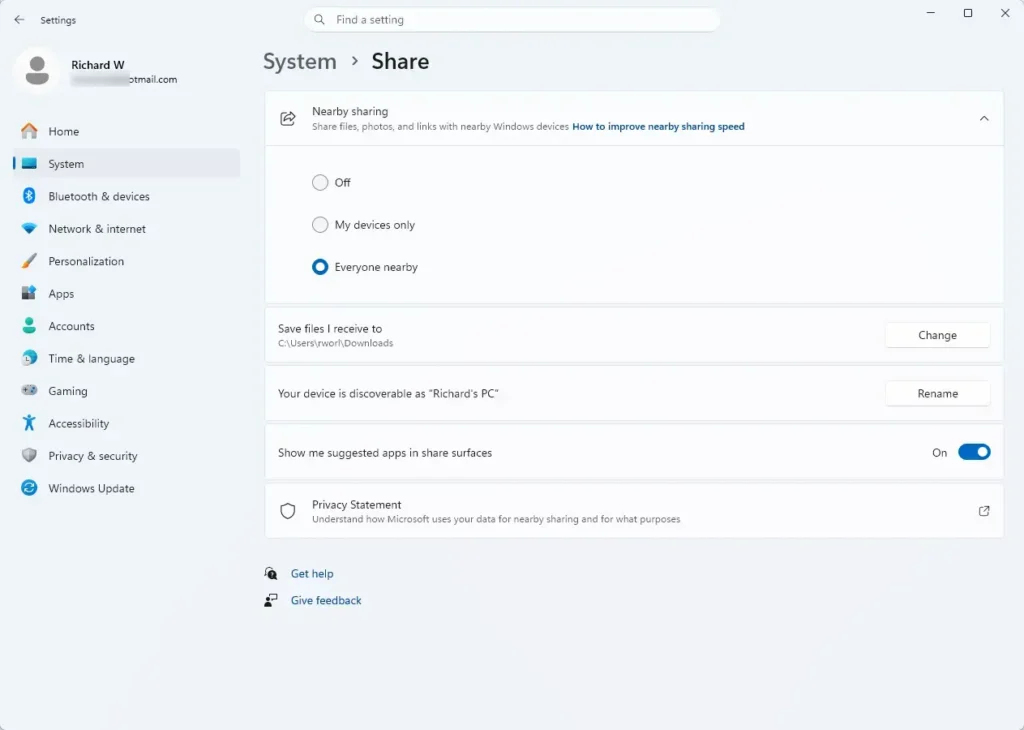
- Find the Nearby sharing option. It shows a drop-down menu with the current setting, such as My devices only or Everyone nearby.
- Set the Nearby sharing drop-down to Off. The drop-down now reads Off, and the page may collapse extra options such as where received files are saved.
- Find the Share across devices option. It sits on the same page on current builds.
- Turn Share across devices off. On most builds it is a toggle, and on some it is a drop-down with an Off choice. The toggle moves to Off.
- Close Settings. Windows saves the change as you make it, so there is no Apply or Save button.
- Check the result. Select a file in File Explorer, right-click it and choose Share. The Share window should no longer list nearby PCs.
If the Share window still lists nearby PCs, go back to the page and confirm both options show Off. Close and reopen File Explorer, then try again. If the problem continues after that, sign out and sign back in so the account reloads its settings.
How to Test What Stopped Working
If you are not sure which setting a feature depends on, change one setting at a time. Turn off Nearby sharing first and use your PC normally for a day. Then turn off Share across devices and watch for anything that stops handing off between devices.
This approach costs nothing and tells you exactly which switch matters. Testing this way means a broken feature points to one setting. If something stops after the second change, you know which toggle to turn back on.
How to Turn Shared Experiences Back On
Reversing the change takes the same pages and the opposite choices. Nothing is deleted when you turn these settings off, so you lose no files or account data.
- Open Settings. Press the Windows key + I.
- Select System, then select Share. If your build has a separate Nearby sharing page, open that one.
- Set the Nearby sharing drop-down to My devices only. Choose Everyone nearby only if you need to receive files from people who do not share your Microsoft account.
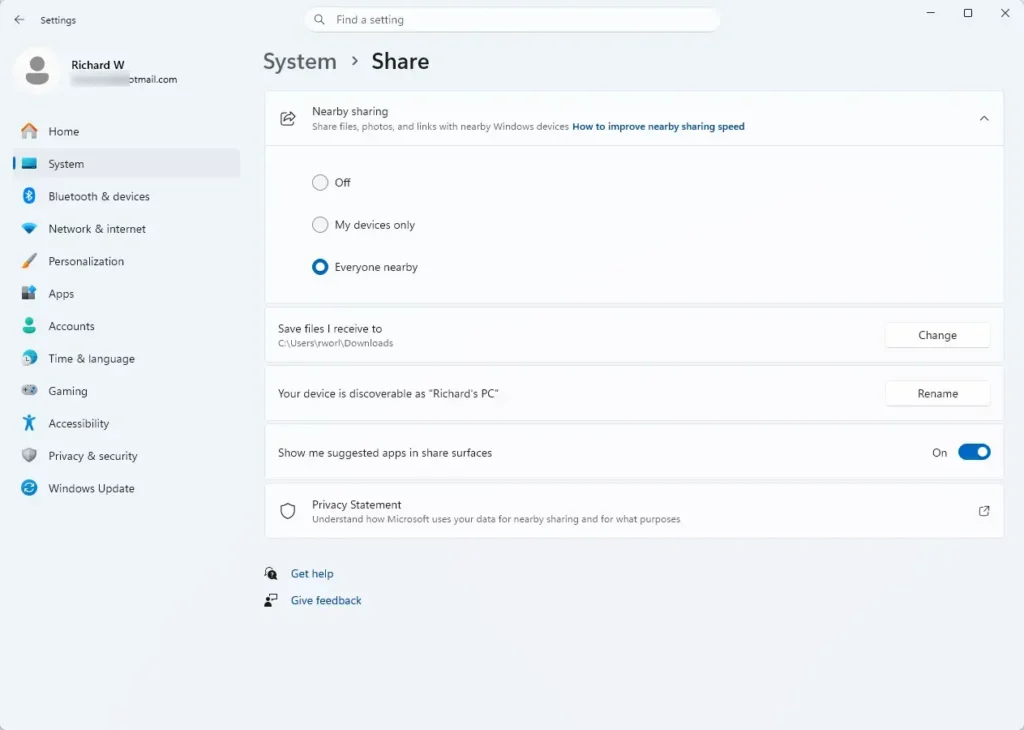
- Turn Share across devices back on. The toggle moves to On.
- Check that Bluetooth and Wi-Fi are on. Nearby sharing needs both radios to find and reach other PCs.
Both PCs must have the feature switched on for Nearby sharing to work. A PC that still has it off will not appear in the other PC's Share window, which looks like a fault when it is a missing setting.
Why the Shared Experiences Settings Are Missing or Greyed Out
Several problems can stop you from changing these options. The causes below are the usual ones, listed from most to least likely.
Your Organisation Manages the PC
On a work or school PC, an administrator can lock the page. You will see a message that some settings are managed by your organization, and the options appear greyed out. Only the IT administrator can change this, so ask them.
This applies to Windows 11 Pro, Enterprise and Education, where policies are available. Windows 11 Home does not include the Local Group Policy Editor (the admin tool for managing policy settings on a PC), so a locked page on a Home PC points to a different cause.
The PC Lacks Compatible Bluetooth
Nearby sharing relies on Bluetooth LE. A PC with an older Bluetooth adapter, or no adapter, may not offer the feature or may show it as unavailable. Open Settings Bluetooth & devices and confirm that Bluetooth is present and switched on. A USB Bluetooth adapter that supports LE usually solves this on a desktop.
The Page Has a Different Name on Your Build
Microsoft has renamed and moved these options across Windows 11 feature updates. If you cannot find Shared experiences, open the search box in Settings and type shared experiences or nearby sharing. Select the matching result, which opens the correct page for your build. Run Windows Update if neither term finds anything, because an older build may predate the page.
The Setting Seems to Change Back
Shared experiences settings belong to your user account, not the whole PC. A new user profile starts with its own defaults, so it may have the features on even when your main account has them off. Check the page in each account that uses the PC.
What to Do Next
Check the Shared experiences page after a major Windows 11 feature update, and switch an option off again if it has changed. If you turned the settings off for privacy, review the other options under Settings Privacy & security next, since they control what apps can access on your PC. If you need to move a file to a nearby PC now, set Nearby sharing to My devices only on both PCs and use the Share window again.
Have a question about this guide?
Answered by AI from this guide. Good questions may be added to this page — please don't include personal details.
Did this guide fix your problem?

About the Author
Richard
Tech Writer, IT Professional
Richard is a writer at Geek Rewind who turns complex IT tasks into clear, step-by-step guides. He draws on years of hands-on experience in system administration and enterprise IT operations, focusing on Windows, Linux and WordPress: the problems people actually run into, and the fixes that work. His server and WordPress guides come from systems he runs himself. Richard builds and maintains the platform behind Geek Rewind, from its Ubuntu servers and Nginx configuration to its custom WordPress plugins. Many new tutorials start with readers' questions, and he's always glad to answer them in the comments.
No comments yet — be the first to share your thoughts!