What Breaks When You Disable The Connected User Experiences And Telemetry Service In Windows 11


Step 2Stop the Telemetry Service
Stopping the Connected User Experiences and Telemetry service requires opening the built-in Windows Services tool, locating the specific service name in the long list, and changing its startup type to disabled. This halts the background program immediately so it stops running and collecting data on your system.
-
- Scroll down the long list of services until you find Connected User Experiences and Telemetry.
-
- Double-click on that service name to open its properties window.
-
- Click the Stop button to halt the service immediately.
-
- Click the drop-down menu next to Startup type and choose Disabled.
-
- Click Apply and then click OK to save your changes.
Step 3Stop Windows Error Reporting
-
- In the same Services window, look for Windows Error Reporting Service.
-
- Double-click it, click Stop, set the startup type to Disabled, and save your changes.
Step 4Turn Off Related Scheduled Tasks
Turning off related scheduled tasks involves using the built-in Task Scheduler tool to disable background programs like the Microsoft Compatibility Appraiser and ProgramDataUpdater. Stopping these tasks ensures that Windows does not restart the telemetry data collection processes after you have turned them off.
-
- Press the Windows Key and R again to open the Run box.
-
- Type
taskschd.mscand press Enter to open the Task Scheduler.
- Type
-
- Click the arrow next to Task Scheduler Library on the left side, then go to Microsoft, then Windows, and click on Application Experience.
-
- Look at the middle pane for tasks like Microsoft Compatibility Appraiser and ProgramDataUpdater.
-
- Right-click each of these tasks and choose Disable.
Summary
Disabling the Connected User Experiences and Telemetry service in Windows 11 successfully stops your computer from sending constant diagnostic data to Microsoft without harming your daily apps, games, or security updates. By using built-in tools like the Services manager and Task Scheduler, you can permanently turn off these background tracking features.
Disabling the Connected User Experiences and Telemetry service in Windows 11 successfully stops your computer from sending constant diagnostic data to Microsoft without harming your daily apps, games, or security updates. By using built-in tools like the Services manager and Task Scheduler, you can permanently turn off these background tracking features.
Hidden Benefits: Performance and System Control
Turning off the telemetry service offers hidden benefits like improved performance and system control, including a noticeable drop in unnecessary background disk activity. When your computer sits idle, it spends less time running scheduled diagnostic scans, which helps older laptops run slightly cooler and save a small amount of battery life.
Turning off the telemetry service offers hidden benefits like improved performance and system control, including a noticeable drop in unnecessary background disk activity. When your computer sits idle, it spends less time running scheduled diagnostic scans, which helps older laptops run slightly cooler and save a small amount of battery life.
How to Safely Disable Telemetry in 🪟 Windows 11
If you decide to turn off these background services, you can do so using built-in system tools. ⚠️ This method requires administrator privileges. Make sure you are logged in with an administrator account before you start.
Step 1Open the Services Console
-
- Press the Windows Key and the letter R on your keyboard at the same time to open the Run box.
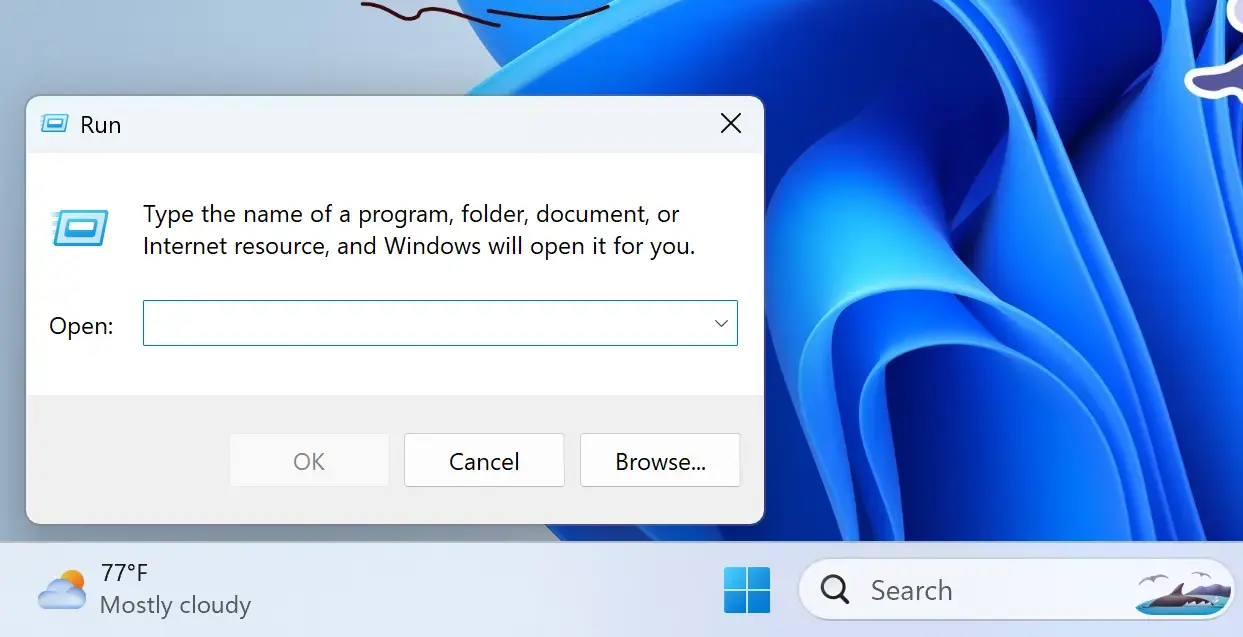
Run dialog
- Press the Windows Key and the letter R on your keyboard at the same time to open the Run box.
-
- Type
services.mscinto the box.
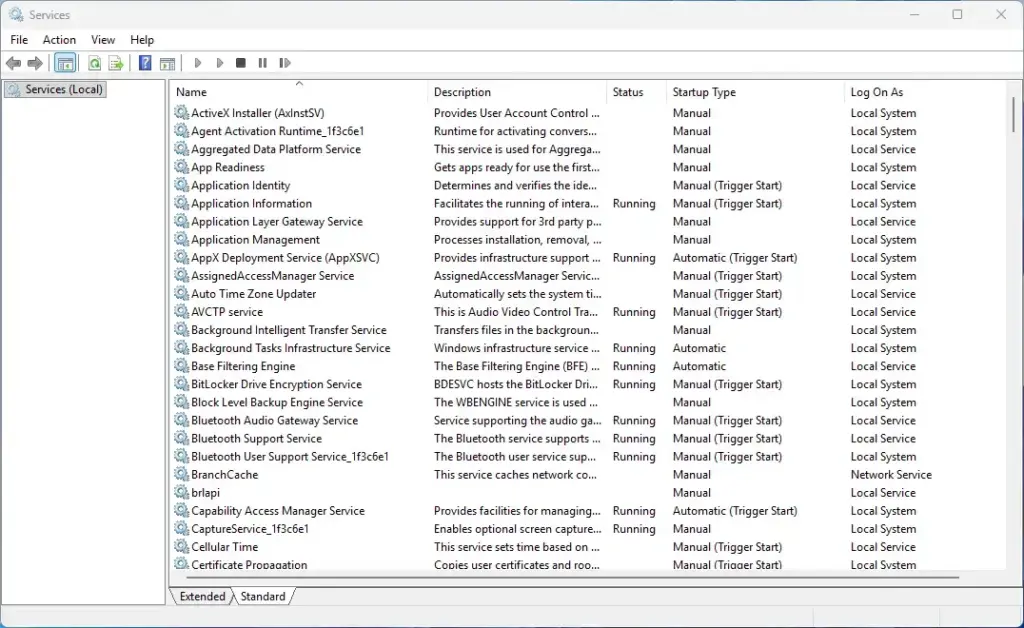
Services
- Type
-
- Press the Enter key on your keyboard to open the Services window.
Step 2Stop the Telemetry Service
Stopping the Connected User Experiences and Telemetry service requires opening the built-in Windows Services tool, locating the specific service name in the long list, and changing its startup type to disabled. This halts the background program immediately so it stops running and collecting data on your system.
-
- Scroll down the long list of services until you find Connected User Experiences and Telemetry.
-
- Double-click on that service name to open its properties window.
-
- Click the Stop button to halt the service immediately.
-
- Click the drop-down menu next to Startup type and choose Disabled.
-
- Click Apply and then click OK to save your changes.
Step 3Stop Windows Error Reporting
-
- In the same Services window, look for Windows Error Reporting Service.
-
- Double-click it, click Stop, set the startup type to Disabled, and save your changes.
Step 4Turn Off Related Scheduled Tasks
Turning off related scheduled tasks involves using the built-in Task Scheduler tool to disable background programs like the Microsoft Compatibility Appraiser and ProgramDataUpdater. Stopping these tasks ensures that Windows does not restart the telemetry data collection processes after you have turned them off.
-
- Press the Windows Key and R again to open the Run box.
-
- Type
taskschd.mscand press Enter to open the Task Scheduler.
- Type
-
- Click the arrow next to Task Scheduler Library on the left side, then go to Microsoft, then Windows, and click on Application Experience.
-
- Look at the middle pane for tasks like Microsoft Compatibility Appraiser and ProgramDataUpdater.
-
- Right-click each of these tasks and choose Disable.
Summary
Disabling the Connected User Experiences and Telemetry service in Windows 11 successfully stops your computer from sending constant diagnostic data to Microsoft without harming your daily apps, games, or security updates. By using built-in tools like the Services manager and Task Scheduler, you can permanently turn off these background tracking features.
Disabling the Connected User Experiences and Telemetry service in Windows 11 successfully stops your computer from sending constant diagnostic data to Microsoft without harming your daily apps, games, or security updates. By using built-in tools like the Services manager and Task Scheduler, you can permanently turn off these background tracking features.
What Breaks or Changes When You Disable Telemetry
Disabling the Connected User Experiences and Telemetry service in Windows 11 does not break your basic computer use, web browsing, games, or office apps, but you will lose specific diagnostic features. Your computer will stop sending automatic crash reports when apps close unexpectedly, and you will no longer receive personalized feature suggestions or tips from Microsoft.
Disabling the Connected User Experiences and Telemetry service in Windows 11 does not break your basic computer use, web browsing, games, or office apps, but you will lose specific diagnostic features. Your computer will stop sending automatic crash reports when apps close unexpectedly, and you will no longer receive personalized feature suggestions or tips.
-
- Detailed Error Reporting: Windows will no longer send automatic crash reports to Microsoft when an app suddenly closes.
-
- Personalized Feature Suggestions: Tips and recommendations inside the Windows interface may become less relevant to your daily habits.
-
- Automated Problem Solving: Windows troubleshooting tools may take longer to find rare software bugs because they lack access to global error databases.
Hidden Benefits: Performance and System Control
Turning off the telemetry service offers hidden benefits like improved performance and system control, including a noticeable drop in unnecessary background disk activity. When your computer sits idle, it spends less time running scheduled diagnostic scans, which helps older laptops run slightly cooler and save a small amount of battery life.
Turning off the telemetry service offers hidden benefits like improved performance and system control, including a noticeable drop in unnecessary background disk activity. When your computer sits idle, it spends less time running scheduled diagnostic scans, which helps older laptops run slightly cooler and save a small amount of battery life.
How to Safely Disable Telemetry in 🪟 Windows 11
If you decide to turn off these background services, you can do so using built-in system tools. ⚠️ This method requires administrator privileges. Make sure you are logged in with an administrator account before you start.
Step 1Open the Services Console
-
- Press the Windows Key and the letter R on your keyboard at the same time to open the Run box.
Run dialog
- Press the Windows Key and the letter R on your keyboard at the same time to open the Run box.
-
- Type
services.mscinto the box.
Services
- Type
-
- Press the Enter key on your keyboard to open the Services window.
Step 2Stop the Telemetry Service
Stopping the Connected User Experiences and Telemetry service requires opening the built-in Windows Services tool, locating the specific service name in the long list, and changing its startup type to disabled. This halts the background program immediately so it stops running and collecting data on your system.
-
- Scroll down the long list of services until you find Connected User Experiences and Telemetry.
-
- Double-click on that service name to open its properties window.
-
- Click the Stop button to halt the service immediately.
-
- Click the drop-down menu next to Startup type and choose Disabled.
-
- Click Apply and then click OK to save your changes.
Step 3Stop Windows Error Reporting
-
- In the same Services window, look for Windows Error Reporting Service.
-
- Double-click it, click Stop, set the startup type to Disabled, and save your changes.
Step 4Turn Off Related Scheduled Tasks
Turning off related scheduled tasks involves using the built-in Task Scheduler tool to disable background programs like the Microsoft Compatibility Appraiser and ProgramDataUpdater. Stopping these tasks ensures that Windows does not restart the telemetry data collection processes after you have turned them off.
-
- Press the Windows Key and R again to open the Run box.
-
- Type
taskschd.mscand press Enter to open the Task Scheduler.
- Type
-
- Click the arrow next to Task Scheduler Library on the left side, then go to Microsoft, then Windows, and click on Application Experience.
-
- Look at the middle pane for tasks like Microsoft Compatibility Appraiser and ProgramDataUpdater.
-
- Right-click each of these tasks and choose Disable.
Summary
Disabling the Connected User Experiences and Telemetry service in Windows 11 successfully stops your computer from sending constant diagnostic data to Microsoft without harming your daily apps, games, or security updates. By using built-in tools like the Services manager and Task Scheduler, you can permanently turn off these background tracking features.
Disabling the Connected User Experiences and Telemetry service in Windows 11 successfully stops your computer from sending constant diagnostic data to Microsoft without harming your daily apps, games, or security updates. By using built-in tools like the Services manager and Task Scheduler, you can permanently turn off these background tracking features.
Why Basic Privacy Settings Are Not Enough
Basic Windows 11 privacy settings are not enough to stop data collection because they only lower the amount of diagnostic information your computer shares instead of turning off the underlying tracking service. While the main Settings app reduces outgoing data, the actual telemetry program keeps running in the background until you disable it manually.
Basic Windows 11 privacy settings are not enough to stop data collection because they only lower the amount of diagnostic information your computer shares instead of turning off the underlying tracking service. While the main Settings app reduces outgoing data, the actual telemetry program keeps running in the background.
The main Settings app only reduces the amount of data your computer sends out. The actual background service keeps running. It still scans your files and monitors system tasks. To truly stop these background processes, you must change deep system settings.

What Breaks or Changes When You Disable Telemetry
Disabling the Connected User Experiences and Telemetry service in Windows 11 does not break your basic computer use, web browsing, games, or office apps, but you will lose specific diagnostic features. Your computer will stop sending automatic crash reports when apps close unexpectedly, and you will no longer receive personalized feature suggestions or tips from Microsoft.
Disabling the Connected User Experiences and Telemetry service in Windows 11 does not break your basic computer use, web browsing, games, or office apps, but you will lose specific diagnostic features. Your computer will stop sending automatic crash reports when apps close unexpectedly, and you will no longer receive personalized feature suggestions or tips.
-
- Detailed Error Reporting: Windows will no longer send automatic crash reports to Microsoft when an app suddenly closes.
-
- Personalized Feature Suggestions: Tips and recommendations inside the Windows interface may become less relevant to your daily habits.
-
- Automated Problem Solving: Windows troubleshooting tools may take longer to find rare software bugs because they lack access to global error databases.
Hidden Benefits: Performance and System Control
Turning off the telemetry service offers hidden benefits like improved performance and system control, including a noticeable drop in unnecessary background disk activity. When your computer sits idle, it spends less time running scheduled diagnostic scans, which helps older laptops run slightly cooler and save a small amount of battery life.
Turning off the telemetry service offers hidden benefits like improved performance and system control, including a noticeable drop in unnecessary background disk activity. When your computer sits idle, it spends less time running scheduled diagnostic scans, which helps older laptops run slightly cooler and save a small amount of battery life.
How to Safely Disable Telemetry in 🪟 Windows 11
If you decide to turn off these background services, you can do so using built-in system tools. ⚠️ This method requires administrator privileges. Make sure you are logged in with an administrator account before you start.
Step 1Open the Services Console
-
- Press the Windows Key and the letter R on your keyboard at the same time to open the Run box.
Run dialog
- Press the Windows Key and the letter R on your keyboard at the same time to open the Run box.
-
- Type
services.mscinto the box.
Services
- Type
-
- Press the Enter key on your keyboard to open the Services window.
Step 2Stop the Telemetry Service
Stopping the Connected User Experiences and Telemetry service requires opening the built-in Windows Services tool, locating the specific service name in the long list, and changing its startup type to disabled. This halts the background program immediately so it stops running and collecting data on your system.
-
- Scroll down the long list of services until you find Connected User Experiences and Telemetry.
-
- Double-click on that service name to open its properties window.
-
- Click the Stop button to halt the service immediately.
-
- Click the drop-down menu next to Startup type and choose Disabled.
-
- Click Apply and then click OK to save your changes.
Step 3Stop Windows Error Reporting
-
- In the same Services window, look for Windows Error Reporting Service.
-
- Double-click it, click Stop, set the startup type to Disabled, and save your changes.
Step 4Turn Off Related Scheduled Tasks
Turning off related scheduled tasks involves using the built-in Task Scheduler tool to disable background programs like the Microsoft Compatibility Appraiser and ProgramDataUpdater. Stopping these tasks ensures that Windows does not restart the telemetry data collection processes after you have turned them off.
-
- Press the Windows Key and R again to open the Run box.
-
- Type
taskschd.mscand press Enter to open the Task Scheduler.
- Type
-
- Click the arrow next to Task Scheduler Library on the left side, then go to Microsoft, then Windows, and click on Application Experience.
-
- Look at the middle pane for tasks like Microsoft Compatibility Appraiser and ProgramDataUpdater.
-
- Right-click each of these tasks and choose Disable.
Summary
Disabling the Connected User Experiences and Telemetry service in Windows 11 successfully stops your computer from sending constant diagnostic data to Microsoft without harming your daily apps, games, or security updates. By using built-in tools like the Services manager and Task Scheduler, you can permanently turn off these background tracking features.
Disabling the Connected User Experiences and Telemetry service in Windows 11 successfully stops your computer from sending constant diagnostic data to Microsoft without harming your daily apps, games, or security updates. By using built-in tools like the Services manager and Task Scheduler, you can permanently turn off these background tracking features.
Disabling the Connected User Experiences and Telemetry service in Windows 11 stops automatic crash reports and makes personalized feature suggestions less relevant to your habits. Basic apps and games will keep working normally, but Windows troubleshooting tools may take longer to find rare software bugs without access to global error databases.
What Is the Connected User Experiences and Telemetry Service?
The Connected User Experiences and Telemetry service is a built-in background program in Windows 11 that collects diagnostic data about your hardware and apps. It tracks how you use your computer, watches for crashes, and sends this information to Microsoft so the company can patch security holes and improve future software updates.
The Connected User Experiences and Telemetry service is a built-in background program in Windows 11 that collects diagnostic data about your computer hardware and software. It tracks how you use apps, watches for crashes, and sends this information back to Microsoft servers so the company can patch security holes and improve future software updates.
Microsoft relies on diagnostic data from the Connected User Experiences and Telemetry service to patch security holes and improve future Windows 11 updates. The telemetry service acts like an automated reporter. The telemetry service checks your system health without asking for your permission every time. While helpful for software developers, the telemetry service runs continuously. This constant background activity uses small amounts of computer memory and processing power.
Why Basic Privacy Settings Are Not Enough
Basic Windows 11 privacy settings are not enough to stop data collection because they only lower the amount of diagnostic information your computer shares instead of turning off the underlying tracking service. While the main Settings app reduces outgoing data, the actual telemetry program keeps running in the background until you disable it manually.
Basic Windows 11 privacy settings are not enough to stop data collection because they only lower the amount of diagnostic information your computer shares instead of turning off the underlying tracking service. While the main Settings app reduces outgoing data, the actual telemetry program keeps running in the background.
The main Settings app only reduces the amount of data your computer sends out. The actual background service keeps running. It still scans your files and monitors system tasks. To truly stop these background processes, you must change deep system settings.
What Breaks or Changes When You Disable Telemetry
Disabling the Connected User Experiences and Telemetry service in Windows 11 does not break your basic computer use, web browsing, games, or office apps, but you will lose specific diagnostic features. Your computer will stop sending automatic crash reports when apps close unexpectedly, and you will no longer receive personalized feature suggestions or tips from Microsoft.
Disabling the Connected User Experiences and Telemetry service in Windows 11 does not break your basic computer use, web browsing, games, or office apps, but you will lose specific diagnostic features. Your computer will stop sending automatic crash reports when apps close unexpectedly, and you will no longer receive personalized feature suggestions or tips.
-
- Detailed Error Reporting: Windows will no longer send automatic crash reports to Microsoft when an app suddenly closes.
-
- Personalized Feature Suggestions: Tips and recommendations inside the Windows interface may become less relevant to your daily habits.
-
- Automated Problem Solving: Windows troubleshooting tools may take longer to find rare software bugs because they lack access to global error databases.
Hidden Benefits: Performance and System Control
Turning off the telemetry service offers hidden benefits like improved performance and system control, including a noticeable drop in unnecessary background disk activity. When your computer sits idle, it spends less time running scheduled diagnostic scans, which helps older laptops run slightly cooler and save a small amount of battery life.
Turning off the telemetry service offers hidden benefits like improved performance and system control, including a noticeable drop in unnecessary background disk activity. When your computer sits idle, it spends less time running scheduled diagnostic scans, which helps older laptops run slightly cooler and save a small amount of battery life.
How to Safely Disable Telemetry in 🪟 Windows 11
If you decide to turn off these background services, you can do so using built-in system tools. ⚠️ This method requires administrator privileges. Make sure you are logged in with an administrator account before you start.
Step 1Open the Services Console
-
- Press the Windows Key and the letter R on your keyboard at the same time to open the Run box.
Run dialog
- Press the Windows Key and the letter R on your keyboard at the same time to open the Run box.
-
- Type
services.mscinto the box.
Services
- Type
-
- Press the Enter key on your keyboard to open the Services window.
Step 2Stop the Telemetry Service
Stopping the Connected User Experiences and Telemetry service requires opening the built-in Windows Services tool, locating the specific service name in the long list, and changing its startup type to disabled. This halts the background program immediately so it stops running and collecting data on your system.
-
- Scroll down the long list of services until you find Connected User Experiences and Telemetry.
-
- Double-click on that service name to open its properties window.
-
- Click the Stop button to halt the service immediately.
-
- Click the drop-down menu next to Startup type and choose Disabled.
-
- Click Apply and then click OK to save your changes.
Step 3Stop Windows Error Reporting
-
- In the same Services window, look for Windows Error Reporting Service.
-
- Double-click it, click Stop, set the startup type to Disabled, and save your changes.
Step 4Turn Off Related Scheduled Tasks
Turning off related scheduled tasks involves using the built-in Task Scheduler tool to disable background programs like the Microsoft Compatibility Appraiser and ProgramDataUpdater. Stopping these tasks ensures that Windows does not restart the telemetry data collection processes after you have turned them off.
-
- Press the Windows Key and R again to open the Run box.
-
- Type
taskschd.mscand press Enter to open the Task Scheduler.
- Type
-
- Click the arrow next to Task Scheduler Library on the left side, then go to Microsoft, then Windows, and click on Application Experience.
-
- Look at the middle pane for tasks like Microsoft Compatibility Appraiser and ProgramDataUpdater.
-
- Right-click each of these tasks and choose Disable.
Summary
Disabling the Connected User Experiences and Telemetry service in Windows 11 successfully stops your computer from sending constant diagnostic data to Microsoft without harming your daily apps, games, or security updates. By using built-in tools like the Services manager and Task Scheduler, you can permanently turn off these background tracking features.
Disabling the Connected User Experiences and Telemetry service in Windows 11 successfully stops your computer from sending constant diagnostic data to Microsoft without harming your daily apps, games, or security updates. By using built-in tools like the Services manager and Task Scheduler, you can permanently turn off these background tracking features.
The Connected User Experiences and Telemetry service is a built-in Windows 11 background tool that collects diagnostic data, error logs, and performance metrics to send back to Microsoft. Shutting down this service stops your computer from sharing constant diagnostic reports, but it also impacts certain built-in features.
Disabling telemetry breaks specific tasks like checking for Windows Insider builds, using the Feedback Hub app, and receiving tailored support recommendations inside Windows 11. While stopping this background service addresses privacy worries and prevents constant data collection, you trade away smooth access to Microsoft support tools and certain update notifications.
Disabling the Connected User Experiences and Telemetry service in Windows 11 stops automatic crash reports and makes personalized feature suggestions less relevant to your habits. Basic apps and games will keep working normally, but Windows troubleshooting tools may take longer to find rare software bugs without access to global error databases.
What Is the Connected User Experiences and Telemetry Service?
The Connected User Experiences and Telemetry service is a built-in background program in Windows 11 that collects diagnostic data about your hardware and apps. It tracks how you use your computer, watches for crashes, and sends this information to Microsoft so the company can patch security holes and improve future software updates.
The Connected User Experiences and Telemetry service is a built-in background program in Windows 11 that collects diagnostic data about your computer hardware and software. It tracks how you use apps, watches for crashes, and sends this information back to Microsoft servers so the company can patch security holes and improve future software updates.
Microsoft relies on diagnostic data from the Connected User Experiences and Telemetry service to patch security holes and improve future Windows 11 updates. The telemetry service acts like an automated reporter. The telemetry service checks your system health without asking for your permission every time. While helpful for software developers, the telemetry service runs continuously. This constant background activity uses small amounts of computer memory and processing power.
Why Basic Privacy Settings Are Not Enough
Basic Windows 11 privacy settings are not enough to stop data collection because they only lower the amount of diagnostic information your computer shares instead of turning off the underlying tracking service. While the main Settings app reduces outgoing data, the actual telemetry program keeps running in the background until you disable it manually.
Basic Windows 11 privacy settings are not enough to stop data collection because they only lower the amount of diagnostic information your computer shares instead of turning off the underlying tracking service. While the main Settings app reduces outgoing data, the actual telemetry program keeps running in the background.
The main Settings app only reduces the amount of data your computer sends out. The actual background service keeps running. It still scans your files and monitors system tasks. To truly stop these background processes, you must change deep system settings.
What Breaks or Changes When You Disable Telemetry
Disabling the Connected User Experiences and Telemetry service in Windows 11 does not break your basic computer use, web browsing, games, or office apps, but you will lose specific diagnostic features. Your computer will stop sending automatic crash reports when apps close unexpectedly, and you will no longer receive personalized feature suggestions or tips from Microsoft.
Disabling the Connected User Experiences and Telemetry service in Windows 11 does not break your basic computer use, web browsing, games, or office apps, but you will lose specific diagnostic features. Your computer will stop sending automatic crash reports when apps close unexpectedly, and you will no longer receive personalized feature suggestions or tips.
-
- Detailed Error Reporting: Windows will no longer send automatic crash reports to Microsoft when an app suddenly closes.
-
- Personalized Feature Suggestions: Tips and recommendations inside the Windows interface may become less relevant to your daily habits.
-
- Automated Problem Solving: Windows troubleshooting tools may take longer to find rare software bugs because they lack access to global error databases.
Hidden Benefits: Performance and System Control
Turning off the telemetry service offers hidden benefits like improved performance and system control, including a noticeable drop in unnecessary background disk activity. When your computer sits idle, it spends less time running scheduled diagnostic scans, which helps older laptops run slightly cooler and save a small amount of battery life.
Turning off the telemetry service offers hidden benefits like improved performance and system control, including a noticeable drop in unnecessary background disk activity. When your computer sits idle, it spends less time running scheduled diagnostic scans, which helps older laptops run slightly cooler and save a small amount of battery life.
How to Safely Disable Telemetry in 🪟 Windows 11
If you decide to turn off these background services, you can do so using built-in system tools. ⚠️ This method requires administrator privileges. Make sure you are logged in with an administrator account before you start.
Step 1Open the Services Console
-
- Press the Windows Key and the letter R on your keyboard at the same time to open the Run box.
Run dialog
- Press the Windows Key and the letter R on your keyboard at the same time to open the Run box.
-
- Type
services.mscinto the box.
Services
- Type
-
- Press the Enter key on your keyboard to open the Services window.
Step 2Stop the Telemetry Service
Stopping the Connected User Experiences and Telemetry service requires opening the built-in Windows Services tool, locating the specific service name in the long list, and changing its startup type to disabled. This halts the background program immediately so it stops running and collecting data on your system.
-
- Scroll down the long list of services until you find Connected User Experiences and Telemetry.
-
- Double-click on that service name to open its properties window.
-
- Click the Stop button to halt the service immediately.
-
- Click the drop-down menu next to Startup type and choose Disabled.
-
- Click Apply and then click OK to save your changes.
Step 3Stop Windows Error Reporting
-
- In the same Services window, look for Windows Error Reporting Service.
-
- Double-click it, click Stop, set the startup type to Disabled, and save your changes.
Step 4Turn Off Related Scheduled Tasks
Turning off related scheduled tasks involves using the built-in Task Scheduler tool to disable background programs like the Microsoft Compatibility Appraiser and ProgramDataUpdater. Stopping these tasks ensures that Windows does not restart the telemetry data collection processes after you have turned them off.
-
- Press the Windows Key and R again to open the Run box.
-
- Type
taskschd.mscand press Enter to open the Task Scheduler.
- Type
-
- Click the arrow next to Task Scheduler Library on the left side, then go to Microsoft, then Windows, and click on Application Experience.
-
- Look at the middle pane for tasks like Microsoft Compatibility Appraiser and ProgramDataUpdater.
-
- Right-click each of these tasks and choose Disable.
Summary
Disabling the Connected User Experiences and Telemetry service in Windows 11 successfully stops your computer from sending constant diagnostic data to Microsoft without harming your daily apps, games, or security updates. By using built-in tools like the Services manager and Task Scheduler, you can permanently turn off these background tracking features.
Disabling the Connected User Experiences and Telemetry service in Windows 11 successfully stops your computer from sending constant diagnostic data to Microsoft without harming your daily apps, games, or security updates. By using built-in tools like the Services manager and Task Scheduler, you can permanently turn off these background tracking features.
Was this guide helpful?

About the Author
Richard
Tech Writer, IT Professional
Richard, a writer for Geek Rewind, is a tech enthusiast who loves breaking down complex IT topics into simple, easy-to-understand ideas. With years of hands-on experience in system administration and enterprise IT operations, he’s developed a knack for offering practical tips and solutions. Richard aims to make technology more accessible and actionable. He's deeply committed to the Geek Rewind community, always ready to answer questions and engage in discussions.


No comments yet — be the first to share your thoughts!