What Breaks When You Disable the Windows Print Spooler Service

Disabling the Windows Print Spooler service stops all normal printing. It also removes access to virtual printers that save files as PDFs or XPS documents. The Print Spooler is a background program that manages print jobs and handles communication between Windows and your printing hardware.
Stopping this service hides connected printers from installed apps and clears any active print jobs stuck in your print queue. Some people turn off the service to block security vulnerabilities, but doing so breaks everyday tasks that rely on document output. Before you disable it, read what stops working so you can decide whether the trade-off is worth it on that machine.
Disabling the Print Spooler service stops all physical printing, removes virtual printers such as Microsoft Print to PDF and Microsoft XPS Document Writer, and cancels any jobs waiting in your print queue. Printers disappear from installed apps, and you cannot install new ones. To turn it off, open the Services app, open Print Spooler properties, and set Startup type to Disabled.
What Happens Immediately When You Turn Off the Print Spooler
Turning off the Print Spooler stops all physical printing, breaks software that creates PDF files, and blocks network printer sharing. Your computer no longer detects connected printers, and any documents waiting in your print queue are canceled right away. The change takes effect as soon as the service stops. You do not need to restart Windows to see it.
- Physical Printing Stops: You cannot print documents, photos, emails, or web pages to any inkjet or laser printer. This covers printers connected by USB, Wi-Fi , or a local network. Print buttons in apps may be greyed out, or the app may report that no printer is available.
- Print Queue Management Disappears: You cannot view, pause, cancel, or restart pending print jobs. The print queue window will appear blank or show an error message stating that the spooler service is not running. Any job that was waiting is lost, and you have to print it again once the service is back.
- Printer Installation Fails: You cannot install new printers or add network printers while the service is turned off. Windows will fail to load the necessary driver software for the device. Existing printers can also show errors or disappear from the printer list until the service runs again.
- Virtual Printers Stop Working: Many programs use virtual print drivers to convert files into digital formats. Features like Microsoft Print to PDF, Microsoft XPS Document Writer, and third-party PDF creation tools often rely on the Print Spooler to function. When the spooler is off, trying to “print” to a PDF file will result in an error. If someone on your team saves invoices or web pages as PDFs this way, they will notice first.
How to Stop or Disable the Print Spooler Service
Disabling the Print Spooler means opening the built-in Services app, finding the Print Spooler entry, and changing its startup type. The steps are the same on Windows 11 Home and Pro. You must have administrator rights on your computer to make these changes. Turning the service off stops all printer functions immediately.
If you are signed in with a standard account, the Startup type list and the Stop button will be greyed out, or Windows will ask for an administrator password.
- Click the Windows Start button, type Services in the search box, and select the Services app from the results. A window opens with a long list of background services.
- Scroll down the alphabetical list until you find Print Spooler. Its status column normally reads Running.
- Right-click Print Spooler and select Properties. The Properties window opens on the General tab.
- Look for the section labeled Startup type.
- Click the drop-down menu next to Startup type and select Disabled if you want to keep it off permanently, or Manual if you do not want it to start at boot. Be careful with Manual. The spooler may not start by itself when you print, so printing can still fail until you start the service by hand.
- Look below the Startup type for the Service status area. If the service is currently running, click the Stop button. The status changes to Stopped.
- Click the Apply button, then click OK to save your changes and close the window.
To undo this, repeat the steps, set Startup type to Automatic, and click Start. No restart is needed in either direction.
Troubleshooting Issues Caused by a Stopped Print Spooler
Troubleshooting print spooler problems starts with finding out why the service stopped unexpectedly. Software conflicts, strict antivirus programs, and bad printer drivers can crash the service on their own. Restarting the service and updating your software usually fixes the problem.
You can look for clues in the Event Viewer logs on your computer. These show when the service stopped and which error came with it. If the spooler keeps stopping on its own, try the following steps to get printing working again:
- Open the Windows Services app by searching for it in the Start menu.
- Find Print Spooler in the list, right-click it, and select Properties.
- Change Startup type back to Automatic so the service starts every time your computer turns on.
- Click the Start button in the Service status area to run the service immediately. The status should change to Running. If it does not, or an error appears, go to the checks below.
- Click Apply, then OK.
If the service fails to start or stops again right away, check your antivirus software settings. Sometimes security programs block printer communication files by mistake. Updating your printer drivers to the newest version can also fix software conflicts that cause the spooler to crash. If one particular printer triggers the crash each time, remove that printer and reinstall it with a fresh driver from the manufacturer.
Alternative Security Steps Instead of Disabling the Spooler
Protecting your computer without losing the ability to print involves alternative security steps like restricting network access through your firewall and blocking untrusted remote connections. Keeping your Windows system updated with the latest security patches lets you keep the spooler running safely.
- Restrict Network Access: Configure your Windows Firewall or home router settings to block external internet access to printer ports, ensuring that only trusted devices on your local network can communicate with your printer.
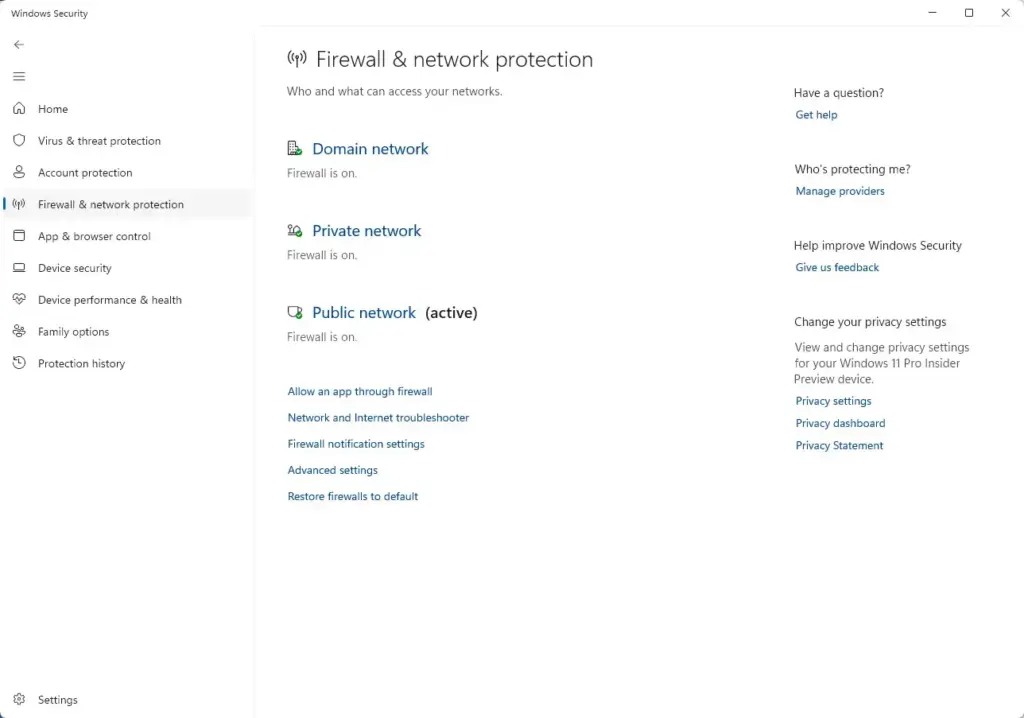
Disabling the service is not the only way to reduce risk. If you need printing, these steps let you keep the service running more safely.
- Keep Software Updated: Regularly install the latest Windows security updates. Microsoft frequently releases patches that fix vulnerabilities in system services like the Print Spooler, allowing you to keep the service running safely. Check Windows Update often on any machine that prints, and update printer drivers as well.
- Use Point-and-Print Restrictions: If you manage a network environment, configure Group Policy settings to restrict which print drivers can be installed, preventing unauthorized software from entering your system. Group Policy is available on Windows 11 Pro, Enterprise, and Education. Home editions do not include the Group Policy editor, so on Home the main protection is keeping Windows updated.
Summary
Turning off the Windows Print Spooler stops all physical printing, breaks PDF creators, and blocks network printer sharing entirely. Network administrators sometimes turn it off on servers and other machines that never print, and that is a reasonable choice there. Everyday home users and office workers should keep the service running, install updates promptly, and use the troubleshooting steps above if it stops. If you do disable it, you can switch it back on at any time from the Services app.
Have a question about this guide?
Answered by AI from this guide. Good questions may be added to this page — please don't include personal details.
Did this guide fix your problem?

About the Author
Richard
Tech Writer, IT Professional
Richard is a writer at Geek Rewind who turns complex IT tasks into clear, step-by-step guides. He draws on years of hands-on experience in system administration and enterprise IT operations, focusing on Windows, Linux and WordPress: the problems people actually run into, and the fixes that work. His server and WordPress guides come from systems he runs himself. Richard builds and maintains the platform behind Geek Rewind, from its Ubuntu servers and Nginx configuration to its custom WordPress plugins. Many new tutorials start with readers' questions, and he's always glad to answer them in the comments.
No comments yet — be the first to share your thoughts!