Should You Enable Windows 11 System Restore Points on Secondary Drives

System Restore points on a secondary drive tell Windows to keep snapshots of that drive’s system-related files. Windows leaves System Restore off for secondary drives by default. Your C drive holds the operating system files and installed programs, so that is the drive Windows protects. On many PCs it does this automatically, but it is worth checking on your own machine (the steps are further down).
Secondary drives mostly hold personal photos, music, games and large downloads. System Restore is not a file backup tool for those. It tracks system files, drivers, registry settings and certain program files, not your vacation photos. Turning on protection for these drives uses storage space and rarely helps fix a computer problem.
No. System Restore on secondary drives wastes storage space and CPU performance for little benefit. Enable it only if a secondary drive holds specialized software that modifies core Windows system files or installs deep drivers. For drives that store games, photos, music and standard applications, System Restore provides no real protection. Use File History or external backups for those files instead.
The Hidden Costs of Turning On Restore Points for Secondary Drives
It is tempting to switch System Restore on for every drive “just in case.” Before you do, weigh the downsides below. Each one has a real cost, and the benefit is small for most setups.
Wasted Storage Space
The first cost is storage space. When you protect a drive, Windows reserves part of its total capacity for restore point data. You control the size of that reserve with a slider, which the steps at the end explain. On a drive full of games or video, even a modest percentage is a lot of space. A 2 TB drive with 10% reserved gives up about 200 GB, and that adds up quickly.
Windows also deletes older restore points once the reserve fills up. So you may be giving up space for snapshots that are already being thrown away.
Slower System Performance
The second cost is performance. Each time Windows creates a snapshot, it has to check the protected drives, compare files and write new data. That background work takes CPU and disk time. You may notice brief slowdowns, especially on older PCs or on a drive that is busy copying or downloading something.
Every extra protected drive adds to that work, so protecting three drives costs more than protecting one.
Wear and Tear on Solid-State Drives (SSDs)
The third cost is wear on solid-state drives. SSDs have a limited number of lifetime writes, and creating and deleting snapshot files adds to that count. On a modern SSD the extra wear from one drive is small. It is still wear you gain nothing from if the drive only holds media files, and it grows if you protect several large drives.
When Should You Actually Enable System Restore on a Secondary Drive?
The usual reason is that you store specialized programs or custom software there that actively modify core system files or install deep drivers. For most people, secondary drives only hold media files and games, so system protection is unnecessary.
The main exception is software installed directly onto a secondary drive that changes core Windows system files or installs deep system drivers. Some advanced software and developer tools place system-level components outside the C drive. If a secondary drive holds system-critical files that change often or tend to break, protecting that specific drive can help.
For about 99% of everyday users, secondary drives hold games, movies, personal documents and applications that do not touch core Windows files. In that setup, turning on System Restore for those drives gives you no real benefit.
If what you really want is protection for your files, use a backup tool such as File History or a copy on an external drive. System Restore will not do that job.
How to Check and Change System Restore Settings in 🪟 Windows 11
You can check which drives are protected, and change that, from Control Panel. You need to be signed in with an administrator account. These steps work the same on Windows 11 Home and Pro. No restart is needed afterwards.
- Click the Start button on your taskbar, type Control Panel, and press Enter. Control Panel opens.
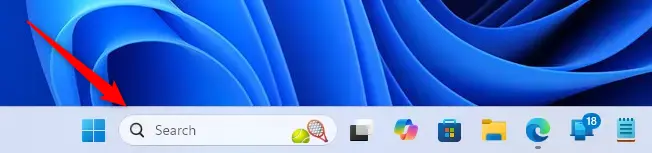
Windows 11 taskbar search bar used for finding date and time settings - Click the search box in the top-right corner of the Control Panel window and type Recovery.
- Click Recovery in the search results. The Recovery page opens with a list of tools.
- Click Configure System Restore. The System Properties window opens on the System Protection tab.
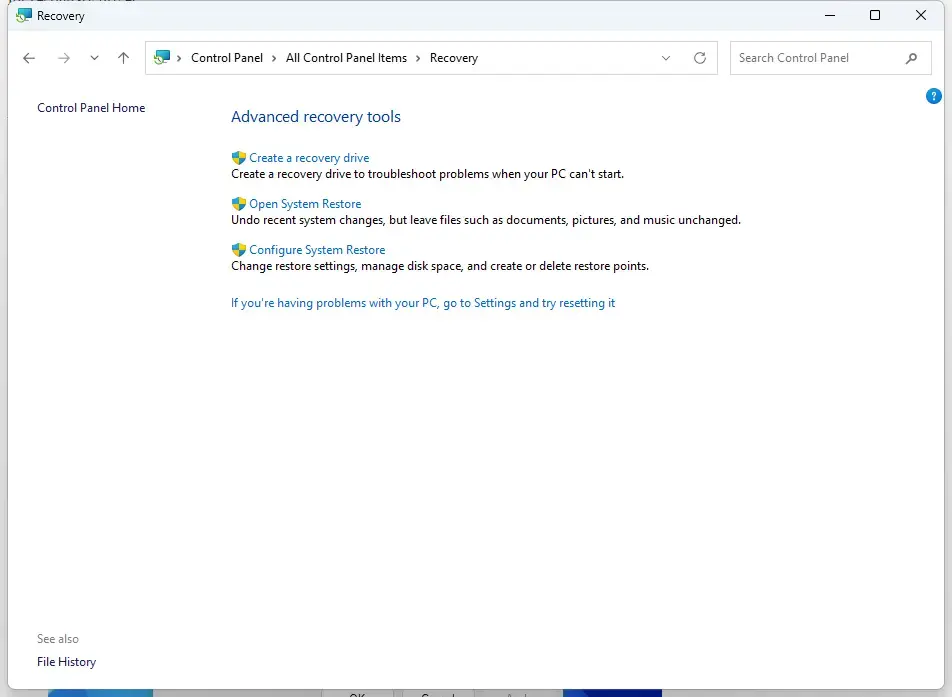
Control Panel › All Control Panel Items › Recovery - Look under Protection Settings. You will see a list of drives, each with its protection status shown as On or Off. Your C drive is usually On, and secondary drives are usually Off.
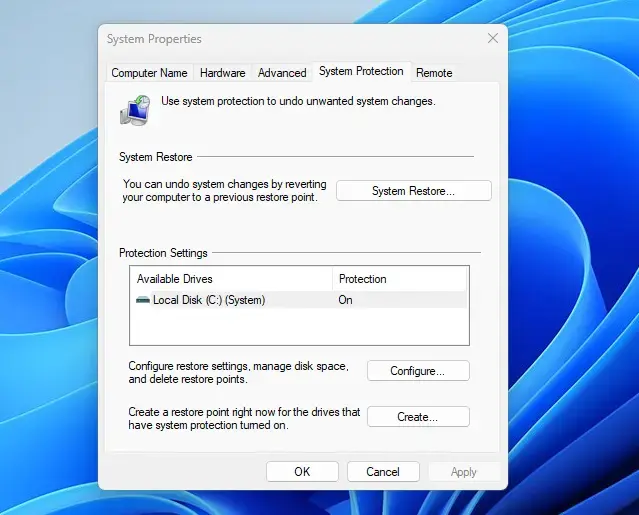
- Click a drive to select it, and then click the Configure button. A new window opens for that drive.
- Choose Turn on system protection or Disable system protection. If you turn protection on, use the Max Usage slider to set how much disk space Windows may use for restore points on that drive. Keep it low on a drive you need for storage.
- Click Apply and then click OK to save your changes.
Be aware that disabling protection on a drive deletes the existing restore points for that drive. If you only want to reclaim some space and keep protection on, lower the Max Usage slider instead.
If the Configure button is greyed out, you are probably not signed in as an administrator. It can also happen when the drive's format does not support System Restore, or when a policy on a work or school PC controls the setting.
Summary
Enabling System Restore points on secondary drives is usually unnecessary, because those drives rarely hold critical operating system files. Turning protection on mostly costs you storage space, adds background work that can slow your computer, and adds some wear to your solid-state drives. Leave it off unless you have installed system-level software on that drive.
Have a question about this guide?
Answered by AI from this guide. Good questions may be added to this page — please don't include personal details.
Did this guide fix your problem?

About the Author
Richard
Tech Writer, IT Professional
Richard is a writer at Geek Rewind who turns complex IT tasks into clear, step-by-step guides. He draws on years of hands-on experience in system administration and enterprise IT operations, focusing on Windows, Linux and WordPress: the problems people actually run into, and the fixes that work. His server and WordPress guides come from systems he runs himself. Richard builds and maintains the platform behind Geek Rewind, from its Ubuntu servers and Nginx configuration to its custom WordPress plugins. Many new tutorials start with readers' questions, and he's always glad to answer them in the comments.
No comments yet — be the first to share your thoughts!