Should You Encrypt Your Secondary Drive with BitLocker

- 14 steps
- Needs administrator rights
BitLocker is a built-in Windows security tool that locks the data on your drives so nobody can read your files without your password or recovery key. Encrypting a secondary internal drive or an extra storage drive protects your personal documents if your PC is stolen, sold, or sent away for repairs.
You can turn on BitLocker on Windows 10 Pro and Windows 11 Pro without installing extra software. Encryption adds a little work for the processor, which older hardware may show as a slight slowdown. Modern PCs handle it in the background, and most people never notice a difference in daily use.
Yes, you should encrypt your secondary drive with BitLocker if it holds personal documents, work files or backups. Encryption stops anyone who steals or removes the drive from reading your files without your password or recovery key. BitLocker is built into Windows 10 Pro and Windows 11 Pro, so no extra software is needed. Modern PCs barely notice the extra processor work.
What Is BitLocker Drive Encryption?
BitLocker drive encryption scrambles the data on a drive so that only someone with the right password or recovery key can read it. If your computer is lost or stolen, the files on a protected drive stay private. It works on internal drives, extra partitions and external drives.
BitLocker is part of Windows itself. You manage it from Control Panel or from the drive’s right-click menu in File Explorer, and you do not need an account with any outside service.
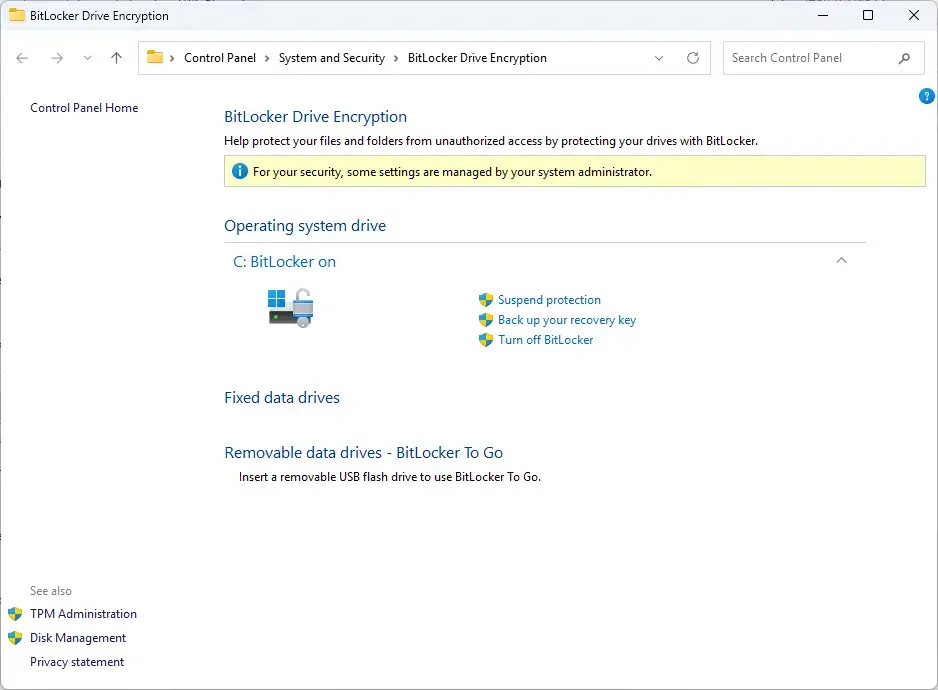
When you turn on BitLocker for a drive, Windows converts everything on it into unreadable data. That covers your documents, pictures and programs. When you unlock the drive, Windows decrypts files on the fly as you open them, and encrypts them again as you save them. You work with the files as usual.
A secondary drive protected with a password normally asks for that password after a restart or when you plug the drive in. You can tell Windows to unlock it automatically on your own PC, but this only works if your main system drive is also encrypted. Otherwise the drive stays locked until you enter the password.
If someone removes the drive and connects it to another machine, they see a locked drive and a password prompt. Without your password or recovery key, they cannot read the files.
What Is a Secondary Drive?
A secondary drive is any storage on your computer other than the main system drive where Windows is installed. That includes extra internal drives, separate partitions, and external storage you plug in for extra files, games and backups.
- An extra internal hard drive or Solid State Drive (SSD) inside your desktop, often named the D drive or E drive.
- A second partition split away from your main physical hard drive.
- An external hard drive plugged into your USB port for extra files or backups.
- A USB flash drive you carry in your pocket.
Locking your main C drive protects your operating system and user folders. Locking your secondary drive protects everything else you store away from the main Windows setup.
Windows sorts these drives into two groups. Internal drives and partitions count as fixed data drives. External drives and USB sticks count as removable data drives, and Windows calls the BitLocker feature for them BitLocker To Go. The setup steps later in this tutorial are nearly the same for both.
Why You Should Encrypt Your Secondary Drive
Encrypt your secondary drive to protect your files from physical theft and unauthorized viewing. Without encryption, anyone can pull the drive out, plug it into another PC and read everything on it.
- Protection from physical theftIf someone steals your laptop or desktop, they can easily pull out your secondary hard drive and plug it into another computer to read your files. Encryption stops them completely.
- Safety for external backup drivesPeople often store huge amounts of personal data on backup drives. If you lose a small external drive while traveling, anyone who finds it can view your digital life. BitLocker keeps those backups safe.
- Peace of mind for sensitive dataIf you keep tax papers, work projects, scanned passports, or money spreadsheets on a secondary drive, encryption keeps those private files private.
- Compliance with privacy rulesIf you handle client information or medical records for work on your personal computer, data protection rules often require you to encrypt all drives holding that data. Check your employer’s or client’s requirements if you are not sure.
Encryption also helps when you sell, give away or recycle a PC or drive, or send it in for repair, because the data on it is unreadable to the next person.
Drawbacks and Risks of Encrypting Secondary Drives
- Risk of permanent data lossIf you lose your BitLocker password and your backup recovery key, your data is gone forever. Not even Microsoft or computer repair shops can open a BitLocker drive without the key.
- Performance impactEncrypting and decrypting data uses computer power. On older computers or slower mechanical hard drives, you might see a slight speed drop when opening large files. Modern computers with security chips usually feel no slowdown.
- Compatibility issuesBitLocker is a Microsoft Windows feature. If you plug an encrypted external drive into an Apple Mac, the Mac cannot read the files without special extra software. If you move between Windows and Mac, a BitLocker drive is a poor fit.
- Troubleshooting headachesIf your computer has major hardware trouble, getting data back from an encrypted secondary drive takes extra steps compared to an unencrypted drive. You will need the password or recovery key even if you connect the drive to a working PC.
Before you encrypt a drive that holds files you cannot replace, copy those files to another location first. Encryption rarely goes wrong, but a power cut or a failing drive during the process is the worst time to find out you have no backup.
How to Check If Your Windows Edition Supports BitLocker
You can turn on BitLocker for a drive on Windows Pro, Enterprise and Education. Windows Home does not offer the standard BitLocker controls for internal data drives, so check your edition first.
To check your Windows edition:
- Click the Start button and select the Settings gear icon.
- Click System in the left menu.
- Scroll down and click About.
- Look under the Windows specifications section. The Edition line shows whether you have Home, Pro, Enterprise or Education.
If you see Home, you will not find the option to turn on BitLocker for your drive. Your choices are to upgrade to Pro (Settings System Activation shows upgrade options) or to use a different encryption tool. Pro is the edition this tutorial assumes.
How to Enable BitLocker on a Secondary Drive Using Windows Menus
You turn on BitLocker for a secondary drive from Control Panel, using the BitLocker Drive Encryption page. You need an administrator account and a safe place to store your recovery key.
Before you start, sign in to an administrator account. Standard user accounts cannot change system security settings or protect drives, and you will be asked for administrator credentials if you try.
- Click the Start button, type Control Panel, and press Enter.
- In the Control Panel window, change the View by setting in the top right corner to Large icons or Small icons. You should now see a list of icons instead of categories.
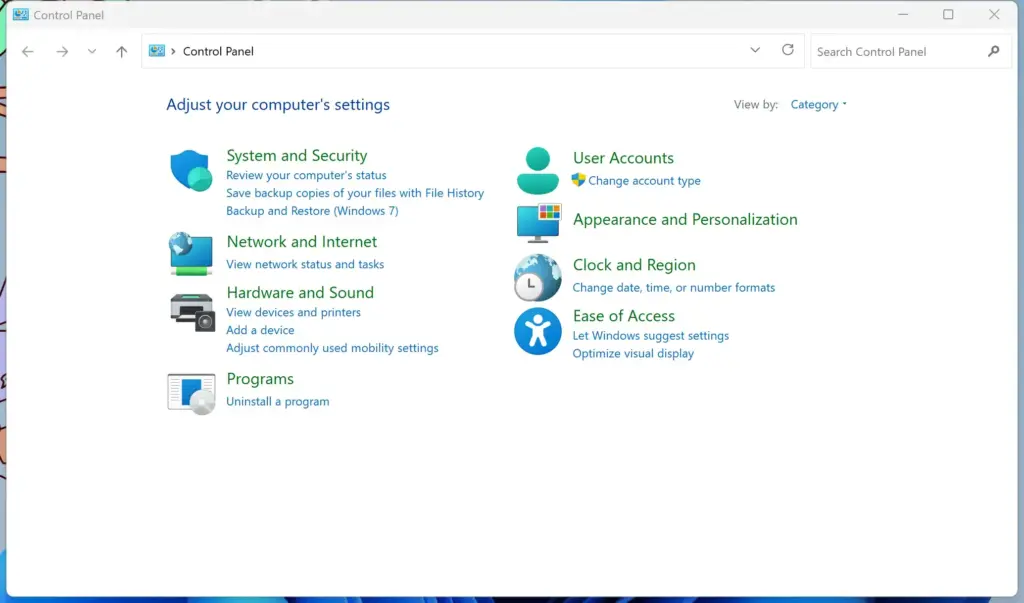
Control Panel - Click BitLocker Drive Encryption. The page lists your drives and shows whether BitLocker is on or off for each one.
- Find your secondary drive under Fixed data drives (internal drives) or Removable data drives – BitLocker To Go (external drives and USB sticks).
- Click Turn on BitLocker next to your secondary drive. A setup wizard opens, and Windows briefly prepares the drive.
- Choose how you want to unlock your drive. Select Use a password to unlock the drive and enter a strong, secure password in both boxes. Click Next. Use a long password that you do not use anywhere else.
- Choose how you want to back up your recovery key. You can save it to your Microsoft account, save it to a file, or print it. Crucial step: choose at least one backup method and keep the key somewhere safe. If you save to a file, do not save it on the drive you are encrypting. Click Next.
- Choose how much of the drive to encrypt. If this is a brand-new drive, select Encrypt used disk space only, which is faster. If the drive already has files on it, select Encrypt entire drive, because deleted files that still sit on the disk are then protected too. Click Next.
- Choose the encryption mode. Select Compatible mode if this is a removable drive you might use on older computers, or New encryption mode if it is an internal drive meant only for this computer. Click Next.
- If you see a checkbox for Run BitLocker system check, tick it. This option usually appears only for system drives, so you may not see it for a data drive. Then click Continue or Start encrypting.
Windows now encrypts the drive in the background, and a progress window shows how far along it is. You can keep using your computer while this runs. A large drive can take hours, and a restart or sleep during encryption just pauses it. When it finishes, the drive shows a lock icon in File Explorer.
To undo this later, go back to Control Panel BitLocker Drive Encryption and click Turn off BitLocker next to the drive. Windows decrypts the drive, which takes about as long as encrypting it did.
Best Practices for Managing Encrypted Drives
- Back up your recovery keyPrint your recovery key out on paper and store it in a secure location, like a home safe or file folder. Do not save the recovery key on the same secondary drive that you just encrypted. If the drive fails or locks up, you will not be able to read the key. If you saved a copy to your Microsoft account, you can also look it up there from another device.
- Keep your password safeUse a password manager to store your BitLocker password securely, or write it down and keep it physically secure.
- Pause encryption before major hardware changesIf you plan to update your computer’s motherboard, processor, or BIOS firmware (the low-level software that starts your hardware), temporarily suspend BitLocker first. Major hardware changes can trick BitLocker into thinking an attacker is trying to steal your data, which will lock you out of your own drive. This matters most for an encrypted system drive. A secondary drive that unlocks with a password is less likely to be affected, but suspending protection first does no harm. Resume protection when the work is done.
Test your recovery key after setup. Make sure you can find it and read it, so you are not hunting for it when you actually need it.
Summary
BitLocker protects the data on your secondary drive from theft and unauthorized access, as long as you keep your recovery key safe. On a modern Windows Pro PC the extra work is barely noticeable, so it is a sensible choice for extra storage that holds anything private. Back up your files before you begin, store the recovery key away from the drive, and your data stays both private and recoverable.
Have a question about this guide?
Answered by AI from this guide. Good questions may be added to this page — please don't include personal details.
Did this guide fix your problem?

About the Author
Richard
Tech Writer, IT Professional
Richard is a writer at Geek Rewind who turns complex IT tasks into clear, step-by-step guides. He draws on years of hands-on experience in system administration and enterprise IT operations, focusing on Windows, Linux and WordPress: the problems people actually run into, and the fixes that work. His server and WordPress guides come from systems he runs himself. Richard builds and maintains the platform behind Geek Rewind, from its Ubuntu servers and Nginx configuration to its custom WordPress plugins. Many new tutorials start with readers' questions, and he's always glad to answer them in the comments.
No comments yet — be the first to share your thoughts!