Every Windows 11 Legacy Control Panel Applet Command You Still Need

- 9 steps
- Needs administrator rights
Legacy Control Panel applet commands in Windows 11 are direct shortcuts that open classic system settings windows instantly and bypass the modern Settings app. Microsoft still hides over 40 advanced management tools behind these classic shortcuts in the latest Windows 11 updates.
You can type these commands into the Run window by pressing the Win+R on your keyboard, or paste them into desktop shortcuts to open the exact tool you need in seconds. This guide lists the commands I use most, explains what each one opens, and notes where a command behaves differently on current Windows 11 builds.
Type a Control Panel command into the Run dialog (Win+R) to open legacy system tools. Essential commands include control for the main Control Panel, control admintools for Administrative Tools, devmgmt.msc for Device Manager, diskmgmt.msc for Disk Management, and compmgmt.msc for Computer Management. Press Enter to launch, or Ctrl+Shift+Enter to open with administrator rights.
Understanding 🪟 Windows 11 Control Panel Commands
Windows 11 control panel commands let you bypass the modern Settings app to open classic configuration tools stored directly on your hard drive. Typing these specific system names into your computer launches older applets instantly, giving you access to advanced settings and deep system controls that Microsoft has hidden from standard menus.
Using commands allows you to bypass the modern Settings app completely. This is very helpful when you need to change advanced hardware settings, manage network connections, or troubleshoot system problems quickly.
A few classic commands now open the matching Settings page instead of the old window. The applet still works, it just looks different. I point these out in the lists below. Nothing here changes your system until you click Apply, OK or Save inside the tool, so it is safe to open a command just to look.

How to Run Control Panel Commands
Running Windows 11 control panel commands takes just a few seconds using the built-in Run dialog box. Press the Win and R on your keyboard at the same time to open the tool, type your specific system command into the blank box that appears, and press Enter to launch the settings window immediately.
- Press the Win+R on your keyboard to open the Run dialog box. A small window appears in the lower-left corner of the screen with an empty Open field.

Run dialog - Type the command into the empty text field. Copy and paste works too, which helps with the longer control /name commands.
- Press Enter on your keyboard or click the OK button to launch the applet. The classic window opens on top of your desktop. If nothing happens, check the spelling and the spaces in the command.
You can also type these commands directly into the Windows search bar on your taskbar, or inside a Command Prompt or PowerShell window.
Some tools, such as Device Manager and BitLocker, only let you make changes with administrator rights. If you want the window to open with those rights from the start, type the command in Run and press Ctrl+Shift+Enter instead of Enter. Click Yes on the User Account Control prompt. If you are signed in with a standard account, Windows asks for an admin password.
Essential Control Panel Applet Commands
Essential control panel applet commands give you a fast way to launch classic Windows tools without clicking through multiple menus. Typing short text codes like control or control admintools into your run box opens core system settings and display windows directly, saving you time when managing your computer.
- control – Opens the main Control Panel home window. From here you can browse by category or switch to the large or small icon view.
- control admintools – Opens the Administrative Tools folder, which contains shortcuts for system administrators and advanced users. In Windows 11 this folder is labeled Windows Tools, and it includes Event Viewer, Services and Computer Management.
- control color – Opens the legacy Color and Appearance window. On current Windows 11 builds this may take you to the Colors page in the Settings app instead.
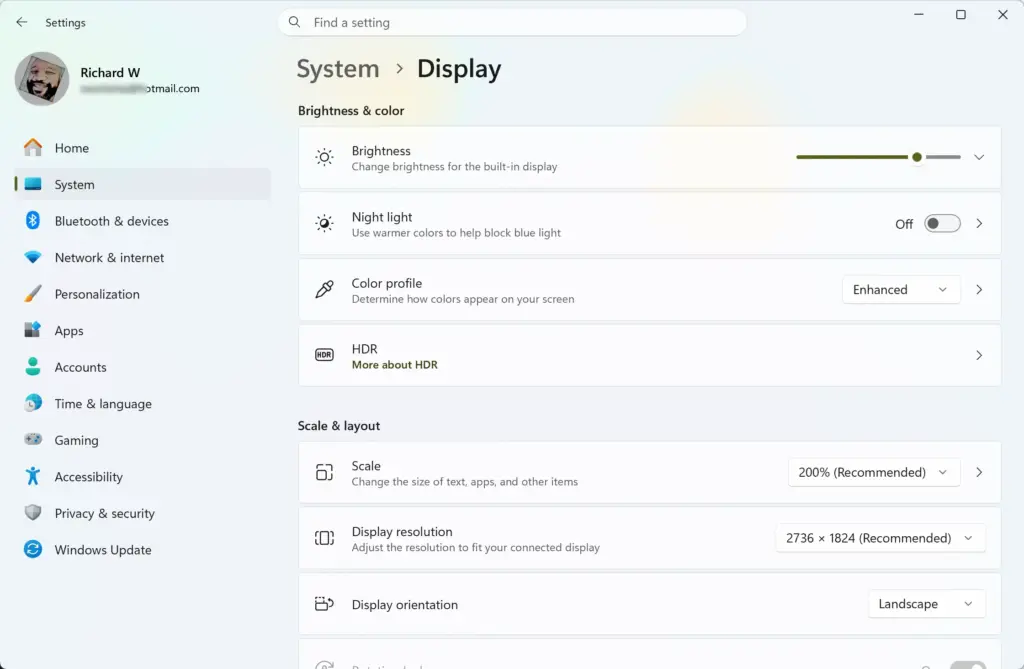
- control desktop – Opens the Display Settings and screen saver settings. Depending on your build, you may land on a Settings page for personalization or display rather than a classic window.
Settings › System › Display - control folders – Opens File Explorer Options, where you can change how files and folders look and behave. This is where you show hidden files and file extensions, and reset folder views.
Settings > Advanced - control fonts – Opens the Fonts folder to view, install, or delete system fonts. To install a font, drag the font file into this window.
- control international – Opens the Region settings to change date, time, and language formats. The Administrative tab in this window also holds the system locale and the option to copy settings to the welcome screen.
- control mouse – Opens Mouse Properties to change button settings, pointer speeds, and wheel behavior. You can swap the primary button here for left-handed use.
- control printers – Opens Devices and Printers to manage connected hardware, printers, and scanners. It is useful when the Settings app does not list a device you know is plugged in.
- control schedtasks – Opens the Task Scheduler to create and manage automated background tasks. Task Scheduler is included in both Home and Pro editions.
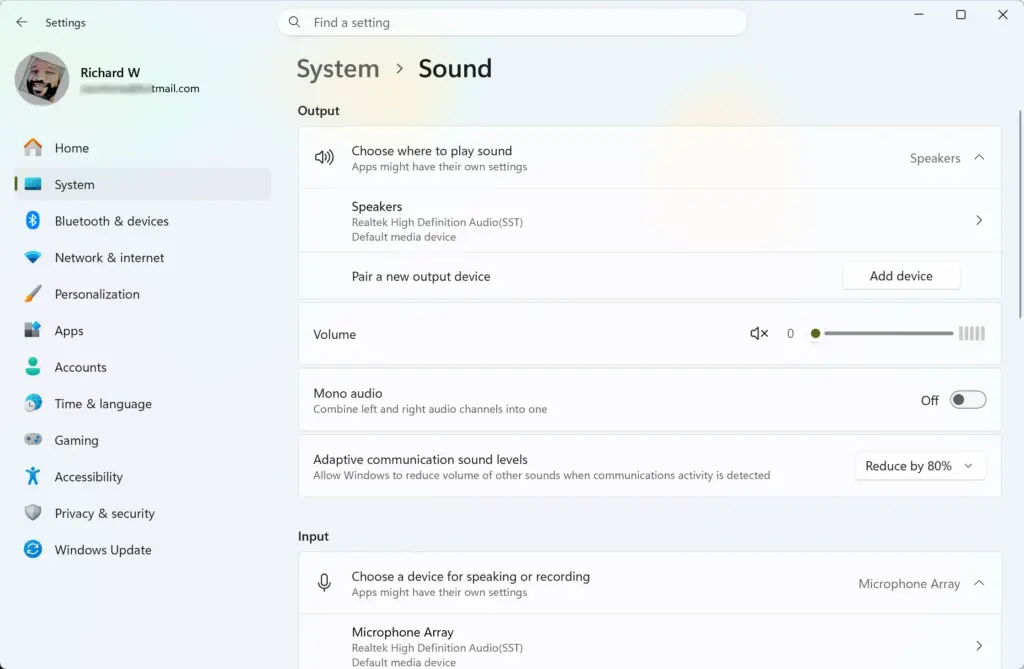
- control sound – Opens the legacy Sound settings window to manage playback and recording devices. Right-click a device in this window to set it as the default or to open its properties.
Settings › System › Sound - control userpasswords – Opens the classic User Accounts window. It is a quick way to reach account type and password options without going through Settings.
Advanced Applet Commands Using Control.exe and Rundll32
Advanced control.exe and rundll32 commands let you open deeper Windows 11 system settings that normal shortcuts cannot reach. These specialized command strings point straight to system files like network connections and advanced performance options, helping you troubleshoot and fix computer problems quickly. The .cpl part is the file name of the applet itself, so these commands open one specific tool every time.
- control ncpa.cpl – Opens Network Connections directly. It lists every network adapter, including Wi-Fi, Ethernet and VPN. Right-click an adapter to disable it or open its properties. (Admin privileges may be required to change adapter settings)
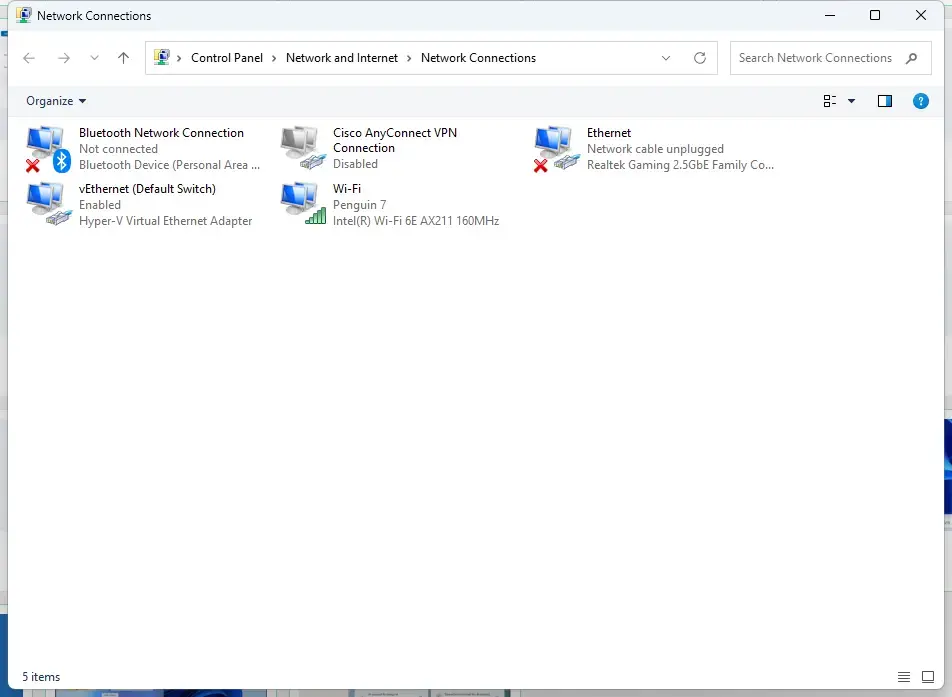
Network Connections - control sysdm.cpl – Opens System Properties, where you can manage computer name, environment variables, and advanced performance settings. The Advanced tab holds the Performance, User Profiles and Startup and Recovery options. (Admin privileges required for system changes)
- control appwiz.cpl – Opens Programs and Features to uninstall desktop software and manage Windows features. The Turn Windows features on or off link on the left lets you add or remove optional components.
- control desk.cpl – Opens Screen Resolution and display appearance settings. On current Windows 11 builds, this normally opens the Display page in the Settings app.
- control mmsys.cpl – Opens the Sound control panel applet. It is the same window you get from control sound.
- control powercfg.cpl – Opens Power Options to manage your power plans and sleep settings. Use it when you need to pick a plan or choose what the power buttons and lid do.
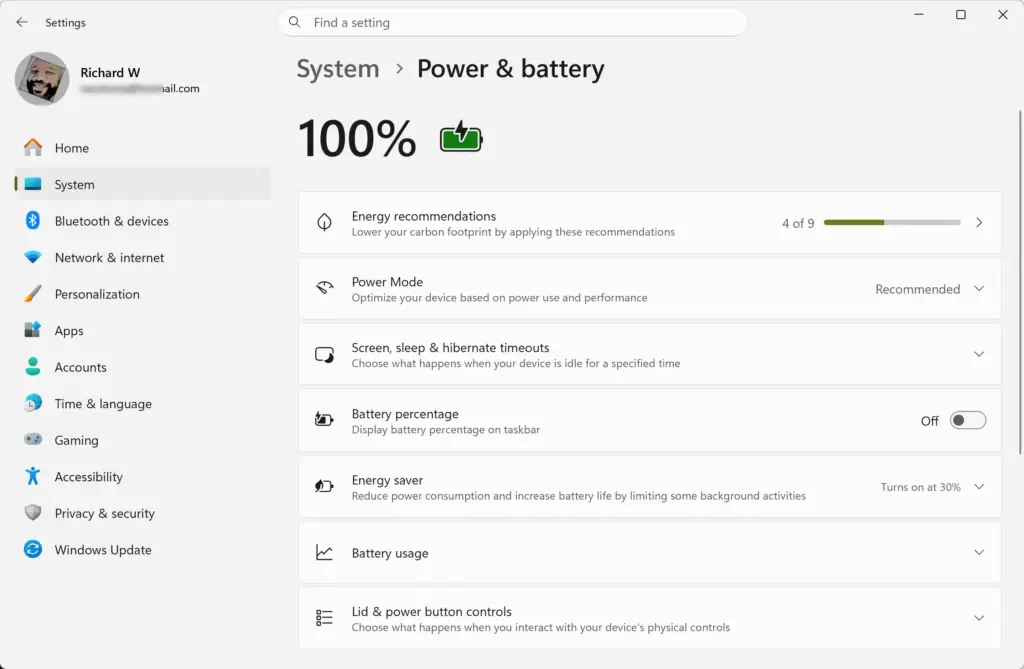
Settings › System › Power - control wscui.cpl – Opens the Security and Maintenance window. It shows any security or maintenance messages Windows is holding for you.
- control timedate.cpl – Opens the Date and Time settings window. Use the Internet Time tab to change the time server. (Admin privileges required to change system time)
Launching Classic Applets via Canonical Names
Launching classic applets via canonical names gives you an alternate way to open specific Windows 11 settings using official system identifiers. Typing control /name followed by the exact tool name into your run box bypasses modern menus and opens the exact control page you want right away. Type the name exactly as shown. A typo usually produces an error or opens the main Control Panel instead.
- control /name Microsoft.AutoPlay – Opens the AutoPlay settings for removable drives and media.
- control /name Microsoft.BackupAndRestoreCenter – Opens the legacy Backup and Restore tool. This is the Windows 7-era backup, which still works on Windows 11 if you need to restore old backups.
- control /name Microsoft.BitLockerDriveEncryption – Opens BitLocker Drive Encryption to secure your hard drives. Full BitLocker management is available in Pro and higher editions. Home uses a simpler device encryption feature, so you may see fewer options. (Admin privileges required)
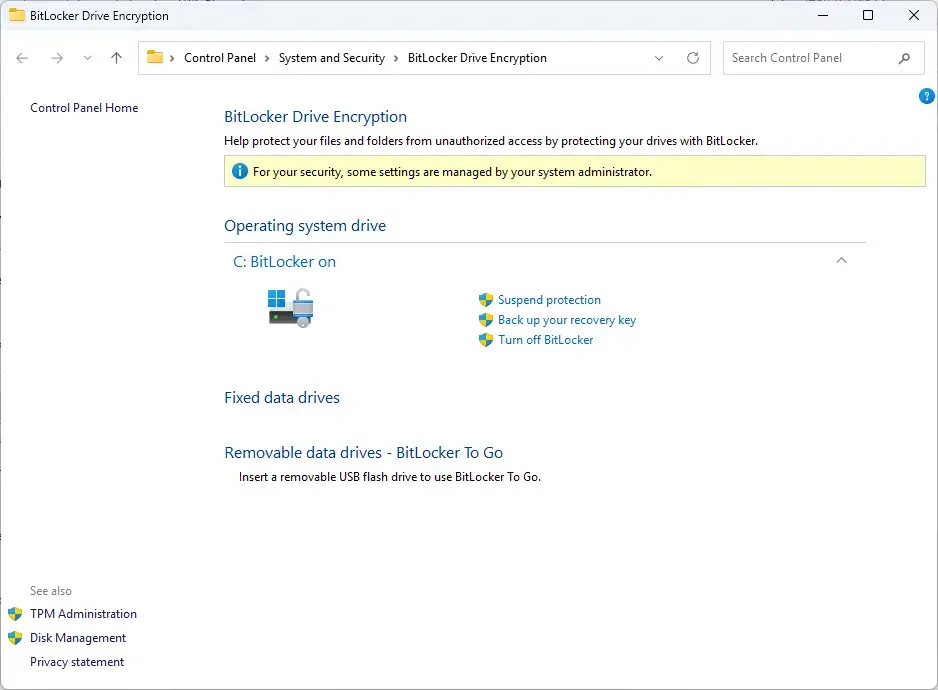
BitLocker - control /name Microsoft.CredentialManager – Opens Credential Manager to manage saved web passwords and network credentials. It is handy for removing a stale saved password for a network share.
- control /name Microsoft.DefaultPrograms – Opens Default Programs to set which app opens specific file types. In Windows 11 this may hand you over to the Default apps page in Settings.
- control /name Microsoft.DeviceManager – Opens Device Manager to update drivers and check hardware status. A yellow warning icon next to a device means Windows has found a problem with it. (Admin privileges required)
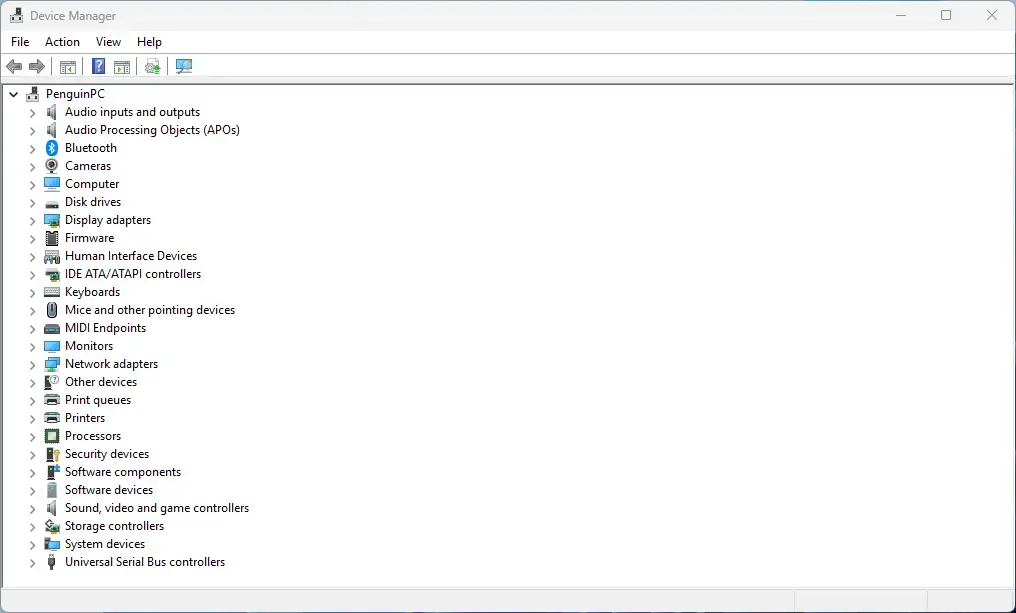
Device Manager - control /name Microsoft.NetworkAndSharingCenter – Opens the Network and Sharing Center. From here you can reach adapter settings and advanced sharing options.
- control /name Microsoft.Personalization – Opens personalization settings for themes and backgrounds. On Windows 11 this opens the Personalization page in the Settings app.

Settings › Personalization - control /name Microsoft.ProgramsAndFeatures – Opens the classic list of installed programs for easy uninstallation. It gives the same result as control appwiz.cpl.
- control /name Microsoft.WindowsFirewall – Opens Windows Defender Firewall settings. Use the links on the left to turn the firewall on or off, or to reach Advanced settings. (Admin privileges required)
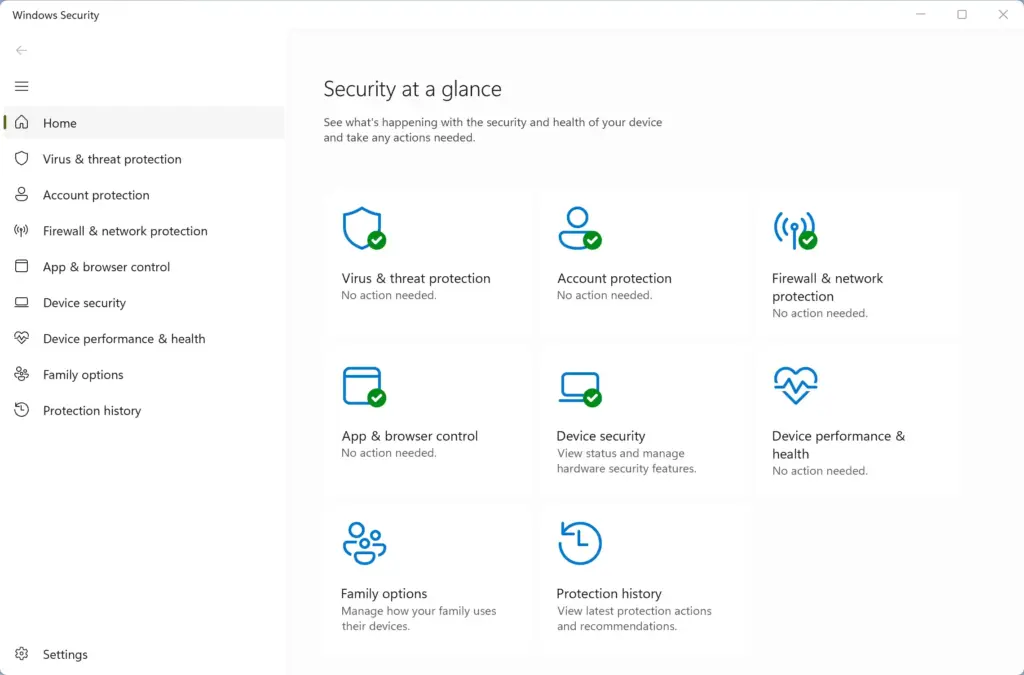
Windows Security
Creating Quick Shortcuts to Control Panel Applets (Unique Angle)
Creating quick shortcuts to control panel applets on your Windows 11 desktop saves you from typing commands every single time you need a tool. Right-clicking your screen to make a new shortcut allows you to paste your favorite settings command into the box and open your most-used tools with a single double-click.
- Right-click an empty space on your desktop. A context menu appears.
- Hover your mouse over New and click Shortcut. The Create Shortcut wizard opens.
- In the box that asks for the location of the item, type the command you want to use, such as control ncpa.cpl.
- Click the Next button.
- Type a clear name for your shortcut, such as Network Connections.
- Click the Finish button to create the shortcut on your desktop. A new icon appears with the name you chose. Double-click it to check that it opens the right tool.
Once the shortcut is on your desktop, you can right-click it and select Pin to taskbar or Pin to Start for immediate, one-click access whenever you need it. In Windows 11, if you do not see Pin to taskbar in the short menu, click Show more options first.
Summary
Windows 11 control panel commands give you a reliable backup plan when the modern settings app does not have the tools you need. Learning how to use the run box, typing out essential applet codes, and making custom desktop shortcuts lets you manage your computer faster and bypass confusing menus.
Microsoft may move more of these tools into Settings over time. If a command opens a Settings page instead of a classic window, that is a sign of the change and not an error on your PC.
Have a question about this guide?
Answered by AI from this guide. Good questions may be added to this page — please don't include personal details.
Did this guide fix your problem?

About the Author
Richard
Tech Writer, IT Professional
Richard is a writer at Geek Rewind who turns complex IT tasks into clear, step-by-step guides. He draws on years of hands-on experience in system administration and enterprise IT operations, focusing on Windows, Linux and WordPress: the problems people actually run into, and the fixes that work. His server and WordPress guides come from systems he runs himself. Richard builds and maintains the platform behind Geek Rewind, from its Ubuntu servers and Nginx configuration to its custom WordPress plugins. Many new tutorials start with readers' questions, and he's always glad to answer them in the comments.
No comments yet — be the first to share your thoughts!