How to Configure Windows 11 Display and Color Settings

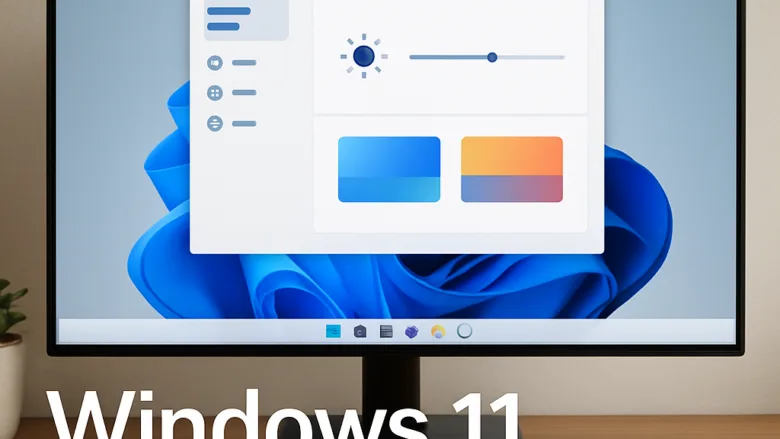
Windows 11 display and color settings control how everything looks on your screen, from text sharpness to color balance. Most of them are in the Settings app under System Display. Others are in the Personalization pages, the graphics control panel from your GPU maker, and the Color Management tool that comes with Windows.
You can change your screen resolution, set the refresh rate (how many times per second your screen updates) to 60Hz or higher, and fix washed-out colors in a few clicks. These controls help whether you connect an external monitor to a laptop or fine-tune a main desktop display. They keep your desktop sharp and comfortable on your eyes. All the steps here apply to Windows 11 Home and Pro alike.
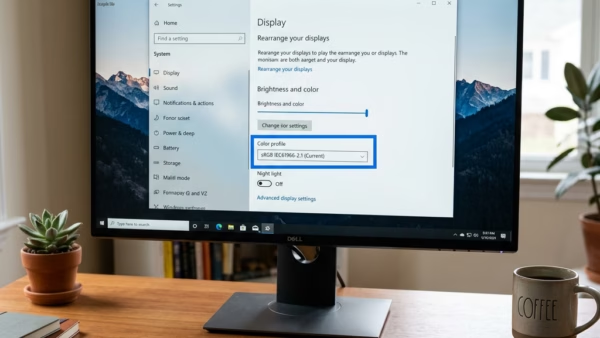
Open Settings System Display to access Windows 11 display settings where you can adjust screen resolution, refresh rate, brightness and color. Additional color profiles and themes are available in Settings Personalization Colors and the Color Management tool.
Adjust Your Screen Brightness
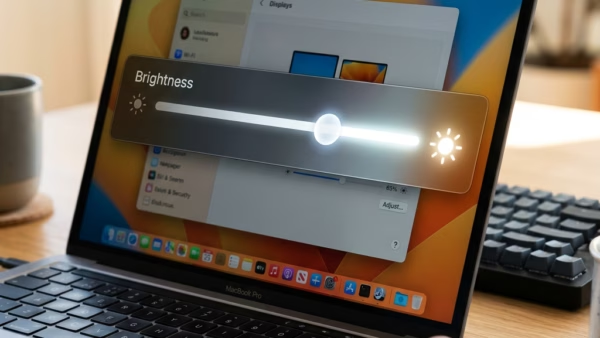
You can set it by hand or let your computer adjust it based on your surroundings. Keep in mind that built-in brightness controls only appear on laptops, tablets and all-in-one PCs. On a desktop with an external monitor, you normally change brightness with the buttons on the monitor itself.
Personalize Colors and Themes
The guides in this part show you how to change the look of your Windows menus and apps. You can switch between dark and light modes or pick a custom accent color. These changes apply right away and do not need a restart.
Set Up Extra Screens and Advanced Colors
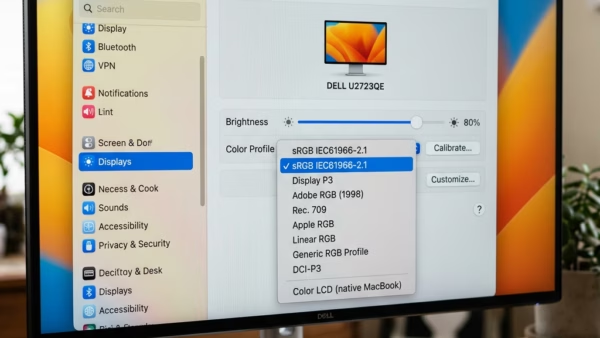
Connecting an extra monitor gives you more workspace. Advanced color profiles help when you need accurate colors, for example for photo or video editing. The guides below cover both.
Common questions
How do I make 🪟 Windows 11 darker?
Dark mode changes your taskbar, Start menu and supported apps to a dark theme. It is easy on the eyes in a dim room. To turn it on:
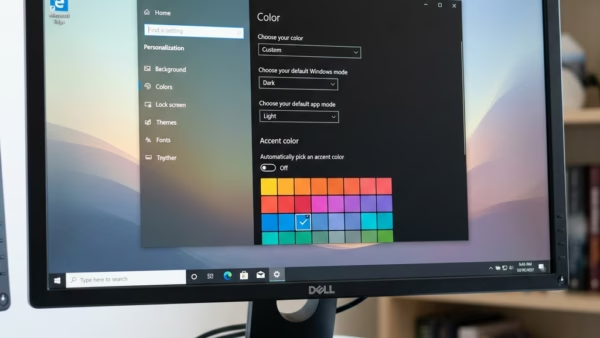
- Open Settings Personalization Colors
- Find the Choose your mode drop-down and open it.
- Select Dark. The Settings window, taskbar and Start menu should turn dark straight away.
If you want the system and your apps to differ, choose Custom instead. You can then set the Windows mode and the default app mode separately. To go back, pick Light from the same drop-down.
Some older desktop programs ignore this setting and stay light. That is normal. They need their own theme option, if they have one.
Why does my screen brightness keep changing by itself?
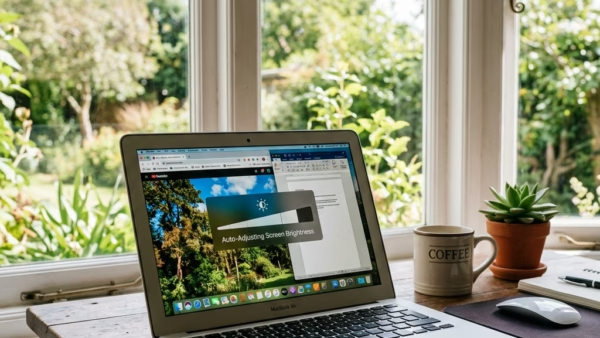
Windows 11 can adjust screen brightness automatically, based on your room's lighting or on the content shown on your screen. This is handy, but it can make the screen seem to dim or brighten on its own. You can turn it off if you prefer a steady level:
- Open Settings System Display
- Expand the Brightness section.
- Clear the Change brightness automatically when lighting changes check box. This option only shows up if your device has an ambient light sensor.
- If you see the battery-related option that adjusts brightness based on the content shown, clear that check box too. It is not available on every device.
- Drag the Brightness slider to the level you want. It should now stay there.
If you see no brightness slider or auto-brightness options, your PC is probably a desktop with an external monitor. Use the monitor's own buttons instead. To undo the change, tick the check boxes again.
How do I add a new color profile for my monitor?
A color profile tells Windows how your specific monitor displays color. Once you add your monitor's profile file, you can apply it to make your photos and videos look more accurate. Monitor makers often supply a profile on their support page, and calibration tools create one for you. To add one:
- Click Start, type Color Management, and open the Control Panel tool of that name.
- On the Devices tab, pick your monitor from the Device drop-down. If you have more than one screen, click Identify monitors to see which is which.
- Select the Use my settings for this device check box.
- Click Add. A list of installed profiles opens.
- Choose your monitor's profile. If it is not listed, click Browse and select the profile file you downloaded.
- Click OK. The profile now appears in the list for that monitor.
- Select it and click Set as Default Profile.
If you do not like the result, select the profile and click Remove to return to the previous setup. Only color-managed apps, such as most photo editors, use the profile fully, so some programs may look unchanged.
How do I use two monitors at the same time in 🪟 Windows 11?
To add a second monitor and use it as extra workspace:
- Plug the second monitor into an available video port on your computer, such as HDMI or DisplayPort. Make sure the monitor is powered on.
- Press the Windows Key plus P on your keyboard. A small menu appears on the right side of the screen.
- Choose Extend. Both screens now work as one large desktop, and you can drag windows between them.
The other choices in that menu are PC screen only, Duplicate and Second screen only. To undo the change, press Windows Key plus P again and pick PC screen only.
If the screens are in the wrong order, open Settings System Display. Click Identify to see the numbers on each screen, then drag the monitor boxes into the same arrangement as on your desk. If Windows does not detect the second monitor, check the cable and make sure the monitor is set to the right input.
Frequently asked questions
How do you change the color of the screen?
To change the color tint of your screen, open Settings, go to System Display, and turn on Night light for a warm tint. For a different look, open Settings, select Accessibility, then Color filters and pick a filter. To change accent colors, go to Personalization Colors
How to make my screen darker?
To make your screen darker, open Settings, go to System Display, and drag the Brightness slider to the left. On a laptop, you can also press the brightness-down key. On a desktop with an external monitor, use the buttons on the monitor itself, since those controls sit on the monitor.
How do I make my screen brighter?
To make your screen brighter, open Settings, go to System Display, and drag the Brightness slider to the right. Laptop users can also press the brightness-up key. On a desktop, use the monitor's own buttons. To let Windows adjust brightness to the room, tick Change brightness automatically when lighting changes.
Still have a question?
Answered by AI from this guide. Good questions may be added to this page — please don't include personal details.
Did this guide fix your problem?

About the Author
Richard
Tech Writer, IT Professional
Richard is a writer at Geek Rewind who turns complex IT tasks into clear, step-by-step guides. He draws on years of hands-on experience in system administration and enterprise IT operations, focusing on Windows, Linux and WordPress: the problems people actually run into, and the fixes that work. His server and WordPress guides come from systems he runs himself. Richard builds and maintains the platform behind Geek Rewind, from its Ubuntu servers and Nginx configuration to its custom WordPress plugins. Many new tutorials start with readers' questions, and he's always glad to answer them in the comments.
No comments yet — be the first to share your thoughts!