How to Let Windows 11 Change Brightness Automatically When Lighting Changes

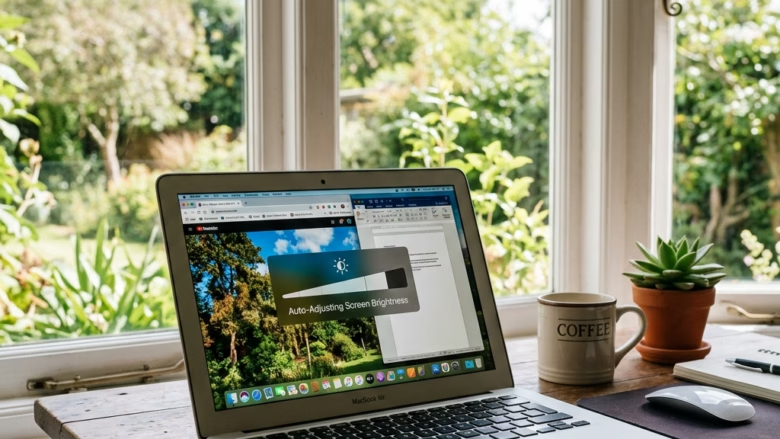
Adaptive brightness in Windows 11 changes your screen brightness automatically. It reads the built-in ambient light sensor and matches the display to the light in your room. That keeps the screen easy to read and saves battery life.
Most laptops with Intel 8th Gen Core processors or newer support this. The setting only appears if your computer has a physical light sensor built into the hardware. If you don’t see it, the machine most likely has no sensor, or Windows can’t read it yet. The troubleshooting notes further down cover that case.
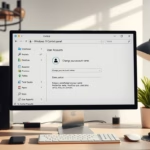
Open Settings System Display, find Change brightness automatically when lighting changes below the brightness slider, and toggle it on. Windows uses your built-in light sensor to dim or brighten the screen based on room lighting.
Why Use Automatic Brightness?
Auto brightness keeps the screen comfortable in any lighting without you touching the slider. It dims the display in a dark room, which reduces eye strain and saves battery. It brightens the display in a sunny spot so you can still read it.
Windows watches ambient light (the amount of light around the device) and adjusts the screen to suit. Once the setting is on, you rarely need the manual brightness slider. You can still use it whenever you want a different level.
How to Set Up Automatic Brightness
Step 1Go to Display Settings
You reach the display settings through the main Settings app , and it takes only a few clicks:
- Click the Start button . It’s usually in the middle of your screen at the bottom.
- Click the Settings icon. It looks like a little gear.
- On the left side of the Settings window, click on System.
- In the System settings, click on Display.
Select System in the left-hand menu, then click Display. The right-hand pane should now show your screen options, with the brightness controls near the top.

Step 2Find the Brightness Control
The automatic option sits close to the manual brightness control, so you only need to look in one place on the Display page.
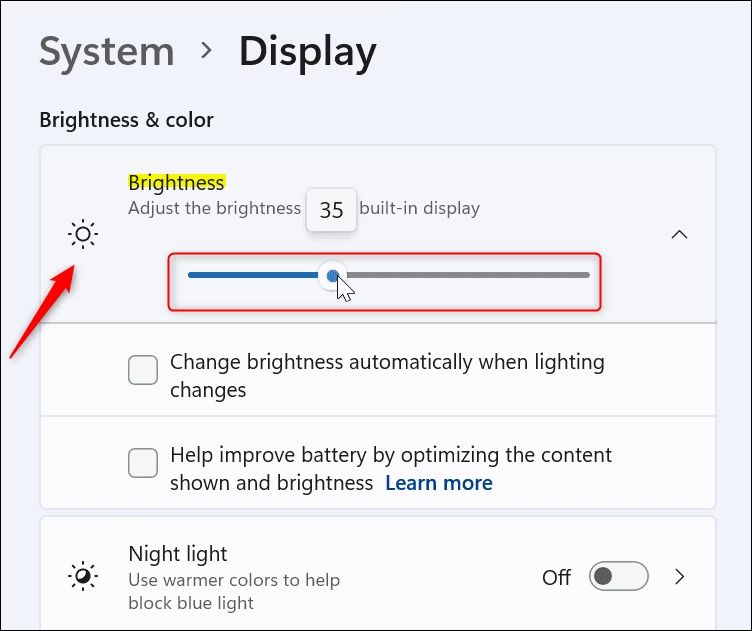
- On the System Display page, find the Brightness slider near the top. This is the manual control.
- Look directly below the slider. If the section is collapsed, select the small arrow next to Brightness to expand it. Which options show up depends on your hardware and your Windows 11 version.
- Find the setting that uses the light sensor to adjust brightness for the surrounding light. It should now be visible on screen.
If you can't find it, scroll down the whole Display page once, in case the layout on your build is different.
Step 3Turn On Automatic Brightness
Turning the feature on is a single click. Once it's enabled, your computer uses its built-in sensor to change the screen brightness to suit the room.
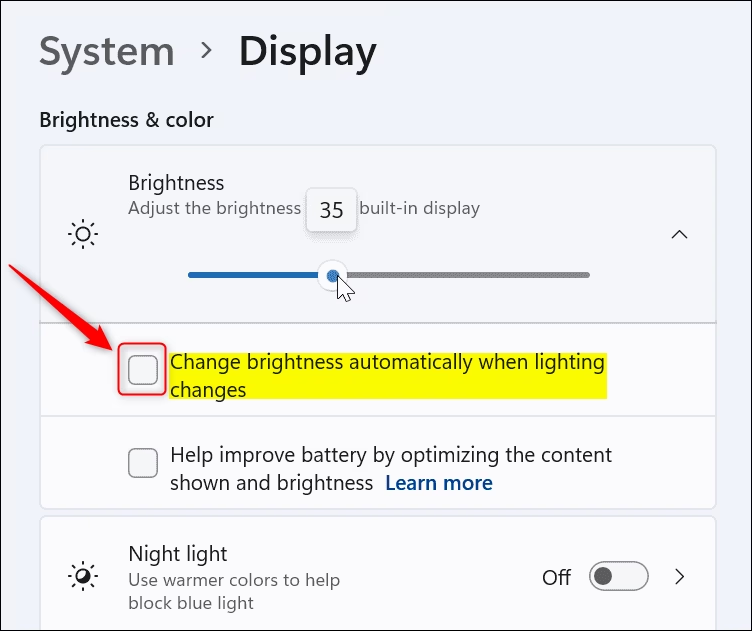
- Look for the setting labeled Change brightness automatically when lighting changes. Depending on your version, it appears as a checkbox or a toggle switch.
- Tick the checkbox, or flip the switch to On.
- Cover the sensor area (usually near the webcam) with your hand, or move to a darker or brighter spot. The screen should shift gradually. The change is slow and subtle by design, so give it a few seconds.
When it's enabled, Windows monitors the surrounding light in the background. Your screen dims in darker conditions and brightens in lighter ones.
To undo it, return to the same spot and untick the box or switch it Off. You don't need to restart. The setting works the same on Windows 11 Home and Pro.
If the option is missing or greyed out:
- Your device may have no ambient light sensor. This is common on desktop PCs with external monitors, and on some budget laptops.
- The sensor may be present, but its driver isn't installed. Run Windows Update and check your PC maker's support page for chipset or sensor drivers.
- An older processor or a device without the supporting hardware may not offer the setting at all.
Step 4How it Works
Auto brightness depends on the built-in light sensor, which measures the light around your device. Windows keeps checking that reading and adjusts the display so it stays easy to see.
For Normal Screens: Windows tries to keep the screen readable whether the room is bright or dark. It looks for a balance so the display is neither too dim nor too bright.
For HDR (High Dynamic Range, a technology that expands contrast and color accuracy) screens, Windows adjusts brightness to better match how human eyes perceive changes in light. This adjustment may be slightly slower, which gives a more natural viewing experience. If the brightness seems slow to react on an HDR display, that is normal.
Reference:
Summary
Auto brightness uses your device's light sensor to adjust the screen automatically. It makes the display easier to see and saves power. If the setting isn't there, the cause is almost always missing hardware or a missing driver.
Was this guide helpful?

About the Author
Richard
Tech Writer, IT Professional
Richard is a writer at Geek Rewind who turns complex IT tasks into clear, step-by-step guides. He draws on years of hands-on experience in system administration and enterprise IT operations, focusing on Windows, Linux and WordPress: the problems people actually run into, and the fixes that work. His server and WordPress guides come from systems he runs himself. Richard builds and maintains the platform behind Geek Rewind, from its Ubuntu servers and Nginx configuration to its custom WordPress plugins. Many new tutorials start with readers' questions, and he's always glad to answer them in the comments.


No comments yet — be the first to share your thoughts!