How to Change Your Username in Windows 11

Changing your username in Windows 11 updates the name shown on the sign-in screen, the Start menu and other places on your PC. It takes a few minutes, whether you sign in with a local account or a Microsoft account. The method is different for each, so it pays to check which one you have first.
To check, open Settings and go to Accounts, then Your info. A Microsoft account shows an email address under your name. A local account shows the words Local account instead. Once you know which you have, follow the matching section below. You only need one of them.
Open Settings Accounts Your info to check your account type, then use Control Panel User Accounts User Accounts Change your account name for local accounts, or visit account.microsoft.com to edit your Microsoft account name online. Restart your PC after changing a local account name.
Change Your Local Account Username
Windows 11 has no rename option for local accounts in Settings. This changes the display name on your sign-in screen and in your local profile. You may need administrator rights, and Windows may show a User Account Control prompt. If so, approve it or enter an administrator password. If you sign in with a Microsoft account, skip ahead to the Microsoft account section. The Control Panel route will not rename it.
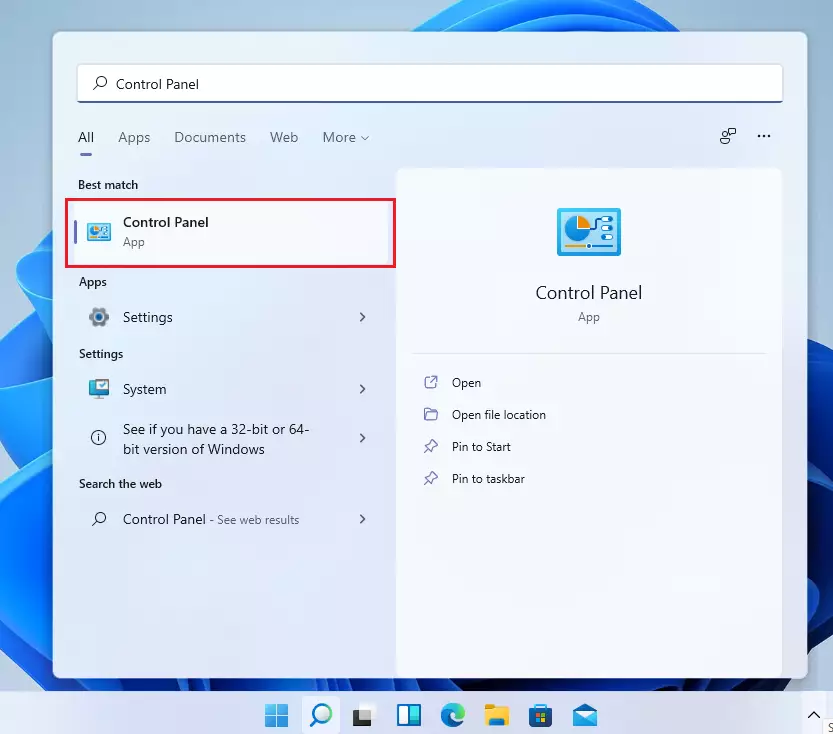
- Click the Start button (the Windows icon in the bottom-left corner, or in the centre if your taskbar is centred). The Start menu opens.
- Type
Control Panelinto the search box. Results appear as you type. - Click Control Panel when it appears under Best match. The Control Panel window opens.
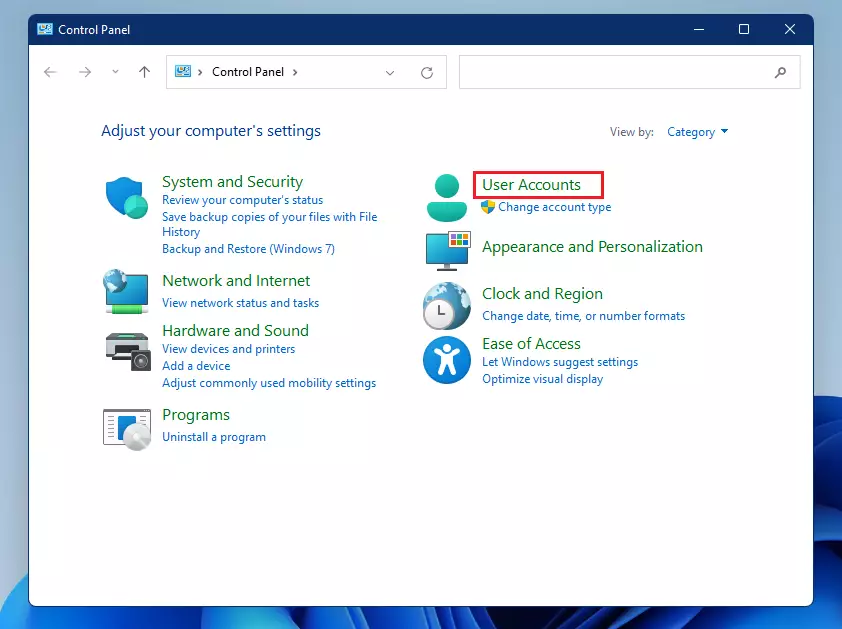
Inside Control Panel , the steps below assume the View by setting in the top-right corner is on Category. If it is set to large or small icons, you will see User Accounts straight away, so the second click may not be needed.
- Click User Accounts. A second page of account options opens.
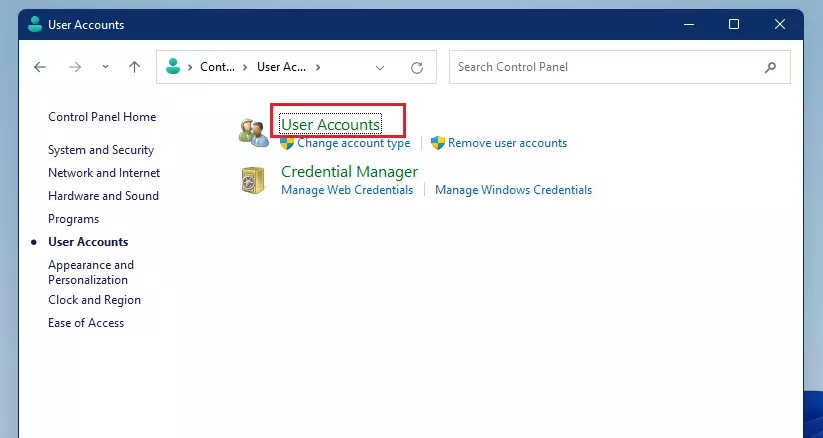
- Click User Accounts again on the next screen. You should now see your account name and picture, with a list of links.
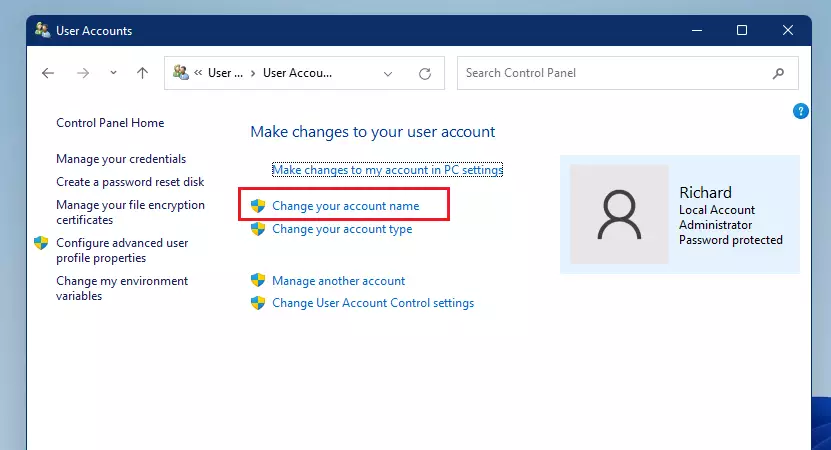
- Click the link that says Change your account name. If the link is missing, you are probably signed in with a Microsoft account, or you are not using an administrator account. In that case, use the Microsoft account steps or sign in as an administrator.
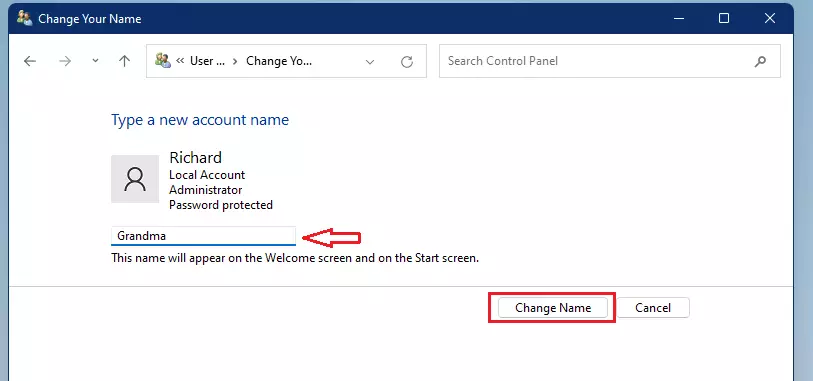
- Type the new name you want in the text box and click Change Name. The window returns to the account screen, and the new name should appear there. To undo the change, repeat these steps and enter the old name.
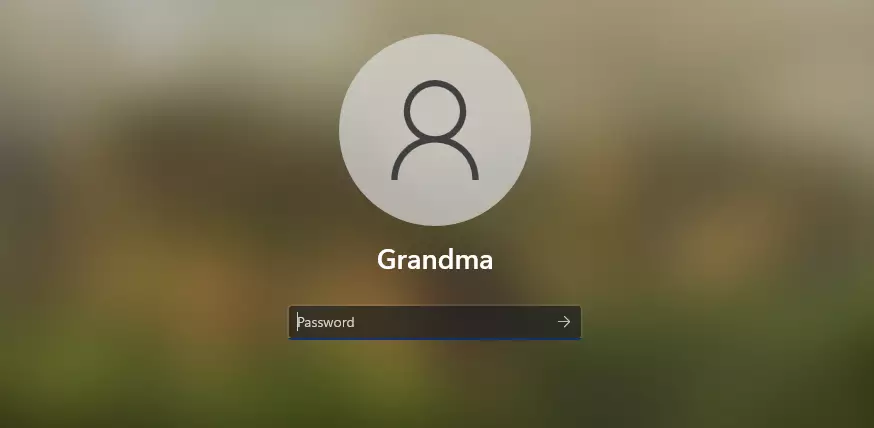
A sign-out and sign-in often works too, but a restart is the safest way to make sure the new name shows everywhere. Note that this only changes the display name. The profile folder under your user directory keeps its original name, and that is normal.
Change Your Microsoft Account Name
To change your Microsoft account name in Windows 11, update your profile through the official Microsoft website rather than changing it locally on your PC. Microsoft accounts sync across all your connected devices and cloud services, so editing your name online updates it everywhere you sign in. You need an internet connection for this, and you may be asked to confirm your identity with a code sent to your email or phone. The same steps work on Windows 11 Home and Pro.
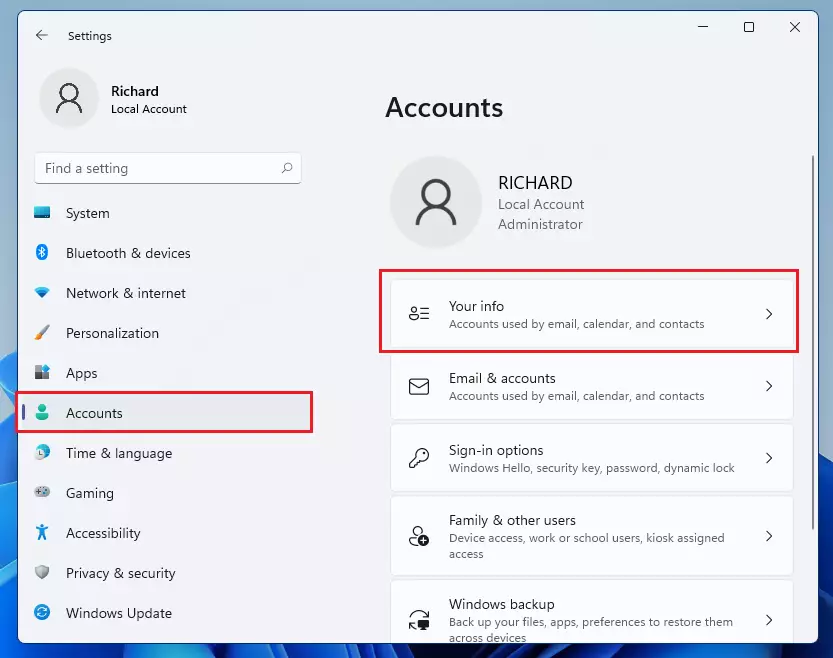
- Press the Windows key + I on your keyboard to open Settings, or click Start Settings. The Settings window opens with a list of categories on the left.
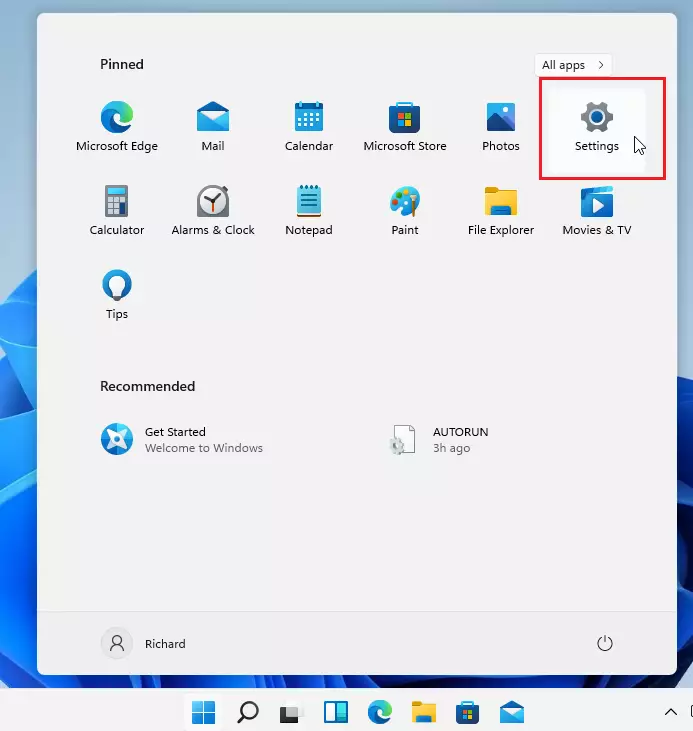
In Settings, work through these steps. Wording on the last link can differ slightly between Windows 11 builds. Look for the link that opens your Microsoft account page.
- Click Accounts in the left-hand list.
- Click Your info on the right side. Your current name and sign-in email appear at the top of the page.
- Under Related settings, click Manage my Microsoft Account. Your default browser opens your Microsoft account page.
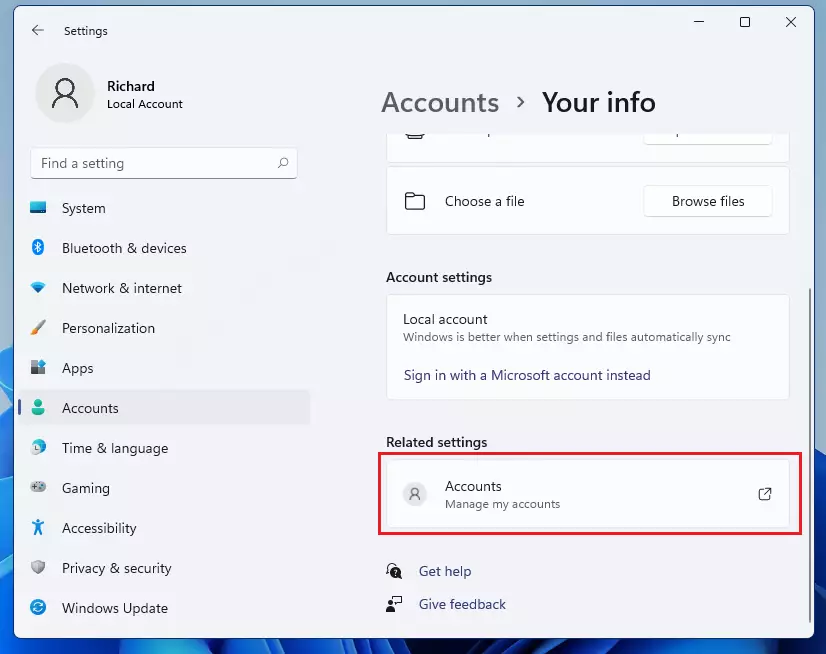
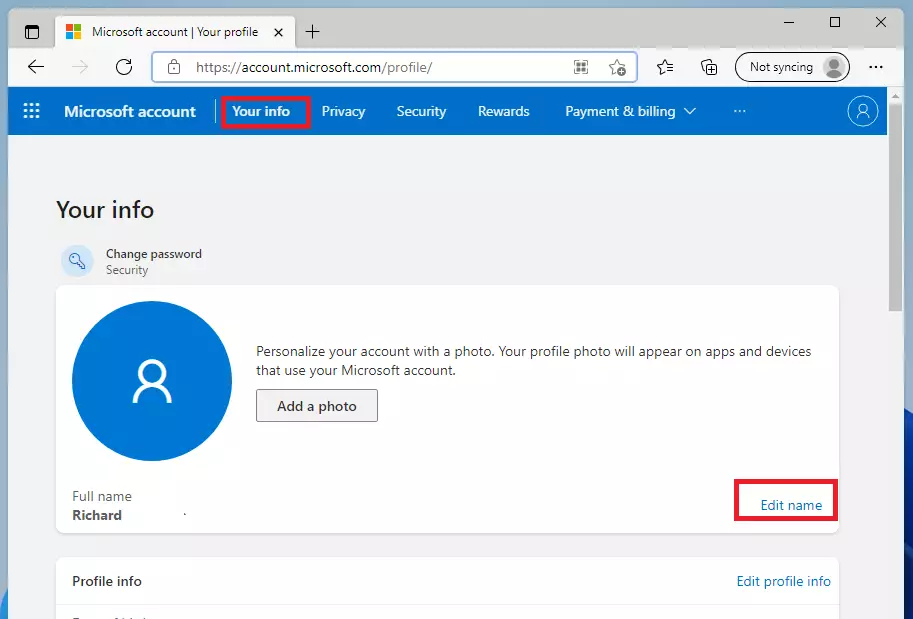
Alternatively, open a web browser on any device and navigate to https://account.microsoft.com/profile/. This is useful if the link in Settings does not open or you are working from another computer.
- Sign in with your Microsoft email and password, if you are not already signed in. Complete any verification prompt. Then:
- Click Your info at the top menu. Your profile details open, with your name shown near the top.
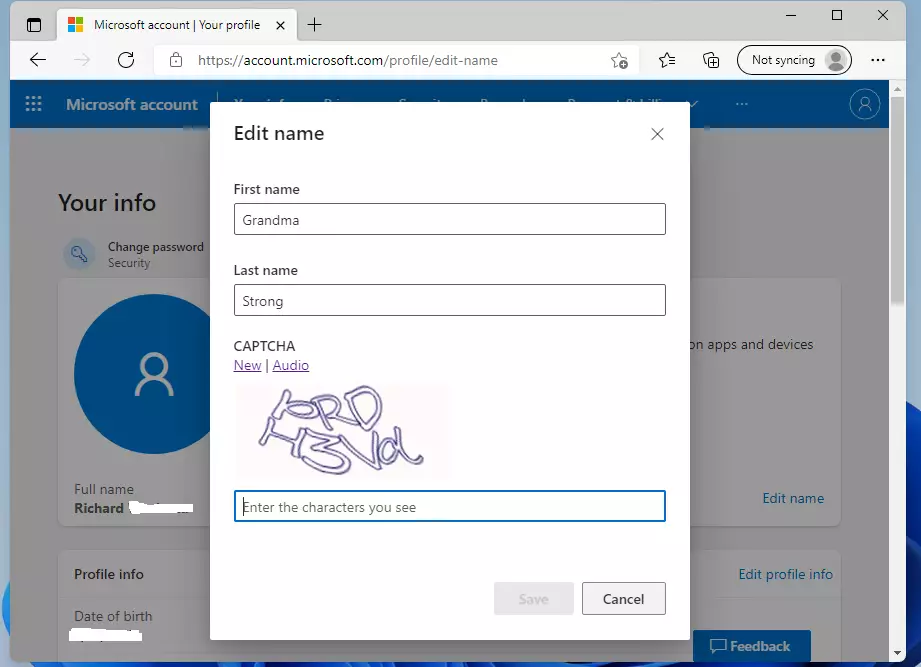
- Click the Edit name link next to your current name. Fields for your first and last name appear.
- Type in your new name and click Save. You may be asked to solve a short verification challenge first. To undo the change later, repeat these steps with the old name.
Updating a Microsoft account name changes the display label across Outlook, OneDrive, and the operating system itself. This gives you the same identity at sign-in and in profile views. The change can take a few minutes to reach your PC. If the old name still shows, make sure the PC is online, then sign out and back in, or restart. Some apps may keep the old name until they next sync.
Summary
- Changing your username in Windows 11 is simple and quick once you know which account type you have.
- Local accounts are changed using the Control Panel on your PC, and you may need administrator rights.
- Microsoft accounts are changed online through your Microsoft profile, and the new name syncs to your PC.
- Remember to sign out or restart your PC to see the new name appear.
- Using a unique username can help personalize your computer and keep your information private. It is only a display name, though, so it does not replace a strong password.
Changing your username in Windows 11 depends entirely on whether you use a local login or sign in with a Microsoft account. Local profiles update directly through the Control Panel on your computer, while Microsoft accounts require you to edit your profile details online. Always restart your PC after making changes so the new name appears properly. If you ever want the old name back, repeat the same steps and enter it again.
Was this guide helpful?

About the Author
Richard
Tech Writer, IT Professional
Richard is a writer at Geek Rewind who turns complex IT tasks into clear, step-by-step guides. He draws on years of hands-on experience in system administration and enterprise IT operations, focusing on Windows, Linux and WordPress: the problems people actually run into, and the fixes that work. His server and WordPress guides come from systems he runs himself. Richard builds and maintains the platform behind Geek Rewind, from its Ubuntu servers and Nginx configuration to its custom WordPress plugins. Many new tutorials start with readers' questions, and he's always glad to answer them in the comments.




No comments yet — be the first to share your thoughts!