How to Change Accent Color in Windows 11

Accent color in Windows 11 changes the look of the taskbar, the Start menu , and active window borders so they match your style. The Settings app gives you 48 default color swatches. If none of them suit you, you can enter any custom hex color code to fit your desktop background.
Windows can also pick an accent color for you, based on your current desktop picture. This is handy if you change wallpapers often, because the accent follows the picture. Everything is under Settings Personalization Colors, and you can change it at any time. The change applies straight away. You do not need to sign out or restart.
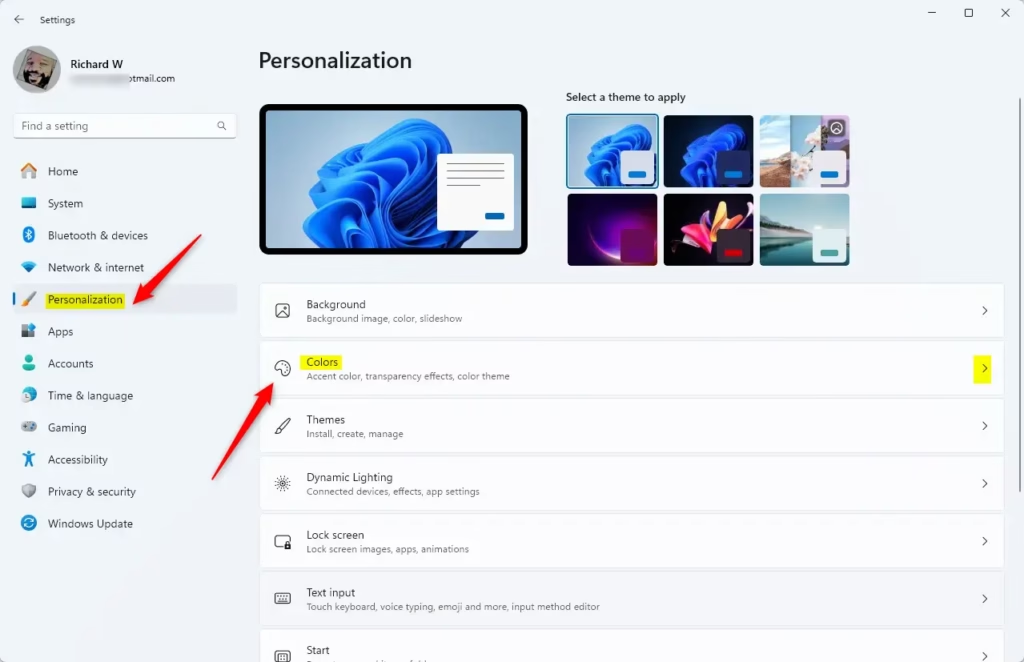
Open Settings , click Personalization, then Colors. Under Accent color, click the dropdown and choose Automatic, Manual, or View colors for a custom hex code. Toggle Show accent color on Start and taskbar or Show accent color on title bars and window borders as preferred. The change applies.
What Happens When You Change It?
Once you change it, the new shade shows up in several places. It appears on the Start menu , the taskbar , and window borders. It also colors things like selected items, toggle switches, and buttons in Settings and many built-in apps. The change is purely visual and does not affect how Windows works. It does set the tone of the whole desktop, so pick something you can live with all day.
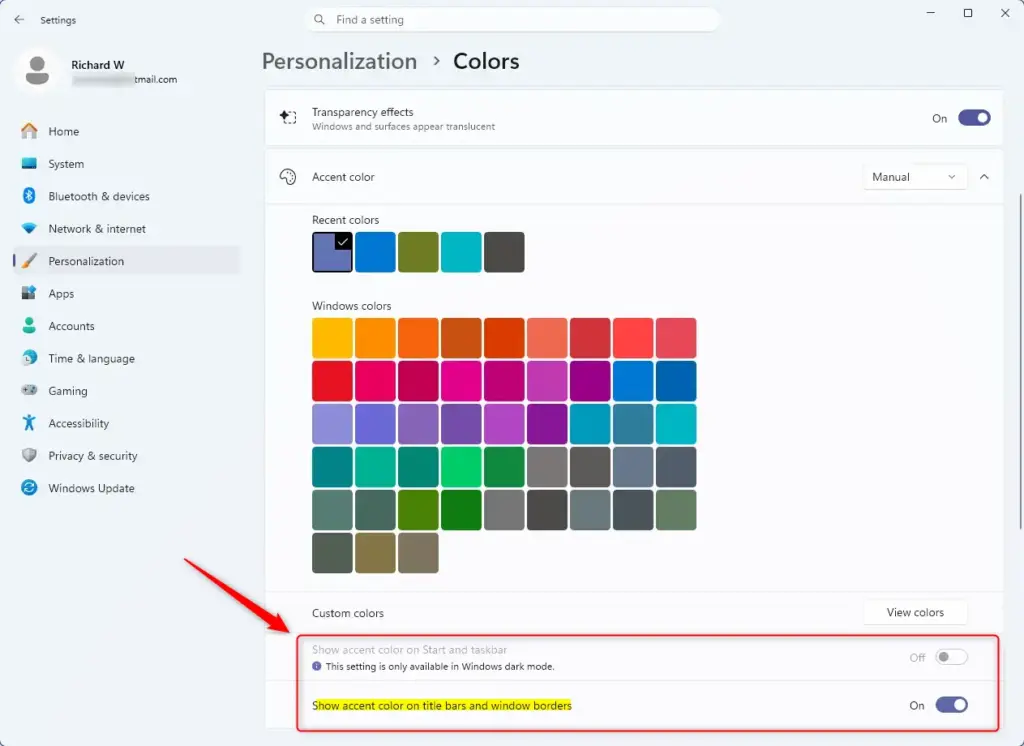
Two settings under the accent color control where it appears. One shows the color on Start and the taskbar . The other shows it on title bars and window borders. Keep this in mind as you follow the steps below.
How to Change Your Accent Color in 🪟 Windows 11
The option to show the accent color on Start and the taskbar is greyed out when Windows is in light mode. To use it, set Choose your mode to Dark on the same Colors page. You can also use Custom and set the Windows mode to dark. The same toggle can be greyed out if a contrast theme is active. This applies to both Home and Pro editions of Windows 11, which behave the same here.
Follow the steps below in order. After each step, look at the screen to confirm the change before you move on.
- First, open the Settings app. You can do this by clicking the Start button and then clicking the gear icon, or by pressing the Windows key + I on your keyboard.
- In the Settings window, click on Personalization in the left-hand menu.
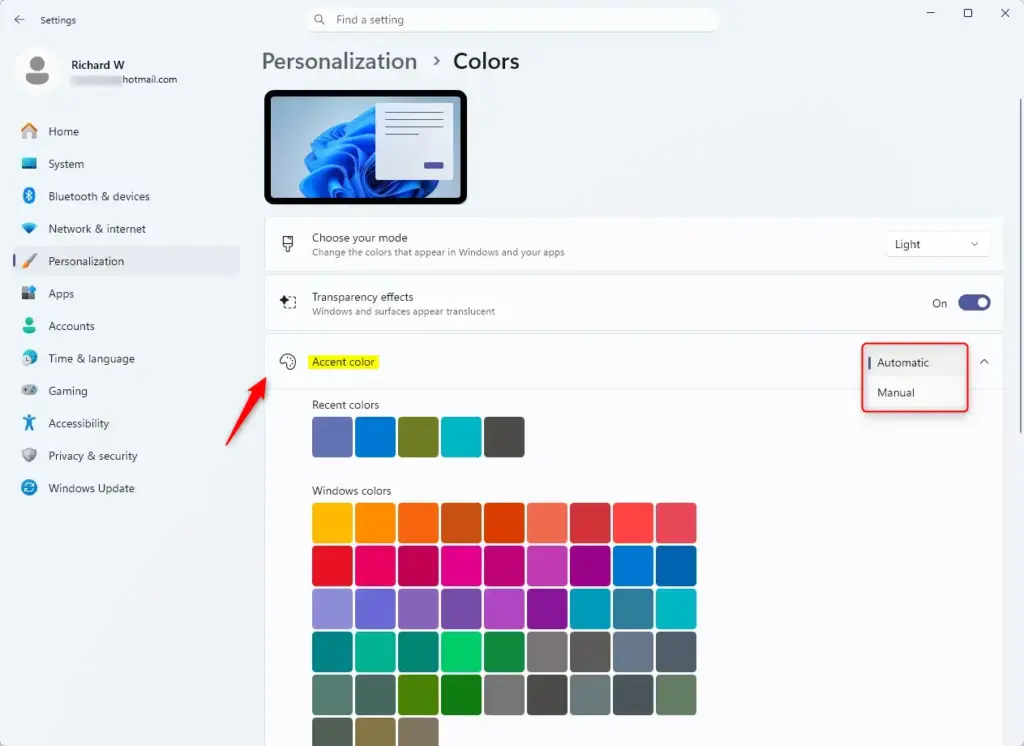
- You will see a section labeled Accent color.
- Click the dropdown menu under Accent color. You have a few options here:
Changing your windows 11 accent color lets you personalize the look of your taskbar, start menu, and window borders. You can update this shade anytime through the main Settings app by picking a preset color, letting Windows match your desktop background automatically, or choosing a custom hue.
- Automatic: Windows will pick a color that matches your background.
- Manual: You can choose a specific color yourself.
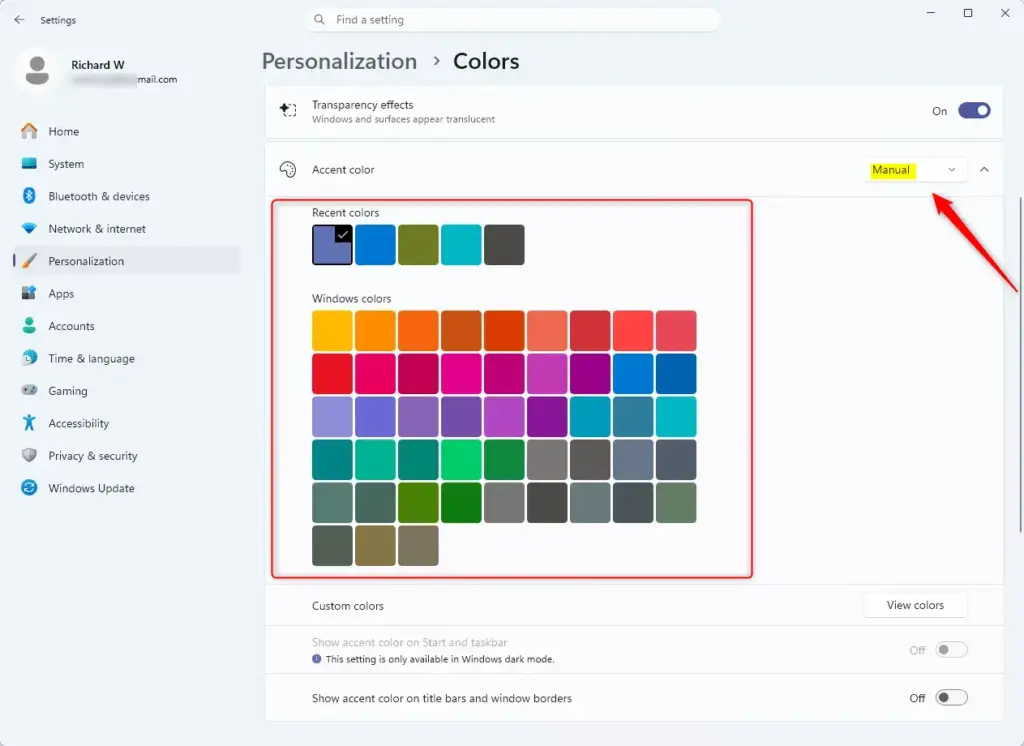
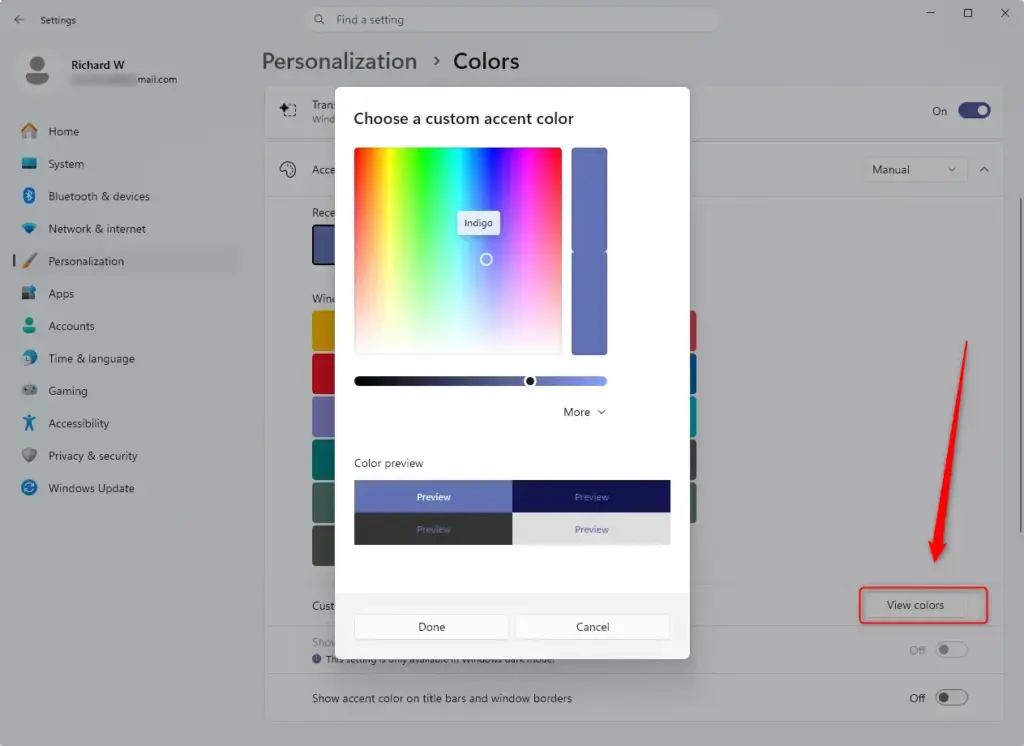
- If you choose Manual, you can select a color from the Recent colors or View colors options. Clicking View colors lets you pick from a wider palette.
- After you select a color, you'll see it change in the preview area and throughout Windows 11.
- You can also choose whether the accent color appears on the Start menu and taskbar, and on window borders. Look for the toggle switches labeled Show accent color on Start and taskbar and Show accent color on title bars and window borders.
It opens a color picker where you can drag to choose a shade. Its More option lets you type a hex code, so you can match a specific brand or wallpaper color. Colors you have used recently appear under Recent colors, so you can switch back to them quickly.
To undo a change, return to Settings Personalization Colors Then pick the previous color from Recent colors, or set Accent color to Automatic to let Windows choose from your wallpaper again. If a window border or the taskbar does not show the color you expect, check that the matching toggle is turned on.
Reference:
Summary
Changing the accent color is a quick way to personalize your computer's look in Windows 11. It takes less than a minute, it is easy to reverse, and you can change it again whenever you like.
Have a question about this guide?
Answered by AI from this guide. Good questions may be added to this page — please don't include personal details.
Did this guide fix your problem?

About the Author
Richard
Tech Writer, IT Professional
Richard is a writer at Geek Rewind who turns complex IT tasks into clear, step-by-step guides. He draws on years of hands-on experience in system administration and enterprise IT operations, focusing on Windows, Linux and WordPress: the problems people actually run into, and the fixes that work. His server and WordPress guides come from systems he runs himself. Richard builds and maintains the platform behind Geek Rewind, from its Ubuntu servers and Nginx configuration to its custom WordPress plugins. Many new tutorials start with readers' questions, and he's always glad to answer them in the comments.
No comments yet — be the first to share your thoughts!