How to Enable or Disable Control Panel and Settings in Windows 11

- 9 steps
- Needs administrator rights
- Group Policy needs Windows 11 Pro, Enterprise or Education
- Includes a restart or sign-out
Blocking access to the Control Panel and Settings app in Windows 11 stops other people from changing important system options on shared PCs. Windows 11 includes the Local Group Policy Editor (a tool that lets administrators manage system rules) to switch these tools off for user accounts. If your edition doesn’t have it, a registry change does the same job.
Locking down these areas protects the system from accidental changes and unwanted tweaks. You can turn the restriction on or off whenever you need to. This guide covers both methods and how to reverse each one.
Open the Run box with Win plus R, type gpedit.msc and press Enter. Navigate to User Configuration Administrative Templates Control Panel, double-click Prohibit access to Control Panel and PC settings, select Enabled, then click OK. On Windows 11 Home, use the Registry Editor instead to achieve the same result.
Why Would You Want to Do This?
Disabling Control Panel and Settings in Windows 11 improves security and prevents unwanted changes, particularly when you manage computers for other people, such as family members, students or office staff.
What You Need to Know First
Sign in with an administrator account, or be ready to approve the User Account Control (UAC) prompt.
Microsoft relies more and more on the Settings app, which has a modern interface and is where new options appear. The Control Panel remains for backward compatibility with older applications, but Settings is the future direction. Because both tools are blocked together, think about whether the people using the PC need to change things like Wi-Fi, printers or display settings before you lock them out.
Option 1Using Local Group Policy Editor
The Local Group Policy Editor is the quickest way to disable the Control Panel on Windows 11 Pro, Enterprise and Education, and you don’t have to touch the registry. One policy blocks both the classic Control Panel and the modern Settings app.
The editor is not included in Windows 11 Home. If gpedit.msc gives you an error on a Home PC, skip to the registry method further down.
- Press the Win plus R to open the Run box, type
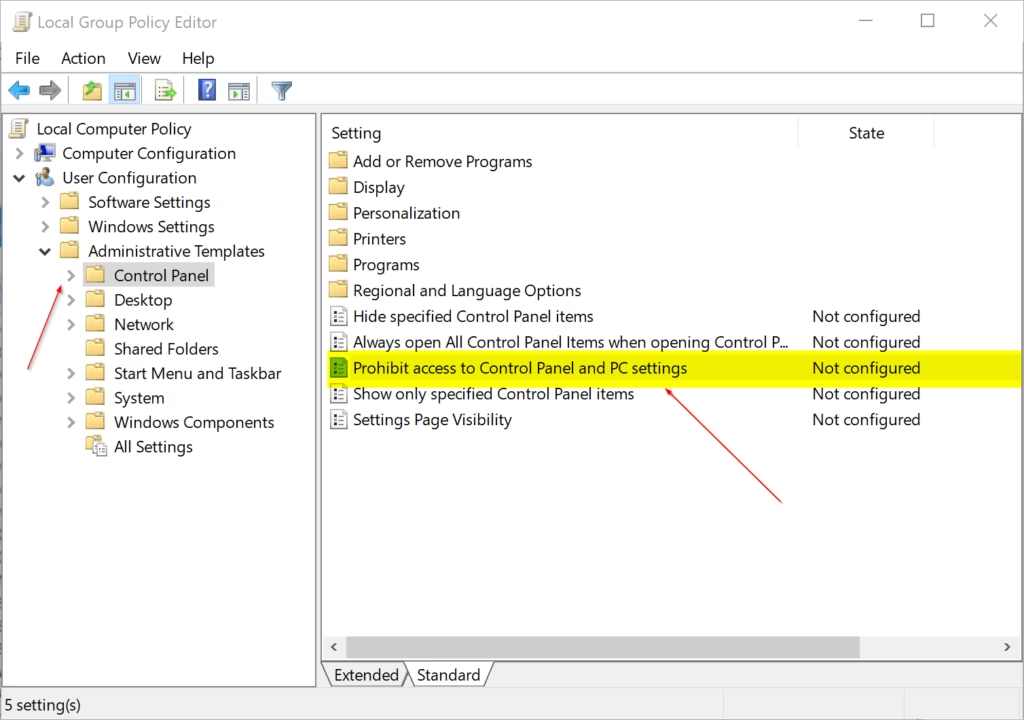
gpedit.msc, then press Enter. You can also press the Win, type the same command and press Enter. The Local Group Policy Editor window should open. Approve the UAC prompt if one appears. - In the left pane, go to this path (User Configuration Administrative Templates Control Panel ):
Click the last folder in the path. Its policies should then be listed in the right pane.User Configuration > Administrative Templates > Control Panel - In the right pane, find the policy called Prohibit access to Control Panel and PC settings and double-click it. A settings window for that policy opens.
To Enable Control Panel and Settings
To enable Control Panel and Settings again, set the policy back to its default. Use these steps in the policy window from the previous section.
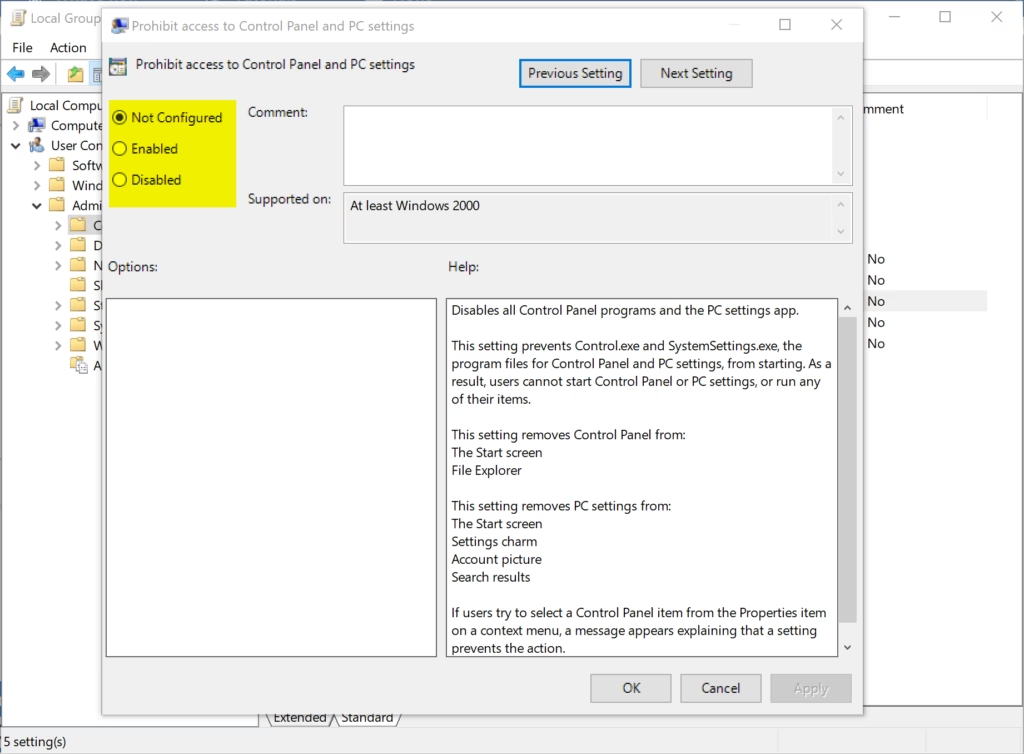
- Select the dot next to Not Configured.
- Click OK. The window closes and the policy’s state in the list should read Not configured.
- Close the Local Group Policy Editor.
The change normally applies at once. If Settings or Control Panel still refuses to open, sign out and back in, or restart the PC.
To Disable Control Panel and Settings
To disable Control Panel and Settings, turn the policy on instead.
- Select the dot next to Enabled.
- Click OK. The policy’s state in the list should now read Enabled.
- Close the Local Group Policy Editor.
Try opening Settings from the Start menu to confirm the block. It should no longer open normally. If you still get in, sign out and back in, or restart, and test again.
This is a user policy set in the local Group Policy, so it applies to everyone who signs in to this PC, including your own administrator account. You can still undo it at any time by reopening gpedit.msc from the Run box. The policy doesn’t block that tool.
Option 2Using the Registry
This method applies to all versions of Windows 11, including Home. Use it when the Local Group Policy Editor isn’t available.
A standard account can’t write these values. Edit the registry carefully, and consider making a restore point or a registry backup first so you can undo a mistake.
To Enable Control Panel and Settings for All Users
To enable Control Panel and Settings again, run the command below. This restores the default configuration.
Open Windows Terminal as an administrator and run the command. To do this, right-click the Start button and choose Terminal (Admin), then click Yes on the UAC prompt. A window with an administrator title should appear. Paste the command and press Enter, and you should see a message saying the operation completed successfully.
reg delete "HKEY_CURRENT_USER\Software\Microsoft\Windows\CurrentVersion\Policies\Explorer" /v NoControlPanel /f
reg delete "HKEY_LOCAL_MACHINE\SOFTWARE\Microsoft\Windows\CurrentVersion\Policies\Explorer" /v NoControlPanel /f
To Disable Control Panel and Settings for All Users
Registry tweaks let you disable the Control Panel on Windows 11 Home and on other editions where the group policy editor is missing. Run Command Prompt as an administrator: press the Windows key, type cmd, choose Run as administrator, and click Yes. Then paste the correct registry command to block the interface for every user account on the machine. The change takes effect immediately without a system restart. Close any Settings or Control Panel windows that are already open, and the block applies the next time someone tries to open them. If it doesn't, sign out and back in.
reg add "HKEY_CURRENT_USER\Software\Microsoft\Windows\CurrentVersion\Policies\Explorer" /v NoControlPanel /t REG_DWORD /d 1 /f
reg add "HKEY_LOCAL_MACHINE\SOFTWARE\Microsoft\Windows\CurrentVersion\Policies\Explorer" /v NoControlPanel /t REG_DWORD /d 1 /f
Close the Registry Editor upon completion, if you opened it to check the result. Closing it doesn't undo anything. The change is saved as soon as the command runs.
Summary
You now know how to enable or disable Control Panel and Settings in Windows 11, using either the Group Policy Editor or the Registry. Use the Group Policy Editor on Pro, Enterprise and Education, and the registry method on Home. To undo either one, set the policy back to Not Configured or run the enable command.
Have a question about this guide?
Answered by AI from this guide. Good questions may be added to this page — please don't include personal details.
Did this guide fix your problem?

About the Author
Richard
Tech Writer, IT Professional
Richard is a writer at Geek Rewind who turns complex IT tasks into clear, step-by-step guides. He draws on years of hands-on experience in system administration and enterprise IT operations, focusing on Windows, Linux and WordPress: the problems people actually run into, and the fixes that work. His server and WordPress guides come from systems he runs himself. Richard builds and maintains the platform behind Geek Rewind, from its Ubuntu servers and Nginx configuration to its custom WordPress plugins. Many new tutorials start with readers' questions, and he's always glad to answer them in the comments.
No comments yet — be the first to share your thoughts!