Should You Use Windows 11 Widgets or Turn Them off Completely

- 14 steps
- Needs administrator rights
- Includes a restart or sign-out
Windows 11 widgets are small cards that show live updates such as weather, news and sports scores. You open them from an icon on the taskbar, and the widget board slides out from the left side of your screen. The feature keeps some background processes running, and on older PCs those can use enough resources to slow things down.
Yes, you should turn Windows 11 widgets off completely if you want to save battery life, free up computer memory, and avoid distracting news feeds and advertisements. However, you can keep them enabled if you prefer quick access to live weather updates and personalized headlines right from your taskbar.
Whether to keep widgets or turn them off comes down to a trade-off. You get quick updates, but you give up some taskbar space and some system speed. If the board annoys you, you can hide the widget button or remove the feature completely. Both methods are covered below, along with a middle option that keeps the useful cards.
The widget board can show:
- Local weather details and forecasts
- The latest news stories from different sites
- Sports scores and team news
- Stock market trackers and share prices
- Traffic reports for your drive to work
- Pictures from your online storage account
Widgets save time because the information is one click away. Instead of opening a web browser to check the weather or a score, you click the taskbar icon and read it. Windows pulls the content over your internet connection and refreshes it regularly, so the board is up to date when you open it. That also means widgets need a working connection. Offline, the cards may be empty or out of date.
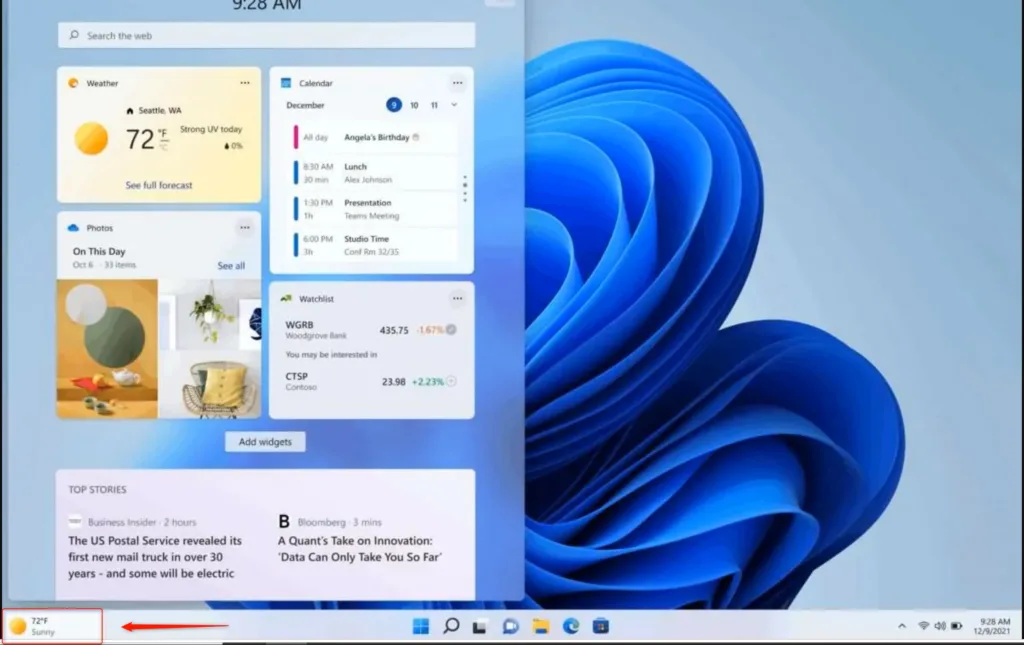
Widgets have a downside that most people never see. Behind the scenes, the feature runs a background task linked to the Microsoft Edge web browser. That task keeps gathering data and choosing news stories to show you, even when the widget panel is closed. You will not notice it on a fast desktop, but on a slower laptop it adds up.
The Pros of Using 🪟 Windows 11 Widgets
The main advantage of widgets is instant access to live weather, sports scores and news from your taskbar. The cards let you check daily information without opening a web browser. That can speed up your routine, as long as you set the board up so it only shows what you actually use.
Quick Information at a Glance
Widgets give you quick information at a glance. Weather, calendar events and sports scores appear right on your screen. You can also press the keyboard shortcut Win+W to open the board at once. That is handy when you want a fast answer and do not want to launch a browser and type a search.
Personalized News and Updates
If you like to follow the news, the financial markets or your favorite sports teams, the widget board works like a personal feed. You can hide stories you do not like, follow subjects you care about, and choose the kind of headlines you see each day. The more you adjust it, the more useful it gets.
Integration with Microsoft Services
If you use Microsoft tools a lot, widgets tie in with your Microsoft account. You can see upcoming calendar events, check your tasks and look at recent pictures from your cloud storage. You do not have to dig through menus or folders to reach them. If you sign in with a local account, some of these cards may not be available.
The Cons: Why Many Users Turn Widgets Off
Even with these benefits, many Windows 11 users turn widgets off right after setting up a new PC. These are the main reasons.
Performance Impact and Resource Usage
The first reason is performance. Widgets can slow down your computer and drain battery life. Even when the board is closed, background processes use RAM (random-access memory) and CPU cycles. On older or cheaper laptops, that often shows up as small lags. If your PC already feels tight on memory, turning widgets off is an easy first thing to try.
Distractions and Clutter
The second reason is distraction. The board is tied to news feeds, clickbait articles and ads. You open it to check one thing, such as the temperature, and end up scrolling through headlines. That makes it hard to stay focused on your actual work.
Privacy Concerns
The third reason is privacy. The news and content feeds are tailored to your habits, so Microsoft tracks the stories you click and the subjects you read. If you care about privacy, you may prefer to turn off a feature that collects this kind of usage data.
How to Customize 🪟 Windows 11 Widgets Instead of Turning Them Off
You do not have to choose all or nothing. You can customize the board to keep the helpful tools and drop the news feed. A cleaned-up board with only your weather and calendar is much less distracting than the default layout.
Follow these steps to clean up your widget board:
- Press the Win+W, or click the widget icon on your taskbar. The widget board slides out from the left side of the screen.
- Look at the top of the board for the Discover toggle, or find the news section below your personal widgets. This is the feed that carries most of the clickbait. The exact layout varies between Windows 11 builds, so your board may look a little different.
- To remove an unwanted widget, such as sports or finance, click the three dots in the top-right corner of that widget box. A small menu opens.
- Select Unpin widget. The card disappears from the board.
- To add something useful, click the + (Plus) icon at the top of the board. Then choose a tool you will actually use, such as the weather or your calendar. The new card appears on the board.
Keep only practical cards like the weather or your to-do list, and you get the benefits of widgets without the distractions. If you change your mind later, you can add any card back with the same + icon.
How to Turn Off 🪟 Windows 11 Widgets Completely
You can hide the widget button from the taskbar and stop the feature from running in the foreground. It takes a few clicks in the taskbar settings, and you can reverse it just as easily. This works on Home, Pro and the other editions of Windows 11.
Follow these steps to hide the widget button from your taskbar:
- Right-click any empty space on your taskbar at the bottom of your screen. A small menu appears.

Taskbar - Click Taskbar settings. The Settings app opens at Settings Personalization Taskbar.
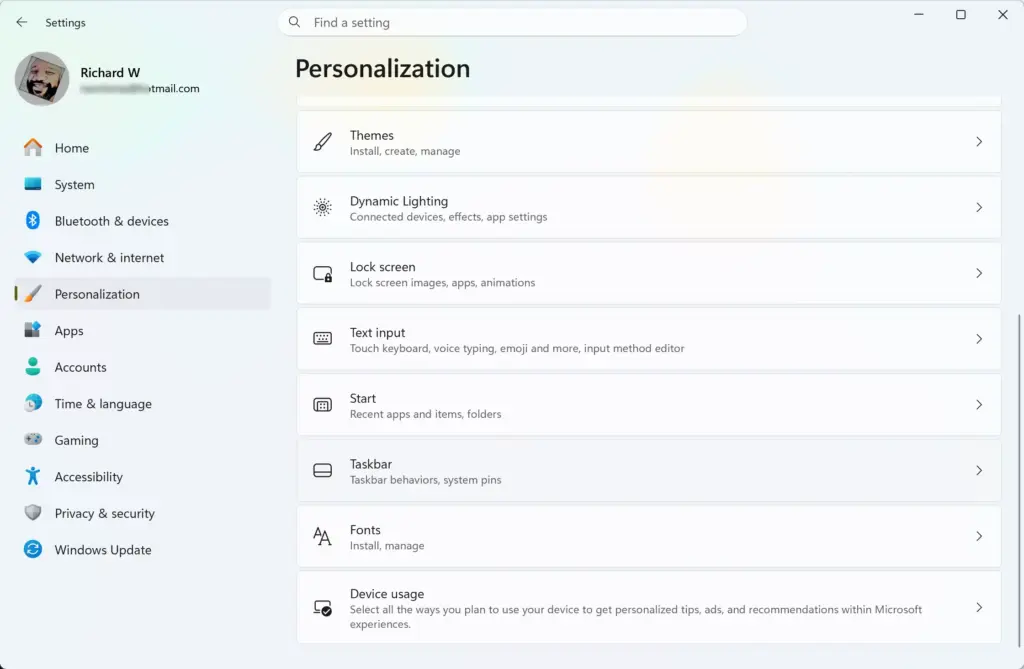
Settings › Personalization › Taskbar - Look for the section labeled Taskbar items.
- Find the toggle next to Widgets and click it to turn it Off.
The widget button disappears from your taskbar at once, and you can no longer open the board by accident. To get it back, return to the same page and turn Widgets back On. If the toggle is greyed out or missing on a work or school PC, your organization may control that setting, and you will need to ask your IT administrator.
Advanced Control: Uninstalling the Windows Web Experience Pack
Uninstalling the Windows Web Experience Pack is the stronger option. It removes the software that powers the widget engine instead of just hiding the button. That frees up the resources the feature uses in the background.
Follow these steps to remove the widget system app:
- Click the Start button and type PowerShell into the search bar.
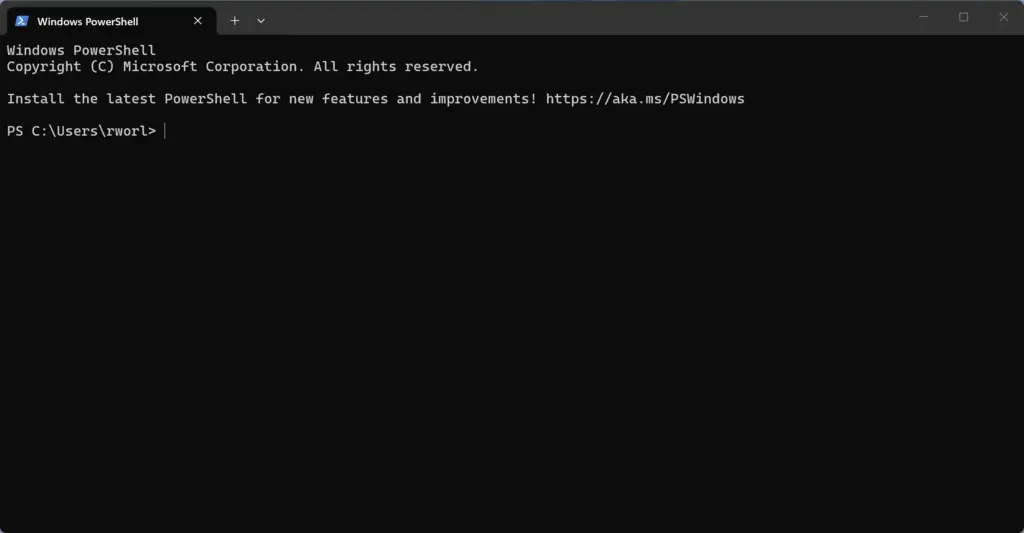
PowerShell - Right-click Windows PowerShell in the search results and choose Run as administrator. You need an administrator account for this.
- If a window asks whether you want to allow this app to make changes to your device, click Yes. A blue PowerShell window opens.
- Type or paste the following command into the PowerShell window and press Enter:PowerShell
Get-AppxPackage *WebExperience* | Remove-AppxPackage - Wait a few moments for the command to finish. Once it completes, the core widget application is removed from your system. If the widget button or board still shows up afterward, restart your PC and check again.
To undo this, open the Microsoft Store app, search for “Windows Web Experience Pack,” and install it again.
Summary
Whether to use Windows 11 widgets or turn them off comes down to what you value more: quick information, or speed and a clean screen. Widgets give you fast weather and news, but they can also drain your battery and distract you with background activity. If you are unsure, start by trimming the board. If it still gets in your way, hide the button, and remove the Windows Web Experience Pack only if you want the feature gone entirely.
Have a question about this guide?
Answered by AI from this guide. Good questions may be added to this page — please don't include personal details.
Did this guide fix your problem?

About the Author
Richard
Tech Writer, IT Professional
Richard is a writer at Geek Rewind who turns complex IT tasks into clear, step-by-step guides. He draws on years of hands-on experience in system administration and enterprise IT operations, focusing on Windows, Linux and WordPress: the problems people actually run into, and the fixes that work. His server and WordPress guides come from systems he runs himself. Richard builds and maintains the platform behind Geek Rewind, from its Ubuntu servers and Nginx configuration to its custom WordPress plugins. Many new tutorials start with readers' questions, and he's always glad to answer them in the comments.
No comments yet — be the first to share your thoughts!