How to Show or Hide Your Feed in Widgets in Windows 11

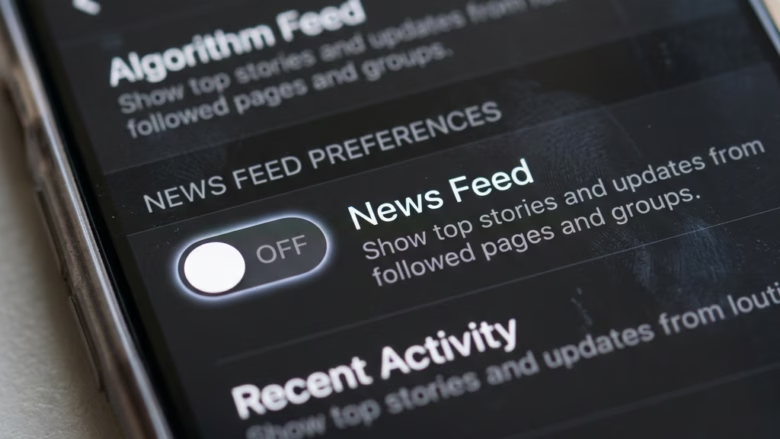
The Widgets panel in Windows 11 is a side screen that shows weather, calendar events, news and other small tools. It also has a built-in news feed from Microsoft Start. You can hide that feed so the panel shows only the widgets you chose. With the feed off, headlines stop appearing every time you open the panel. This applies to Windows 11 version 22H2 and newer.
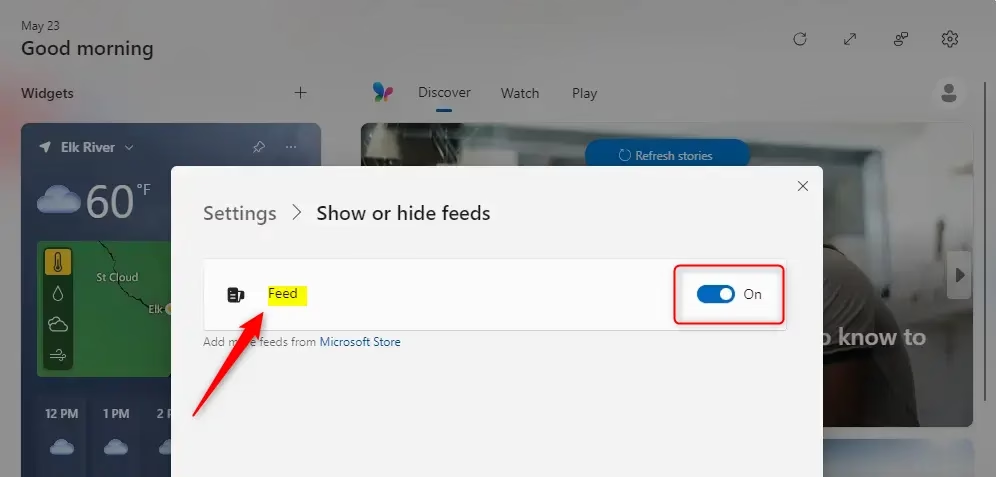
Open the Widgets board by clicking its taskbar icon or pressing Win+W. Click the gear icon for Settings, then toggle the “Feed” option on or off to show or hide your news content.
Controlling Your Widgets Feed
The feed is built from your interests, your location and what you have read before. That is why it can feel like a different page of headlines each time you open the panel. Changing the feed settings controls what shows up, so you get only the content you want.
Before you start, note which version you have. Microsoft has changed the Widgets board several times, so the labels and toggle positions can differ slightly between builds. The steps below follow the same basic path on all current builds. To check your build, open Settings System About and look under Windows specifications.
Showing or Hiding Your News Feed
The feed settings let you turn off the news stories and weather updates inside the Widgets board, so you see only your pinned widgets. Hiding the Microsoft Start feed clears the clutter, and you can turn it back on whenever you like. Nothing is uninstalled, and your pinned widgets stay where they are.
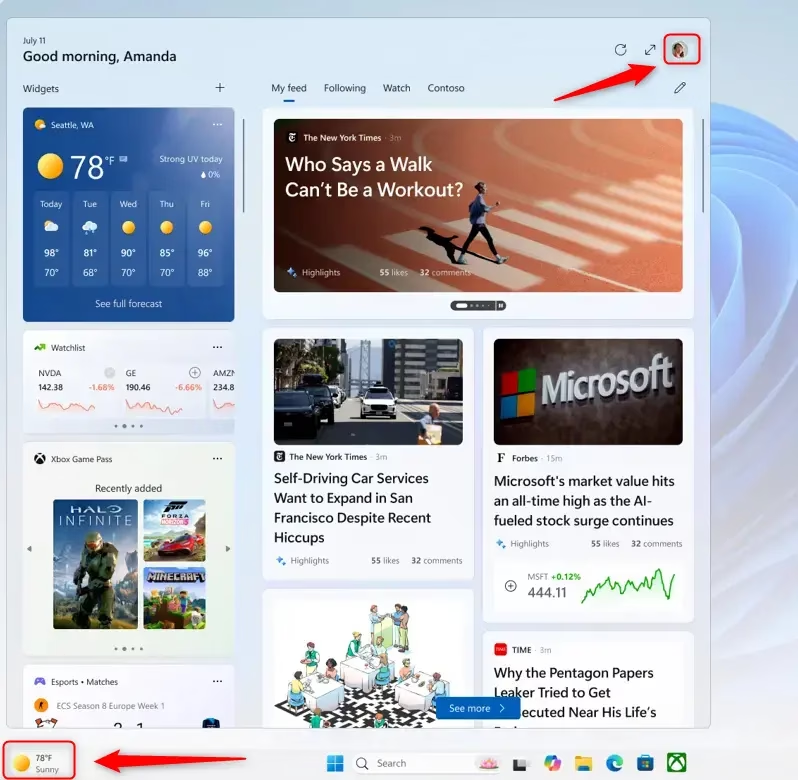
Follow the steps below in order. Open the Widgets board first, either by clicking the weather or Widgets icon on the taskbar or by pressing the Win+W. Then work through the settings for the feed. After each step, check that the panel changes as described.
- Open the Widgets Board: You can do this in a couple of ways. The easiest is to click the Widgets icon on your taskbar . It usually looks like a weather icon or a square that’s split. You can also press the
Windows key + Won your keyboard. Try it! The Widgets board will slide out.
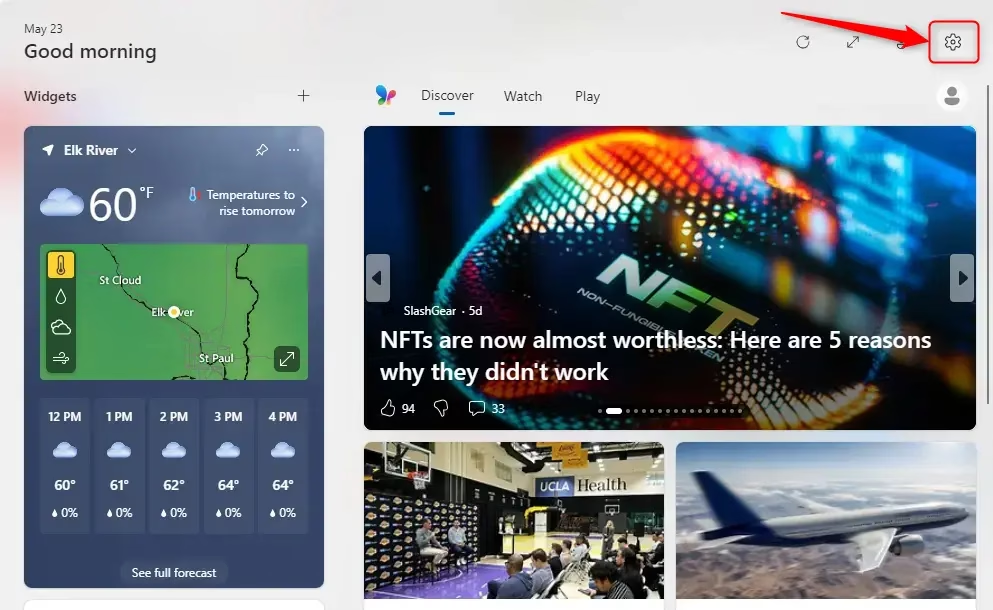
- Find Settings: Once the Widgets board is open, look for the Settings button. It looks like a gear icon and is usually near the top right of the Widgets panel. Click it.
💡Pro TipIf you don’t see the gear icon right away, you might need to make the Widgets board bigger.Look for a small expand icon (it often looks like an arrow pointing outwards) near the top right of the panel. Click it to make the board larger. This will often show more options, including the settings gear.
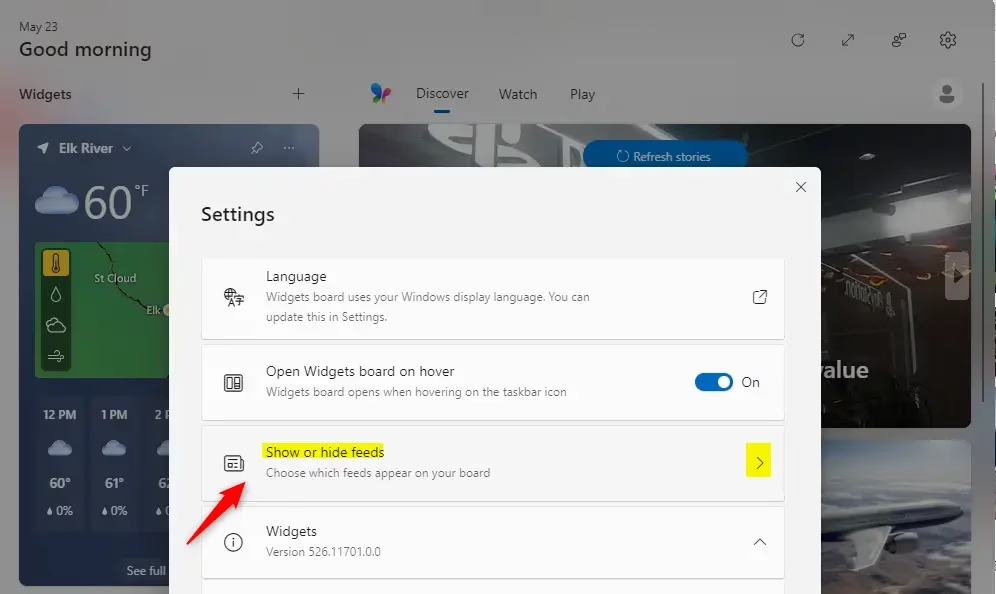
- Manage Feed Visibility: In the Settings menu, you should see an option about your feed. It might say something like "Show or hide feeds" or just "Feed." Click on that option.
- Turn the Feed On or Off: You will probably see a switch or a choice to turn the "Feed" on or off. To hide the news feed completely, turn this option to Off. If you want to show the feed, make sure it's turned to On.
Warning: If you turn off the feed, you won't see any news articles or headlines in your Widgets panel. If you still want to see other widgets, like weather or stocks, that's okay. They will still be visible. This setting only affects the news content.
When you finish, close the Widgets board and open it again. The news stories should be gone, and only your pinned widgets should remain. If the feed is still there, the change may not have saved. Repeat the steps and make sure the toggle shows as off.
You do not need to restart the PC for this change. It takes effect as soon as you reopen the panel. Home and Pro editions behave the same way for this setting.
To turn the feed back on, open the Widgets board and go back to the same feed setting you used above. Switch it on again. The stories return within a few seconds, though they may take a moment to load while Windows refreshes the content.
If you cannot find the feed option, or it is greyed out, check these common causes:
- You are on an older build. Update Windows through Settings Windows Update, then look again.
- The device is managed by a work or school account. An administrator may control the Widgets board through policy, and you cannot override that yourself.
- The Widgets button is turned off on the taskbar. You can switch it back on in Settings Personalization Taskbar. Turning that button off hides the whole Widgets board, not just the feed.
- You are not signed in. Some Widgets options only appear when you are signed in with a Microsoft account.
Managing the Widgets feed comes down to telling Windows what content belongs on screen. You can keep a minimal panel with no news, or leave the feed on and tune it to the topics you care about. Either way, the tools you pinned stay available.
Summary
Hiding the news feed keeps useful tools like weather active and removes the distractions. Open the Widgets board and go to its settings, and your feed preference applies right away. If you change your mind, the same setting turns the feed back on.
Have a question about this guide?
Answered by AI from this guide. Good questions may be added to this page — please don't include personal details.
Did this guide fix your problem?

About the Author
Richard
Tech Writer, IT Professional
Richard is a writer at Geek Rewind who turns complex IT tasks into clear, step-by-step guides. He draws on years of hands-on experience in system administration and enterprise IT operations, focusing on Windows, Linux and WordPress: the problems people actually run into, and the fixes that work. His server and WordPress guides come from systems he runs himself. Richard builds and maintains the platform behind Geek Rewind, from its Ubuntu servers and Nginx configuration to its custom WordPress plugins. Many new tutorials start with readers' questions, and he's always glad to answer them in the comments.
No comments yet — be the first to share your thoughts!