How to Enable or Disable Open Widgets Board on Hover in Windows 11

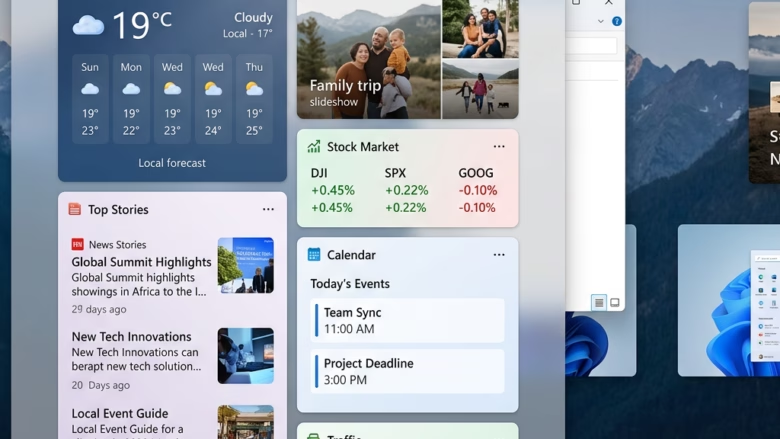
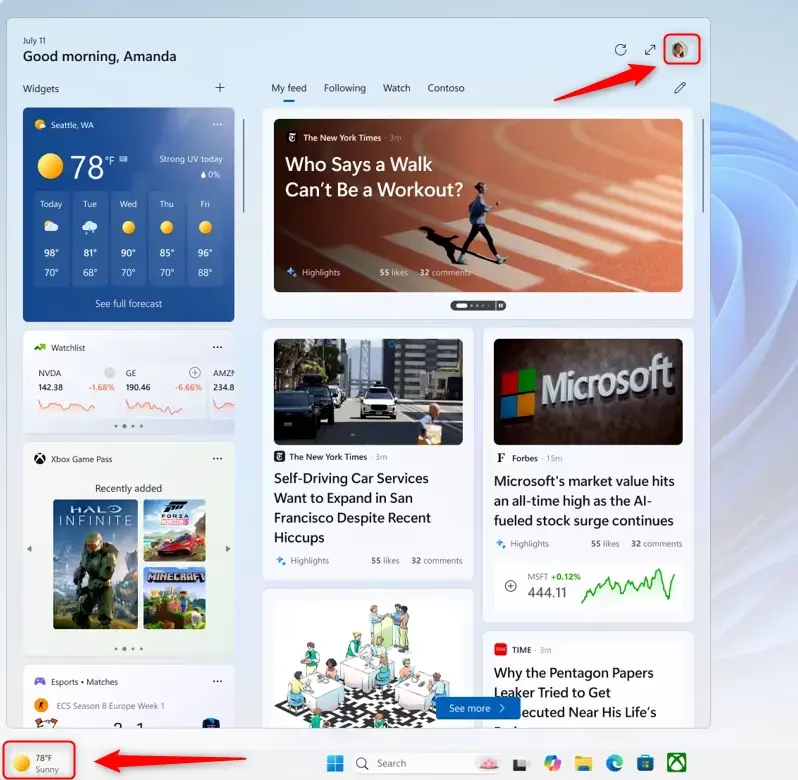
The Widgets board is the panel that shows news, weather, calendar items and other feeds. In Windows 11 version 22H2 and later, it opens on its own whenever your mouse rests on the Widgets icon on the taskbar. That icon often shows the current weather. If you click or reach for something near the icon, the board can pop up uninvited.
Turning off the hover trigger stops the panel from appearing on its own. You can still open it whenever you want by clicking the taskbar icon or pressing the keyboard shortcut. Nothing is uninstalled, and you can switch hover back on at any time.
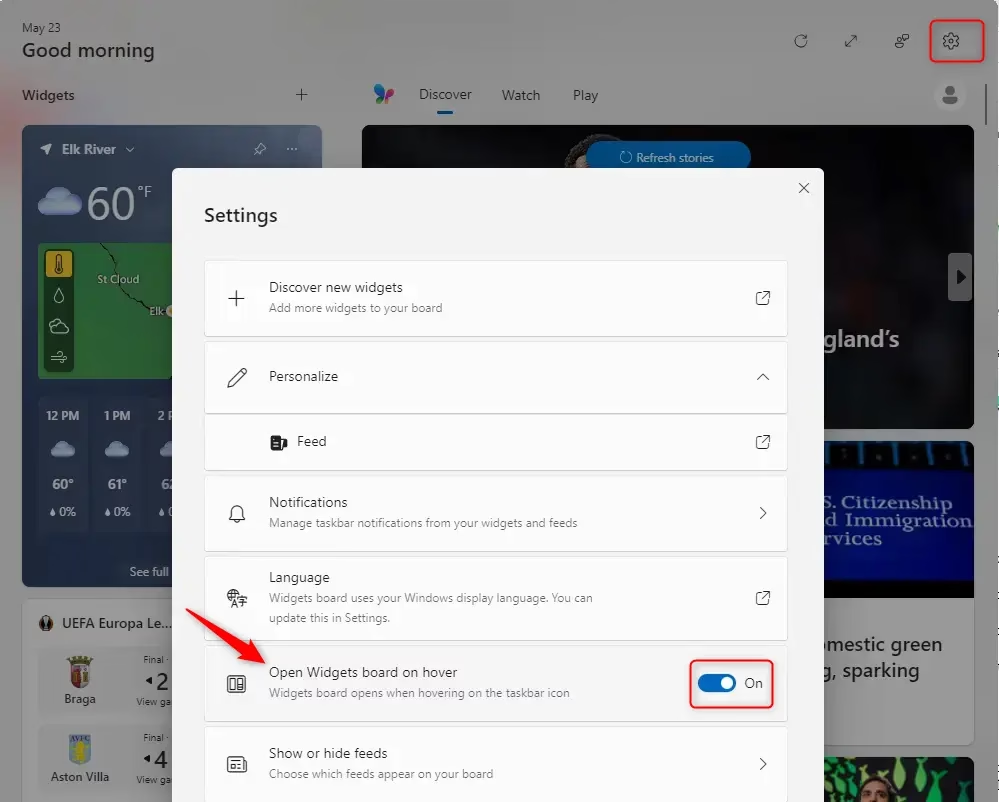
To disable opening the Widgets board on hover, open the Widgets board, click the settings gear, and toggle off “Open Widgets board on hover.” The board will then only open when you click the taskbar icon.
How to Stop Widgets from Opening When You Hover
Hover behavior breaks your focus. A quick sweep of the cursor across the bottom-left corner pulls up a full feed you did not ask for, and you have to dismiss it before you carry on. This is most noticeable if you use the taskbar a lot or have a small screen.
Limiting the panel to deliberate clicks gives you a cleaner desktop, and the board only shows when you want it.
Step 1Open the Widgets Board
You can open the Widgets board in two ways: press Win+W, or click the Widgets icon on the taskbar. You need the board open to reach its settings, so start there.
If you do not see the icon on the taskbar, turn it on first:
- Right-click an empty space on the taskbar.
- Select Taskbar settings. The Personalization Taskbar page opens.
- Expand Taskbar items if it is collapsed.
- Set the Widgets toggle to On. The icon should appear on the left side of the taskbar, or in the center if your taskbar is centered.
If the Widgets toggle is missing or greyed out, the cause is usually one of two things. Your PC may not be fully updated, so run Windows Update and restart. Or an organization policy may be controlling Widgets, in which case only your administrator can change it. The toggle is the same on Home and Pro.
Step 2Go to Widgets Settings
With the Widgets board open, look in the top right corner for the settings icon. On most builds this is a gear. On some builds it appears as your profile picture instead. Either one opens the Widgets settings.
- Open the Widgets board with Win+W or by clicking the taskbar icon.
- Click the gear icon (or your profile picture) in the top right corner of the board.
- Wait for the Widgets settings page to open. It appears inside the board or in its own window, depending on your build.
Step 3Find the “Open Widgets board on hover” Setting
Inside the Widgets settings, look for the hover option. Microsoft has changed the wording between builds, so you may see either of these:
- “Open Widgets board on hover”
- “Show widgets board by hovering over the taskbar icon”
If you cannot find either option, your build may not include the setting yet. Install the latest updates and check again. The hover behavior is only present in Windows 11 22H2 and later.
Step 4Turn Off the Hover Feature
Once you have found the hover option, switch it off. This stops the panel from popping up every time your cursor drifts over the taskbar icon.
- Open the Widgets board and click the gear icon (or your profile picture) in the top right corner.
- Find the hover option described in the previous section.
- Set its toggle to Off. The change applies at once, and you should not need to restart.
- Move your mouse over the taskbar icon and rest it there for a moment. The board should stay closed.
- Click the icon. The board should open as normal.
To undo the change, go back to the same setting and turn the toggle On.
Practical Tip: Turning off this setting means the board opens exclusively via clicks on the taskbar icon or the Win+W shortcut. Complete control over panel visibility returns to you.
Why Turn Off “Open on Hover”?
Disabling hover prevents accidental pop-ups that interrupt your work when your mouse strays across the bottom of the screen. It also means the news and weather feeds only show up when you choose to look at them. Here are the main reasons people turn it off:
- Accidental OpeningsIt is easy to open the Widgets board by mistake. This can be distracting if you are trying to do something important.
- PerformanceWidgets are usually small and don’t use much power. But if you have an older computer or like to have fewer things running in the background, turning this off can help a little.
- Personal ChoiceSome people just like to be in full control. They want to start every action themselves and don’t want the computer guessing what they want.
- Cleaner DesktopIf you like a simple and clean desktop, turning off hover-to-open is another way to achieve that.
What Happens When You Turn It Off?
Turning off hover leaves your taskbar icon right where it is, so you can still check your personalized feeds whenever you want. The only change is that the panel stays hidden until you click the icon or press the keyboard shortcut. No more surprise windows on your desktop.
If you want to remove the icon as well, turn off the Widgets toggle under Settings Personalization Taskbar Taskbar items. That is a separate setting from hover.
Summary
Adjusting the hover setting makes your workflow smoother, because the Widgets board appears only when you ask for it. If you ever miss the old behavior, open the Widgets settings again and turn the hover option back on.
Have a question about this guide?
Answered by AI from this guide. Good questions may be added to this page — please don't include personal details.
Did this guide fix your problem?

About the Author
Richard
Tech Writer, IT Professional
Richard is a writer at Geek Rewind who turns complex IT tasks into clear, step-by-step guides. He draws on years of hands-on experience in system administration and enterprise IT operations, focusing on Windows, Linux and WordPress: the problems people actually run into, and the fixes that work. His server and WordPress guides come from systems he runs himself. Richard builds and maintains the platform behind Geek Rewind, from its Ubuntu servers and Nginx configuration to its custom WordPress plugins. Many new tutorials start with readers' questions, and he's always glad to answer them in the comments.
No comments yet — be the first to share your thoughts!