Should You Turn Off Widgets in Windows 11

- 2 ways to do it
- Needs administrator rights
- Group Policy needs Windows 11 Pro, Enterprise or Education
- Includes a restart or sign-out
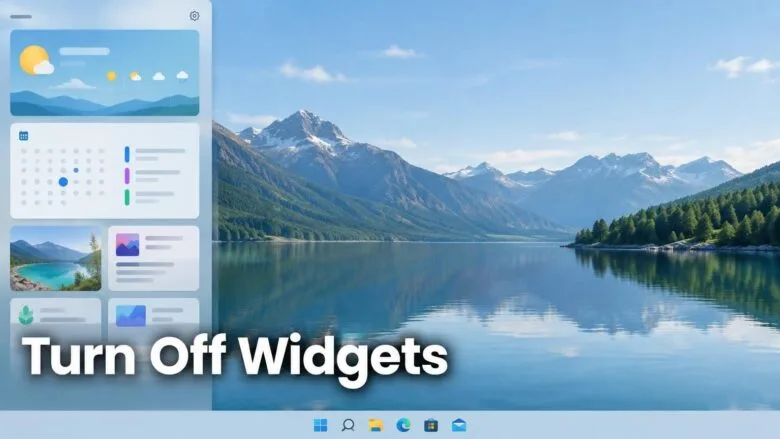
Widgets in Windows 11 is a panel that shows small cards for weather, calendar, to-do items, news and more. Turn it off if you never open the panel. The change takes about ten seconds: right-click the taskbar, select Taskbar settings, and switch Widgets to Off.
Keep Widgets on if you check weather, calendar or to-do items from it often. Turning it off does not delete any of those apps or your data. It only hides the panel and the taskbar button.
This article helps you decide, then shows you how to make the change, how to undo it, and what to do if the Widgets option is missing or locked.
Turn Widgets off if you never open the panel. Right-click the taskbar, select Taskbar settings, and switch Widgets to Off. This removes the Widgets button and the panel, and nothing else in Windows changes. Keep it on if you use the weather, calendar or to-do cards every day.
The Short Answer
Most people do not need Widgets. The panel often opens by accident, the news feed in it is a distraction, and it adds a background process to a PC that may already be short on memory. Turning it off removes the taskbar button and has no effect on anything else in Windows.
Keep Widgets if you use it daily. A glance at the weather on the taskbar or a quick look at your calendar is a good reason to leave it alone. The decision is easy to reverse, so you can switch it off for a week and see whether you miss it.
What Widgets Does in 🪟 Windows 11
Widgets is a panel (the Widgets board) that slides in from the left side of the screen. It shows small cards for weather, calendar, photos, to-do items, sports, stocks and similar information. Below the cards, recent versions of Windows 11 show a news and content feed.
You open the board in one of three ways:
- Select the Widgets button on the taskbar. On many PCs this button shows the current temperature and weather icon.
- Move the mouse over the Widgets button. The board can open on hover.
- Press Win+W.
Some content in the board asks you to sign in with a Microsoft account. Layouts, card choices and feed options differ between Windows 11 versions. Your screen may not match a screenshot from an older guide.
Reasons to Turn Widgets Off
You never open it
If you have not used the board in months, the button is wasted taskbar space. Removing it also frees the area for other items on the taskbar.
It opens by accident
The board opens when the pointer rests over the Widgets button. If you move the mouse to the bottom-left corner often, the panel pops over your work. Turning the feature off stops this.
You do not want the news feed
The feed under the cards pulls in headlines and other content, and it can include sponsored items. If you prefer a quiet desktop, switching Widgets off is the most direct fix.
You are saving resources on an older PC
Widgets runs as its own process (a program running in the background) and uses WebView2 (a Microsoft component that lets apps show web content). On a PC with 4 GB or 8 GB of RAM (the memory your PC uses for open apps), or a slow drive, every background process counts. The saving is small, but it is free.
You manage a shared or work PC
On a PC that other people use, a news panel may be inappropriate or unwanted. Administrators often disable it for that reason. See the section below on greyed-out options if your PC is managed.
Reasons to Keep Widgets On
- You use the weather or calendar cards. They are quicker than opening a browser or an app.
- You use the to-do or photo cards. If the board is part of your routine, removing it costs you time.
- You have plenty of memory. On a modern PC with 16 GB of RAM or more, the cost of Widgets is hard to notice.
- You only dislike the feed. You may be able to keep the cards and hide the feed. See the section on cutting the feed below.
Does Widgets Slow Down Your PC?
The effect is small on most hardware. Widgets does not run a heavy workload. It does keep a process and some web components loaded, so the board opens quickly. On a fast PC you will not feel the difference. On a low-memory PC, you may see slightly more free RAM after you turn it off.
To see the effect on your own PC, check Task Manager (the tool that lists running apps and their resource use) before and after the change:
- Press Ctrl+Shift+Esc to open Task Manager.

Task Manager - Select the Processes tab.
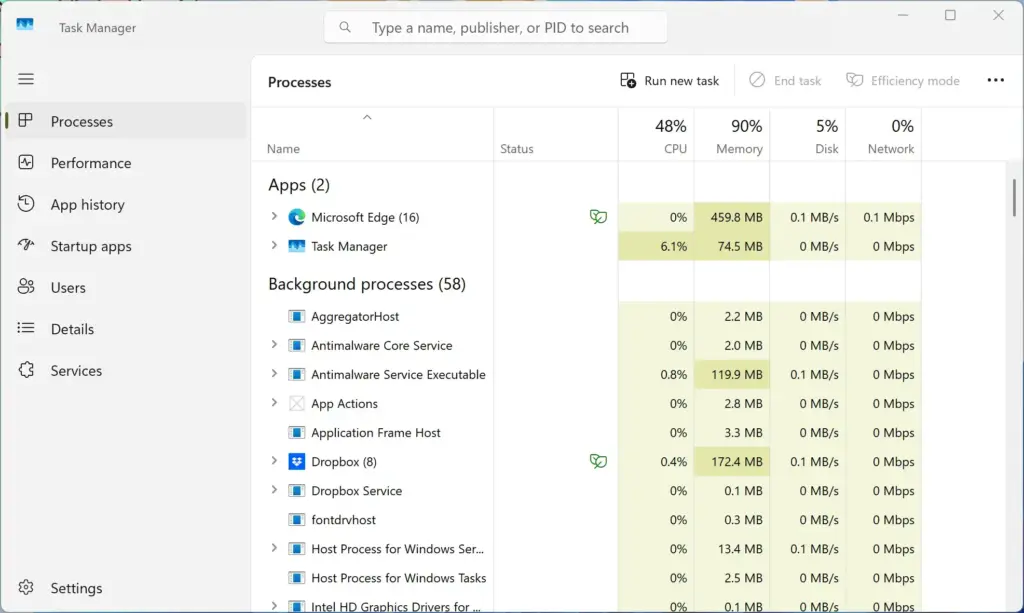
Task Manager › Processes - Look for entries named Widgets and Microsoft Edge WebView2. If you see them, Widgets is running or has run in this session.
- Note the Memory column for those entries, then turn Widgets off using the steps below and check again.
WebView2 is shared with other apps, so an entry for it does not always mean Widgets is the cause. Treat the Widgets entry as the clearer sign.
How to Turn Off Widgets in 🪟 Windows 11
This hides the Widgets button and stops the board from opening. It does not need administrator rights, and no restart is required. The setting applies to your user account only.
Method 1From the Taskbar
- Right-click an empty area of the taskbar. A small menu appears with Taskbar settings.
- Select Taskbar settings. The Settings app opens on the Personalization Taskbar page.
- Find the Taskbar items section. If it is collapsed, select it to expand it.
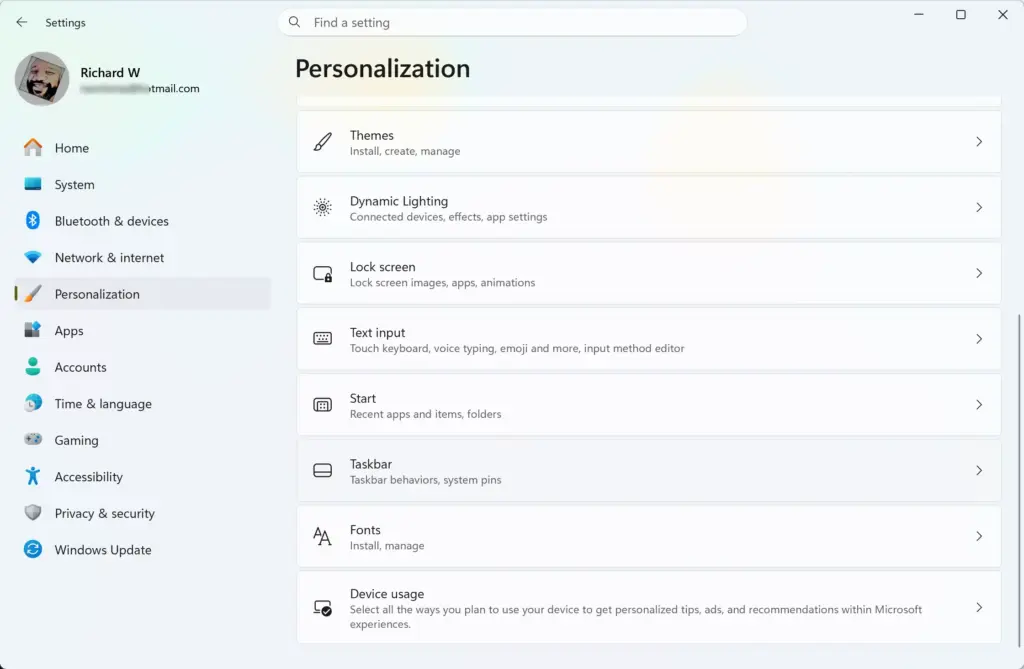
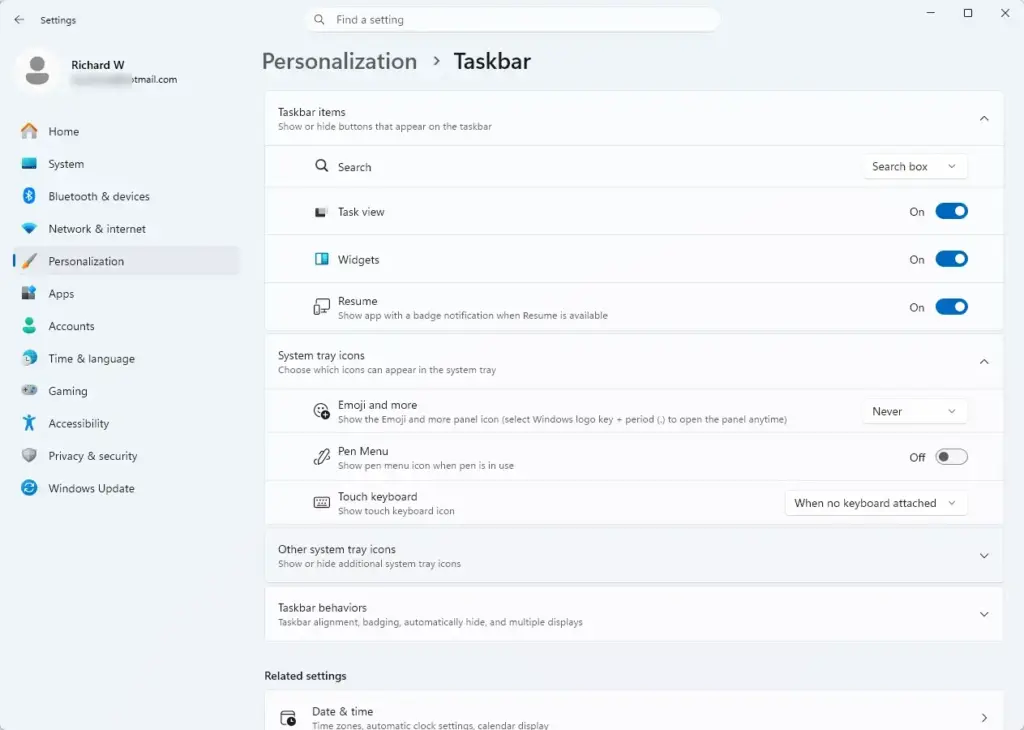
Settings › Personalization › Taskbar - Switch the Widgets toggle to Off. The Widgets button, including any weather icon, disappears from the taskbar straight away.
- Press Win+W to confirm. On current builds the board no longer opens. If it does, see the troubleshooting section below.
Method 2From the Settings App
- Press Win+I to open Settings.

Windows 11 Start menu with Settings gear icon highlighted. - Select Personalization in the left pane.
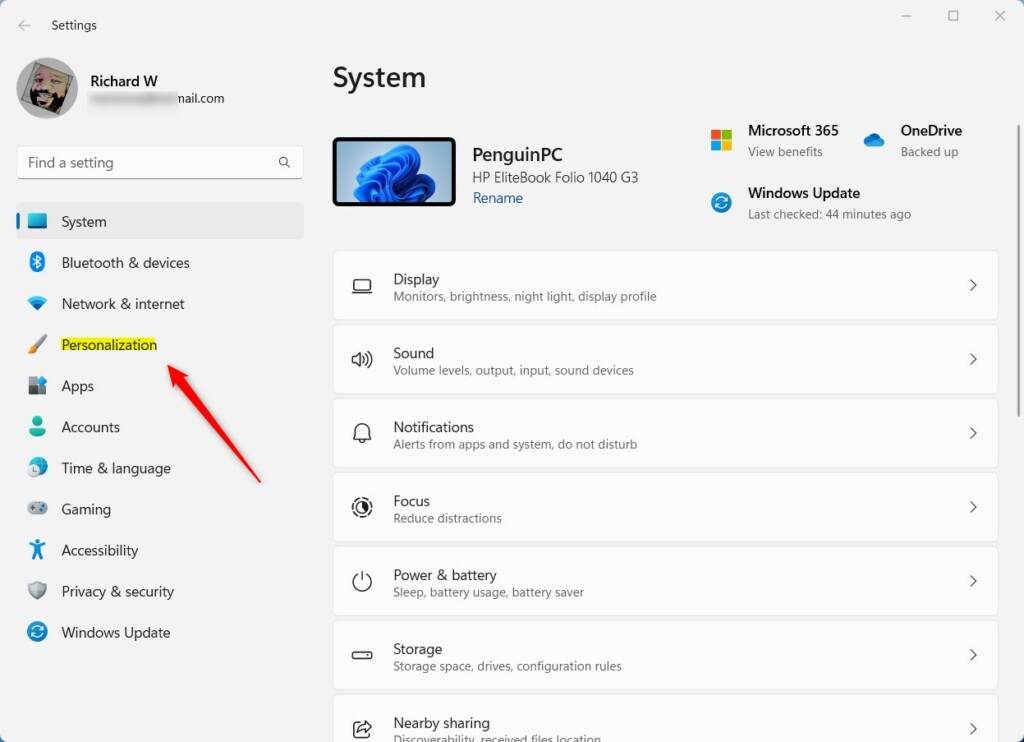
Windows 11 Personalization in the Settings app - Select Taskbar. The page lists taskbar items and taskbar behaviors.
- Under Taskbar items, switch Widgets to Off. The button disappears from the taskbar.
Both methods change the same setting. Use whichever you reach first.
How to Turn Widgets Back On
The change is fully reversible and nothing is deleted. Your widget choices may still be there when you return, although this depends on your sign-in and version.
- Right-click an empty area of the taskbar and select Taskbar settings.

Settings > Personalization > Taskbar - Under Taskbar items, switch Widgets to On. The Widgets button returns to the taskbar.
Windows 11 settings menu for managing optional diagnostic data sharing - Select the button, or press Win+W, to open the board.
If the Widgets Option Is Greyed Out or Does Not Work
The toggle is greyed out or shows a managed message
The Widgets button stays on the taskbar after you switch it off
The taskbar may not have refreshed. Restart Windows Explorer (the process that draws the taskbar and desktop):
- Press Ctrl+Shift+Esc to open Task Manager.
- On the Processes tab, find Windows Explorer.
- Right-click it and select Restart. The taskbar disappears for a moment and then returns.
If the button is still there, sign out and sign back in. Then check the toggle again.
🪟 Windows 11 Home versus Pro
The taskbar toggle works the same way on Home and Pro. The difference is in the extra tools. Group Policy Editor (a console for setting system-wide rules) is not included in Windows 11 Home. It is available in Pro, Enterprise and Education, and you need administrator rights to use it. If you changed Widgets with a policy tool and the board still runs, use the taskbar toggle above, which does not depend on the edition.
Registry (the database where Windows stores its settings) and Group Policy methods exist for locking the setting across several PCs. This article does not give them because the exact key and policy names are not confirmed here. [Registry method: to be verified]
The setting is different on another account
The toggle applies to the account you are signed in to. If another person uses the PC, they have to turn it off in their own account. A new user profile starts with Widgets in its default state.
Keep Widgets but Reduce the Feed
If you like the cards and dislike the news, you may not need to turn Widgets off. Open the board and look near the top right for your profile picture or a Settings icon. Recent versions offer options there to change what the board shows, including the feed. The layout and the option names vary by build, and Microsoft changes them often, so look at what your version offers instead of following a fixed path.
If your version has no way to hide the feed, switching Widgets off is the only complete fix.
Should You Uninstall Widgets Instead?
Some guides remove the Windows Web Experience Pack (the Microsoft Store package that supplies Widgets) using winget, the Windows package manager. This article does not cover that route. It is harder to undo than the toggle, and this article cannot confirm that it holds across feature updates. Other features may depend on the package.
If you do want to try it, create a restore point first and make sure you know how to reinstall the package. For most readers, the taskbar toggle gives the same practical result at no risk.
What to Do Next
With Widgets off, the taskbar should show no Widgets button, and Win+W should open nothing. If you ever want the weather or calendar back, switch the toggle on again under Settings Personalization Taskbar. For the next cleanup step, open Taskbar settings and review the other items listed there, such as Search and Task view, and hide any you do not use.
Frequently asked questions
How to stop Widgets from popping up?
To stop Widgets from popping up, turn the panel off. Right-click the taskbar, select Taskbar settings, and switch Widgets to Off. The taskbar button disappears, so the panel no longer opens when your mouse passes over where the button used to be. Your apps and data stay in place, and you can turn it back on at any time.
Should I turn off background apps in 🪟 Windows 11?
Usually, no. Background apps run quietly when you are not using them, and turning them all off can break notifications and syncing. Turn off only the apps you rarely use and do not need alerts from. Open Settings, go to Apps, then Installed apps, choose the app, select Advanced options, and turn off Let this app run in background. Leave Windows Security on.
How do I access Widgets in 🪟 Windows 11?
Open Widgets by clicking the Widgets icon on the taskbar, or press Win+W. The panel slides in with your weather, calendar, to-do items, and news cards. Click the Widgets icon again to close it. If the icon is missing, Widgets may be turned off in Taskbar settings.
What is an example of a widget?
A widget is a small card that shows one piece of information at a glance. A weather widget, for example, shows the current temperature and the forecast for the day. Other common examples are the Calendar card, which lists upcoming events, and the To Do card, which shows your tasks.
Still have a question?
Answered by AI from this guide. Good questions may be added to this page — please don't include personal details.
Did this guide fix your problem?

About the Author
Richard
Tech Writer, IT Professional
Richard is a writer at Geek Rewind who turns complex IT tasks into clear, step-by-step guides. He draws on years of hands-on experience in system administration and enterprise IT operations, focusing on Windows, Linux and WordPress: the problems people actually run into, and the fixes that work. His server and WordPress guides come from systems he runs himself. Richard builds and maintains the platform behind Geek Rewind, from its Ubuntu servers and Nginx configuration to its custom WordPress plugins. Many new tutorials start with readers' questions, and he's always glad to answer them in the comments.
No comments yet — be the first to share your thoughts!