Require a PIN When Your PC Wakes from Sleep in Windows 11

- 30 steps
- Needs administrator rights
Windows 11 can ask for your PIN every time your PC wakes from sleep. You turn this on by changing one setting: “If you’ve been away, when should Windows require you to sign in again?” to “When PC wakes up from sleep.” The setting lives in Settings Accounts Sign-in options, and it takes effect right away.
The steps are the same on Windows 11 Home and Windows 11 Pro. This only works if your account already has a PIN. If you do not have one yet, the first section shows you how to set it up.
To require a PIN when Windows 11 wakes from sleep, open Settings, select Accounts, then select Sign-in options. Under Additional settings, set “If you’ve been away, when should Windows require you to sign in again?” to When PC wakes up from sleep. The change applies immediately. Your account must already have a PIN (Windows Hello) set up first.
Before you start
- The account needs a sign-in method. Windows has nothing to ask for on wake if the account has no password or PIN. If the account has no sign-in method, Windows hides or greys out the wake-up setting (see the troubleshooting section below).
- Windows asks for whatever you sign in with. The setting is about requiring sign-in, not about requiring a PIN specifically. If you have both a PIN and a password, the lock screen lets you pick either. To make the PIN your default, read the section on choosing the PIN at the sign-in screen below.
- Work and school PCs may have restrictions that block these changes. If your organisation manages the device, an administrator can control this setting, and your changes may be blocked or reverted.
This article uses the labels from current Windows 11 builds. Older Windows 11 releases may label things slightly differently. The layout of Settings Accounts Sign-in options has stayed consistent, so you should still find the right options.
Set up a PIN if you don’t have one
A Windows Hello PIN is a short code that works only on this device. It is quicker to type than a password, so this article assumes you use one. Skip to the next section if you already use a PIN.
- Open Settings by pressing Win+I.

Windows 11 Start menu with Settings gear icon highlighted. - Select Accounts in the left pane, then select Sign-in options.
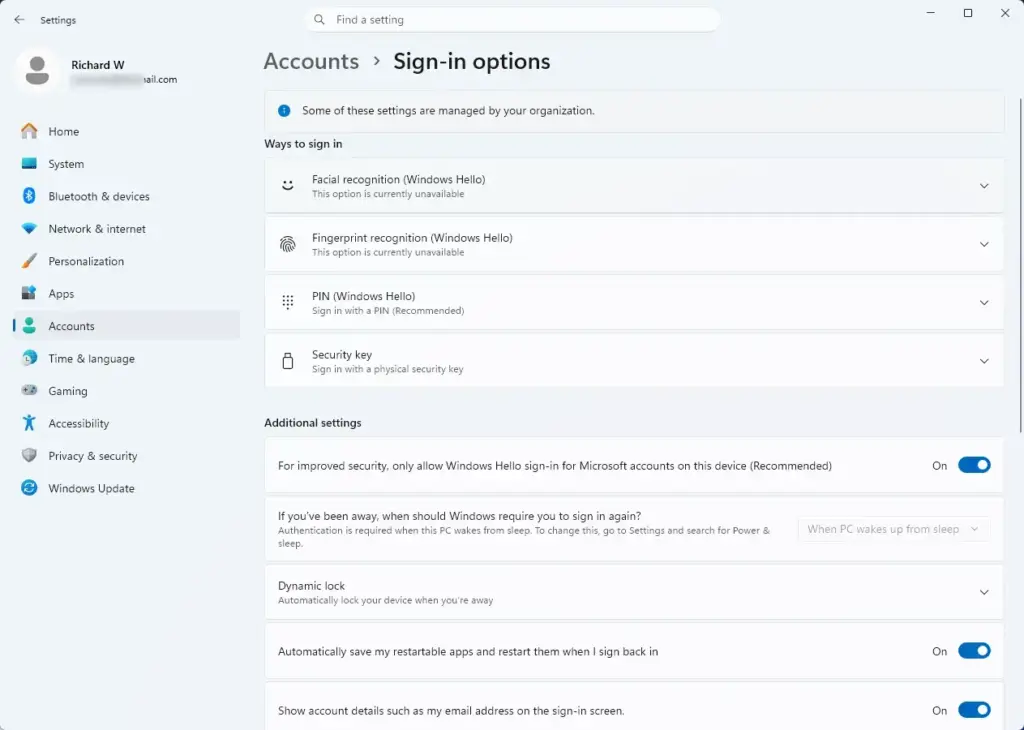
Settings › Accounts › Sign-in options
You should see a list of sign-in methods, such as Facial recognition, Fingerprint recognition and PIN (Windows Hello). Which ones appear depends on your hardware. - Select PIN (Windows Hello) to expand it.
- Select Set up.
Windows asks you to confirm who you are, usually with your account password. - Enter your account password and select OK if prompted.
- Type a PIN in the New PIN box, then type it again in Confirm PIN.
If the OK button stays greyed out, your PIN is too short or breaks a rule. Windows shows a message next to the boxes. The Include letters and symbols checkbox lets you use a longer, more complex PIN. - Select OK.
The PIN section now shows options to Change PIN and Remove, which confirms the PIN is active.
Require sign-in when the PC wakes from sleep
This is the main setting. This tells Windows to lock the session when the PC wakes. Anyone who opens the lid or presses a key sees the sign-in screen, not the desktop.
- Open Settings by pressing Win+I.
- Select Accounts, then select Sign-in options.
- Find the section named Additional settings. It sits near the top of the page, above the list of sign-in methods in most builds.
- Find If you’ve been away, when should Windows require you to sign in again?
- Open the drop-down menu next to it.
You should see at least Never and When PC wakes up from sleep. Some builds also offer Every time.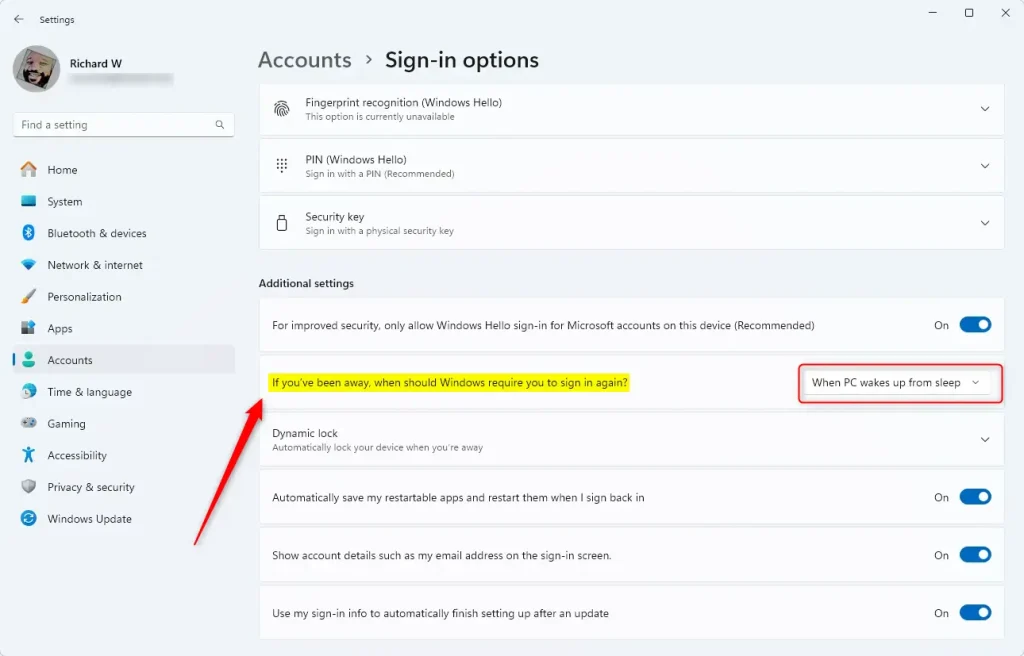
- Select When PC wakes up from sleep.
The change applies at once. You do not need to restart or sign out.
Test that it works
Test the setting before you rely on it.
- Open the Start menu and select the Power button.
- Select Sleep.
- Wait for the PC to go fully to sleep. On a desktop the power light may change or blink. On a laptop the screen goes dark.
- Wake the PC by pressing a key, moving the mouse or pressing the power button.
You should see the lock screen. Press a key or swipe up to reach the sign-in box, where Windows asks for your PIN.
If your desktop appears with no sign-in prompt, the setting did not stick. The next two sections cover why.
If the option is missing or greyed out
Work through these causes in order. They are the most common reasons the drop-down is absent or locked.
- The account has no password or PIN. This is the most frequent cause on local accounts. Windows hides the option because there is nothing to sign in with. Set up a PIN using the steps above, then return to Sign-in options. The option should appear.
- The PC is managed by an organisation. Look for a message at the top of Settings such as “Some settings are managed by your organization”. If you see it, an administrator controls the behaviour. Ask your IT team. Changing it yourself on a managed PC may not hold.
- Your build lays out the page differently. If you cannot find the drop-down under Additional settings, scroll the whole Sign-in options page. Then try the Control Panel method in the next section, which does not depend on the Settings layout.
Check the setting in Control Panel (administrator required)
Windows also has an older setting that controls the same behaviour for the whole PC. It is worth checking if the Settings route is missing, or if the PC still skips the sign-in screen after you changed it. This method needs an administrator account, because it changes a setting that affects every user on the PC.
- Press Win+R to open the Run box.
- Type
powercfg.cpland select OK.
The Power Options window opens in Control Panel. - Select Require a password on wakeup in the left pane.
If you are not signed in as an administrator, Windows may prompt you for administrator credentials later in this process. - Select Change settings that are currently unavailable.
This step needs administrator approval. Windows may show a User Account Control prompt (a pop-up that asks you to approve a change before it happens). Select Yes, or enter administrator credentials.
The options under Password protection on wakeup are now selectable instead of greyed out. - Select Require a password (recommended).
- Select Save changes.
The label says password, but this setting covers any sign-in method you use, including a PIN. Run the sleep test above again to confirm.
If the Require a password on wakeup link is missing from Power Options, the PC is likely managed by an organisation rule (a policy) or the account has no password or PIN to sign in with. I cannot confirm a more specific cause from the material I have, so check with whoever manages the PC.
Make sure the PC actually sleeps
The wake-up setting only applies when the PC sleeps. If the screen turns off but the PC never sleeps, nothing triggers the sign-in prompt. Check your timeouts.
- Open Settings and select System.
- Select Power & battery. On some builds this page is named Power.
- Expand Screen, sleep, & hibernate timeouts.
- Check the Make my device sleep after drop-downs. Choose a time that suits you for both On battery power and Plugged in. Laptops show both. Desktops show only one.
If a drop-down says Never, the PC does not sleep by itself, so you will only hit the sign-in prompt when you put it to sleep manually.
Closing the lid or pressing the power button can also trigger sleep. You can change these actions in Control Panel. Go to Power Options and select Choose what the power buttons do.
Choose the PIN at the sign-in screen
If you have a PIN and a password, Windows shows the method you used last. To make sure you type your PIN, look for the Sign-in options link under the sign-in box. Select it and pick the keypad icon. It labels itself PIN when you point at it.
This setting removes password sign-in from the sign-in screen for Microsoft accounts on that device. Remember your PIN before you switch it on. If you forget it, Windows offers an I forgot my PIN link that checks your identity through your Microsoft account.
Lock the PC faster when you walk away
Requiring sign-in on wake does not lock the PC while it sits awake. For that, press Win+L when you leave your desk. Windows also has Dynamic lock, in the same Sign-in options page. It locks the PC after a paired phone moves out of Bluetooth range. It needs a phone paired over Bluetooth first.
Undo the change
You can reverse this at any time.
- Open Settings Accounts Sign-in options.
- Open the drop-down under If you’ve been away, when should Windows require you to sign in again?
- Select Never.
The PC now wakes straight to your desktop, with no sign-in prompt. Before you choose Never, note that anyone who can touch the PC can see your files and accounts. Only choose this on a private, secure PC.
If you also changed the Control Panel setting, return to Power Options, select Require a password on wakeup, select Change settings that are currently unavailable (administrator approval required), choose Don’t require a password and select Save changes.
To remove the PIN itself, go to Settings Accounts Sign-in options, expand PIN (Windows Hello) and select Remove. Windows asks you to confirm. Windows will then no longer ask for a PIN on wake, though it still asks for a password if the account has one.
What to do next
If the sign-in screen still does not appear after a sleep, check whether the PC is actually sleeping or only turning off the screen, and confirm that no organisation policy is controlling the setting. A major Windows feature update can reset some sign-in settings, so repeat the sleep test after a big update. If you share the PC, set up a PIN for each account, because the wake-up setting applies per user.
Frequently asked questions
How to stop 🪟 Windows 11 from asking for password from sleep mode?
Open Settings, go to Accounts, then select Sign-in options. Under "If you've been away, when should Windows require you to sign in again?", choose Never. The change applies right away, so your PC wakes from sleep without asking for a password. Anyone who can reach your PC can then open it without signing in.
Why is 🪟 Windows 11 forcing me to use a PIN?
Windows asks for a PIN because it is the sign-in method set up on your account. Windows Hello, the sign-in system that uses a PIN, face, or fingerprint, is the default. To use your password instead, remove the PIN in Settings, under Accounts and Sign-in options. Windows then asks for your password.
How to make Windows require password after sleep?
Open Settings, go to Accounts, then select Sign-in options. Set "If you've been away, when should Windows require you to sign in again?" to "When PC wakes up from sleep." Windows then asks for your password or PIN each time the PC wakes. The account must already have a password or PIN, or the setting stays hidden.
How to stop 🪟 Windows 11 from waking up from sleep?
Windows wakes from sleep when a device like a mouse, keyboard, or network adapter sends a signal. To stop a device from waking the PC, open Device Manager, double-click the device, select the Power Management tab, and clear "Allow this device to wake the computer." Repeat for each device that wakes your PC.
Still have a question?
Answered by AI from this guide. Good questions may be added to this page — please don't include personal details.
Did this guide fix your problem?

About the Author
Richard
Tech Writer, IT Professional
Richard is a writer at Geek Rewind who turns complex IT tasks into clear, step-by-step guides. He draws on years of hands-on experience in system administration and enterprise IT operations, focusing on Windows, Linux and WordPress: the problems people actually run into, and the fixes that work. His server and WordPress guides come from systems he runs himself. Richard builds and maintains the platform behind Geek Rewind, from its Ubuntu servers and Nginx configuration to its custom WordPress plugins. Many new tutorials start with readers' questions, and he's always glad to answer them in the comments.
No comments yet — be the first to share your thoughts!