How to Sign In to a Microsoft Account in Windows 11

Signing in to a Microsoft account in Windows 11 links your user profile to your online account. Your settings, apps, and preferences can then sync across devices. The link also lets you manage Microsoft 365 subscriptions, check the security of your devices, and recover a lost password from the cloud.
You need an active internet connection and a valid email address to complete the setup. These steps are written for Windows 11 Version 23H2 or later. Menu wording can differ slightly in earlier builds.
Open Settings, select Accounts, then click Your info and choose Sign in with a Microsoft account instead. Enter your email address or phone number, type your password, and follow any verification prompts. Your Microsoft account is now linked to Windows 11.
Accessing Your Account on microsoft.com
The website is the quickest way to confirm that your Microsoft account works before you link it to a PC. It is also where you manage your profile, payment details, and privacy settings.
- Open any web browser and go to the official Microsoft site at microsoft.com. You can also go straight to the account page at account.microsoft.com.
- Click the Sign in button in the top right corner of the page. A sign-in box appears asking for your account name.
- Enter your email address, phone number, or Skype ID, then click Next.
- Type your password when prompted, then click Sign in. If you have two-step verification turned on, approve the sign-in in your authenticator app or enter the code you receive.
Once you are in, you should see your profile, payment details, and privacy settings. If the sign-in fails, use the Forgot password? link on the password screen. It sends a reset code to the recovery email or phone number on the account.
Configuring Sign-In Options in Windows Settings
Sign-in options in Windows Settings let you secure the PC with a quick PIN, a fingerprint, or facial recognition. With one of these set up, you do not have to type your full Microsoft account password every time you turn on the machine.
- Press the Win+I together to open Settings.
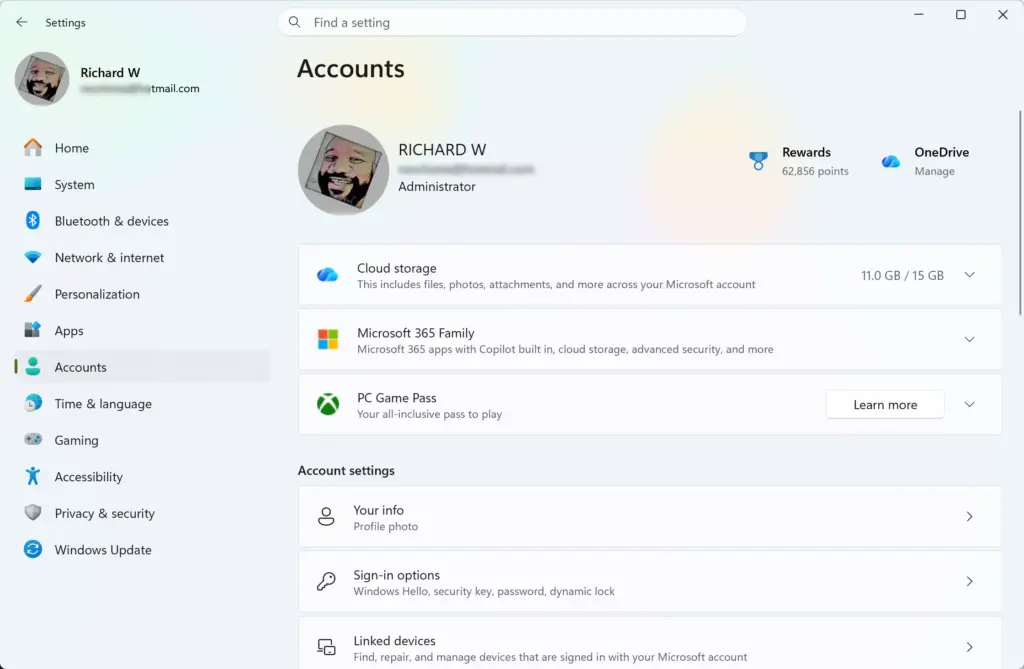
- Select Accounts from the left-hand navigation menu.
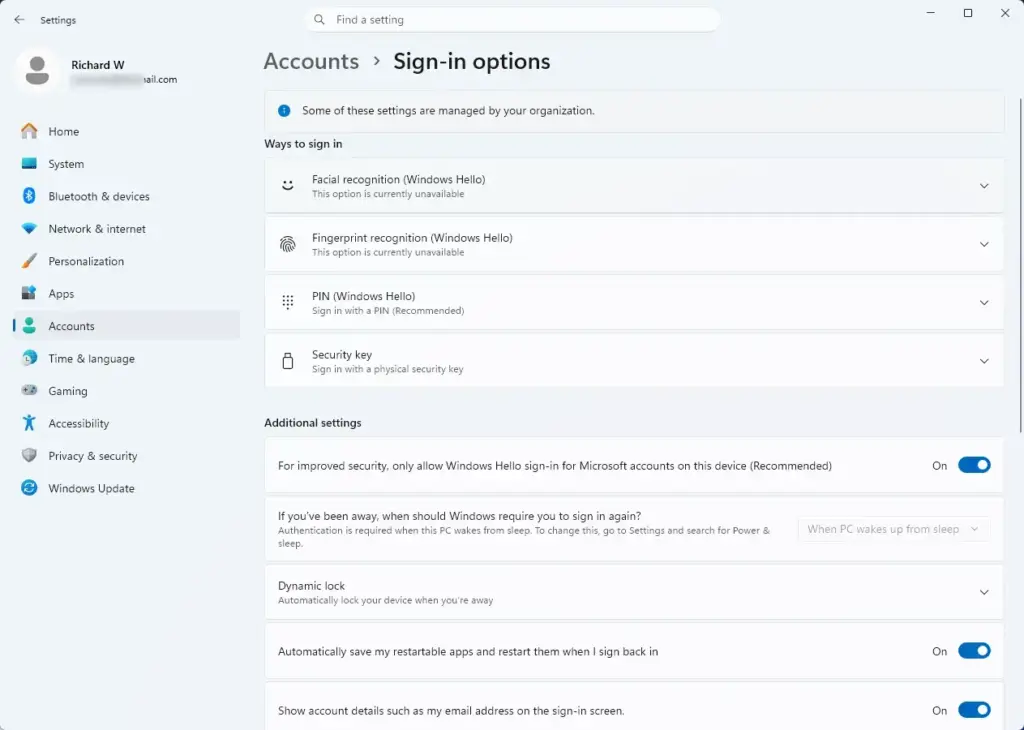
- Click Sign-in options on the right side of the screen. You should see a list of the methods available on your PC.
- Choose the method you want to set up: Windows Hello Face (facial recognition), Windows Hello Fingerprint, Windows Hello PIN, or Security key.
- Click Set up and follow the prompts. Windows asks you to confirm your account password first.
If an option is missing or greyed out, the hardware is probably not present or its driver is not installed. A PIN works on any PC. It is stored on that one device only, so it is not sent over the internet like your account password. A security key is a physical USB or NFC device, so you need to have one on hand.
Switching Between Local Accounts and Microsoft Accounts
If you currently use a local account, you can switch it to a Microsoft account without losing your files or settings. The PC must be online for this.
- Press Win+I to open Settings.
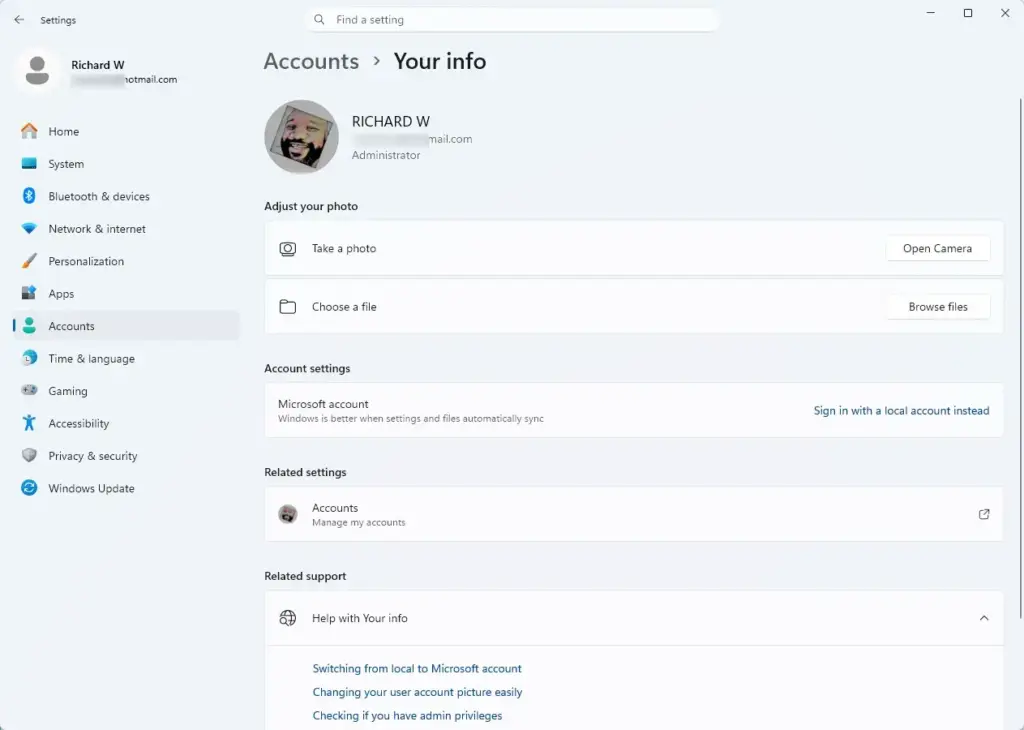
- Select Accounts, then click Your info.
- Click Sign in with a Microsoft account instead. A sign-in window opens.
- Enter the email address, phone number, or Skype ID for your Microsoft account and click Next.
- Type your password and follow any verification prompts. Windows may also ask for your current local password and offer to create a PIN.
When it finishes, your name and email address should appear under Your info. If you do not see the Sign in with a Microsoft account instead option, you are probably already signed in with a Microsoft account. It also does not appear on a work or school account that your organisation manages. To go back later, use the Sign in with a local account instead option on the same page. Windows will ask you to choose a local username and password.
What to do next
Now that your Microsoft account is linked and secured, check that everything looks right online. Sign in at microsoft.com and open your privacy dashboard to review the data connected to your account. Then look at the list of synced devices to confirm that only hardware you recognise appears. If you see a device you do not know, remove it and change your password.
From here you can set up Family Safety if children use the PC. You can also adjust UAC (User Account Control, a security feature that asks for permission before apps make changes) if you need to manage local users further.
Frequently asked questions
How to sign in to 🪟 Windows 11 using Microsoft account?
Open Settings, go to Accounts, and select Your info. Click Sign in with a Microsoft account instead. Enter your email address and password, then approve any two-step verification prompt. Windows links your user profile to the account and starts syncing your settings. You need an internet connection to finish the setup.
Why can't I sign into my Microsoft account on 🪟 Windows 11?
The most common cause is a wrong email address or password, so check both carefully. Other causes include two-step verification waiting for approval, no internet connection, a password changed on another device, or a locked account after too many failed tries. Confirm your connection, then reset your password at account.microsoft.com if needed.
Why is 🪟 Windows 11 forcing me to sign in with a Microsoft account?
Windows 11 Home usually requires a Microsoft account during setup. Windows uses it to back up settings, sync files with OneDrive, and handle Microsoft Store purchases and device security features. You are not stuck with it. After setup, you can switch to a local account in Settings.
How to bypass 🪟 Windows 11 sign in with Microsoft account?
Create a local account during setup, or switch to one afterward. On the network screen, press Shift+F10 to open a command prompt and follow the offline setup steps, which depend on your Windows build. Otherwise, finish setup, open Settings, go to Accounts, select Your info, and choose Sign in with a local account instead.
Still have a question?
Answered by AI from this guide. Good questions may be added to this page — please don't include personal details.
Did this guide fix your problem?

About the Author
Richard
Tech Writer, IT Professional
Richard is a writer at Geek Rewind who turns complex IT tasks into clear, step-by-step guides. He draws on years of hands-on experience in system administration and enterprise IT operations, focusing on Windows, Linux and WordPress: the problems people actually run into, and the fixes that work. His server and WordPress guides come from systems he runs himself. Richard builds and maintains the platform behind Geek Rewind, from its Ubuntu servers and Nginx configuration to its custom WordPress plugins. Many new tutorials start with readers' questions, and he's always glad to answer them in the comments.
No comments yet — be the first to share your thoughts!