How to Manage Microsoft Edge Desktop Search Bar in Windows 11

The Microsoft Edge desktop search bar is a small floating widget on your Windows 11 screen. You type a search into it and get Bing-powered web results, or open your favorite sites, without opening the full browser first. You can drag it anywhere on your monitor, keep it above your open apps for quick access, or close it when you want a clean desktop.
This guide shows how to launch the search bar, bring it back to the front if it gets buried, close it, and make it start automatically when you sign in. Edge is included with Windows 11, so you don’t need to install anything extra. It works with a normal user account and on both Home and Pro.
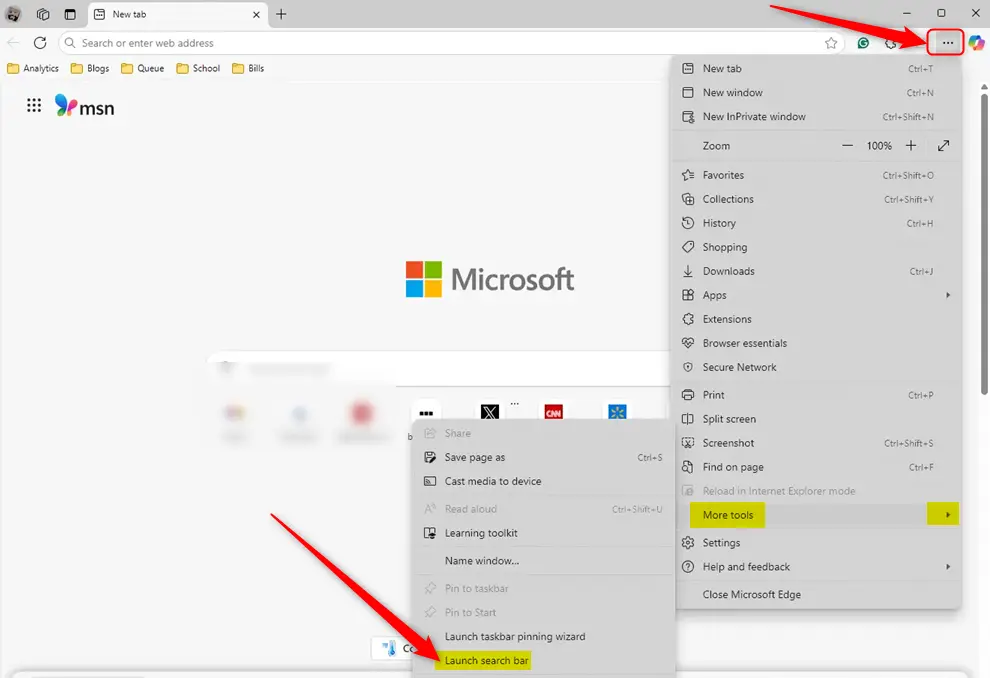
Open Microsoft Edge, click the Settings and more button (the three dots in the top right), go to More tools, and choose Launch search bar . The floating Edge search bar appears on your desktop, where you can type a search and drag it anywhere you like. If it gets buried behind other windows, press Win+Shift+F to bring it back to the front.
Launch Edge Desktop Search Bar
You launch the search bar from inside Microsoft Edge. Open Edge, click the Settings and more button (the three horizontal dots in the top right corner), and pick the search bar option from the menu. The widget then appears on your desktop.
Check for updates under Settings and more > Help and feedback > About Microsoft Edge, then restart the browser. Menu wording can shift slightly between Edge versions, so look for the entry that mentions the search bar.
The steps below take you through it from start to finish.
- Open the Microsoft Edge browser. Use the Start menu , the taskbar , or a desktop shortcut.
You should see a normal Edge window with the address bar at the top.
- Click the Settings and more button, the three horizontal dots in the top-right corner. You can also press Alt+F.
- In the menu that opens, select More tools.
- Choose Launch search bar.
The Edge desktop search bar now appears on your screen as a small floating box. Click inside it and type to search. To move it, click and drag it to wherever you want it on the desktop.

A keyboard shortcut brings it back to the front.
- Press the Win + Shift + F keys together.
The search bar should jump in front of your open windows. If nothing happens, the search bar is probably closed rather than hidden. Launch it again from Edge using the steps above.
Close the desktop search bar
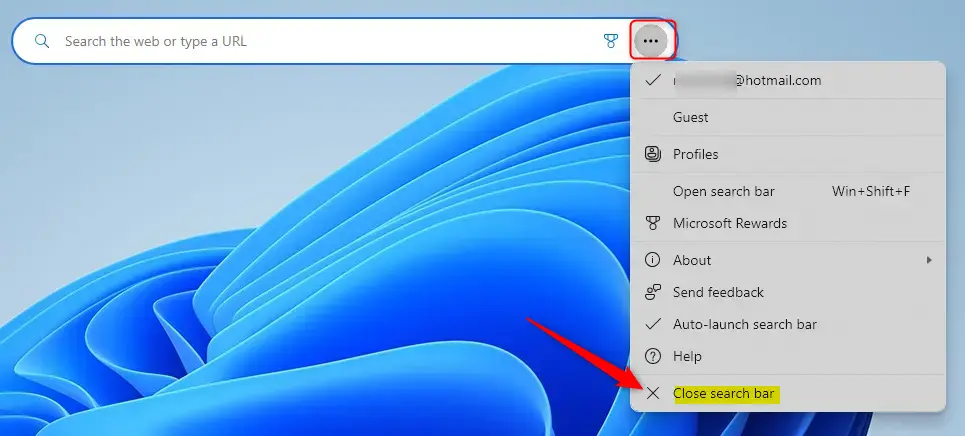
You can close the search bar whenever you no longer want it on your screen. Click the three-dot menu on the widget itself, select Close search bar, and click Yes when asked to confirm. Closing it does not close Edge or remove anything from your computer. To get it back, launch it again from Edge.
- On the desktop search bar, click the Settings and more (3 dots) button.
- On the context menu, click Close search bar.
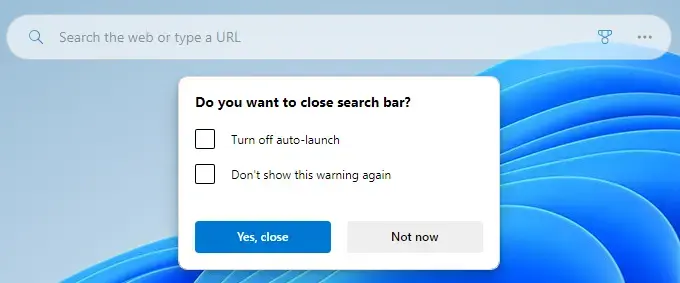
A confirmation prompt appears. Click the Yes button to confirm. The search bar disappears from your desktop.
Launch the Edge search bar at startup
You can have the search bar open by itself every time you turn on your computer and sign in to Windows 11. This saves you from launching it from Edge each time. The option lives in the search bar's own menu, so launch the search bar first if it isn't on screen.
- On the desktop search bar, click the Settings and more (3 dots) button.
- Select Auto-launch search bar from the menu.
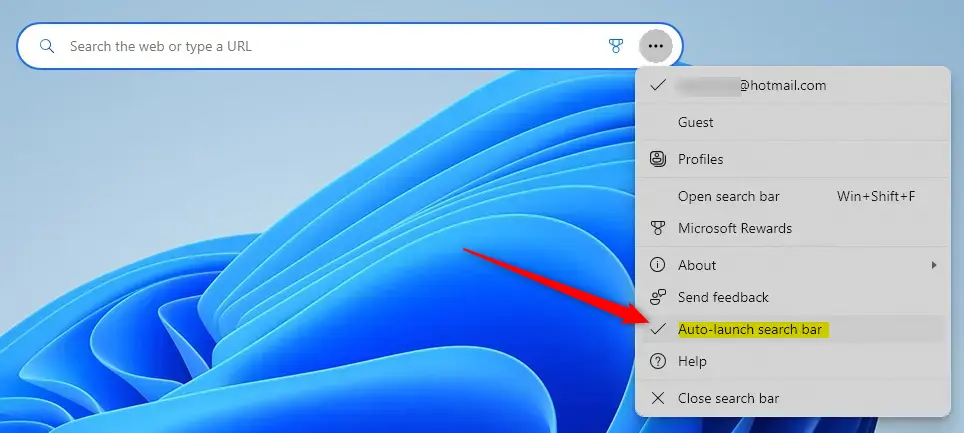
A check mark now appears next to Auto-launch search bar, which means the feature is active. To undo it, open the same menu and click the option again. The check mark goes away and auto-launch is off. Either change applies the next time you sign in, with no restart needed right now.
That completes the setup process.
Conclusion:
Managing the search bar takes only a few clicks, and it can speed up your daily workflow. Here is a quick recap of what you can do with it:
- Easy Launching: You can quickly access the Edge search bar from your desktop, saving time when searching the web.
- Customizable Position: The search bar can be dragged anywhere on your desktop, allowing for personalized placement.
- Keyboard Shortcuts: Use Win + Shift + F to bring the search bar to the front if it gets hidden.
- Simple Closing: Easily close the search bar when not in use via the context menu.
- Auto-launch Feature: Set the search bar to launch automatically at startup for consistent accessibility.
- User-Friendly: The interface is designed to be intuitive, making it easy for users to manage their search needs efficiently.
Overall, the Edge desktop search bar is a convenient way to run web searches straight from the desktop. Launch it when you need it, close it when you don't, and turn on auto-launch if you want it ready after every sign-in.
Have a question about this guide?
Answered by AI from this guide. Good questions may be added to this page — please don't include personal details.
Did this guide fix your problem?

About the Author
Richard
Tech Writer, IT Professional
Richard is a writer at Geek Rewind who turns complex IT tasks into clear, step-by-step guides. He draws on years of hands-on experience in system administration and enterprise IT operations, focusing on Windows, Linux and WordPress: the problems people actually run into, and the fixes that work. His server and WordPress guides come from systems he runs himself. Richard builds and maintains the platform behind Geek Rewind, from its Ubuntu servers and Nginx configuration to its custom WordPress plugins. Many new tutorials start with readers' questions, and he's always glad to answer them in the comments.
No comments yet — be the first to share your thoughts!