Disable Microsoft Edge Search Bar in Windows 11

The edge search bar is the floating search box Microsoft added to Windows 11. You can disable it by creating one registry value called SearchbarAllowed and setting it to 0. The change takes about two minutes in the Registry Editor, a built-in tool for changing low-level system settings.
Microsoft introduced this widget in Windows 11 build 22H2. If you prefer a clean desktop, it just takes up room. The method works on both Home and Pro editions, because the Registry Editor is included in both. That matters on Home, which has no Group Policy Editor to do the same job.
To disable the Edge search bar in Windows 11, open the Registry Editor, go to 🗝️HKEY_CURRENT_USER\
Disable the Edge search bar
To disable the Edge search bar on your Windows 11 desktop, you add one value to the Microsoft Edge key in the registry. Once the value is in place, the floating search widget stays hidden and your screen stays clean.
Without admin rights, Windows will refuse to let you create the value. Registry edits can break things if you change the wrong value, so work carefully and touch only what is described here. If you want a safety net, create a restore point first. You can do that from the Start menu by searching for “Create a restore point”.
These steps disable the Edge search bar by adding the SearchbarAllowed value to the registry and setting it to 0.
- Open the Windows Registry. If Windows asks whether to allow the app to make changes, click Yes. The Registry Editor window opens with a folder tree on the left.
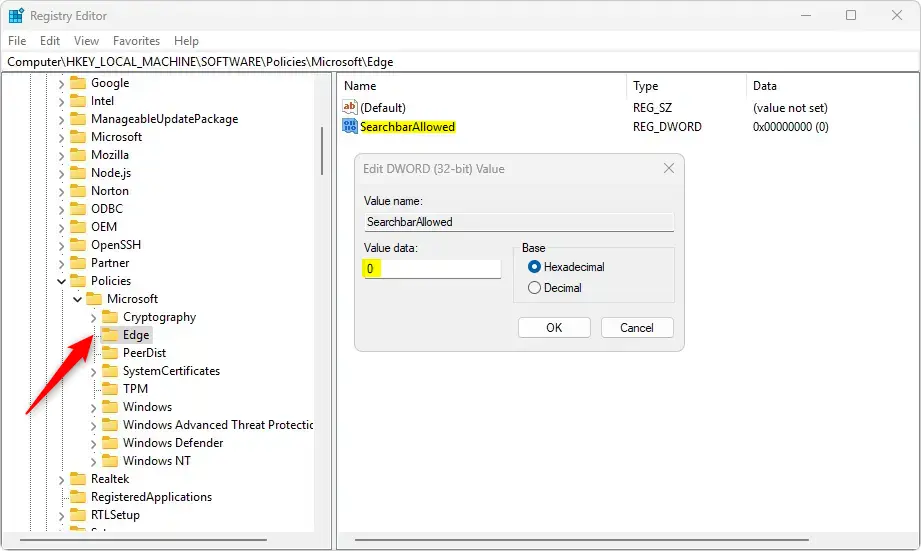
- Navigate to the key path shown below. In the left pane, expand the folders one at a time. When you reach the Edge key, click it. It should be highlighted, with its values listed in the right-hand pane.
A fresh key is normal on a PC where no Edge policies have been set. Then click the new key so it is selected before you go on.
- Right-click an empty space in the right-hand pane. A small context menu appears.
- Select New, then DWORD (32-bit) Value. This is the data type Windows uses to store simple on/off settings. A new entry appears in the list with its name highlighted for editing.
- Name the new entry SearchbarAllowed and press Enter. The name must match exactly, including capital letters, or Edge will ignore it.
You should now see SearchbarAllowed in the list with a default value of 0. A new DWORD starts at 0, but the next steps set it explicitly so you can see it is there.
The SearchbarAllowed value is what governs the Microsoft Edge search bar. When it is set to 0, the search bar is blocked from appearing, including on the taskbar.
- Double-click SearchbarAllowed. The Edit DWORD (32-bit) Value window opens.
- Type 0 in the Value data box. Leave the Base option on its default, Hexadecimal. For 0 it makes no difference.
- Click OK. The list in the right-hand pane should now show 0x00000000 (0) next to SearchbarAllowed.
Deleting the SearchbarAllowed value brings the search bar right back whenever you need it. You do not have to edit anything else. The steps are in the undo section below.
SearchbarAllowed
WebWidgetAllowed
A system reboot might be necessary for the changes to take effect. The last steps finish the job.
- Close the Registry Editor. Registry changes save as soon as you click OK, so there is nothing else to save. Do save any open work in other apps before the next step.
- Restart the PC. Signing out and back in is sometimes enough, but a full restart is the safer choice.
- Sign back in and check the desktop. The Edge search bar should no longer appear. If it does, reopen the Registry Editor and confirm the value name is spelled exactly right and set to 0.
Registry tweaks stay in effect until you reverse them. This one survives restarts and normal Windows updates, so you do not need to repeat it. A major feature update can occasionally change behavior, so if the search bar returns, check that the value is still there and still set to 0.
How to undo this:
Delete the SearchbarAllowed value you created to restore the search bar. Follow these steps.
- Open the Registry Editor. Click Yes if Windows asks for permission.
- Go back to the same Edge key. It is the one where you created the value.
- Right-click SearchbarAllowed and choose Delete.
- Click Yes to confirm. The value disappears from the right-hand pane.
- Restart the PC if the search bar does not return right away.
- Access the Registry: Open the Windows Registry Editor and navigate to the appropriate key path.
- Create a DWORD: Right-click on the Edge folder and create a new DWORD (32-bit) value named
SearchbarAllowed. - Set the Value: Change the value of
SearchbarAllowedto0to disable the search bar. - Delete Values to Re-enable: If you wish to enable the search bar again, delete the
SearchbarAllowedandWebWidgetAllowedvalues. - Reboot Required: A system reboot may be necessary for the changes to take effect.
Whether you keep the Edge search bar is a matter of personal preference. If it proves distracting, you can remove it with this one registry value and bring it back later by deleting that value.
Frequently asked questions
How to hide search bar edge?
Add a registry value named SearchbarAllowed and set it to 0 in the Microsoft Edge policy key under HKEY_LOCAL_MACHINE. Open Registry Editor as an administrator to make the change. Once the value is in place, the floating Edge search bar stays hidden. Restart Edge to see the change take effect.
How to remove the search bar in edge?
You can't uninstall the Edge search bar like an app. Instead, add a SearchbarAllowed value set to 0 in Registry Editor, under the Microsoft Edge policy key in HKEY_LOCAL_MACHINE. This hides the bar from the desktop. Sign in as an administrator first, because Windows blocks the change for standard accounts.
How to remove edge search bar from desktop?
Set the SearchbarAllowed registry value to 0 to turn off the Edge search bar. Open Registry Editor and go to the Microsoft Edge policy key under HKEY_LOCAL_MACHINE. Add a new DWORD (32-bit) Value named SearchbarAllowed with the value data 0. Back up the registry first, since errors can cause problems. Restart Edge afterward.
How to lock search bar in Microsoft edge?
Edge doesn't offer a lock option for the search bar. To keep it hidden for good, set the SearchbarAllowed registry value to 0 under the Microsoft Edge policy key in HKEY_LOCAL_MACHINE. Sign in as an administrator to make the change. Edge then keeps the bar off and blocks changes from its own settings.
How to turn off Microsoft search bar?
To turn off this floating search bar, open Registry Editor as an administrator. Set SearchbarAllowed to 0 under the Microsoft Edge policy key in HKEY_LOCAL_MACHINE. Create the value if it's missing. Once it's set, the bar stays off. This covers the floating Edge bar, not the search box on the Windows taskbar.
How to hide the search bar in Microsoft edge?
Hide it with a registry value. In Registry Editor, add a value named SearchbarAllowed set to 0 under the Microsoft Edge policy key in HKEY_LOCAL_MACHINE. Sign in as an administrator first. Restart Edge to confirm the bar is hidden. The bar stays hidden until you delete the value.
Still have a question?
Answered by AI from this guide. Good questions may be added to this page — please don't include personal details.
Did this guide fix your problem?

About the Author
Richard
Tech Writer, IT Professional
Richard is a writer at Geek Rewind who turns complex IT tasks into clear, step-by-step guides. He draws on years of hands-on experience in system administration and enterprise IT operations, focusing on Windows, Linux and WordPress: the problems people actually run into, and the fixes that work. His server and WordPress guides come from systems he runs himself. Richard builds and maintains the platform behind Geek Rewind, from its Ubuntu servers and Nginx configuration to its custom WordPress plugins. Many new tutorials start with readers' questions, and he's always glad to answer them in the comments.
No comments yet — be the first to share your thoughts!