How to Sync Clipboard Across Devices in Windows 11

Cloud Clipboard in Windows 11 lets you copy text on one PC and paste it on another PC signed in with the same Microsoft account. It keeps up to 25 copied items in your clipboard history and syncs them over the internet. No extra software is needed, and you don’t have to email yourself drafts.
You turn it on in Settings, which takes about a minute per PC. Repeat the setup on every PC you want to share with, because the setting applies to one device at a time.
To sync your clipboard across Windows 11 PCs, press Win+I, then go to System Clipboard and switch on Clipboard history and Sync across your devices. Sign in to the same Microsoft account on every PC, then repeat the setup on each one. Copied text then appears in Win+V on your other devices.
Enabling Cloud Clipboard in Windows Settings
Cloud clipboard sync is a switch in Windows Settings . Once it is on, text you copy on one Windows 11 PC can be pasted on your other Windows 11 PCs. A Microsoft account is required. On a managed or shared PC where permissions are restricted, you may need an administrator account to change the setting.
- Press Win+I to open Settings. The Settings window opens on the Home page.

Windows 11 Start menu with Settings gear icon highlighted. - Select System in the left-hand menu. The System options appear on the right.
- Scroll down on the right and click Clipboard (Settings System Clipboard). The clipboard options appear, including Clipboard history.
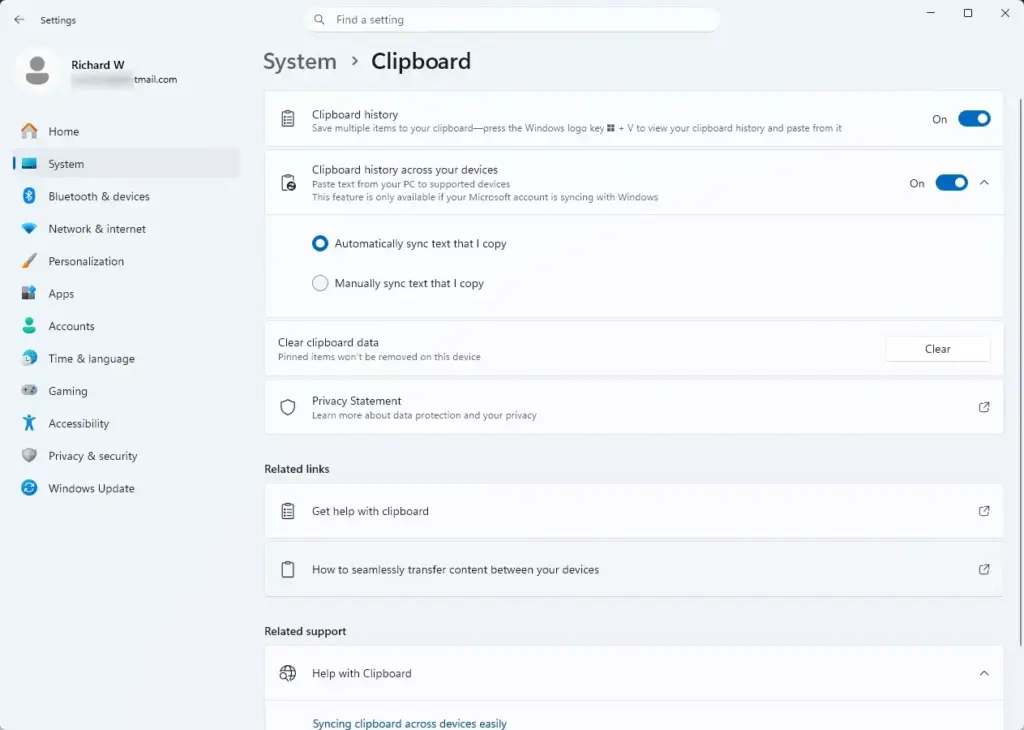
Settings › System › Clipboard - Switch Clipboard history to On if it is not already. Sync depends on history being enabled, so turn it on first.
- Find the Sync across your devices toggle and switch it to On. If it is greyed out or missing, check that you are signed in with a Microsoft account. Local accounts can’t sync the clipboard, and a policy on a work or school PC can also lock the option.
- Choose how items are shared. Select Automatically sync text that I copy if you want everything you copy to appear on your other devices. Select Never automatically sync text that I copy if you would rather pick items yourself from your history list.
- Repeat steps 1 to 6 on each of your other PCs.
To undo this, go back to the same page and switch Sync across your devices to Off. No restart is needed at any point.
Anything you copy, including passwords, can travel to your other devices.
Managing Your Copied History
Your clipboard history lets you view and paste recent items you have copied. With sync on, synced items are also available on your other linked PCs. The clipboard panel gives quick access to everything you have copied.
- Press Windows Key + V to open the clipboard panel. If you have never used it, Windows may show a prompt asking you to turn on clipboard history. Click Turn on if you see it.
- Look through the list of recent items. Text is the most reliable item type to sync. Images may show in the history on the PC where you copied them but not always appear on your other devices.
- Click any item in the list to paste it where your cursor is.
Each item in the panel has a menu (the three dots) where you can pin it or delete it. The panel also has a Clear all option. Pinned items stay put when you clear the rest.
The history you see with Windows Key + V is stored locally on each PC. It is not one shared list. Only items that sync move between your devices, so something you copied on a PC with sync off will not show up elsewhere.
Pin anything you want to keep across restarts. Synced items have a size limit too, of up to about 4 MB of text.
Troubleshooting Connection and Sync Issues
If copied items don't appear on your other devices, the cause is usually the Microsoft account, the network, or a power setting. Work through the checks below in order.
- Confirm that every PC is signed in to the exact same Microsoft account. A second account, or a work or school account on one machine, is a common reason sync fails. Check this in Settings Accounts
- Check that Clipboard history and Sync across your devices are both On on every PC, not only the one you are copying from.
- Check your network connection on both PCs. Sync needs a working internet connection, and a restricted or metered connection can delay it.
- Check that Windows is not running in Battery Saver mode. Battery Saver turns off non-essential background tasks to save power, and it can hold back background cloud syncing. Plug the laptop in or turn Battery Saver off, then copy something again.
- If sync still fails, sign out of Windows and back in, or restart the PC. Then copy a short piece of text to test. Remember that a restart clears unpinned items from the local history.
Copy something small first when testing. Items larger than the limit of about 4 MB of text will not sync, and a short test string tells you quickly whether the connection works.
What to do next
If you also want to control which other data and preferences follow you from PC to PC, review your Microsoft account profile settings next. In current Windows 11 versions, the backup and sync options are under Settings Accounts. These are separate from the clipboard toggle, so changing them does not affect your clipboard sync.
Frequently asked questions
How can I sync my clipboard across multiple devices?
Open Settings with Windows Key + I, go to System Clipboard, then turn on the toggle for "Sync across your devices". You need to be signed in with the same Microsoft account on each PC. Windows 11 will then sync your clipboard history automatically over the internet.
Why is my clipboard not syncing?
Check that "Sync across your devices" is turned on in Settings System Clipboard. Make sure you're signed into the same Microsoft account on both devices and both have internet access. If syncing is on but still not working, sign out and back into your Microsoft account.
What is the best clipboard manager for Windows?
Windows 11's built-in Cloud Clipboard is the best option if you want native syncing—it stores up to 25 items and requires no extra software. For advanced features like text formatting or encryption, third-party managers like Ditto or ClipClip offer more control.
Can I access my online clipboard from different devices?
Yes, with Cloud Clipboard enabled in Windows Settings. Copy something on one Windows 11 PC, then on another device signed in with the same Microsoft account, press Windows Key + V on the other PC and select what you want to paste.
Still have a question?
Answered by AI from this guide. Good questions may be added to this page — please don't include personal details.
Did this guide fix your problem?

About the Author
Richard
Tech Writer, IT Professional
Richard is a writer at Geek Rewind who turns complex IT tasks into clear, step-by-step guides. He draws on years of hands-on experience in system administration and enterprise IT operations, focusing on Windows, Linux and WordPress: the problems people actually run into, and the fixes that work. His server and WordPress guides come from systems he runs himself. Richard builds and maintains the platform behind Geek Rewind, from its Ubuntu servers and Nginx configuration to its custom WordPress plugins. Many new tutorials start with readers' questions, and he's always glad to answer them in the comments.
No comments yet — be the first to share your thoughts!