How to Configure Pen Shortcuts and Pressure Sensitivity in Windows 11 Pen and Windows Ink Settings

Windows 11’s Pen & Windows Ink settings let you change how your stylus (pen) works, including what happens when you press the buttons on the side of the pen. The exact options depend on your pen hardware. Surface devices with built-in pen support show different settings than external digitizer tablets, and some pens don’t expose all features to Windows.
Pressure sensitivity is how Windows reads the force you apply when writing or drawing. In Windows 11 this is mostly handled by the pen driver and the app you draw in, not by a slider in Settings. Pen shortcuts let you assign actions to the physical buttons on your stylus, so a click, double click or press and hold can open an app or take a screenshot.
Not every pen supports both features. It depends on whether your hardware sends that data to Windows. If your pen doesn’t appear in these settings, or options are greyed out, your device probably doesn’t support that feature.
Open Settings with Win+I, select Bluetooth & devices, then click Pen & Windows Ink. Pen button shortcuts are set there by choosing the Top or Bottom button and picking a Click, Double click, or Press and hold action, and changes take effect immediately.
Access Pen Settings
Before you start: the Pen & Windows Ink page only appears when Windows detects a pen or digitizer. On a desktop PC with no pen or tablet connected, you may not see it at all. Some options also depend on the pen itself. Shortcut button settings usually need a Surface Pen or another pen paired over Bluetooth . If your pen is Bluetooth, pair it first under Bluetooth & devices, then come back to this page.
- Press Win+I to open Settings .

Windows 11 Start menu with Settings gear icon highlighted. - Select Bluetooth & devices in the left sidebar.

Windows Settings menu highlighting the Bluetooth and devices option for printers - Click Pen & Windows Ink to view all pen-related options.
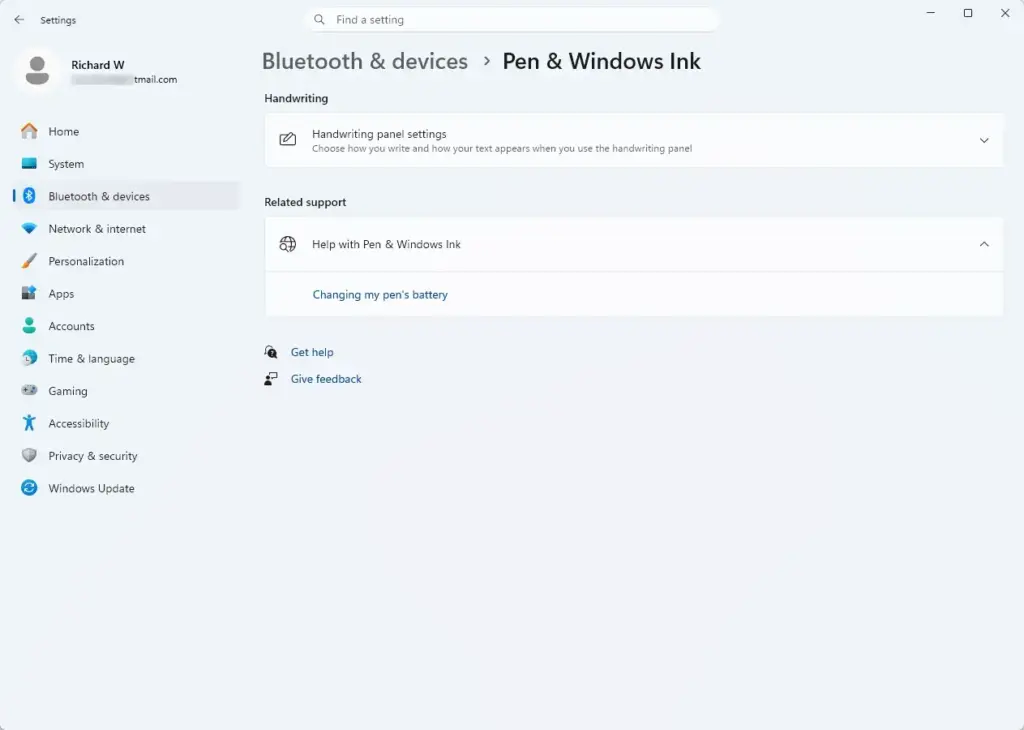
Settings › Bluetooth & devices › Pen & Windows Ink
You should now see the pen options for your device. Typical sections cover the pen itself, shortcut buttons and the pen menu, plus handwriting options. What appears depends on your hardware. If the Pen & Windows Ink entry is missing, check that the pen or tablet is plugged in or paired, and that its driver is installed.
Configure Pressure Sensitivity
Pressure sensitivity controls how your pen responds to how hard you press. It matters if you draw, write, or convert handwriting to text. Windows 11 Pen & Windows Ink does not include a pressure sensitivity slider. Pressure curves are set in the manufacturer’s driver app, so there is nothing to drag in Settings.
- Open Settings Bluetooth & devices Pen & Windows Ink and look through the pen-related options. You should see no pressure slider.
- Open your pen manufacturer’s driver or companion app. This is where a pressure curve, if your pen supports one, is adjusted. Moving the curve toward “soft” makes lighter pressure register. Moving it toward “firm” means you must press harder.
- Test the adjustment right away by writing or drawing in an app that supports pressure, such as Paint or OneNote.
If you can’t find pressure settings anywhere, your pen may not support pressure-sensitive configuration, or the drivers may not expose it to Windows. Check the manufacturer’s companion software. Wacom, XP-Pen, and Huion often include dedicated apps with advanced pressure curve editors.
Pressure changes made in a driver app normally take effect immediately, with no restart needed. They apply to apps that support pressure input. Some apps read pressure through their own settings, so a drawing app may have its own pressure option as well.
Assign Custom Shortcuts to Pen Buttons (if your pen has them)
Stylus buttons, usually on the side of the pen barrel, can be remapped to trigger different actions. This works for compatible pens. Generic or older pens may not have remappable buttons exposed to Windows.
- In Pen & Windows Ink settings, look for a section labeled Pen buttons, Stylus buttons or Shortcut button. The exact name varies by device. If you see no such section, your pen doesn’t support remapping in Windows.
- Click the button you want to reconfigure, typically labeled Top button or Bottom button. The options for that button should expand.
- Under Shortcut button, choose Click, Double click, or Press and hold. Then pick an app or action such as Windows Ink Workspace, OneNote, Screenshot, or Microsoft Whiteboard.
- Confirm the change by closing the menu, or click Apply if that button appears.
- Test it. Press the pen button the way you set it and check that the right app or action starts.
Not all pens have remappable buttons. Surface Pens on current Surface devices support button remapping, but some third-party pens don’t expose this feature to Windows. Check your pen’s documentation or manufacturer’s app to confirm. If you see no buttons section in Pen & Windows Ink, the pen either doesn’t have buttons or the drivers don’t support remapping.
Button assignments take effect immediately and persist across restarts and app changes. To go back to the default, return to the same menu and choose the original action.
Use Windows Ink Workspace for Quick Access
Windows Ink Workspace is a dedicated interface for pen tools that you can reach quickly while working. In Windows 11, the pen menu on the taskbar is the quick launcher for these tools and your pinned pen apps. Here is how to turn on the pen menu and customize it.
- Open Settings Personalization Taskbar
- Find the Pen menu setting and switch it On. The pen menu icon should now appear in the lower-right corner of the taskbar . If you don’t see this setting, Windows hasn’t detected a pen.
- Go back to Settings Bluetooth & devices Pen & Windows Ink and find the pen menu section. Use it to choose which apps are pinned to the pen menu. The exact wording differs between Windows 11 builds.
- Scroll to the Windows Ink Workspace section if your build shows one.
- Toggle Show recommended app suggestions on or off to control whether Windows suggests pen-compatible apps.
- If available, adjust the Open Windows Ink Workspace with pen button setting to specify which pen button opens the workspace. The top button is typically the default.
To open the tools manually, click the pen menu icon in the system tray , where you can pin your favorite apps. Pinned apps appear there alongside the built-in note-taking and drawing features and any recently used pen apps. The workspace and pen menu are independent of pressure and button settings. They are a launcher and note-taking environment, not a configuration tool.
Adjust Pen Handedness and Writing Preferences
Windows 11 lets you set pen behavior for right-handed or left-handed use. This mainly affects where buttons and menus appear.
- In Pen & Windows Ink settings, find the Pen preferences or Handedness option under the Pen section.
- Select Right-handed or Left-handed from the dropdown menu.
If you don’t see a handedness option, your Windows build or pen driver doesn’t expose it on this page. This adjusts where menus appear and how the pen responds relative to your dominant hand. The change takes effect immediately for new input but does not affect already-open apps. You may need to restart an app to see the full effect.
Access Advanced Pen Settings for Specific Hardware
Some pen devices ship with their own configuration software that exposes settings Windows 11 doesn’t provide. Surface devices, for example, allow you to adjust how the pen responds at different pressure levels (pressure curves), custom button actions, and haptic feedback through dedicated apps or device-specific Settings pages.
- Check whether your pen manufacturer has a companion app in the Microsoft Store or on their website.
- Install the app and launch it to access advanced settings like custom pressure curves, programmable gestures, or touch sensitivity.
- Configure both the manufacturer app and Windows 11 settings if available, as they often work together.
For Surface Pens on Surface devices, some advanced options also appear under Settings Bluetooth & devices Pen & Windows Ink For Wacom tablets, Wacom’s Control Panel app provides detailed pressure mapping and express key configuration that goes beyond what Windows exposes.
Undo or Reset Pen Configuration Changes
All pen settings you change in Windows 11 can be reversed by returning to the same menus and selecting the original option. There is no dedicated reset button in the Settings app, but you can restore defaults by undoing individual changes.
If you installed a manufacturer’s configuration app (like Wacom’s Control Panel ) and want to clear those settings, uninstall the app and restart Windows. The Windows 11 defaults will then take over. Settings in Pen & Windows Ink persist across updates and restarts. Your customizations won’t be lost unless you change them or a major feature update resets the Pen settings category, which is rare.
Be careful. Disabling this service can break the touch keyboard, handwriting and pen input system-wide, not just for one app. If you decide to try it anyway, first write down the service's original Startup type from its Properties window, so you can put it back exactly as it was. If touch, handwriting or pen problems appear afterward, set the Startup type back to the original value and start the service again, or restart the PC. Try the other fixes in this article first.
What to do next
Test your pressure and button settings with an app that supports pen input, such as Windows Paint, OneNote, or a third-party drawing app like Clip Studio Paint or Krita. Pressure sensitivity and button assignments only matter in apps that listen for these inputs. If an app ignores your customizations, it may not support pressure sensitivity or custom button actions. For devices with multiple pens or tablets, configure each one individually, as settings are per-device.
Frequently asked questions
How to change tablet Pen sensitivity?
Open Settings with Win+I, go to Bluetooth & devices, then Pen & Windows Ink. Under the Pen section, adjust the Pressure sensitivity slider to your preference. Lower values require less force to register; higher values need more pressure. Not all pens support this feature.
What is the Pen menu in 🪟 Windows 11?
The Pen menu in Windows 11 is found in Settings under Bluetooth & devices Pen & Windows Ink It displays options for your stylus, including pressure sensitivity, button shortcuts, handwriting settings, and other pen-specific features depending on your device hardware.
How do I disable Windows Pen and ink services?
Press Win+R, type services.msc, then find and right-click TabletInputService. Select Stop to disable it. Set the Startup type to Disabled to prevent it from running at startup. You can restart the service anytime through the same Services window.
How do I turn off Pen settings in 🪟 Windows 10?
Windows 10 reached end of support on October 14, 2025. Open Settings, go to Devices, then Pen & Windows Ink, and adjust the available pen options depending on what you want to disable. In Windows 10, you can also disable the TabletInputService through Services.msc for complete pen functionality shutdown.
Still have a question?
Answered by AI from this guide. Good questions may be added to this page — please don't include personal details.
Did this guide fix your problem?

About the Author
Richard
Tech Writer, IT Professional
Richard is a writer at Geek Rewind who turns complex IT tasks into clear, step-by-step guides. He draws on years of hands-on experience in system administration and enterprise IT operations, focusing on Windows, Linux and WordPress: the problems people actually run into, and the fixes that work. His server and WordPress guides come from systems he runs himself. Richard builds and maintains the platform behind Geek Rewind, from its Ubuntu servers and Nginx configuration to its custom WordPress plugins. Many new tutorials start with readers' questions, and he's always glad to answer them in the comments.
No comments yet — be the first to share your thoughts!