How to Pair Your Pen with Windows 11

Pairing your digital pen with Windows 11 lets you draw, write, and open apps on your screen over Bluetooth . You need a Windows 11 PC with Bluetooth support and a pen that has a built-in pairing button.
The short version: hold the pen’s top button until a small light starts blinking, then open your Bluetooth settings, find the pen in the list, and click it to connect. The sections below cover each step, plus what to check if the pen doesn’t show up.
Open Settings, go to Bluetooth & devices, turn on Bluetooth, then press and hold your pen’s top button for 5–7 seconds until it blinks. Click Add device, select Bluetooth, and choose your pen from the list to complete pairing.
What is Bluetooth?
Bluetooth is a short-range wireless technology. It connects devices like pens, keyboards, and mice to your computer without cables. The connection is made once, called pairing, and Windows remembers the pen afterward. You normally only repeat the process if you remove the pen or pair it with another device.
Want to learn more about Bluetooth ? Check out this guide: How to Turn Bluetooth On or Off in Windows 11
Step 1Turn On Bluetooth
Open Settings, go to Bluetooth & devices, and switch the main toggle to On. If your computer has no built-in wireless hardware, plug in a USB Bluetooth adapter first.
If you don’t see a Bluetooth toggle at all, Windows doesn’t detect a Bluetooth adapter. That usually means a desktop without an adapter, or a driver problem. Plug in a USB adapter, or check that the existing one is installed and working.
Most modern laptops have built-in adapters, but older desktops might need a USB Bluetooth adapter. A cheap USB adapter is enough for a pen. Windows 11 normally installs the driver on its own when you plug it in.
Turn it on with these steps. The whole thing takes under a minute, and you don’t need to restart.
- Click the Start button (the Windows icon). On the default taskbar it sits in the center. If you’ve set the taskbar to left alignment, it’s at the bottom-left corner. The Start menu opens.
- Select Settings (the gear icon). The Settings window opens. Pressing the Win and I together does the same thing.
- Click Bluetooth & devices in the left menu. The page shows a Bluetooth toggle at the top, followed by your paired devices.
- Turn on the switch next to Bluetooth . The label changes to On. If you want to undo this later, flip the same switch back to Off. Also make sure Airplane mode is off, because it can turn Bluetooth off.
Step 2Put Your Pen in Pairing Mode
To pair your pen, put it into pairing mode so the computer can detect it. Press and hold the top button on the pen for about five to seven seconds until you see a blinking light. That light confirms the pen is ready to connect.
If the pen stops blinking before you finish the steps in the next section, hold the button again to restart it.
A blinking light means the pen is broadcasting its presence. Once Windows 11 scans for devices, it can pick up that signal automatically. If the light never blinks, the battery may be dead or low. Replace or charge it before trying again.
Press and hold the top button on your pen for around 5-7 seconds. Watch for a blinking white light on the pen. This means it is ready to pair. Keep the pen close to the PC while you do this. Pens made by other brands may use a different button or light color, so check the pen’s manual if yours behaves differently.
Step 3Pair Your Pen with 🪟 Windows 11
You finish the pairing from the main Settings app . Go to Settings, select Bluetooth & devices, click Add device, and choose Bluetooth . Pick your pen from the list of found devices to finish the connection. Do this while the pen is still blinking.
Nearby devices appear in the list automatically while they are broadcasting. The list can include other people’s phones, headphones, and so on. Pick the entry that matches your pen’s name, which is often the pen’s model name. Selecting it completes the setup.
- Go back to Settings Bluetooth & devices. Check that your pen is still blinking. If it stopped, hold the top button again.
- Click Add device. The Add a device window opens.
- Choose Bluetooth from the options. Windows starts scanning for nearby devices.
- Wait a moment. Your pen should appear in the list of available devices. If it doesn’t show up after about half a minute, put the pen back into pairing mode, move it closer to the PC, and check that Bluetooth is still on.
- Click your pen’s name to connect it. Windows shows a message when the device is ready, and the pen then appears under your devices in Bluetooth & devices. To undo the pairing later, open the pen’s menu in that list and choose Remove device.
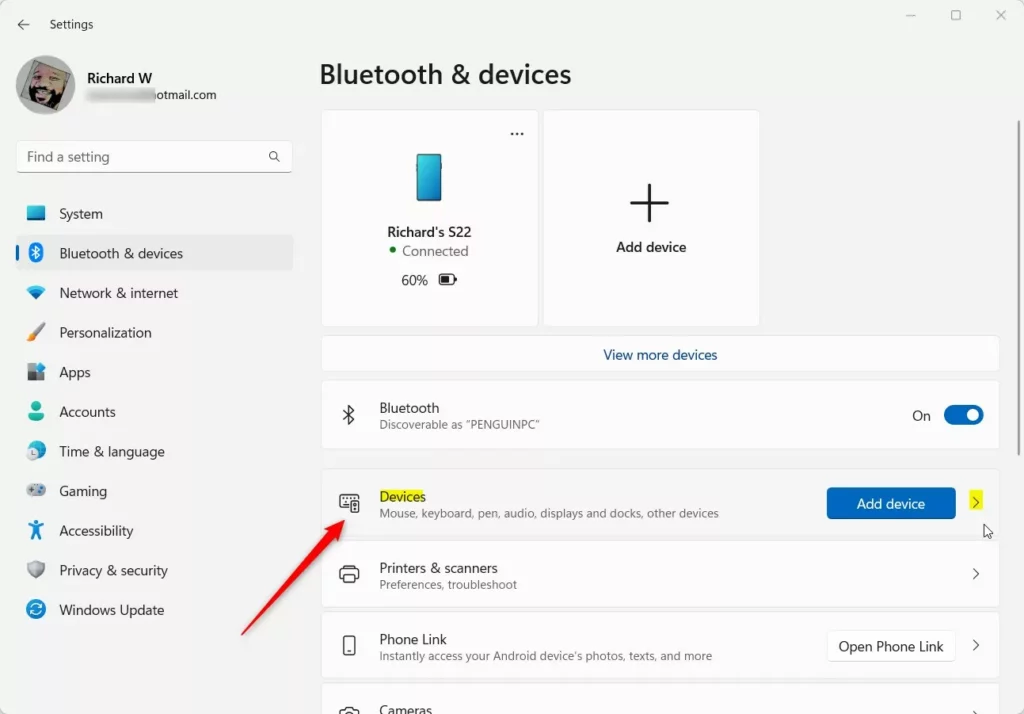
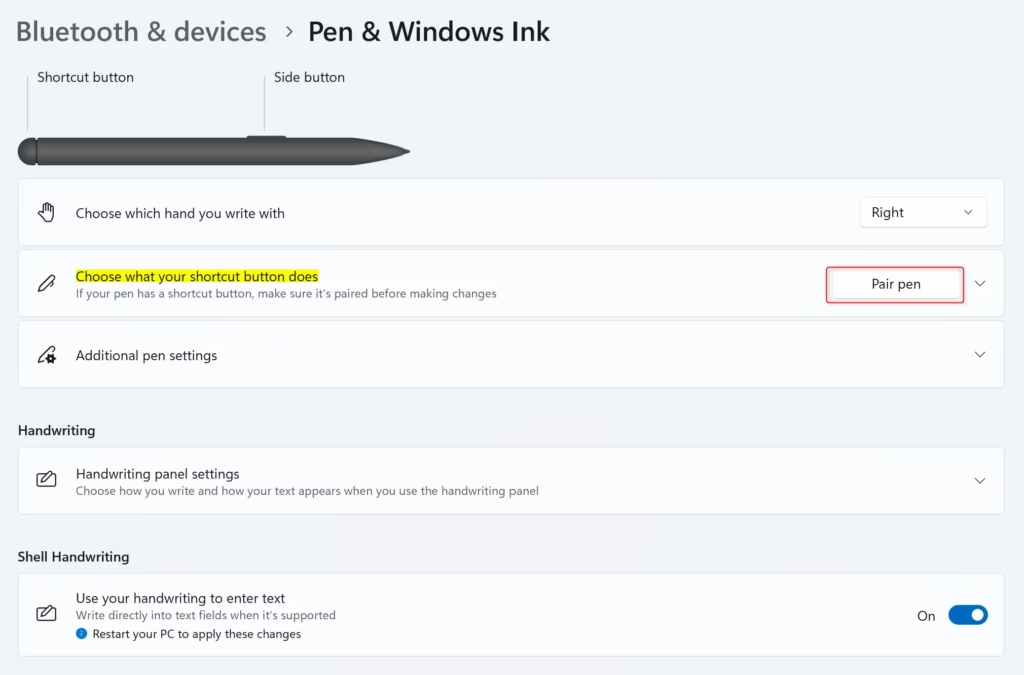
Once the pen is connected, it works right away. Try writing or drawing in an app that supports pen input, and check that the pen shows as connected in the Bluetooth & devices list. If the pen drops its connection, check its battery first, then confirm Bluetooth is still on in Settings.
Need More Help?
Check out these official resources for extra tips:
Summary
- Turn on Bluetooth in Windows 11 Settings. Use a USB adapter if the PC has no Bluetooth of its own.
- Put your pen into pairing mode. Hold the top button for five to seven seconds until you see a blinking light.
- Add your pen in the Bluetooth settings on your computer: Add device Bluetooth, then select the pen.
- Once paired, start using your pen with your device. If it fails to connect, check the battery and try pairing mode again.
Pairing a pen with Windows 11 takes about a minute when you follow the right order. First, turn on Bluetooth in your computer settings. Next, put your pen into pairing mode by holding the top button, and finally, add the device through the Bluetooth menu. If anything goes wrong, the usual causes are a low battery, a pen that timed out of pairing mode, or Bluetooth being off.
Have a question about this guide?
Answered by AI from this guide. Good questions may be added to this page — please don't include personal details.
Did this guide fix your problem?

About the Author
Richard
Tech Writer, IT Professional
Richard is a writer at Geek Rewind who turns complex IT tasks into clear, step-by-step guides. He draws on years of hands-on experience in system administration and enterprise IT operations, focusing on Windows, Linux and WordPress: the problems people actually run into, and the fixes that work. His server and WordPress guides come from systems he runs himself. Richard builds and maintains the platform behind Geek Rewind, from its Ubuntu servers and Nginx configuration to its custom WordPress plugins. Many new tutorials start with readers' questions, and he's always glad to answer them in the comments.
No comments yet — be the first to share your thoughts!