How to Enable or Disable Bluetooth in Windows 11

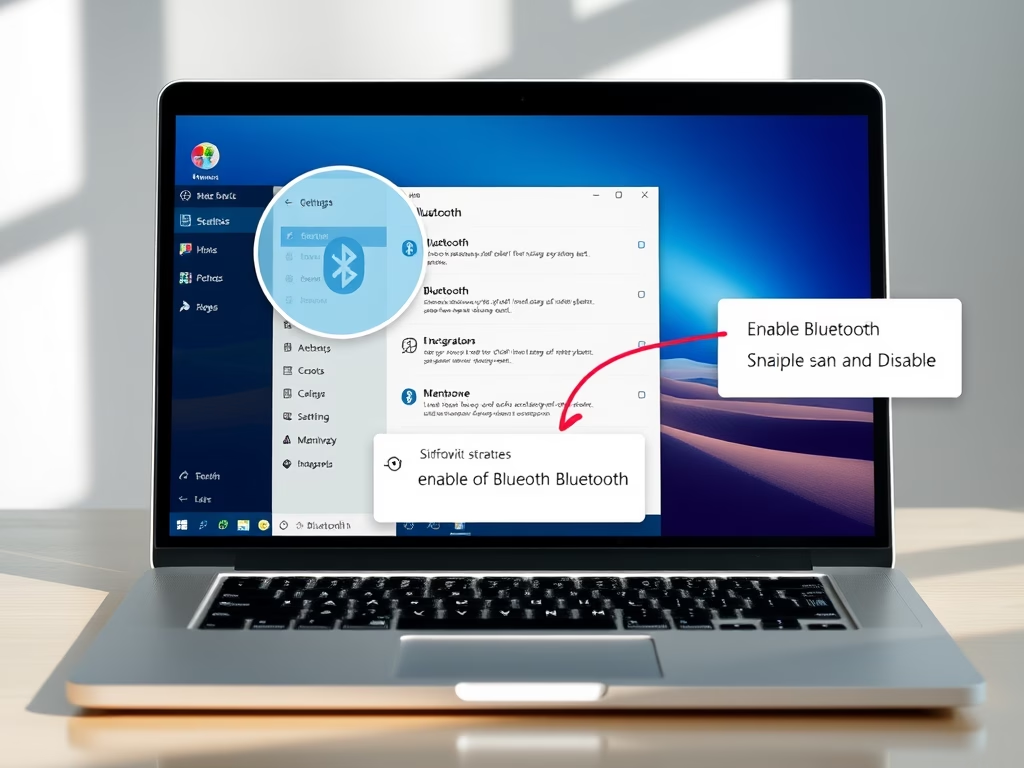
Bluetooth in Windows 11 connects wireless accessories such as headphones, speakers and mice to your PC over short distances, up to about 30 feet. For everyday use, you turn the radio on or off in a few clicks from the Quick Settings menu or the Settings app.
Switching it off, or back on, is a common fix for broken device connections. It also saves battery on a laptop when you are on the go. This guide covers the advanced route, which is the Registry Editor. It is useful when the normal toggles are missing or locked by policy.
Open Windows Settings by pressing Win+I, then click ‘Bluetooth & devices’ and use the toggle switch to enable or disable Bluetooth . Alternatively, press Win+A to open Quick Settings and click the Bluetooth icon.
Why You Might Want to Change Bluetooth Settings
Change your Bluetooth settings in Windows 11 to save laptop battery and reduce security risks when you are not using wireless accessories. Turning off unused wireless hardware prevents unwanted device connections and extends battery runtime through the day. Here are the main reasons people do it:
- Save Battery: On laptops, leaving Bluetooth on all the time drains the battery faster. Turning it off when you don’t need it can help the battery last longer.
- Security: Bluetooth is usually safe, but some people turn it off when it is not in use to reduce small security risks.
- Stop Interference: Different wireless signals can get in each other’s way. If you have connection problems, turning off Bluetooth can help you find out whether it is the cause.
- Fix Problems: If a Bluetooth device isn’t working right, turning Bluetooth off and back on often fixes the issue.
- Connect Devices: Bluetooth must be on before you can pair a new device, such as a mouse or keyboard.
Using Registry Editor (For Advanced Users)
The Registry Editor is a central database for low-level Windows settings . With it you can enable or disable Bluetooth by changing a system value directly. This is an advanced method. It helps when the standard menu options fail, but a mistake can cause system instability, so work carefully.
The Registry Editor is included in every edition of Windows 11, Home as well as Pro. That makes it the fallback if you cannot use the Group Policy Editor (covered in Method 1), which Home does not include. You need an administrator account for the steps below.
Step 1Open the Registry Editor
Open the Registry Editor with the Run box. Then back up the registry before you change anything.
- Press the Win+R together. A small Run window appears.
- Type
regeditin the box and press Enter, or click OK. - If User Account Control asks whether to allow the app to make changes, click Yes. The Registry Editor window opens, with a folder tree on the left.
Very Important: Editing the registry incorrectly can cause major problems with Windows, in the worst case forcing a reinstall. Always save a backup copy of your registry before you change anything. Here is how:
- In the Registry Editor, go to File Export
- Under Export range, choose All.
- Pick a safe location, type a file name and click Save.
If something goes wrong later, you can restore the backup with File Import and select the same file.
Step 2Go to the Right Registry Location
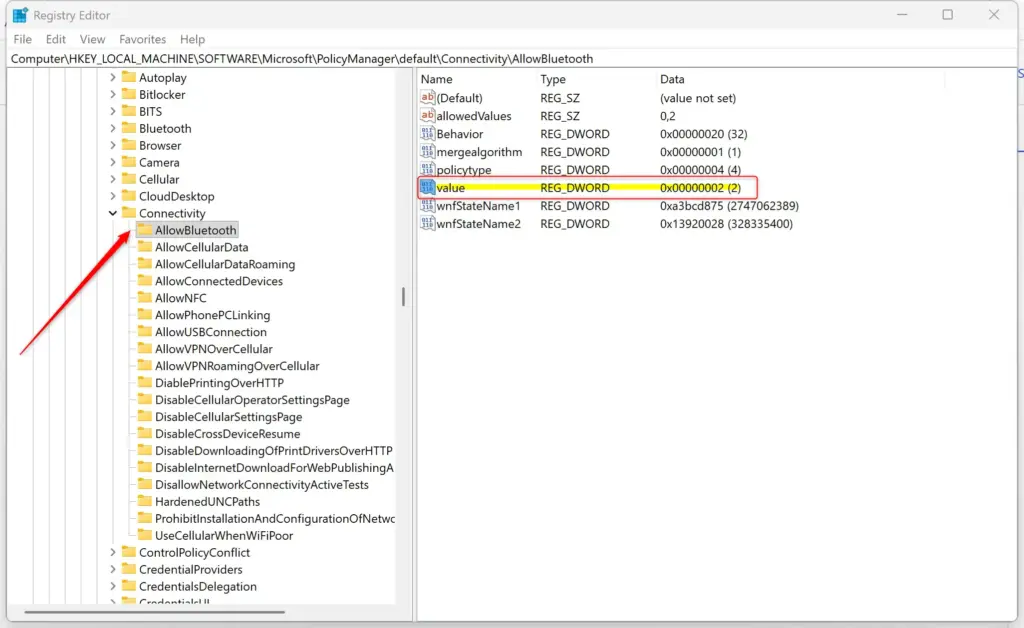
Next, go to the registry key that holds the Bluetooth policy. The Registry Editor has an address bar under the menu bar, and you can paste a path into it.
- Click the address bar at the top of the Registry Editor window.
- Type or paste this path: 🗝️HKEY_LOCAL_MACHINE\
SOFTWARE\ Microsoft\ PolicyManager\ default\ Connectivity\ AllowBluetooth - Press Enter. The tree on the left expands to the key, and its values appear in the right pane.
If you don’t see the AllowBluetooth folder or any folders within it, this setting has probably never been changed on your PC. Creating these folders by hand is complex and risky. For most people, the Group Policy Editor (covered in Method 1) is the safer way to manage this setting when it is not already configured. Note that Group Policy is only available on Pro, Enterprise and Education.
Step 3Change the “Value” Data
The value data inside the AllowBluetooth key decides whether Bluetooth is turned on or off in Windows 11. Set the value to 0 to disable Bluetooth completely. Set it to 1 to enable it again. You change it by double-clicking the entry named Value in the right pane.
While a policy value is in place, the Bluetooth toggle in Settings may be missing or greyed out. That is expected. The setting returns once you change the value back.
To Turn Off Bluetooth:
To turn Bluetooth off, set the value data to 0.
- Double-click the Value entry in the right pane. The Edit DWORD (32-bit) Value window opens.
- Change the number in the Value data box to 0.
- Make sure the Base is set to Hexadecimal.
- Click OK. The Data column for the entry now shows 0.
A value of 0 instructs Windows to turn off Bluetooth .
To Turn On Bluetooth (Normal Setting):
To turn Bluetooth back on, change the value data again.
- Double-click the Value entry. The Edit DWORD (32-bit) Value window opens.
- Change the number in the Value data box from
0to2. - Make sure the Base is set to Hexadecimal.
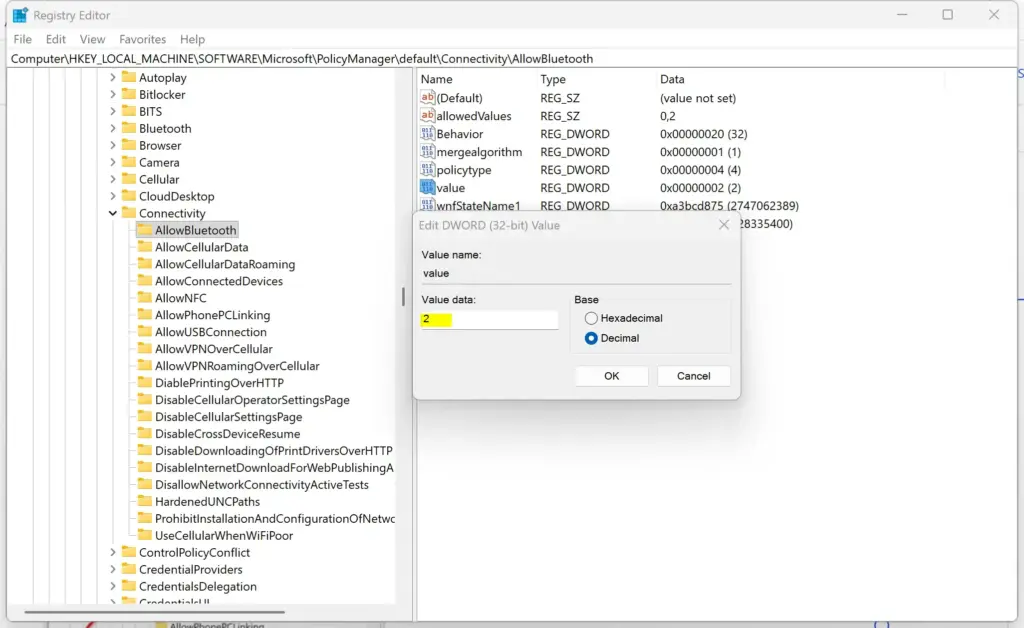
- Click OK. The Data column now shows the new number.
A value of 2 tells Windows to turn on Bluetooth . If this entry doesn’t exist or shows a different number and you want Bluetooth enabled, you may need to delete the “Value” entry or set it to 2.
Deleting the “Value” entry is also a clean way to undo your change. Windows reverts to its default behavior, which usually means Bluetooth is allowed in Windows 11.
Step 4Restart Your Computer
Restart your computer so the registry change takes effect. Skipping the restart can leave Windows on the old wireless configuration, so Bluetooth would not change.
- Save any open work.
- Click Start, then the Power button, then Restart.
- After you sign in, open Settings Bluetooth & devices and check whether the Bluetooth toggle matches what you set.
If you enter the value incorrectly, Bluetooth might stay off, or other network features could be affected. Check your entries carefully. If anything looks wrong, import the registry backup you saved earlier.
Summary
You can enable or disable Bluetooth in Windows 11 with advanced tools: the Registry Editor or the Group Policy Editor. Pick the method that fits your edition and comfort level.
- Group Policy Editor: This is the safer way to manage the setting, especially if you want to prevent changes. It lets you disable or enable Bluetooth for all users. You need administrator rights, and it is not available on Windows 11 Home.
- Registry Editor: This is the more advanced method, and it changes system settings directly. It is powerful but carries a higher risk. Use it only if you are comfortable editing the registry and have backed it up.
Turning Bluetooth off can extend battery life on laptops, while turning it on is essential for connecting wireless devices.PolicyManager
What to do next
After the restart, check Device Manager to confirm the Bluetooth adapter loads without errors.
- Right-click the Start button and click Device Manager.
- Expand the Bluetooth category. You should see your adapter listed.
- Look for a yellow warning icon on the adapter. If there is none, it loaded correctly.
If the Bluetooth category is missing when you expected it to be on, set the registry value back to 1 (or delete it), restart, and check again.
Have a question about this guide?
Answered by AI from this guide. Good questions may be added to this page — please don't include personal details.
Did this guide fix your problem?

About the Author
Richard
Tech Writer, IT Professional
Richard is a writer at Geek Rewind who turns complex IT tasks into clear, step-by-step guides. He draws on years of hands-on experience in system administration and enterprise IT operations, focusing on Windows, Linux and WordPress: the problems people actually run into, and the fixes that work. His server and WordPress guides come from systems he runs himself. Richard builds and maintains the platform behind Geek Rewind, from its Ubuntu servers and Nginx configuration to its custom WordPress plugins. Many new tutorials start with readers' questions, and he's always glad to answer them in the comments.
[…] Link app is a feature on Windows that allows you to link your phone and PC using Wi-Fi or Bluetooth and access your phone’s apps and data from your PC. It lets you browse, play, order, chat, […]
[…] steps to check the Bluetooth versions installed in Windows 11. In our previous post, we showed you how to turn on or off Bluetooth, pair Bluetooth devices with Windows 11, fix common Bluetooth issues, and […]
[…] post describes steps you can take to disable altogether or enable Bluetooth in Windows […]
[…] allows users to share documents, photos, website links, and other content with devices using Bluetooth or […]
[…] Settings, a pop-out window with commonly used settings and apps like Volume, Brightness, Wi-Fi, Bluetooth, Airplane mode, Rotation lock, Battery saver, Accessibility, Night light, Mobile hotspot, Nearby […]
[…] Windows, one can turn On or Off Bluetooth, pair a Bluetooth device to Windows, fix common Bluetooth errors, and enable Bluetooth Swift […]
[…] How to mute or unmute Sound in Windows 11 […]
[…] on Windows that allows you to link your phone and PC using Wi-Fi or Bluetooth and access your phone’s apps and data from your PC. It lets you browse, play, order, chat, […]
[…] you quick access to settings and features, including Volume, Screen brightness, Night light, Wi-Fi, Bluetooth, Airplane mode, Accessibility, Battery saver, Mobile hotspot, Nearby sharing, Cast, and […]
[…] sharing allows users to share documents, photos, and other content with devices using Bluetooth or […]
[…] a feature on Windows that lets you link your phone and PC using Wi-Fi or Bluetooth and access your phone’s apps and data from your PC. It lets you browse, play, […]
[…] can pair all devices with a Bluetooth connection with Windows 11, including keyboards, mice, phones, speakers, and […]
[…] How to Turn Bluetooth On or Off in Windows 11 […]
[…] Nearby sharing in Windows 11, you can share documents, photos, and other content with devices using Bluetooth or […]
[…] How to Turn Bluetooth On or Off in Windows 11 […]
[…] Note: This option only appears if your PC supports LE Audio and Bluetooth is turned on. To turn Bluetooth on, see this guide. […]
[…] If you want to know more about Bluetooth and how to turn it on or off in Windows 11, check out this simple guide: How to Turn Bluetooth On or Off in Windows 11. […]
[…] Connecting an Xbox Wireless Controller to Windows 11 lets you play games with a familiar layout instead of a keyboard and mouse. You can connect using a USB cable, the Xbox Wireless Adapter, or Bluetooth. […]
[…] to Mobile devices) is a Windows feature that allows you to link your phone and PC using Wi-Fi or Bluetooth and access your phone’s apps and data from your PC. It lets you browse, play, order, chat, […]
[…] Phone Link app is a feature on Windows that allows you to link your phone and PC using Wi-Fi or Bluetooth and access your phone’s apps and data from your PC. It lets you browse, play, order, chat, and […]
[…] your PC must run a 64-bit version version of Windows 11. You also need to ensure that Wi-Fi and Bluetooth are turned on in your computer […]
[…] Sharing to send files to other people? It is a great way to move photos or documents quickly using Bluetooth or Wi-Fi. By default, your computer shows a boring, technical name to others. You can now give it a […]