How to Connect Xbox Controller to Windows 11

- 22 steps
- Includes a restart or sign-out
Connecting an Xbox controller to Windows 11 lets you play PC games with a gamepad instead of a keyboard and mouse. You can link the controller three ways: a standard USB cable, built-in Bluetooth, or the official Xbox Wireless Adapter. Pick the one that fits your PC and your controller.
Wireless setups need controller firmware version 5.0 or newer to stay connected without lag. Windows 11 detects the controller right away once you finish the setup steps. The setup is the same on Windows 11 Home and Pro.
Connect your Xbox controller to Windows 11 via USB, Bluetooth, or the Xbox Wireless Adapter. For Bluetooth, turn it on in Windows, then press the controller’s Pair button until the Xbox button flashes, and select “Xbox Wireless Controller” in Quick Settings. USB offers a simple plug-and-play experience.
Connect using a USB cable
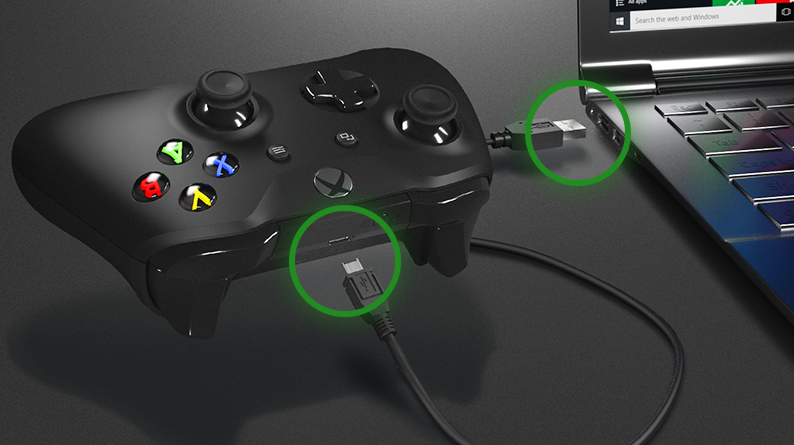
A cable is the simplest option. It needs no pairing, and it also charges a rechargeable battery pack if you have one fitted. Older controllers use a micro-USB cable. Xbox Series X and Series S controllers need a USB-C cable. Make sure the cable carries data, because some cheap cables only charge.
- Plug the small end of the cable into the port on the front of the controller.
- Plug the other end into a USB port on your PC.
- Wait a few seconds. Windows detects the hardware and installs the driver automatically. The Xbox button on the controller lights up when it is ready.
No extra setup is needed, and you can start a game straight away. To undo the connection, unplug the cable.
- For older controllers, use a micro-USB cable.
- For newer controllers like the Xbox Series X|S, use a USB-C cable.
If the controller does not respond after the PC wakes from sleep, press the Xbox button. If that does nothing, unplug the cable and plug it back in.
Connect using Bluetooth
Bluetooth lets you play without a cable or extra hardware. It only works if your PC has Bluetooth and your controller supports it. Xbox One controllers made before 2016 have no Bluetooth, so they need a cable or the Xbox Wireless Adapter. The steps below pair the controller using Bluetooth in Windows.
- First, turn on Bluetooth on Windows 11.
- Turn on the controller by pressing the Xbox button.
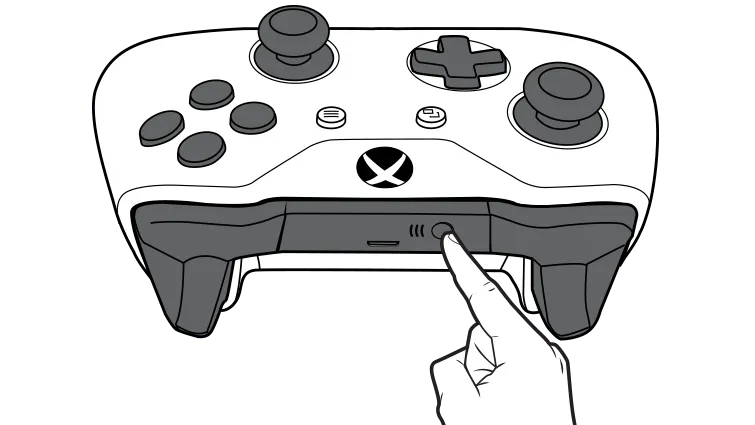
- Press and hold the Pair button on the top edge of the controller for three seconds. The Xbox button starts to flash quickly, which means the controller is in pairing mode.
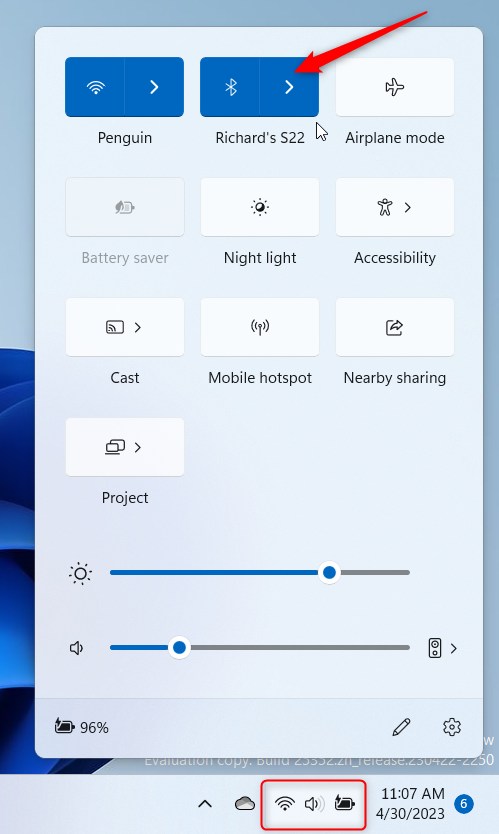
- Open Quick Settings (Win+A).
- Click the arrow next to the Bluetooth tile, labelled Manage Bluetooth devices. Windows displays a list of available devices.
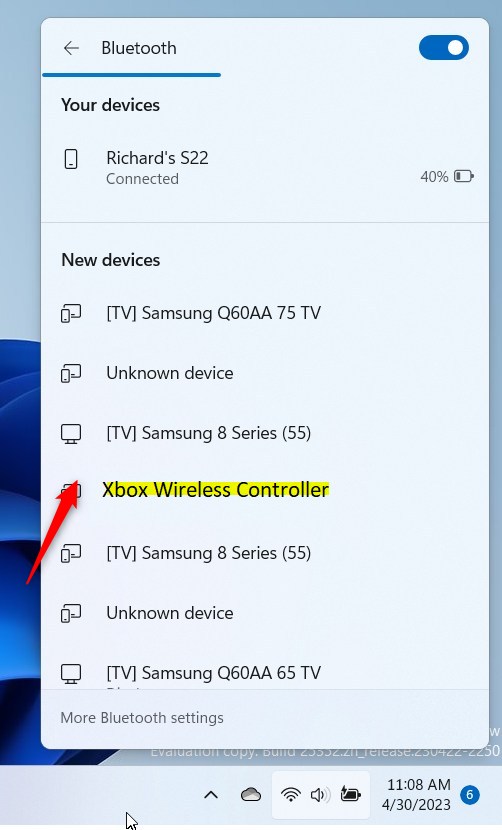
- Look for “Xbox Wireless Controller” or “Xbox Elite Wireless Controller” in the list and click it to pair.
- Wait for the Xbox button to stop flashing and stay lit. That means the controller is connected.
If the controller does not show up in the list, open Settings Bluetooth & devices and click Add device. Then choose Bluetooth and pick the controller from the list. If it still does not appear, put it back into pairing mode, because it stops flashing after a short time.
To undo the pairing, go to Settings Bluetooth & devices, click the three dots on the controller’s entry, and choose Remove device. You can also pair the controller with other devices later, but it remembers only one at a time.
Xbox Wireless Adapter
If you get disconnections or lag over Bluetooth, the official Xbox Wireless Adapter usually fixes it. It also works on PCs that have no Bluetooth at all.
- Plug the adapter into a USB port on your PC.
- Press the button on the adapter.
- Press and hold the Pair button on the controller until the Xbox button flashes quickly.
- Wait until the Xbox button stays lit, which means the controller and adapter are paired.
Try to keep the adapter in clear line of sight with the controller. A USB extension cable helps if the PC’s rear ports are behind a desk or case.
Updating Controller Firmware
Keeping the controller firmware current improves connection stability and fixes bugs. Microsoft provides a free app for this, the Xbox Accessories app, and you update the controller with it over USB.
- Open the Microsoft Store and download the free Xbox Accessories app.
- Plug your controller into the PC with a USB cable.
- Open the app. It shows your controller, and an Update available notice appears if there is new firmware.
- Follow the on-screen prompts to install the update.
Do not unplug the cable while the update runs. If the app finds nothing to update, the controller already has the latest firmware.
Troubleshooting Connectivity Issues
If your controller keeps dropping its link to Windows 11, check the batteries first, because low power causes random disconnects. If the batteries are fine, install the latest system patches in Settings Windows Update by clicking Check for updates. Restart the PC if Windows asks you to. You can also toggle Bluetooth off and on again in Quick Settings to reset the signal. Work through the fixes below in order.
- Check Batteries: Low power often causes random disconnects.
- Update Windows: Go to Settings Windows Update to ensure your system is current.
- Restart Bluetooth: Toggle Bluetooth off and on in the Quick Settings menu.
- Remove and Re-pair: Go to Bluetooth & devices, remove the controller from the list, and pair it again.
Summary
Linking an Xbox controller to Windows 11 works over USB, Bluetooth, or the official Xbox Wireless Adapter. Keeping the controller firmware and Windows drivers current prevents input lag and dropouts.
Have a question about this guide?
Answered by AI from this guide. Good questions may be added to this page — please don't include personal details.
Did this guide fix your problem?

About the Author
Richard
Tech Writer, IT Professional
Richard is a writer at Geek Rewind who turns complex IT tasks into clear, step-by-step guides. He draws on years of hands-on experience in system administration and enterprise IT operations, focusing on Windows, Linux and WordPress: the problems people actually run into, and the fixes that work. His server and WordPress guides come from systems he runs himself. Richard builds and maintains the platform behind Geek Rewind, from its Ubuntu servers and Nginx configuration to its custom WordPress plugins. Many new tutorials start with readers' questions, and he's always glad to answer them in the comments.
No comments yet — be the first to share your thoughts!