How to Check Network Adapter Connection Speed In Windows 11

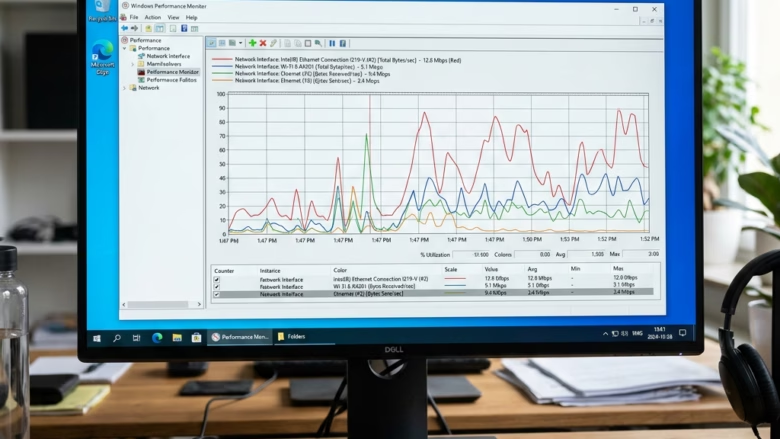
Network adapter connection speed (also called link speed) is the rate your PC has negotiated with your router or switch. It is shown in Mbps or Gbps. A typical wired home setup runs at 1000 Mbps (1 Gbps) or higher. This number measures only the local connection between your PC and the router. It has nothing to do with the speed of your internet plan.
Checking it helps you spot a weak Wi-Fi signal, a bad Ethernet cable or a failing adapter. For example, a wired PC that links at 100 Mbps on a gigabit network usually points to a cable or port problem. You can find the figure in several places, and each one takes a few clicks. Wi-Fi link speed changes with signal strength, so check it from the spot where you normally work.
You can check your network adapter speed in Windows 11 via Task Manager , Settings, or Control Panel . In Settings, navigate to Network & internet, click your active connection’s Properties, and look for “Link speed.” Task Manager ’s Performance tab also displays speed for Ethernet or Wi-Fi .
Method 1Check via Task Manager
Task Manager is the quickest option because it shows the link speed alongside live traffic. It works the same on Windows 11 Home and Pro, and you don’t need admin rights.
- Press Ctrl+Shift+Esc to open Task Manager . If you see a small window with no tabs, click More details at the bottom.
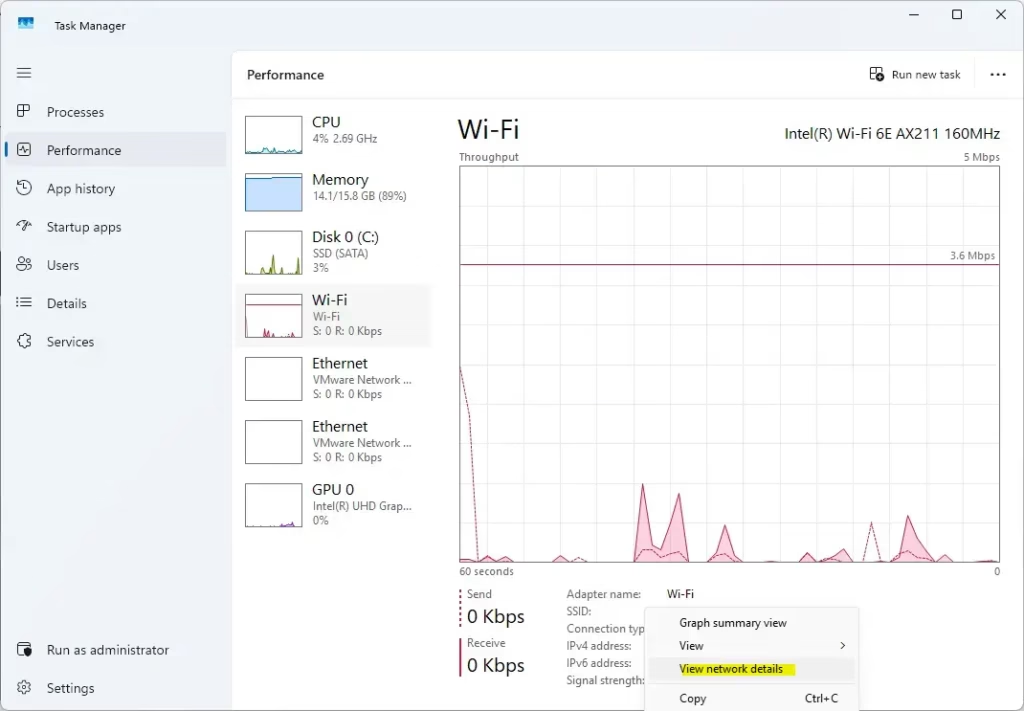
- Click the Performance tab on the left. You should see a list of CPU, Memory, Disk and your network adapters.
- Select Ethernet or Wi-Fi from the list. A throughput graph appears on the right, with adapter details below it.
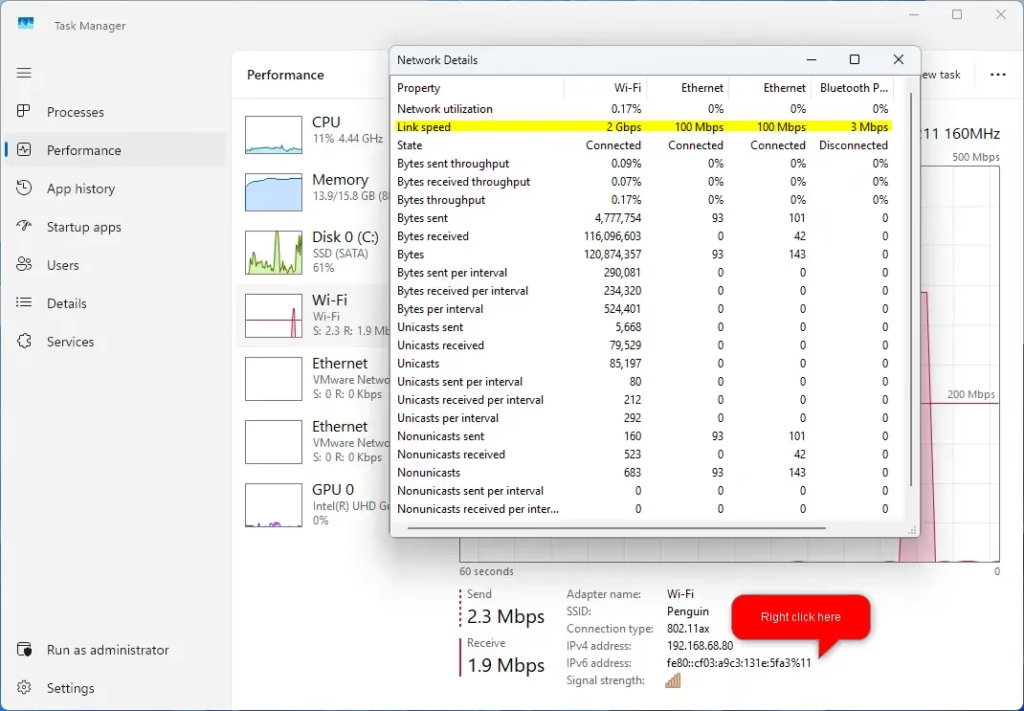
- Right-click the graph and select View network details. A separate Network Details window opens.
- Look for Speed or Link speed (Receive/Transmit). This is your current link speed.
If you have both Ethernet and Wi-Fi , each has its own entry in the list. Pick the one you are actually using. The entry for an unplugged adapter shows no connection.
Method 2Check via Windows Settings
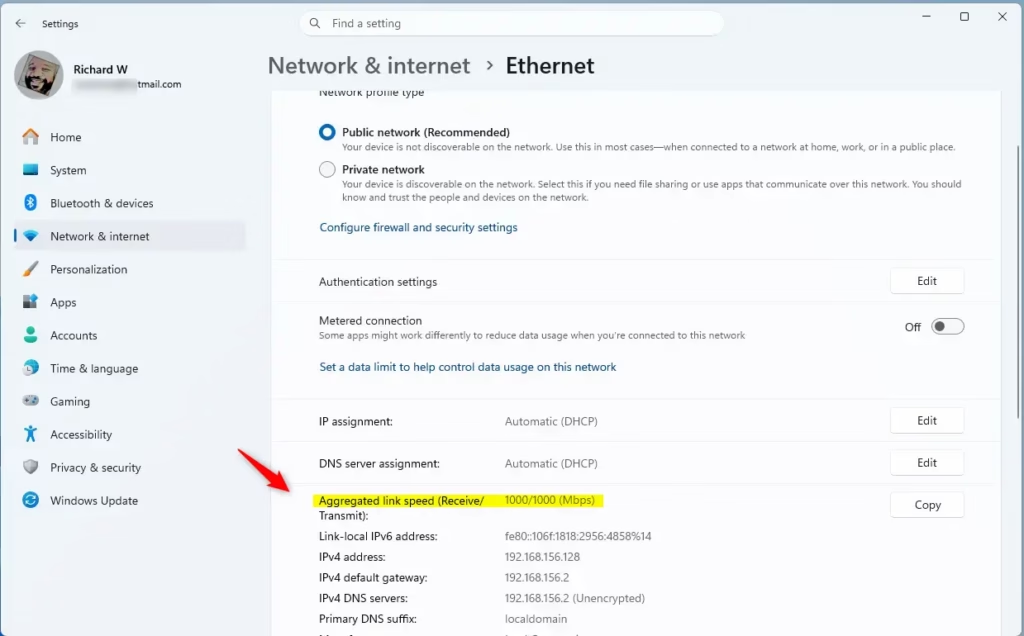
The Settings app gives a clean view of your current network status. The exact wording of some labels can differ slightly between Windows 11 versions.
- Open Settings (Win+I).
- Click Network & internet on the left. The page shows your active connection near the top.
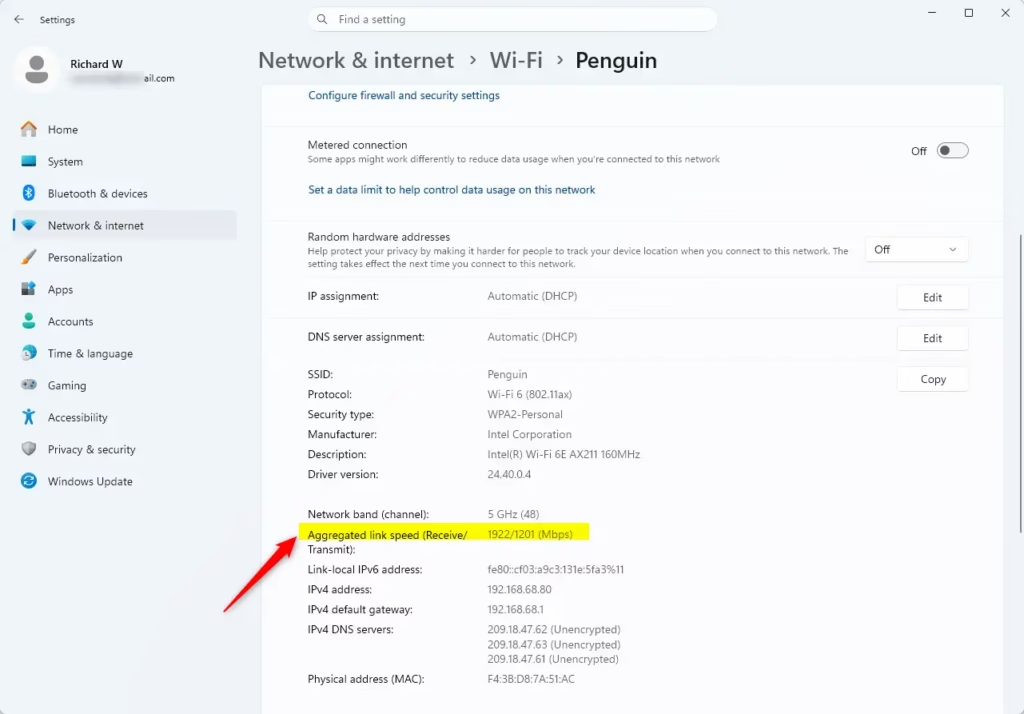
- Click Properties for your active connection. If you don’t see it on this page, click Ethernet or Wi-Fi first. The properties page for that adapter opens.
- Scroll down to find Link speed. It is usually listed as receive/transmit, along with the adapter description and driver version.
Method 3Check via Network and Sharing Center
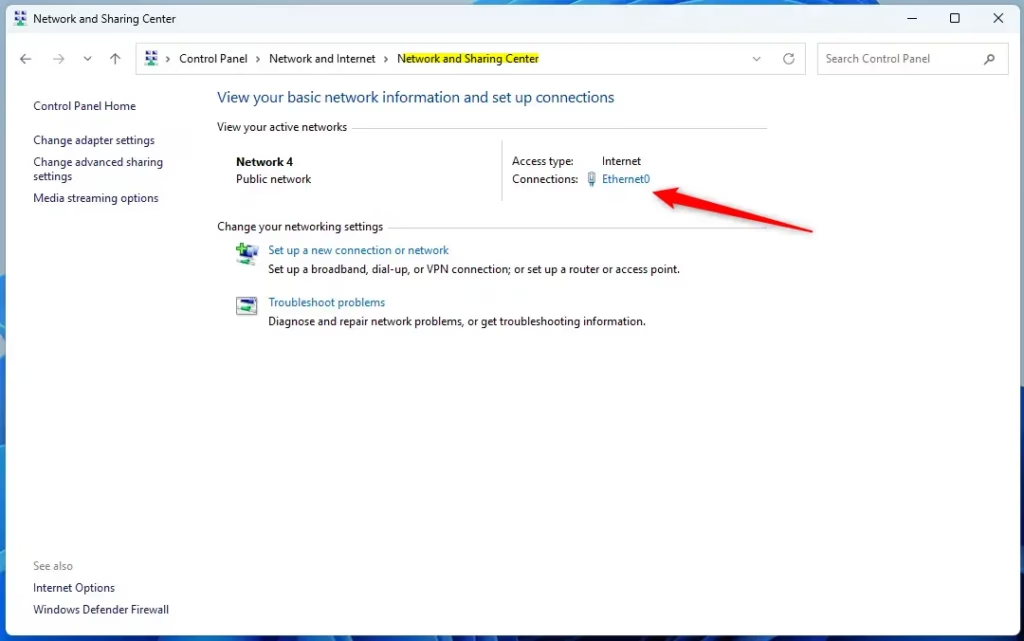
This is the classic way to view your Network Interface Controller (NIC) status. It is still included in Windows 11 and shows the same speed value as the other methods.
- Open Control Panel and select Network and Sharing Center. If you don’t see it, change View by in the top right to Large icons or Small icons.
- Click the blue link next to Connections. It carries the name of your adapter, such as Ethernet or your Wi-Fi network name.
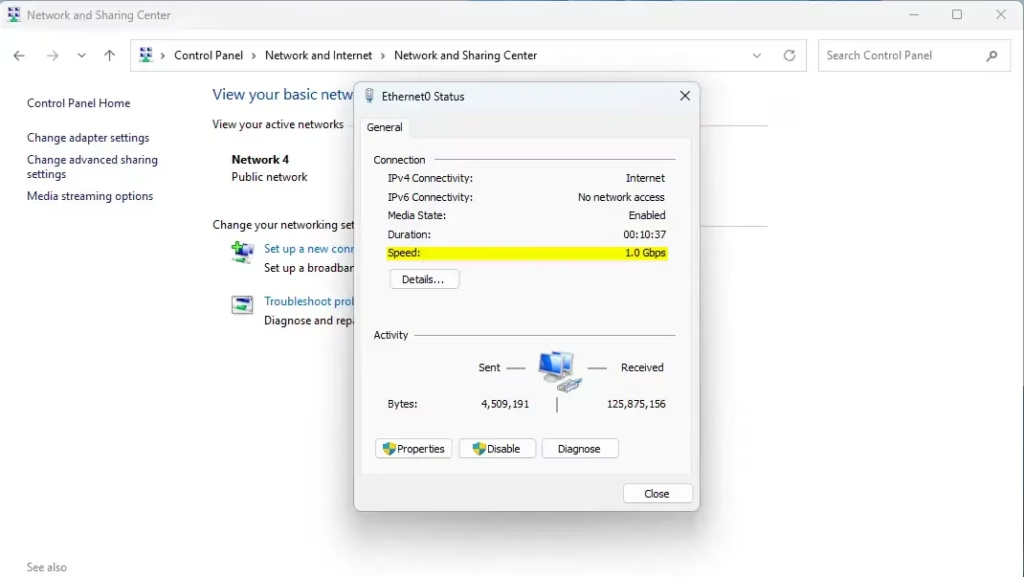
- A status window pops up showing the Speed. Click Close when you are done.
Method 4Check via PowerShell
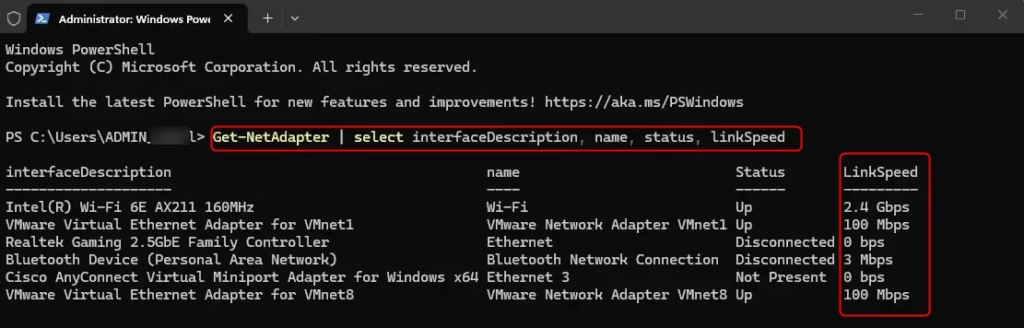
For advanced users, PowerShell gives a quick summary of all adapters in one table. This is handy when you have several adapters, such as Ethernet, Wi-Fi and virtual ones.
- Right-click the Start button and select Terminal (Admin). [Requires Admin Privileges] Click Yes if the User Account Control prompt appears.
- Type the following command and press Enter:
Get-NetAdapter | select interfaceDescription, name, status, linkSpeed
The output lists each adapter with its status and link speed. Adapters that are not connected show as disconnected, so read the row for the one you are using.
How to Change Network Adapter Speed Settings (GUI)
Device Manager lets you change network adapter speed settings when your connection speed is capped below what your equipment should support. You need admin rights to change the setting. Open Device Manager, open your adapter properties, and adjust the speed and duplex value on the Advanced tab.
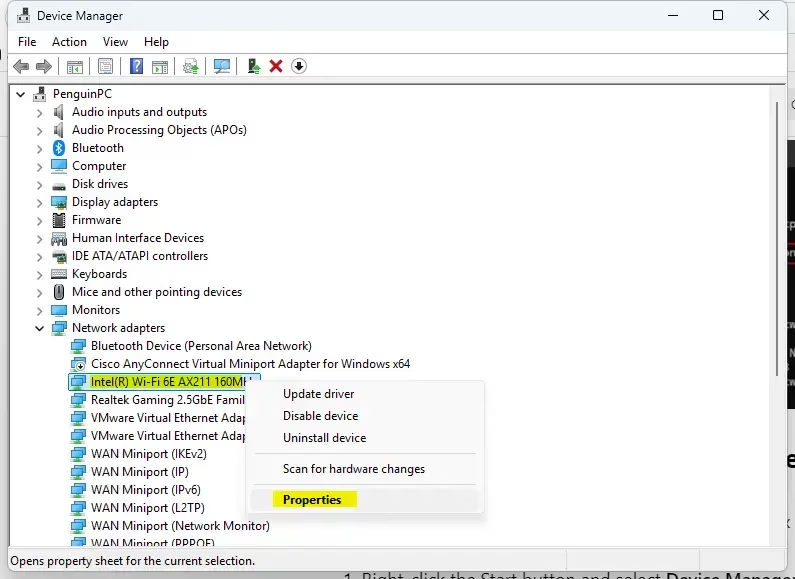
- Right-click the Start button and select Device Manager. [Requires Admin Privileges]
- Expand Network adapters. You should see your Ethernet and Wi-Fi adapters listed.
- Right-click your adapter and select Properties.
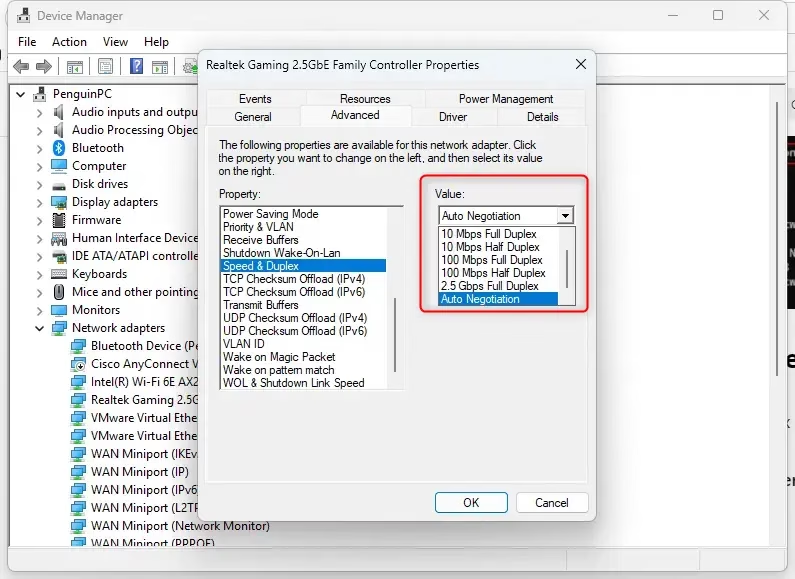
- Go to the Advanced tab.
- Find Speed & Duplex in the list and change the value from Auto Negotiation to your desired speed (e.g., 1.0 Gbps Full Duplex). Click OK. The connection drops for a few seconds and then reconnects.
Only change this if auto negotiation is giving you the wrong speed. A forced value that the router or switch doesn't match can break the connection. Some adapters don't offer fixed 1 Gbps options at all. Wi-Fi adapters often don't show this setting. To undo the change, go back to the same spot and set the value to Auto Negotiation.
Troubleshooting Slow Speeds
If your link speed is lower than it should be, check the physical hardware first, then the wireless band, then the drivers. Start with the simplest fix and test the speed again after each change.
- Cables: Ensure you are using a Cat5e or Cat6 cable. Old Cat5 cables are limited to 100 Mbps. Also try another router port, and check the connectors for damage.
- Wi-Fi Band: 2.4GHz Wi-Fi is slower than 5GHz. Check your router settings to ensure you are connected to the 5GHz band. The 5GHz band has a shorter range, so move closer to the router if the speed is still low.
- Drivers: Outdated software can throttle performance. Learn how to update network drivers in Windows 11.
Summary
Checking your network adapter speed helps you confirm whether your hardware and cables work correctly. Task Manager and Settings are the fastest ways to read the number. Device Manager is the place to adjust it if auto negotiation gets it wrong. Whichever you use, a link speed well below what your equipment supports is the first sign of a failing cable, port or adapter.
Have a question about this guide?
Answered by AI from this guide. Good questions may be added to this page — please don't include personal details.
Did this guide fix your problem?

About the Author
Richard
Tech Writer, IT Professional
Richard is a writer at Geek Rewind who turns complex IT tasks into clear, step-by-step guides. He draws on years of hands-on experience in system administration and enterprise IT operations, focusing on Windows, Linux and WordPress: the problems people actually run into, and the fixes that work. His server and WordPress guides come from systems he runs himself. Richard builds and maintains the platform behind Geek Rewind, from its Ubuntu servers and Nginx configuration to its custom WordPress plugins. Many new tutorials start with readers' questions, and he's always glad to answer them in the comments.
No comments yet — be the first to share your thoughts!