How to Turn On or off Touchpad Automatic Scrolling with Pressure in Windows 11

- 10 steps
- Needs administrator rights
- Includes a restart or sign-out
Automatic scrolling with pressure in Windows 11 lets you scroll through long pages by pressing down firmly on your laptop trackpad instead of swiping over and over. This Precision Touchpad feature reads how hard you press, and the harder you press, the faster the content moves. The option only shows up on touchpads with pressure-sensing hardware, so not every laptop has it.
Go to Settings, then Bluetooth & devices, and select Touchpad. Expand the Scroll & zoom section and check or uncheck the box for Automatic scrolling with pressure to enable or disable it.
Turn On or Off Automatic Scrolling with Pressure in Settings
The quickest way to turn this feature on or off is the Settings app. You don’t need any extra software. The steps are the same on Windows 11 Home and Pro.
- Press Win+I to open Settings . You should see the Settings window with a list of categories on the left.
- Click Bluetooth & devices on the left, then select Touchpad on the right. The touchpad options open, with sections such as Taps, Scroll & zoom and Three-finger gestures.
If you don’t see a Touchpad page at all, your laptop either has no Precision Touchpad or it is missing its driver. Check Windows Update or your laptop maker’s support page for a touchpad driver.
You can also jump straight to the page with this link:
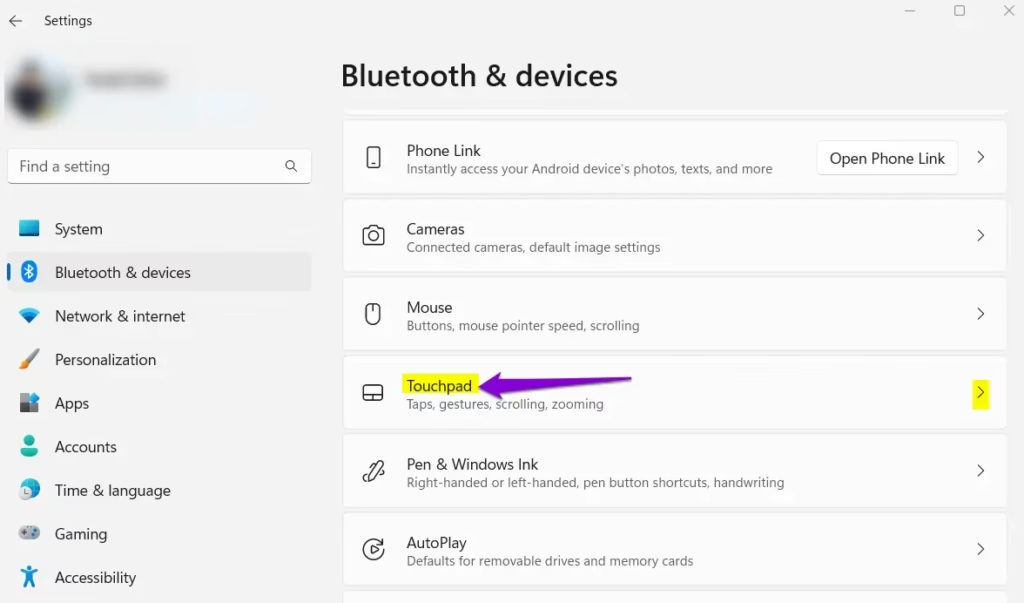
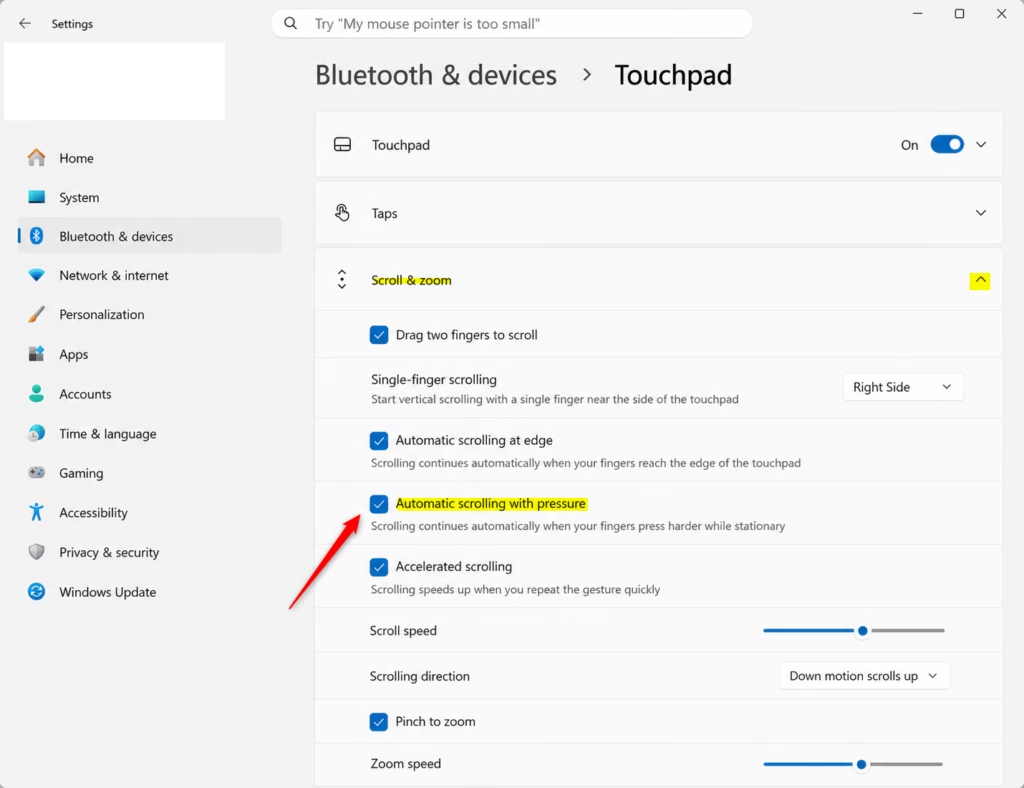
- Click the Scroll & zoom section to expand it. The scrolling and zooming options appear below the heading.
- Check or uncheck Automatic scrolling with pressure. Check it to turn the feature on, and uncheck it to turn it off.
With this option on, the touchpad scrolls content on its own when you press down with enough force. That makes long documents and web pages easier to move through. If you can’t find the option, your touchpad probably has no pressure sensor, and Windows hides settings the hardware can’t use. The change applies right away, so you don’t need to restart.
- Once you’re done, close the Settings window.
To undo the change later, come back to the same page and flip the checkbox again.
Advanced Configuration via Registry Editor
You can also change this setting in the Registry Editor if you prefer to work in the registry. The edit is a single value, but a wrong change in the registry can cause unexpected system behavior. Before you start, consider making a backup. In Registry Editor, choose File Export to save a copy.
Some system keys may need administrator rights, and Windows will then ask you to confirm in a User Account Control prompt.
- Press Win + R, type regedit, and press Enter. Click Yes if a User Account Control prompt appears. Registry Editor opens.
- Navigate to the following path:
HKEY_CURRENT_USER\Software\Microsoft\Windows\CurrentVersion\PrecisionTouchPad - If the value isn't there, right-click an empty area in the right pane and choose New DWORD (32-bit) Value.
- Name the new value PressureAutoPanningEnabled.
- Double-click PressureAutoPanningEnabled and enter the value data: 1 to turn automatic scrolling with pressure on, or 0 to turn it off. Click OK.
The original version of this tutorial named a value called "ScrollDirection" for this step. That name doesn't match the value you created in step 4, so use PressureAutoPanningEnabled for the on and off setting.
If the change doesn't show up in Settings, sign out and back in, or restart the PC. To undo it, set the value back to its previous number, or delete the value to return to the default.
Summary
Pressure scrolling gives you a reliable way to move through long pages on a touchpad that supports it. You can switch it on or off in Settings or in the registry.
Have a question about this guide?
Answered by AI from this guide. Good questions may be added to this page — please don't include personal details.
Did this guide fix your problem?

About the Author
Richard
Tech Writer, IT Professional
Richard is a writer at Geek Rewind who turns complex IT tasks into clear, step-by-step guides. He draws on years of hands-on experience in system administration and enterprise IT operations, focusing on Windows, Linux and WordPress: the problems people actually run into, and the fixes that work. His server and WordPress guides come from systems he runs himself. Richard builds and maintains the platform behind Geek Rewind, from its Ubuntu servers and Nginx configuration to its custom WordPress plugins. Many new tutorials start with readers' questions, and he's always glad to answer them in the comments.
No comments yet — be the first to share your thoughts!