How to Change What Pen Shortcut Button Does in Windows 11

Pen shortcuts in Windows 11 let you launch apps, take screenshots, or open OneNote with the physical button on your digital pen. Programmable smart pens, such as the Microsoft Surface Pen, support custom single-click, double-click, and press-and-hold actions.
The short version: open Settings, select Bluetooth & devices, and click Pen & Windows Ink to assign your shortcuts. The sections below walk through each step and cover what to check if an option is missing.
Open Settings , go to Bluetooth & devices, then click Pen & Windows Ink. Select single-click, double-click, or press and hold, open each drop-down, and choose your action—changes apply immediately without restarting.
Step 1Make Sure Your Pen is Connected via Bluetooth
Until the connection is active, your PC will not register button presses, and the shortcut options may not appear at all. Not every stylus works this way. Some pens connect through a different technology and have no programmable button, so check your pen’s manual if you are unsure.
- Open Settings and go to Bluetooth & devices.
- Turn the Bluetooth toggle to On. The toggle should now read On.
- Put the pen in pairing mode. On a Surface Pen, hold the top button for about 5 to 7 seconds until the light blinks. Other brands use a different method, so check the manual.
- Click Add device, choose Bluetooth , and select your pen from the list when it appears.
- Wait for the pen to show as Connected on the Bluetooth & devices page.
If you need more help turning on Bluetooth , this guide covers it:
How to Turn Bluetooth On or Off in Windows 11
Once Bluetooth is active, pair your pen with your PC. Guidance on connecting peripherals is available here:
How to Link Your Android Mobile Device to Your Microsoft Account on Windows 11
Step 2Open Windows Settings
The Settings app holds all the pen options. There are two quick ways to open it:
- Click the Start menu (the Windows icon in the bottom-left corner) and select Settings, the gear icon.
- Or press
Windows key + Ion your keyboard to open Settings right away.
Either way, the Settings window should open with a list of categories down the left side. This works the same on Windows 11 Home and Pro.
Further information on resetting or accessing settings can be found at: How to Reset the Settings App in Windows 11
Step 3Find the Pen Settings
Within the Settings window, navigate as follows:
- From the menu on the left, click Bluetooth & devices. A list of your connected devices and a Bluetooth toggle appear on the right.
- On the right side, scroll down and click Pen & Windows Ink. The pen settings page opens.
Go back to the pairing steps and confirm the pen shows as connected.
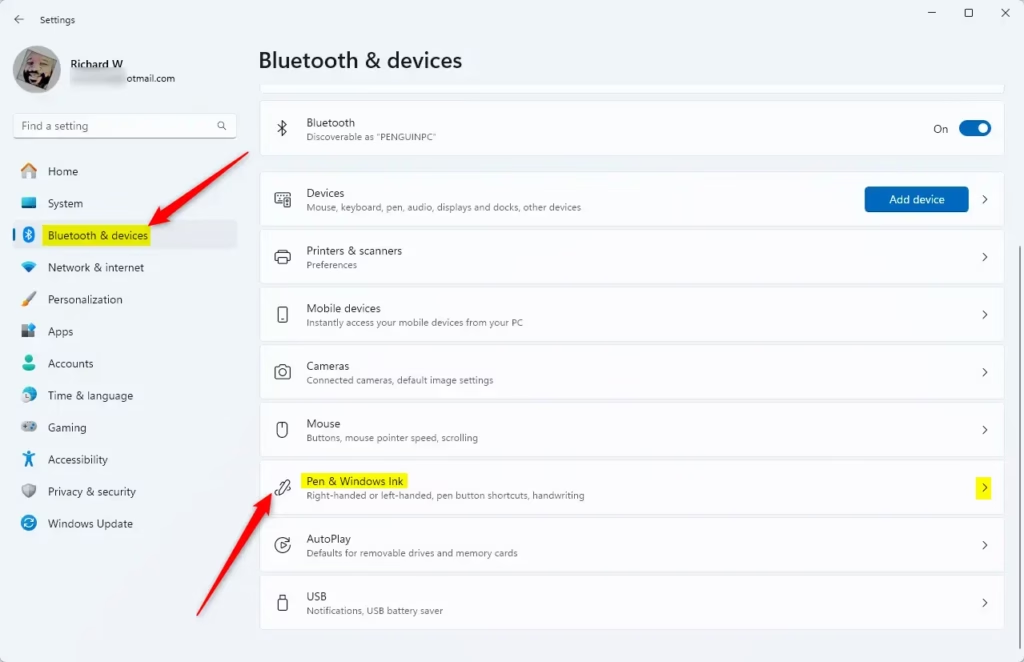
On the Pen & Windows Ink page, look for the section that lists the pen shortcut options. It appears only when a pen that supports shortcuts is connected. If you do not see it, check the pen’s connection and battery first.
Step 4Change What the Pen Shortcut Button Does
You can choose what happens when you press the pen button once, twice quickly, or hold it down. Each of these three triggers can launch a different action, such as opening an app, taking a screenshot, or opening Whiteboard.
The three triggers are:
- Single-click – What happens when you press the button once.
- Double-click – What happens when you press the button twice quickly.
- Press and hold – What happens when you press and hold the button.
The exact labels can differ slightly between Windows 11 builds, and the list of actions depends on your pen and your apps. If an action you expect is not offered, update Windows and the pen’s firmware or companion app if it has one.
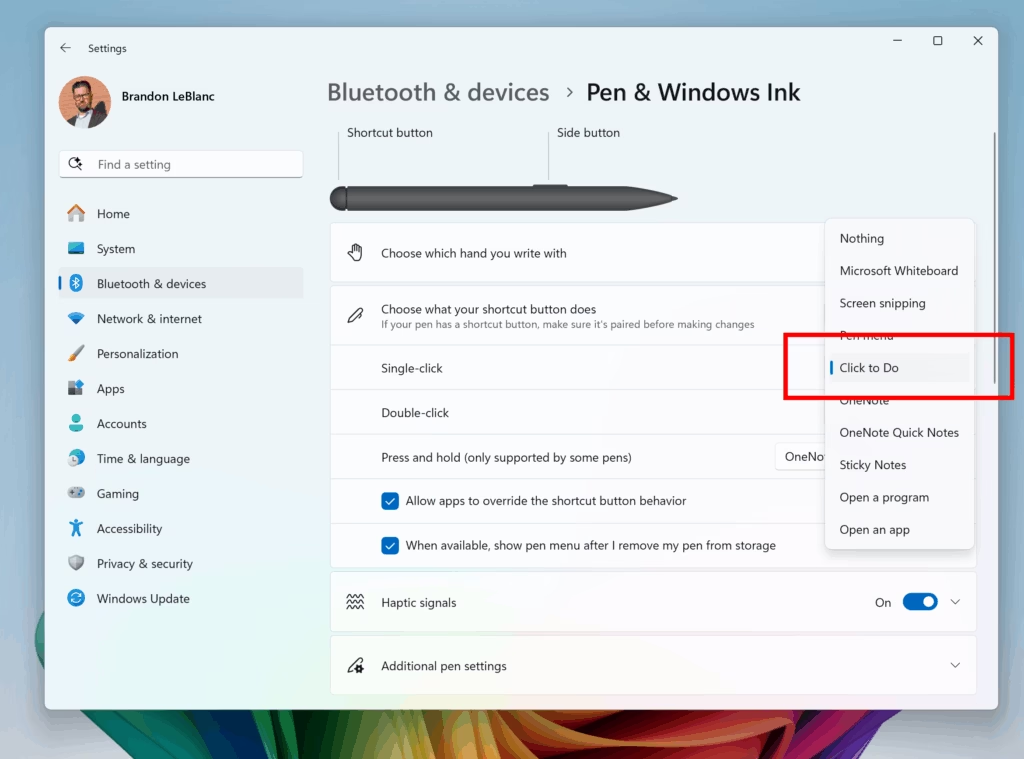
Now set each trigger:
- Find the trigger you want to change: single-click, double-click, or press and hold.
- Open its drop-down list.
- Pick the action you want from the list.
- Repeat for the other triggers, then test the button on the pen.
Preferred actions are selected from the provided list for each press type. Changes apply as soon as you pick them, with no restart needed. To undo a change, open the same drop-down and choose the earlier action.
Step 5Close Settings
Close Settings. Your pen button now uses your new configuration. Press the button once, twice, and hold it to confirm each action does what you set.
Summary
Once your stylus is paired, changing the pen button takes only a few steps. Connect the pen through Bluetooth, open the Settings app, and pick the actions you want for single clicks, double clicks, and press and hold.
- Bluetooth: Make sure your pen is connected to your PC through Bluetooth.
- Settings: Use the Windows Settings app to customize your pen button.
- Options: Choose different actions for single-click, double-click, and press-and-hold.
- Quick Access: Find these settings under Bluetooth & devices Pen & Windows Ink.
- Better Workflow: Customizing helps you get more done with less effort.
Set the shortcuts to match how you actually work, and change them whenever your habits change.
Have a question about this guide?
Answered by AI from this guide. Good questions may be added to this page — please don't include personal details.
Did this guide fix your problem?

About the Author
Richard
Tech Writer, IT Professional
Richard is a writer at Geek Rewind who turns complex IT tasks into clear, step-by-step guides. He draws on years of hands-on experience in system administration and enterprise IT operations, focusing on Windows, Linux and WordPress: the problems people actually run into, and the fixes that work. His server and WordPress guides come from systems he runs himself. Richard builds and maintains the platform behind Geek Rewind, from its Ubuntu servers and Nginx configuration to its custom WordPress plugins. Many new tutorials start with readers' questions, and he's always glad to answer them in the comments.
No comments yet — be the first to share your thoughts!