How to Change Primary Mouse Button in Windows 11


- 9 steps
- Needs administrator rights
Changing the primary mouse button in Windows 11 swaps your left and right clicks, so the right button selects and drags items and the left button opens the context menu. Windows uses the left button as the primary one by default. You can swap them in under 30 seconds in the built-in Settings app, with no extra software.
Left-handed users often find this makes the desktop much more comfortable. The setting is the same on Windows 11 Home and Pro. It applies to your user account, and you do not need to restart.
Change Primary Mouse Button in Settings
- Press Win+I on your keyboard. The Settings window opens.
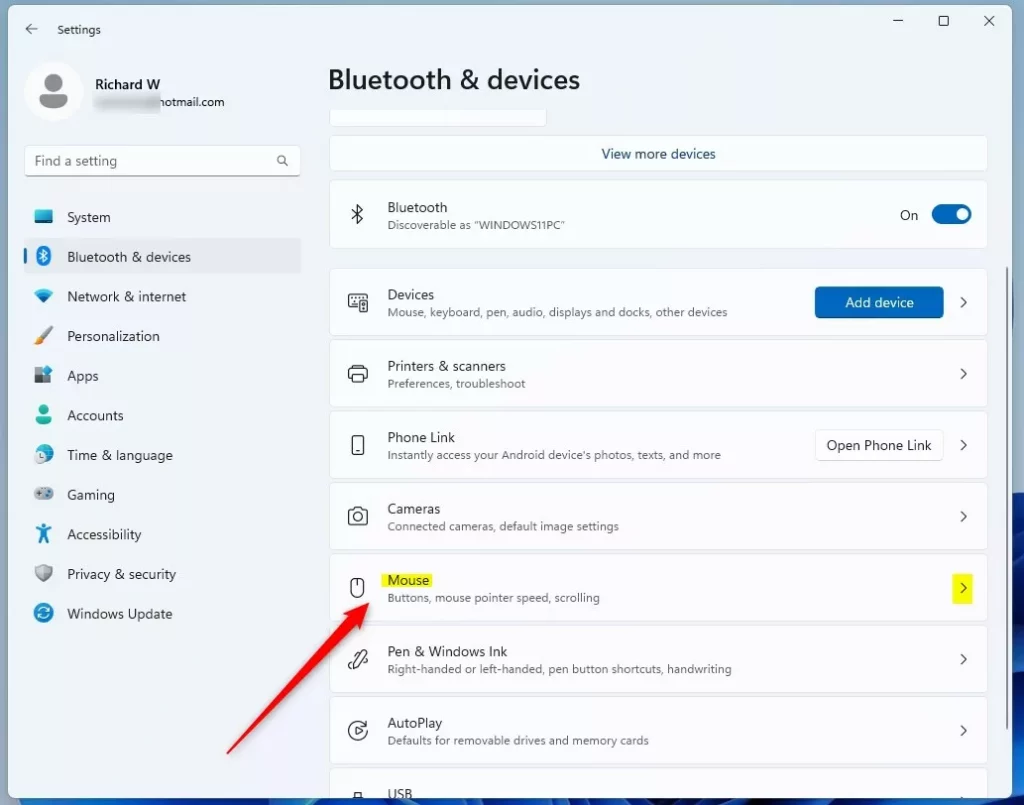
- Click Bluetooth & devices in the left sidebar. The list of your connected devices appears on the right.
- Click Mouse in the list on the right. The mouse options page opens. (see screenshot below)
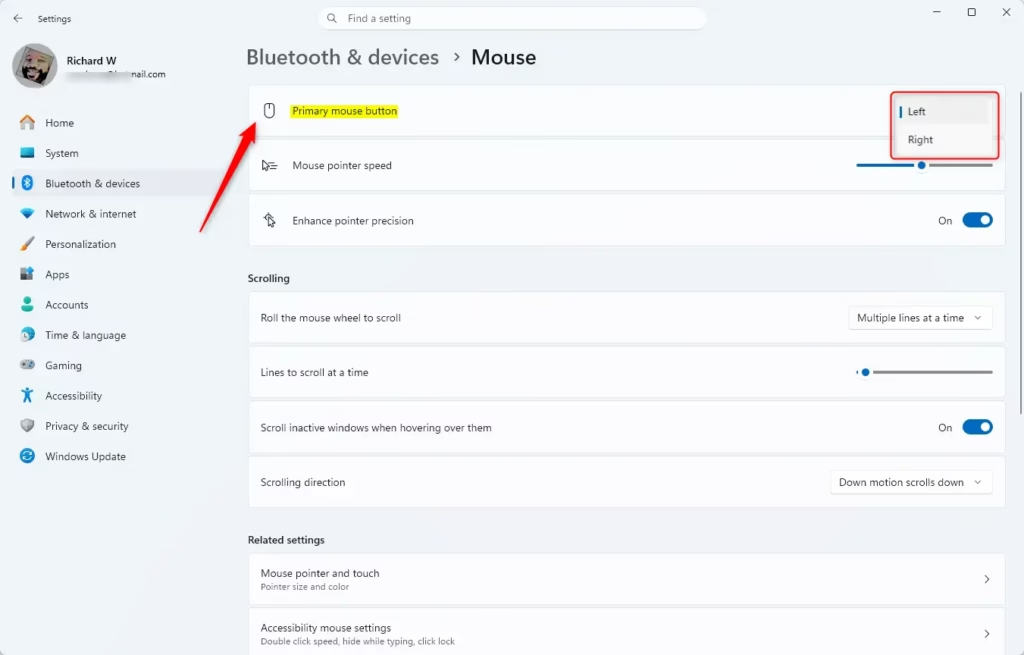
- Find the Primary mouse button drop-down menu near the top of the page and click it.
- Choose Left (the default) or Right. (see screenshot below) The change takes effect immediately.
- Close the Settings window. You do not need to sign out or restart.
In short, you open Settings, go to Bluetooth & devices, click Mouse, and pick your preferred button from the Primary mouse button drop-down. The swap is instant, so you can test it straight away.
From then on, the right button does the normal clicking, including for anything else you do in that window. If you picked the wrong option or want to go back, click the drop-down with the right button, choose Left, and click it again.
If it is a wireless or Bluetooth mouse, check that it is paired and has battery power. A missing option can also mean the mouse driver has not loaded yet. Unplugging and reconnecting the mouse, or restarting the PC, usually fixes that. Touchpad options sit on a separate page under Bluetooth & devices, so look there if you are on a laptop and want to adjust the touchpad.
Option Two
Change Primary Mouse Button in Control Panel
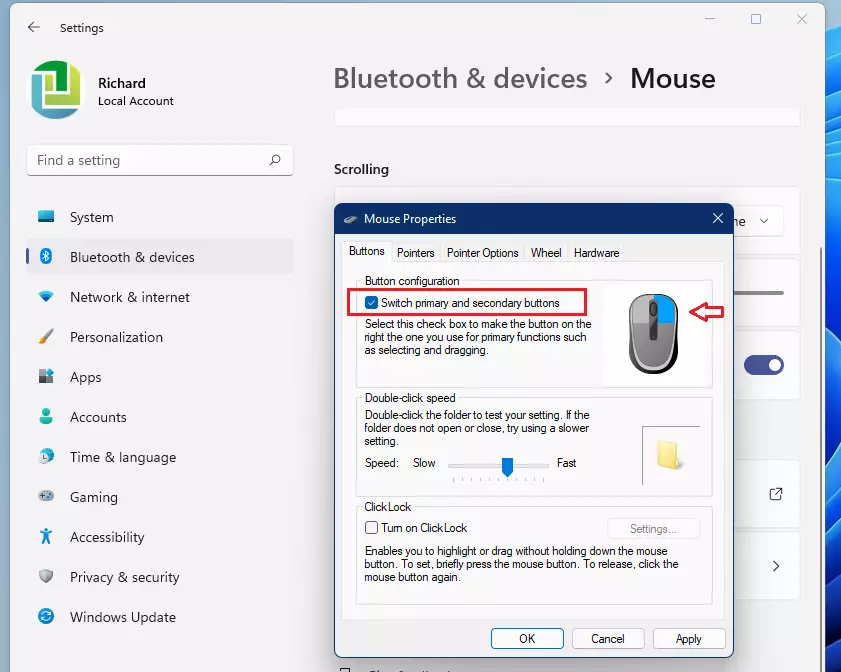
You can change primary mouse button settings using the classic Control Panel in Windows 11 by opening the Mouse properties window and checking the box to switch your primary and secondary buttons. This traditional method achieves the exact same result as the main Settings app and works well if you prefer the legacy interface.- Open Control Panel and switch to icon view. Click on the Mouse icon.
- Go to the Buttons tab. You will see a checkbox for Switch primary and secondary buttons. Check this box to use your right button as primary. Leave it unchecked to use your left button as primary (the default). (see screenshot below)
- Click OK to save your changes.
Option Three
Change Primary Mouse Button Using Registry
⚠️ Administrator permissions are needed for this step.
Change Primary Mouse Button to Left
This is the default setting.
reg add "HKEY_CURRENT_USER\Control Panel\Mouse" /v SwapMouseButtons /t REG_SZ /d 0 /f
Change Primary Mouse Button to Right
reg add "HKEY_CURRENT_USER\Control Panel\Mouse" /v SwapMouseButtons /t REG_SZ /d 1 /f
Summary
The Settings app offers a reliable method for updating mouse preferences on most systems.
Have a question about this guide?
Answered by AI from this guide. Good questions may be added to this page — please don't include personal details.
Did this guide fix your problem?

About the Author
Richard
Tech Writer, IT Professional
Richard is a writer at Geek Rewind who turns complex IT tasks into clear, step-by-step guides. He draws on years of hands-on experience in system administration and enterprise IT operations, focusing on Windows, Linux and WordPress: the problems people actually run into, and the fixes that work. His server and WordPress guides come from systems he runs himself. Richard builds and maintains the platform behind Geek Rewind, from its Ubuntu servers and Nginx configuration to its custom WordPress plugins. Many new tutorials start with readers' questions, and he's always glad to answer them in the comments.
No comments yet — be the first to share your thoughts!