How to Access and View Passkeys in Windows 11 Settings

Passkeys are digital credentials stored on your computer that replace traditional passwords with secure biometric checks like your Windows Hello PIN, face scan, or fingerprint. Windows 11 lets you manage all your saved passkeys directly inside the system Settings app without needing any extra software.
Finding your stored login information takes just a few clicks in the main system menus. You can view, check, or delete any passkey whenever you want to keep your online accounts secure.
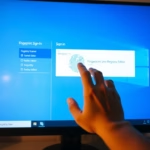
Open Windows Settings , click Accounts, then select Passkey settings to view a list of all passkeys stored on your computer. You can manage or delete them from this screen.
Access and view passkeys in Windows
You can view passkeys Windows 11 saves for your websites and apps directly inside the main settings menu. Open the Windows Settings app using the Start menu or by pressing the Win plus I on your keyboard, then go to the accounts section to find your saved sign-in keys.
First, open the Windows Settings app. Clicking the Start menu and selecting Settings works, or pressing the keyboard shortcut (Win+I) launches it immediately.
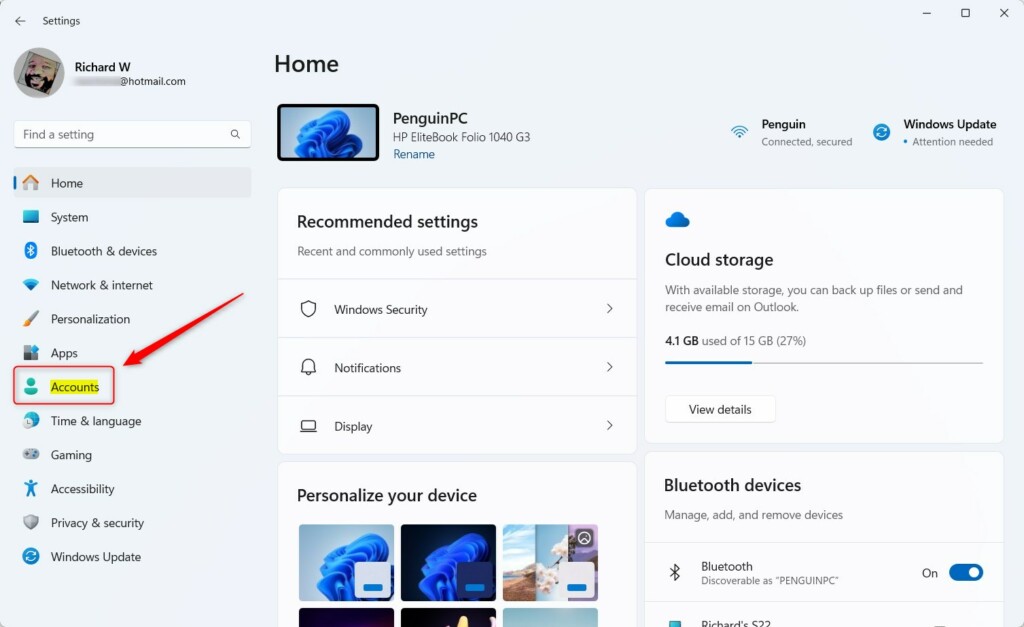
Once the Settings app opens, click the Accounts button on the left-hand side.
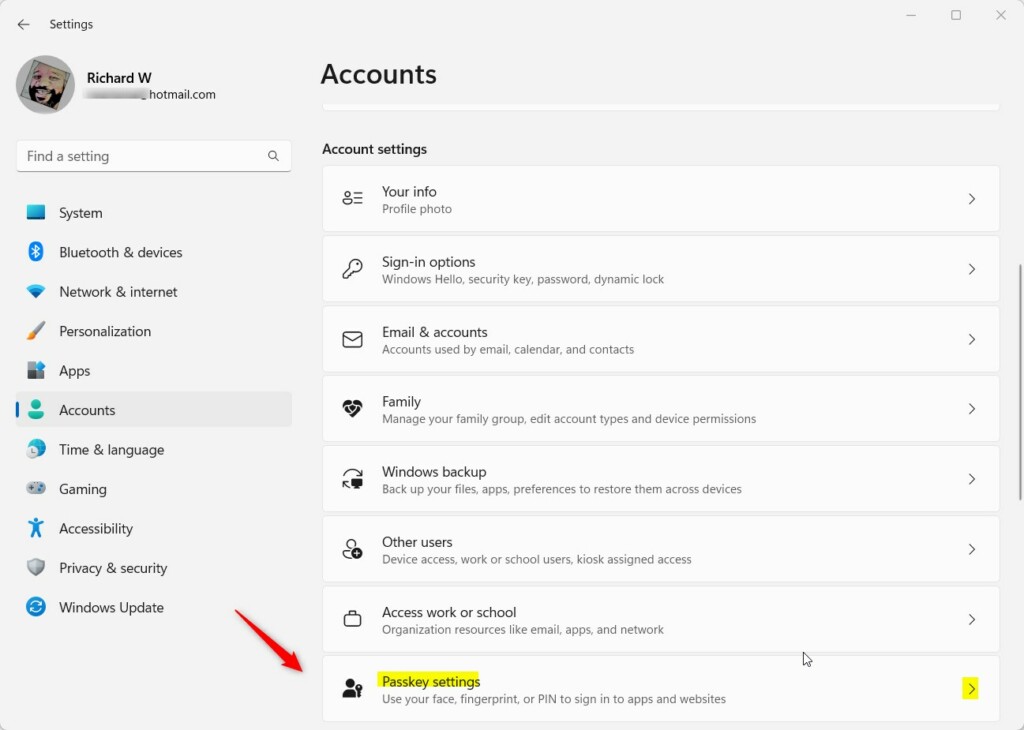
On the right pane, select the Passkey settings tile to expand it.
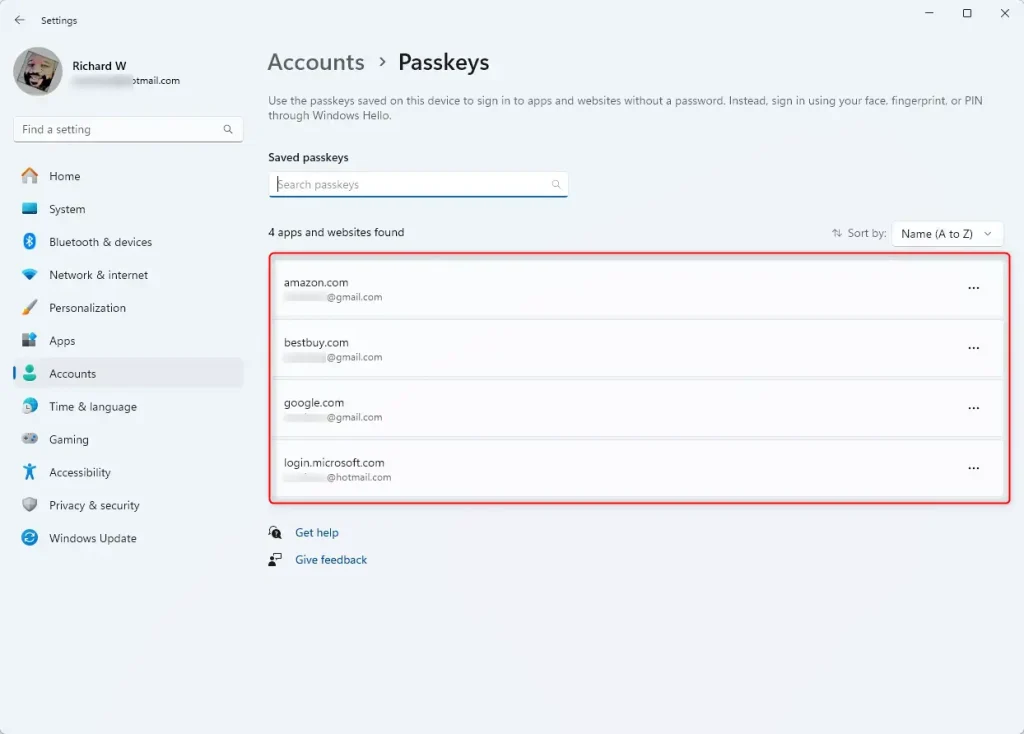
On the Accounts Passkey settings pane, a complete inventory of passkeys created on the Windows machine appears.
Passkeys offer a reliable way to secure accounts without remembering complex strings of characters.
Conclusion:
- Passkeys offer a more secure and convenient sign-in method
- Windows Hello enables sign-in with PIN, facial recognition, or fingerprint
- Passkeys are unique to each website or application, ensuring security
- Windows Settings provides easy access to view and manage passkeys for websites and apps
Was this guide helpful?
20% of readers found this helpful (5 votes)

About the Author
Richard
Tech Writer, IT Professional
Richard is a writer at Geek Rewind who turns complex IT tasks into clear, step-by-step guides. He draws on years of hands-on experience in system administration and enterprise IT operations, focusing on Windows, Linux and WordPress: the problems people actually run into, and the fixes that work. His server and WordPress guides come from systems he runs himself. Richard builds and maintains the platform behind Geek Rewind, from its Ubuntu servers and Nginx configuration to its custom WordPress plugins. Many new tutorials start with readers' questions, and he's always glad to answer them in the comments.



No comments yet — be the first to share your thoughts!