How to View Recent Passkeys Activity by Apps in Windows 11

Recent passkey activity in Windows 11 shows which apps have tried to create, use, or list your passkeys. A passkey is a digital credential that replaces a password. You approve it with a fingerprint, a face scan, or your PIN, so signing in to apps and websites is quick.
Windows keeps this history for the last 7 days. If a program touched your sign-in credentials, you can see it here. The log lives in the Settings app , and you don’t need any extra tools to read it.
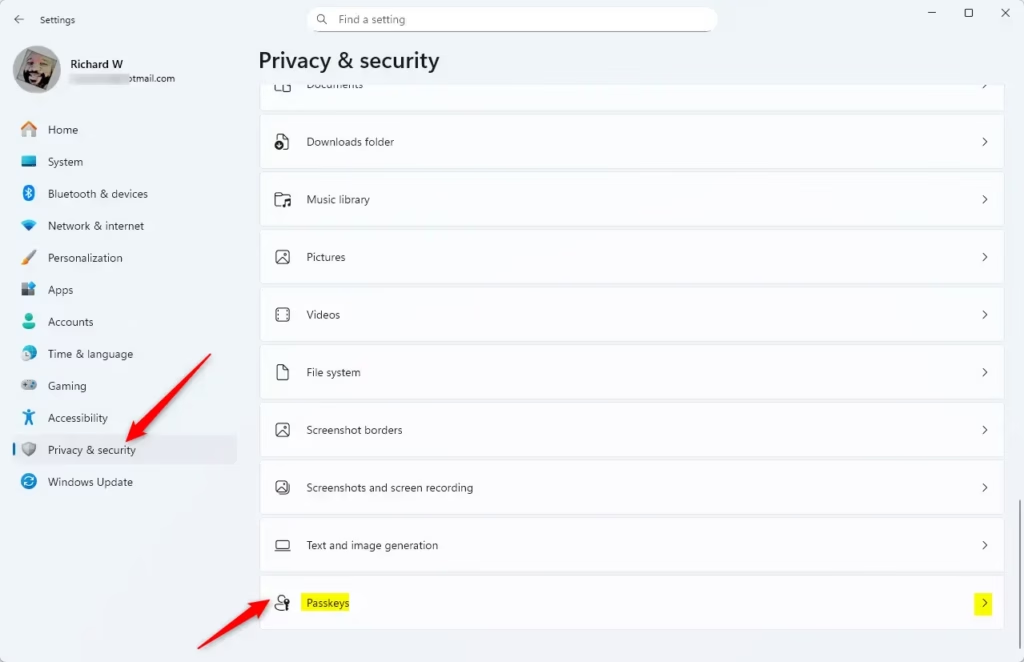
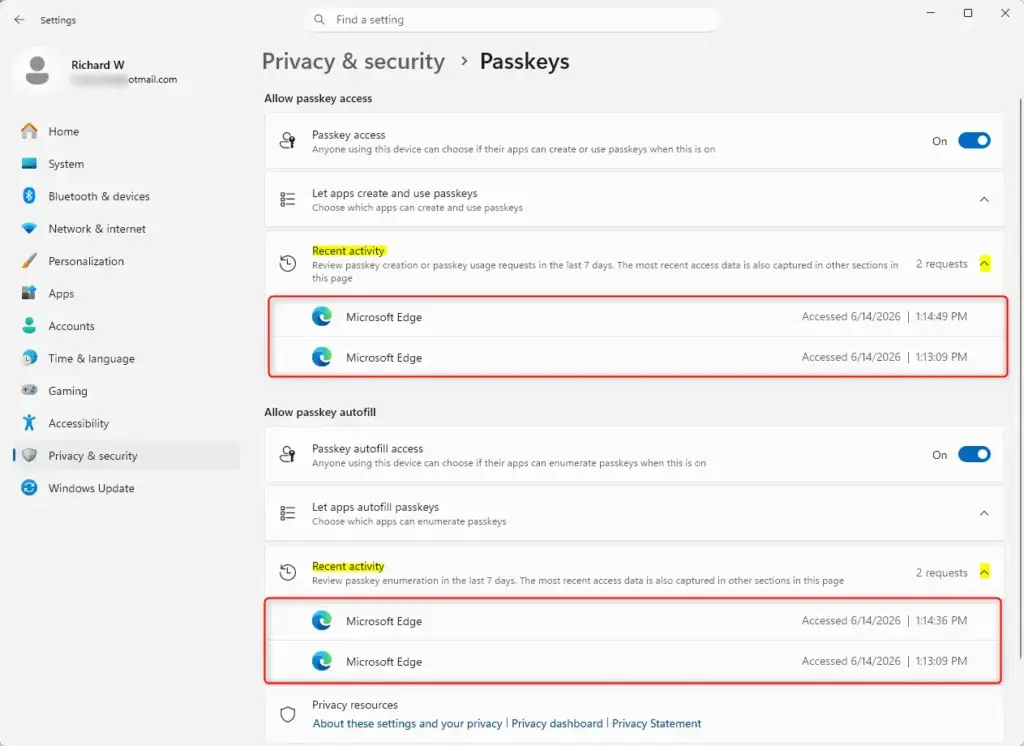
Open Settings by pressing Win+I, then go to Privacy & security Passkeys Under Allow passkey access and Allow passkey autofill, click Recent activity to see which apps requested your passkeys in the last 7 days.
Here’s How:
- Open Settings. The quickest way is to press Win+I. The Settings window opens with the category list on the left.
- Go to Settings Privacy & security Passkeys. Click Privacy & security on the left, then click Passkeys on the right. You should now see the passkey options, split into Allow passkey access and Allow passkey autofill.
- Under Allow passkey access, click Recent activity. The list shows requests from apps to create or use a passkey in the last 7 days.
- Go back, then under Allow passkey autofill, click Recent activity. This list shows requests from apps to list your available passkeys in the last 7 days.
Read both lists. If an app appears that you don’t recognize, or one you didn’t use during that time, look into it. Check which programs are installed on the PC and remove anything you don’t trust.
Run Windows Update , install any pending updates, restart, and check again. Viewing the history doesn’t change anything on your PC, so there is nothing to undo.
Checking your passkey activity in Windows 11 shows which apps and websites asked to use your saved passkeys over the last seven days. Open Settings , go to the privacy controls, and open the passkeys page to review recent sign-in requests. Check it now and then, and any time you suspect something on your PC is behaving oddly.
Summary
To sum up: open Settings , choose Privacy & security, and select Passkeys. The logs sit under ‘Allow passkey access’ and ‘Allow passkey autofill’, and each one has its own Recent activity entry covering the last 7 days.
Have a question about this guide?
Answered by AI from this guide. Good questions may be added to this page — please don't include personal details.
Did this guide fix your problem?

About the Author
Richard
Tech Writer, IT Professional
Richard is a writer at Geek Rewind who turns complex IT tasks into clear, step-by-step guides. He draws on years of hands-on experience in system administration and enterprise IT operations, focusing on Windows, Linux and WordPress: the problems people actually run into, and the fixes that work. His server and WordPress guides come from systems he runs himself. Richard builds and maintains the platform behind Geek Rewind, from its Ubuntu servers and Nginx configuration to its custom WordPress plugins. Many new tutorials start with readers' questions, and he's always glad to answer them in the comments.
No comments yet — be the first to share your thoughts!