How to Restore Default Settings of Library in Windows 11

- 14 steps
- Includes a restart or sign-out
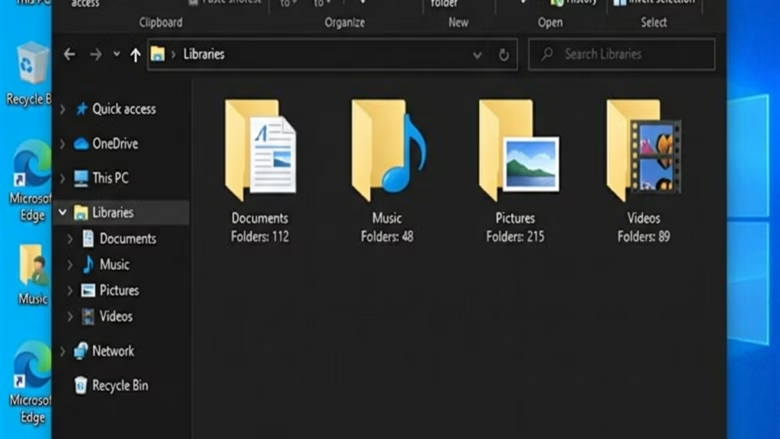
Restoring the default library settings in Windows 11 brings back your original Camera Roll, Documents, Music, Pictures, and Videos libraries when files seem to disappear or the links inside them break. A library is a virtual folder. It does not hold files itself. It shows files from one or more real folders in a single view inside File Explorer.
Resetting a broken library takes less than a minute from the built-in properties window. It recreates the missing default folder links and clears custom save locations. It does not delete your actual files.
Open File Explorer, right-click Libraries in the left sidebar, expand it, right-click the library you want to fix, select Properties, then click Restore Defaults. The library returns to its original folder location. No restart needed.
Why do this?
You may have added folders to a library, changed its save location, or changed how it sorts and displays files, and now want it back the way it was when Windows was first set up. Restoring the defaults resets the folder locations, the file arrangement, and the icon to their original values.
What happens when done?
The library then points only at its standard folder, such as Documents or Pictures. Your files are not deleted. Files in a removed folder simply stop showing up in that library, but they are still in their original location on the drive and you can open them from there.
If you want a custom folder back in the library afterwards, you can add it again. Open the library, select Manage in the toolbar, then choose Library locations and add the folder.
How to Restore Libraries via File Explorer
The simplest fix is in File Explorer. Use it when a library shows missing items, points to the wrong place, or stops working correctly. You do not need any extra tools, and you do not edit system files. The steps are the same on Windows 11 Home and Pro.
- Open File Explorer by pressing Win+E. The File Explorer window opens.
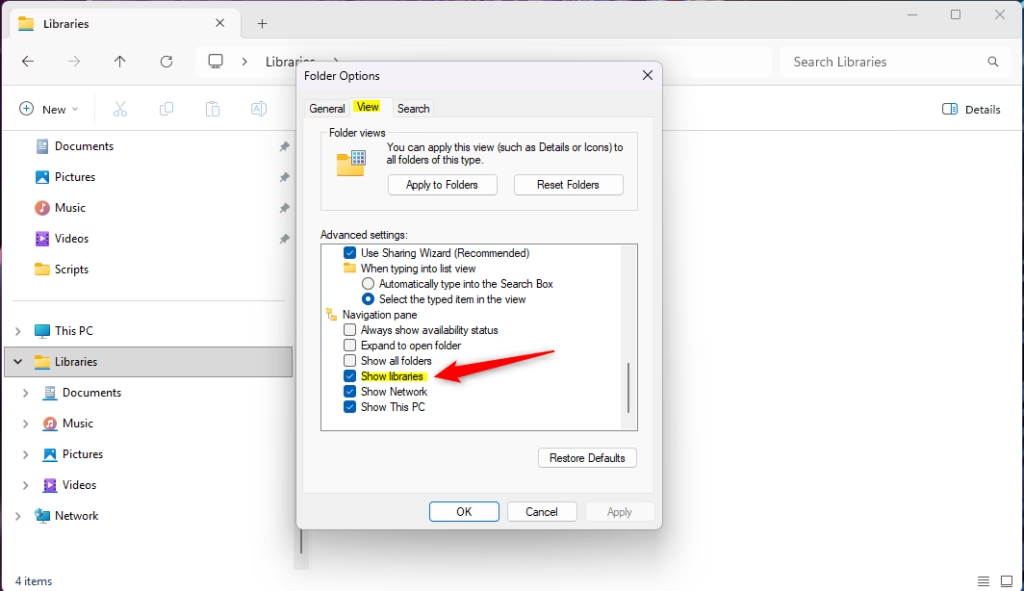
- In the left sidebar, find the Libraries folder. Windows 11 hides libraries by default, so you may not see it. If it is missing, right-click the empty space in the sidebar and select Show libraries. The Libraries entry now appears in the sidebar.
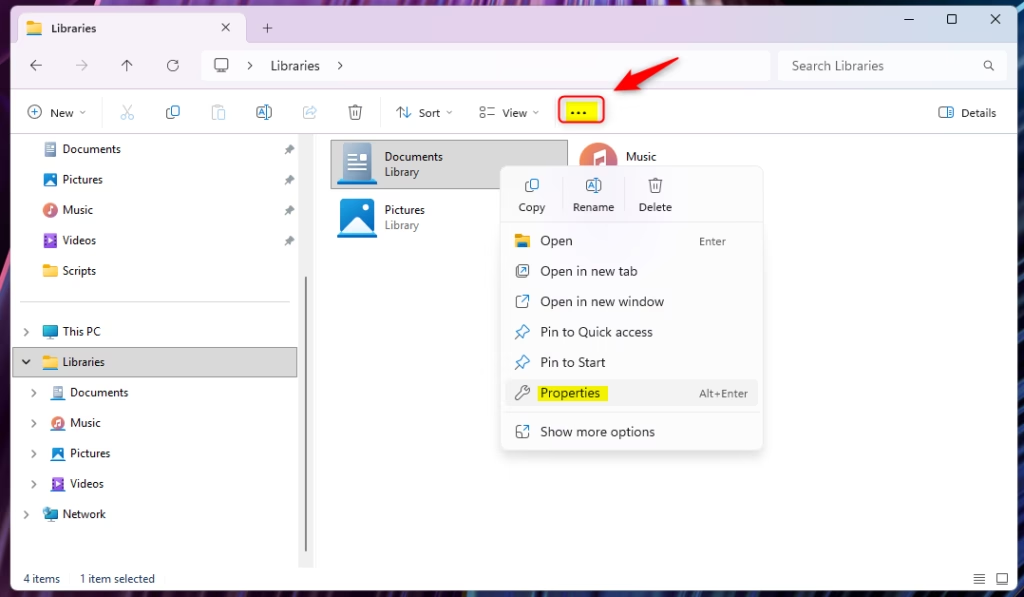
- Expand Libraries, right-click the library you want to fix (for example, Pictures), and choose Properties. The properties window for that library opens.
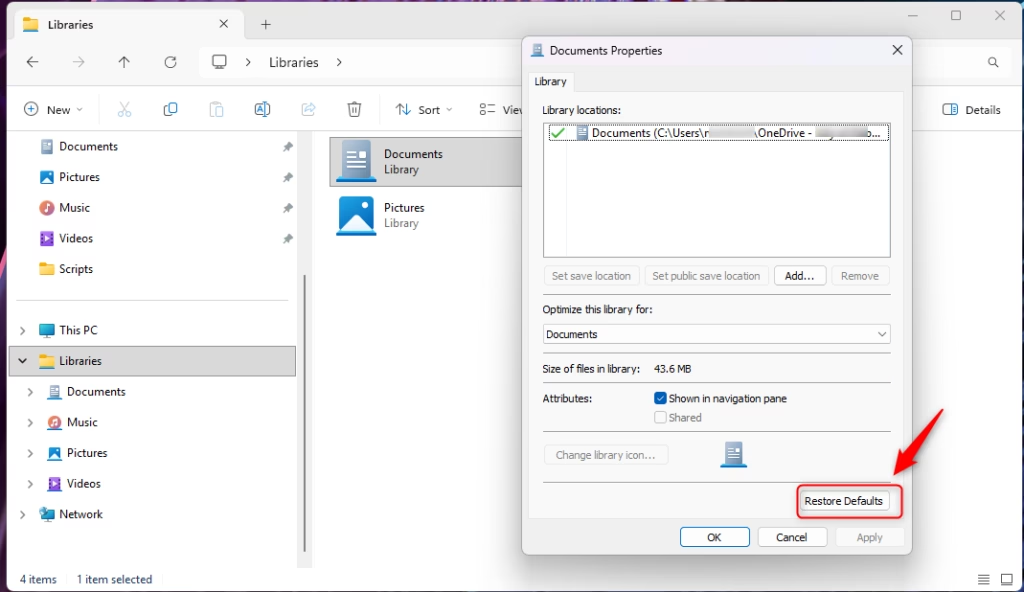
- In the window that opens, click the Restore Defaults button. The folder list in the window returns to the standard folder for that library. If the button is greyed out, the library is probably already at its defaults.
- Click OK to save your changes. The window closes and the library now shows only its default location.
Repeat these steps for each library that has a problem. No restart is needed. If the old view is still showing, press F5 in File Explorer to refresh it. To undo the reset, add your custom folders back to the library.
Advanced Fix: Resetting Libraries via Registry Editor
Use it only if the Properties method fails to repair a broken library. A wrong change in the registry can cause system errors, so follow the path exactly and make a backup first.
To reset library definitions manually, delete the corrupted entry in the registry:
- Press Windows Key + R, type regedit, and press Enter. If User Account Control asks for permission, click Yes. Registry Editor opens.
- Navigate to: HKEY_CURRENT_USER\Software\Microsoft\Windows\CurrentVersion\Explorer\Shell Folders. You can paste the path into the address bar at the top of Registry Editor.
- Before you change anything, right-click the ShellFolders key and choose Export. Save the .reg file somewhere safe. To undo your changes later, double-click that file and confirm the merge.
- Locate the specific library key and delete it to force Windows to recreate it on restart. Right-click it, choose Delete, and confirm.
- Restart your PC, or sign out and back in. Windows rebuilds the entry and the library should return to its default state.
Troubleshooting: Libraries Not Appearing
If your libraries are missing from the navigation pane, you can turn them back on from the File Explorer options. This does not reset anything. It only makes the hidden libraries visible:
- Open File Explorer.
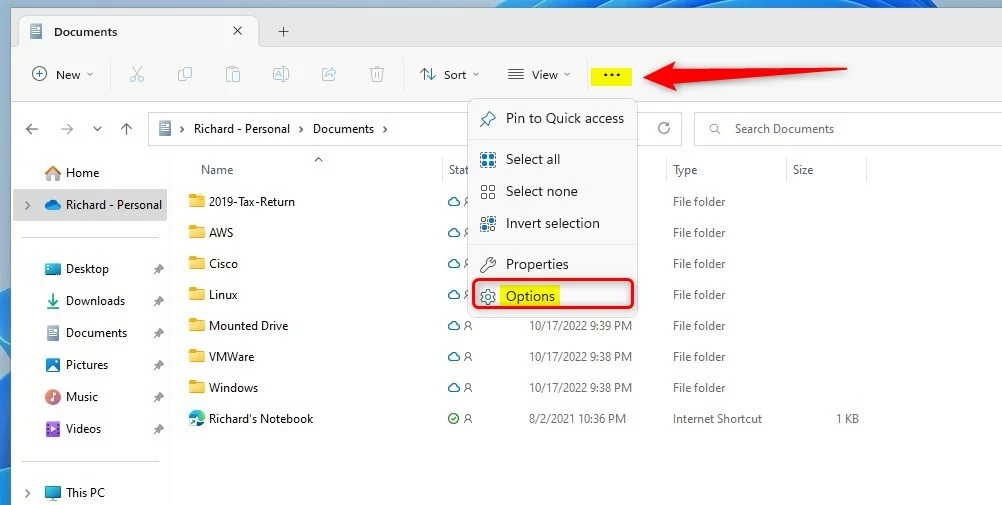
- Click the See more (three dots) button in the top menu. A drop-down menu appears.
- Select Options. The Folder Options window opens.
- Under the View tab, make sure Show libraries is checked in the Navigation pane section. Click OK and Libraries appears in the left sidebar.
Summary
For most problems, the Properties window in File Explorer is the quickest way to reset a library. It fixes broken links, missing folders, and display errors without touching your files. If that does not work, the registry steps can clear stubborn configuration problems and restore your default Windows views. Back up the key first.
Have a question about this guide?
Answered by AI from this guide. Good questions may be added to this page — please don't include personal details.
Did this guide fix your problem?

About the Author
Richard
Tech Writer, IT Professional
Richard is a writer at Geek Rewind who turns complex IT tasks into clear, step-by-step guides. He draws on years of hands-on experience in system administration and enterprise IT operations, focusing on Windows, Linux and WordPress: the problems people actually run into, and the fixes that work. His server and WordPress guides come from systems he runs himself. Richard builds and maintains the platform behind Geek Rewind, from its Ubuntu servers and Nginx configuration to its custom WordPress plugins. Many new tutorials start with readers' questions, and he's always glad to answer them in the comments.
No comments yet — be the first to share your thoughts!