How to Change Pen Button for Right-Click in Windows 11


Changing the pen button for right-click in Windows 11 lets you open context menus and shortcuts with your stylus instead of reaching for a mouse. With this set up, the side (barrel) button on your digital pen works like a standard right mouse click.
You can turn this on in under two minutes through the Settings app . Open Settings, go to Bluetooth & devices, and click Pen & Windows Ink to assign the right-click action to your pen. If your pen doesn’t offer that option, the Registry method later in this guide does the same job.
Open Settings , go to Bluetooth & devices, then click Pen & Windows Ink. Find the pen button option and select right-click from the dropdown menu. Test by pressing the barrel button on your pen to open a context menu .
Before You Start: Pair Your Pen with 🪟 Windows 11
First, make sure your pen is connected to your device over Bluetooth . If you need help pairing it, this guide walks you through it: How to Pair a Pen with Windows 11.
Certain models talk to the screen directly and need no pairing at all. If your pen already writes on the screen, it is working and you can move on. If the pen does use Bluetooth , check that it is charged or has a fresh battery before you start. A weak battery is a common reason the barrel button does nothing.
What Does the Pen Button Do by Default?
Why change this at all? By default, pressing and holding the pen tip on the screen acts like right-clicking with a mouse. That works, but it is slow, and it is easy to trigger by accident while you write or draw. Assigning right-click to the pen button gives you the context menu instantly, so you can work the way you want.
How to Make the Pen Button Act Like Right-Click
You can change your pen button to act like a right-click through the Settings app. This works the same on Windows 11 Home and Pro.
- Open Settings. Press the Win+I, or right-click the Start button and choose Settings.
- Click Bluetooth & devices in the left-hand list. You should see your connected devices on the right.
- Scroll down and click Pen & Windows Ink. The pen settings page opens.
- Find the option that sets what the pen button does and choose right-click. The exact options depend on your pen and device.
- Test it. Hold the pen just above an empty part of the desktop, press the side button, and tap the screen. A context menu should appear.
If Pen & Windows Ink is missing from the list, Windows hasn’t detected a pen-capable screen or pen. Check the pairing and the battery first, then restart the PC. If the page is there but the button option isn’t, your pen or driver may not support it. The Registry method below is the fallback.
To undo the change, return to the same page and set the button back to its previous action.
Advanced: Turn On/Off Pen Button Right-Click Using Windows Registry (Optional)
Turning the pen button right-click on or off through the Windows Registry gives you a more advanced way to control your stylus. This method needs administrator rights and the Registry Editor, which is a database that stores system settings and configuration info. You edit specific registry keys to change how the pen barrel button behaves, without using the Settings app.
Before you start, create a restore point or export a backup from the Registry Editor with File Export. The Registry Editor is available in both Home and Pro editions.
- [ADMIN PRIVILEGES REQUIRED] Open the Registry Editor. Press
Windows key + R, typeregedit, and press Enter. If Windows shows a User Account Control prompt, click Yes. The Registry Editor window should open, with a folder tree on the left. - Go to this folder path:
HKEY_CURRENT_USER\Software\Microsoft\Wisp\Pen\SysEventParameters. You can paste it into the address bar at the top of the Registry Editor, or click through the folders in the left pane. - If you don’t see the SysEventParameters folder, right-click on Pen, choose New Key, and name it SysEventParameters. The new key should appear under Pen. If the folder is already there, skip the creation and just select it.
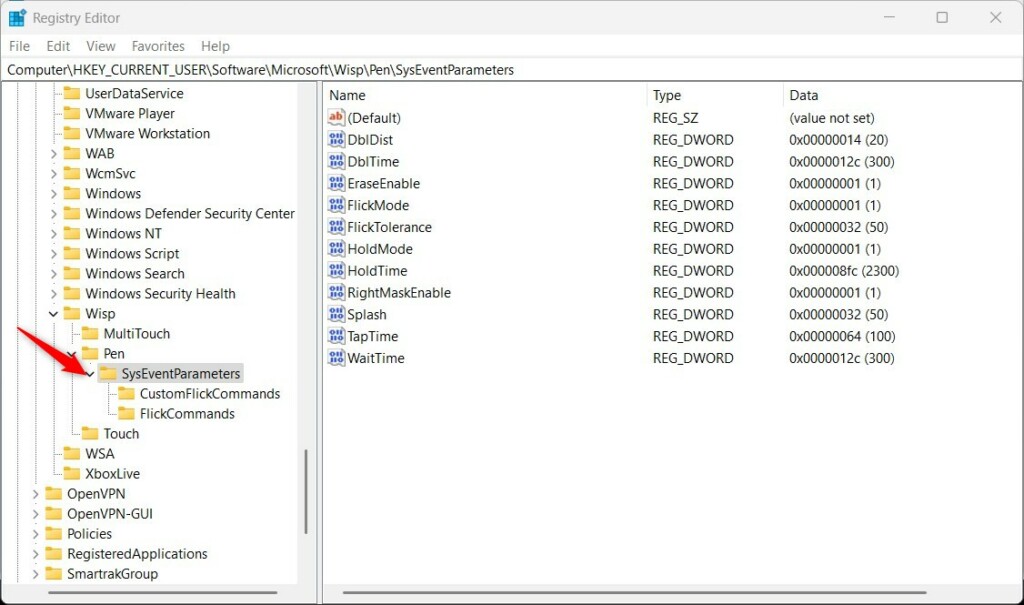
Windows 11 Registry Editor showing SysEventParameters key - Right-click on the empty space in the right-hand pane of the SysEventParameters key. Choose New DWORD (32-bit) Value. Name it RightMaskEnable. The new value should appear in the list. If a value with this name already exists, you don’t need to create another one.
- Double-click RightMaskEnable. Set the Base to Decimal. Then enter one of these values:
1to enable the pen button right-click0to disable it
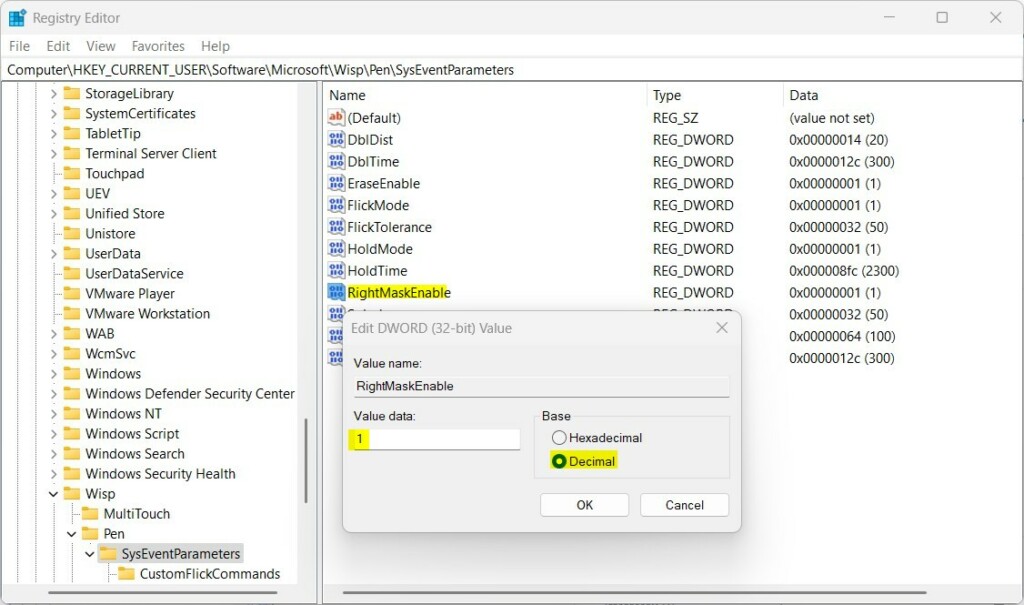
Toggle pen button right-click using Registry Editor - Close the Registry Editor, then restart your computer to make it work. The change won’t take effect until you sign in again after the restart. To undo it later, open the same value, enter the other number, and restart again.
Summary
Setting your pen button to right-click in Windows 11 helps you work faster by giving you quick access to context menus with your stylus. You can set it up with either the Settings app or the Registry Editor, depending on your preference. Both methods control how your pen barrel button responds when you press it against your screen or tablet.
Start with the Settings app. Only use the Registry if the option isn't available there.
The Registry Editor gives advanced users another way to control the pen button's right-click function. The Settings app lets you turn the feature on or off without any technical skills. Together, the two methods give you flexible control over how the pen button behaves. If something goes wrong, you can always reverse the change using the same method you used to make it.
Customize your pen to fit your style and boost your productivity!
Need more info? Check Microsoft's official guide on changing pen settings: Microsoft.com
Have a question about this guide?
Answered by AI from this guide. Good questions may be added to this page — please don't include personal details.
Did this guide fix your problem?

About the Author
Richard
Tech Writer, IT Professional
Richard is a writer at Geek Rewind who turns complex IT tasks into clear, step-by-step guides. He draws on years of hands-on experience in system administration and enterprise IT operations, focusing on Windows, Linux and WordPress: the problems people actually run into, and the fixes that work. His server and WordPress guides come from systems he runs himself. Richard builds and maintains the platform behind Geek Rewind, from its Ubuntu servers and Nginx configuration to its custom WordPress plugins. Many new tutorials start with readers' questions, and he's always glad to answer them in the comments.
No comments yet — be the first to share your thoughts!