How to Hide Recent Mobile Content in Windows 11 Start Menu

Recent mobile content in the Windows 11 Start menu displays your latest phone photos, calls, and text messages directly on your desktop. Phone Link (a built-in app that connects your phone to your computer) feeds this recent phone activity straight into your Start menu .
Hiding recent mobile content keeps your personal texts and photos private so anyone nearby cannot see them on your screen. You need Windows 11 version 22635.4805 or newer to turn off this feature.
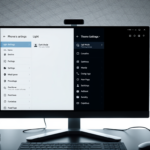
Open the Phone Link app and click the Settings gear. Select “Start menu personalization,” then toggle “Recent content” to disable it. This hides your mobile device’s recent content from the Windows 11 Start menu .
Show or Hide Recent Mobile Device Content in Start Menu
You can hide recent mobile content from the Windows 11 Start menu by changing a single setting in the Phone Link app. This stops your latest phone photos and files from showing up on your PC screen, keeping your recent activity private and your Start menu clean.
Here’s how to do it:
- Open the Phone Link app.
- Click the Settings button (gear) at the top right corner of your screen.
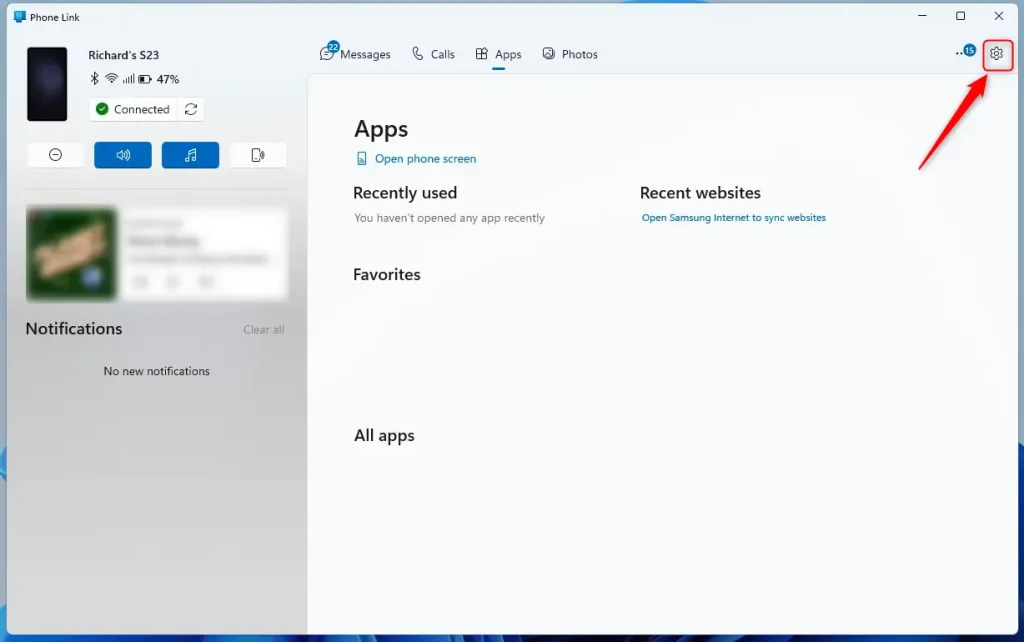
- Select “Start menu personalization” from the menu.
- Under “Content” on the right, toggle the “Recent content” button to enable or disable your mobile device’s recent content on the Start menu .
The feature also works with a drop-down menu that selectively shows or hides specific items on the Start menu . Available choices include:
- Show recent phone in the Start menu
- Show recent messages in the Start menu
- Show recent calls in the Start menu
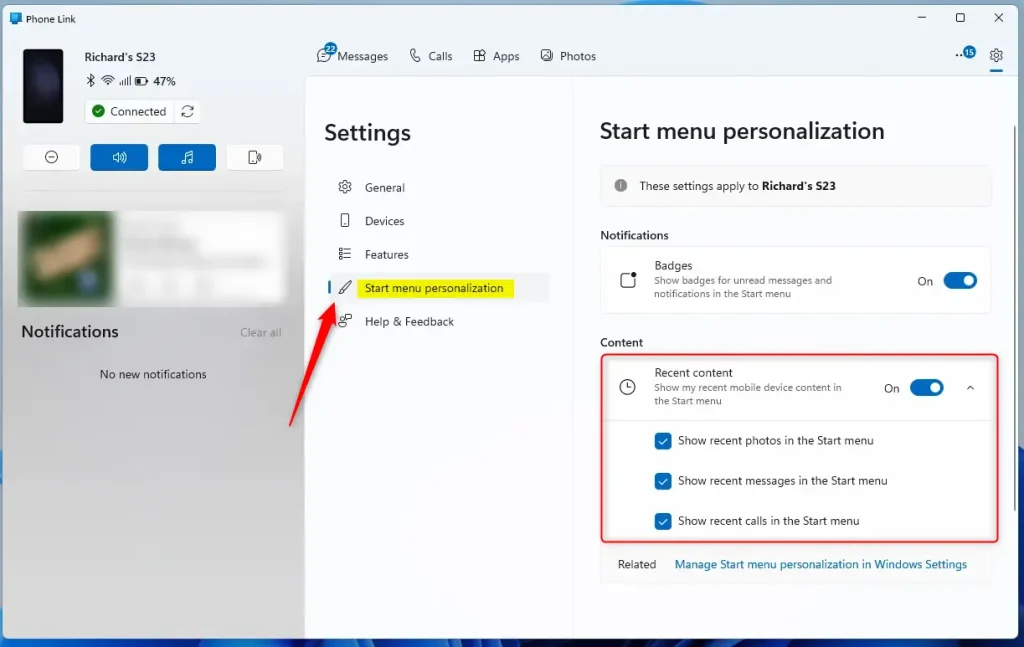
Mobile device content now displays or hides on the Start menu based on your new preferences.
Summary
The Phone Link app connects your phone to your Windows 11 PC and lets you manage what appears in your Start menu. You can turn off recommended apps by opening the app settings, tapping the menu, and switching off the recommendation toggle.
Was this guide helpful?

About the Author
Richard
Tech Writer, IT Professional
Richard is a writer at Geek Rewind who turns complex IT tasks into clear, step-by-step guides. He draws on years of hands-on experience in system administration and enterprise IT operations, focusing on Windows, Linux and WordPress: the problems people actually run into, and the fixes that work. His server and WordPress guides come from systems he runs himself. Richard builds and maintains the platform behind Geek Rewind, from its Ubuntu servers and Nginx configuration to its custom WordPress plugins. Many new tutorials start with readers' questions, and he's always glad to answer them in the comments.


No comments yet — be the first to share your thoughts!