How to Access the Handwriting Panel in Windows 11

The Handwriting panel in Windows 11 turns part of your screen into a writing pad. You write with a pen or your finger instead of typing on a physical keyboard. Windows 11 version 21H2 and later includes this tool, and it converts your handwriting into typed text in any text box or app.
You switch it on from the taskbar at the bottom of the screen, and it takes about a minute. It works best on touchscreen laptops and tablets, and even better if you have a pen. On a desktop PC with no touch screen you can still open the panel, but you have nothing to write with except a mouse, which is awkward.
Open the touch keyboard by clicking its icon on the taskbar. Then, click the settings gear icon on the keyboard and select “Handwriting” to begin writing. Windows converts your handwritten input into typed text automatically.
Steps to Open the Handwriting Panel
To use the Handwriting panel, first put the touch keyboard icon on your taskbar. The panel lives inside the touch keyboard, so you can’t reach it without that icon. The setting is in Settings, under Personalization, then Taskbar. Once it is on, the icon appears in the bottom right corner of the screen, near the clock.
What happens when you finish? Your handwriting appears as regular typed text in the app you are using. Nothing needs a restart, and you can turn the icon off again at any time.
Open the taskbar settings. Go to
Start > Settings > Personalization > Taskbar > System tray icons. You should see the Taskbar page with several sections, including the corner icons for the system tray.Find Touch keyboard and turn the switch on. If you can’t find it, make sure you are on Windows 11 and not looking at the older Windows 10 settings. The touch keyboard icon should now appear near the clock.
Set when the touch keyboard shows up. Click the dropdown menu next to Touch keyboard. Choose either
When no keyboard attachedorAlways. This controls when the keyboard appears on your screen. If you are on a desktop or a laptop with a physical keyboard attached, pick the option that keeps the icon visible all the time, or you may never see it.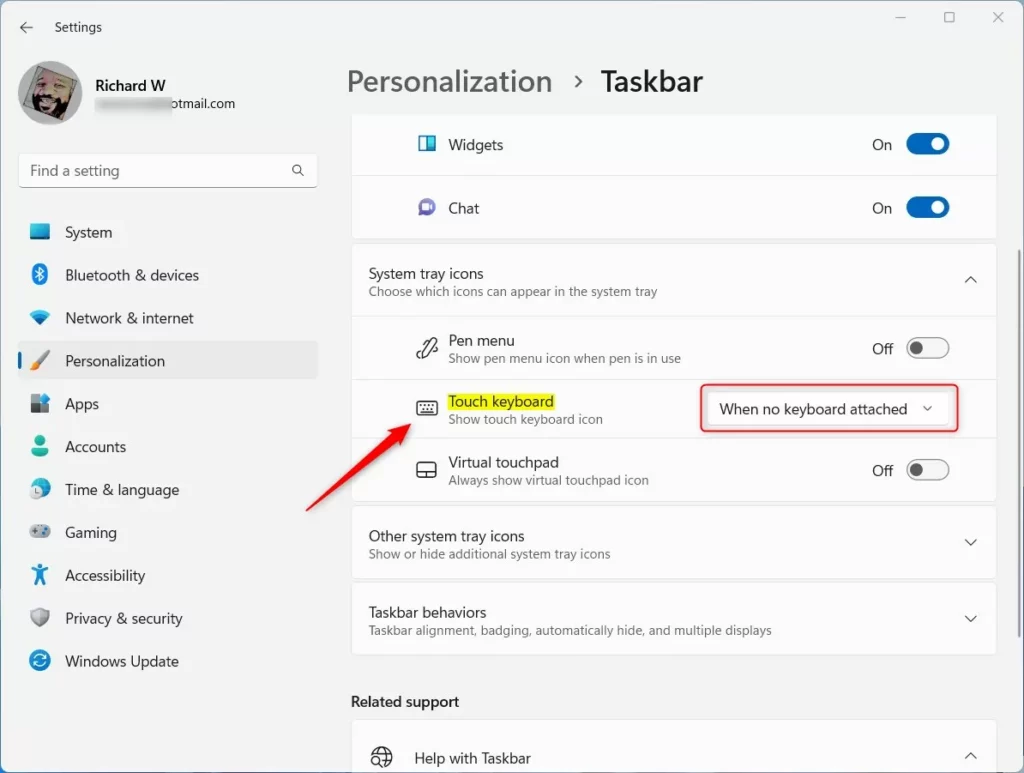
Windows touch keyboard show when no keyboard attached Click the touch keyboard icon on your taskbar. It looks like a small keyboard. The on-screen keyboard opens at the bottom of the screen.
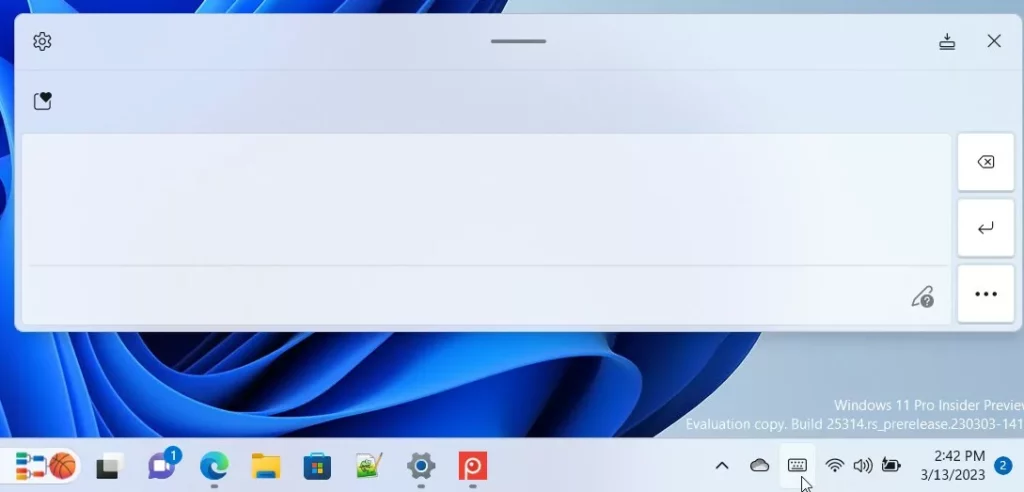
Windows touch keyboard icon on taskbar Click the Settings icon (the gear) on the keyboard window. Then select Handwriting from the menu. The keyboard is replaced by a blank writing area. If you don’t see Handwriting in the menu, check the keyboard layout button on the keyboard window, since the options can be arranged differently between builds.
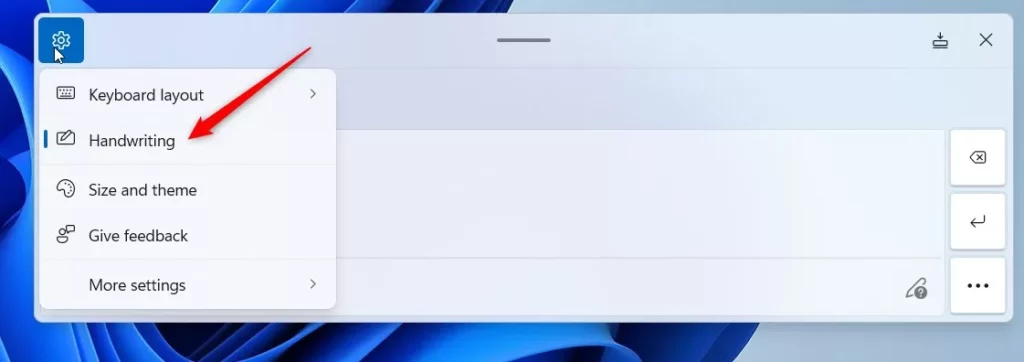
Windows touch keyboard handwriting panel Click into a text box in any app, such as Notepad or a browser search bar. Then start writing in the panel with your finger or pen. Windows changes your handwriting into typed text automatically, and the words appear in the text box as you write. Write clearly and leave a small gap between words, since that helps recognition.
To go back to normal typing, open the same gear menu and pick the keyboard layout again. To remove the icon, return to the taskbar settings and turn Touch keyboard off.
Summary
- The handwriting panel lets you write text using your finger or a pen on touchscreen devices.
- You access it through the touch keyboard’s settings in Windows 11.
- Enable the touch keyboard button on the taskbar. Then select handwriting mode to start writing by hand.
- Your written words will automatically turn into typed text.
The Handwriting panel lets you write naturally with your finger or a stylus on touchscreen devices. It converts your handwritten notes into typed text inside any app. You switch it on through the taskbar settings, so you can start writing by hand whenever you want. If the icon doesn’t show, check the touch keyboard setting first. That is the cause most of the time.
How to Open and Use Touch Keyboard in Windows 11
How to Turn On or Off On-screen Touchpad in Windows 11
Frequently asked questions
Does Windows support handwriting panel?
Yes. Windows 11 includes the Handwriting panel, which turns pen or finger writing into typed text in most apps. The panel sits inside the touch keyboard, so you must turn on the touch keyboard first. It works best on touchscreen laptops and tablets. A desktop PC without touch can still open it, but writing with a mouse is slow.
How to use handwriting in 🪟 Windows 11?
To use handwriting in Windows 11, turn on the touch keyboard icon in Settings, then open the Handwriting panel from the touch keyboard. Click into the text box where you want the words, and write with a pen or finger. Windows converts your ink into typed text. Write over a mistake or use ⌫ to fix it.
How to open handweriting keyboard surface?
On a Surface, open the Handwriting panel from the touch keyboard. First, go to Settings, then Personalization, then Taskbar, and set the touch keyboard icon to show. Tap the icon near the clock, then switch the layout to Handwriting. The panel opens on screen, ready for your pen or finger.
How to open handwriting panel?
To open the Handwriting panel, turn on the touch keyboard icon in Settings under Personalization, then Taskbar. Tap the keyboard icon near the clock on the taskbar, then choose the Handwriting layout. Write in any text box, and your writing turns into typed text.
How to do handwriting on 🪟 Windows 11?
To do handwriting on Windows 11, open the Handwriting panel and write inside it with a pen or finger. Click the text box first so the words land in the right place. Write one word at a time, and Windows converts the ink into typed text. Pen input gives the cleanest results, though touch works too.
🪟 Windows 11 can write on the keyboard mouse area?
Yes, but it is awkward. The Handwriting panel accepts mouse input, so you can click and drag to draw letters. Windows still converts the drawing into typed text. Mouse writing is slow and often hard to read, so a pen or touch screen gives much better results.
Still have a question?
Answered by AI from this guide. Good questions may be added to this page — please don't include personal details.
Did this guide fix your problem?

About the Author
Richard
Tech Writer, IT Professional
Richard is a writer at Geek Rewind who turns complex IT tasks into clear, step-by-step guides. He draws on years of hands-on experience in system administration and enterprise IT operations, focusing on Windows, Linux and WordPress: the problems people actually run into, and the fixes that work. His server and WordPress guides come from systems he runs himself. Richard builds and maintains the platform behind Geek Rewind, from its Ubuntu servers and Nginx configuration to its custom WordPress plugins. Many new tutorials start with readers' questions, and he's always glad to answer them in the comments.
No comments yet — be the first to share your thoughts!