How to Change Handwriting Font in Windows 11


The handwriting font in Windows 11 controls how your handwriting looks once Windows converts it to text in the handwriting panel. You can write with a stylus or a finger. By default the panel uses a standard system font, but you can switch to a different style.
The handwriting panel is part of the touch keyboard and pen input, so it works best on touchscreen devices and pen-enabled laptops. One correction: on current builds of Windows 11, pressing Win+H opens voice typing, not the handwriting panel. To reach handwriting, use the pen menu or the touch keyboard. If you have no touchscreen or pen, some of these options may not show up in Settings at all.
You can change the handwriting font in Windows 11 through Settings or the Registry Editor. Navigate to Settings Bluetooth & devices Pen & Windows Ink, then select your font. Alternatively, use regedit to modify 🗝️HKEY_CURRENT_USER\
Why change your handwriting font?
Changing the font is mostly about personal preference. A clearer typeface can make converted notes easier to read, and a distinctive one makes handwritten messages look like yours. The change applies only to the handwriting panel. It does not alter fonts in other apps or the rest of the Windows interface.
What happens when you are done?
Once you finish these steps, the panel converts your handwriting into the font you selected each time you use it. If the old font still appears, close and reopen the app you are writing in. If it still does not change, sign out and back in, or restart the PC.
Technical Limitations and Font Compatibility
The handwriting panel limits which fonts it can use. Most standard fonts work well. Decorative or symbol-only fonts, or fonts with missing characters, may display badly or fall back to the default. If a font looks wrong, pick a different one or go back to the original setting.
Comparison Table: Font Compatibility
| Font Type | Compatibility |
|---|---|
| Standard (.ttf) | High |
| OpenType (.otf) | High |
| Decorative/Script | Low (May cause rendering errors) |
Change the font using Settings
The easiest way to change the handwriting font is the Settings app. It needs no extra tools or downloads, and it works the same on Windows 11 Home and Pro. Open the pen settings and choose a new typeface for the touch keyboard and pen input. Settings is also the safer route, because you cannot damage anything by picking the wrong option.
If you do not see the Pen & Windows Ink tile, your device may not have a pen or touch input. Windows can hide pen settings on hardware without them. Pen settings can also look slightly different between Windows 11 versions, so the exact labels may vary a little.
- Open the Settings app by pressing Windows key + I. The Settings window opens.
- Click Bluetooth & devices on the left menu. The list of connected devices and device settings appears on the right.
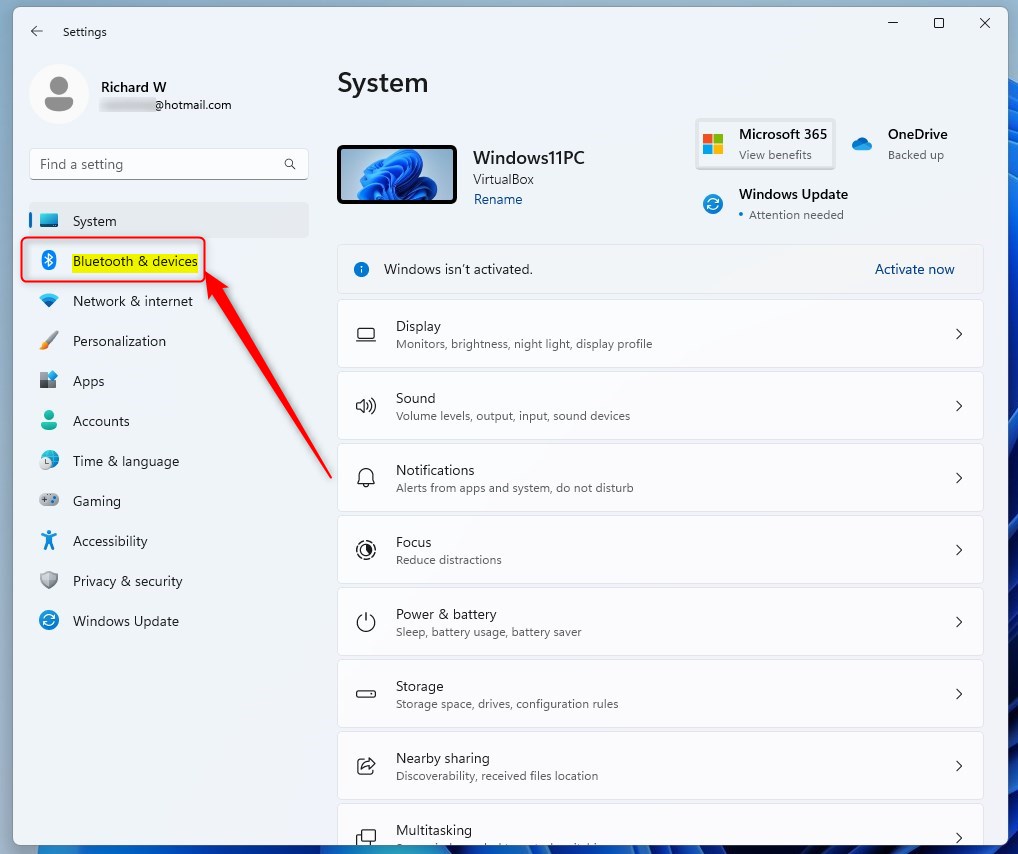
windows 11 bluetooth and devices - Select the Pen & Windows Ink tile on the right. The pen settings page opens.
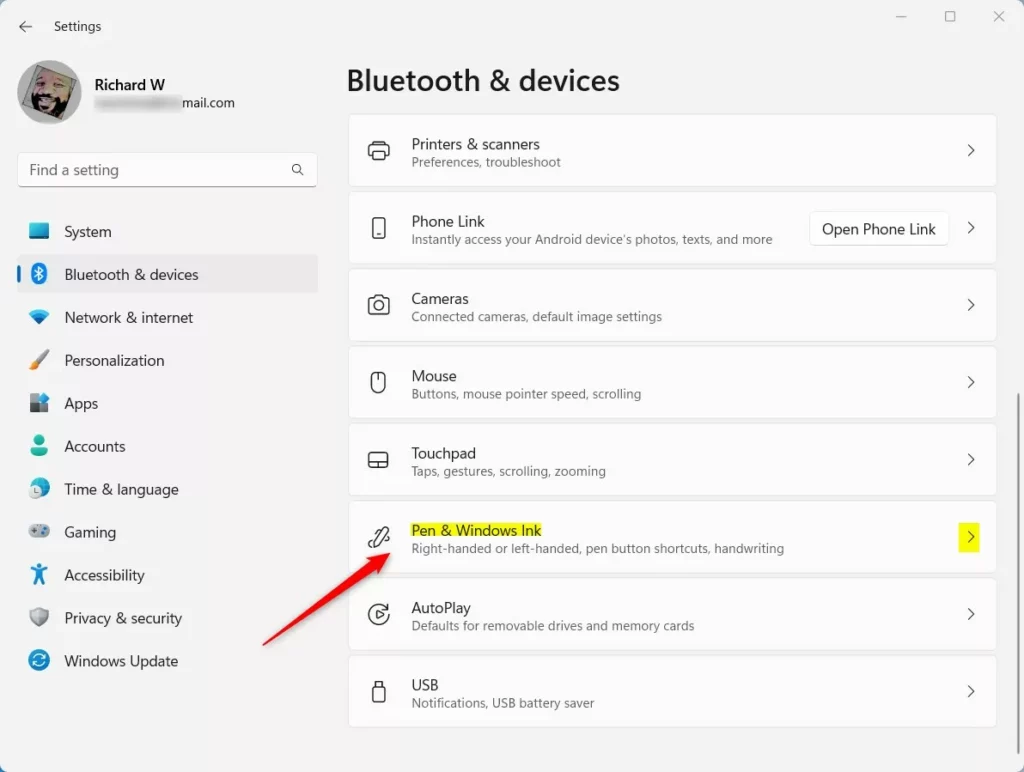
Windows pen and windows ink tile - Under the Handwriting section, click to expand the Use your handwriting to enter text tile. The tile opens and shows its options.
- Choose your preferred font from the list. Pick one name only; the selection should be highlighted or shown in the box.
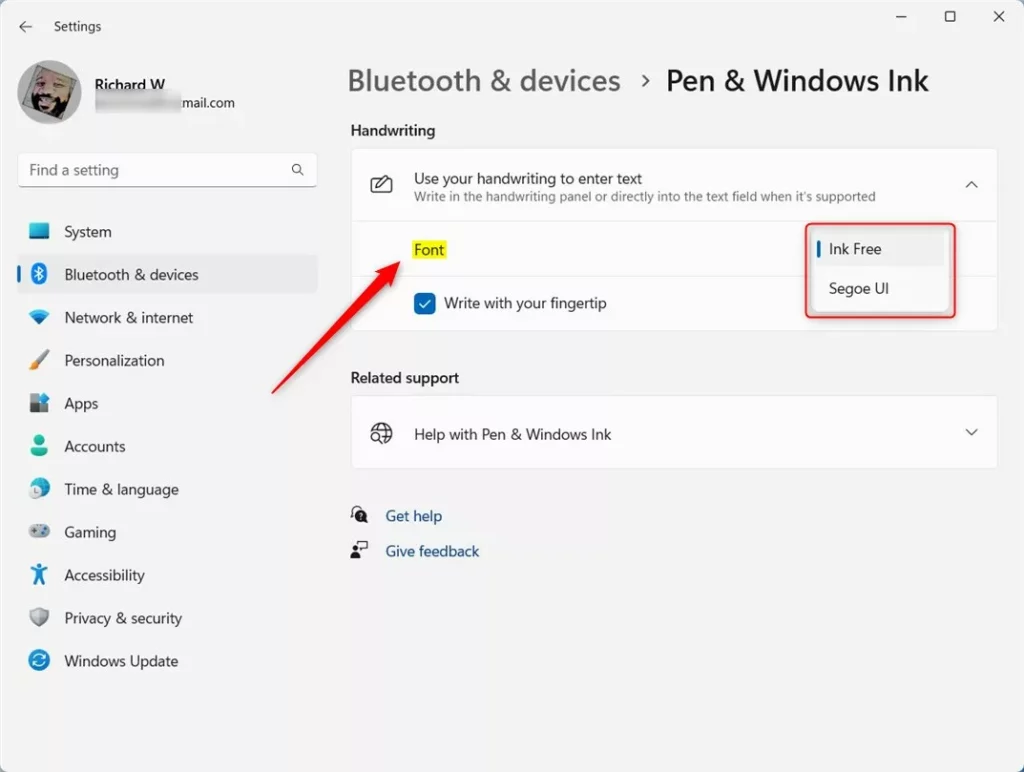
Settings menu for changing the handwriting panel font in Windows 11 - Close the Settings app. The change is saved as soon as you pick the font, so you do not need to restart.
Change the font using the Registry Editor
The second method uses the Registry Editor, a tool for advanced system settings. It lets you set a custom typeface that does not appear in the standard Settings list. Follow the path exactly, because a wrong edit in the registry can cause system errors. This method works on both Home and Pro editions.
Before you start, make a backup. In Registry Editor, select the TabletTip key if it exists, then go to File Export and save the file somewhere safe. To undo your changes later, delete the value you create below, or double-click the exported file to restore the old settings.
- Press Windows key + R, type regedit, and press Enter. If Windows asks whether to allow the app to make changes, click Yes. The Registry Editor window opens.
- Go to this path:
HKEY_CURRENT_USER\Software\Microsoft\TabletTip\EmbeddedInkControl. You can paste it into the address bar at the top of the window, or expand the folders on the left one by one. - If you do not see the EmbeddedInkControl folder, right-click on the TabletTip folder, select New, then Key and name it
EmbeddedInkControl. The new folder appears under TabletTip. 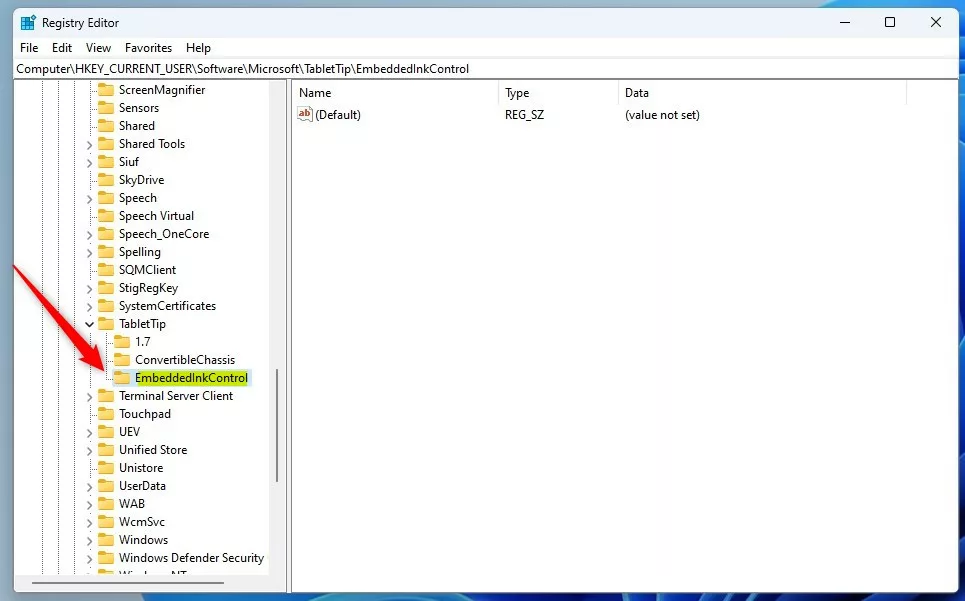
Windows enable or disable writing with fingertip registry - Right-click in the empty space on the right side, select New, then String Value. Name it
LatinFontName. The new value appears in the list on the right. - Double-click
LatinFontNameand type the exact name of the font you want to use. You can find installed fonts inC:\Windows\Fonts. Spelling and spacing must match the font name exactly, or Windows will ignore the value. 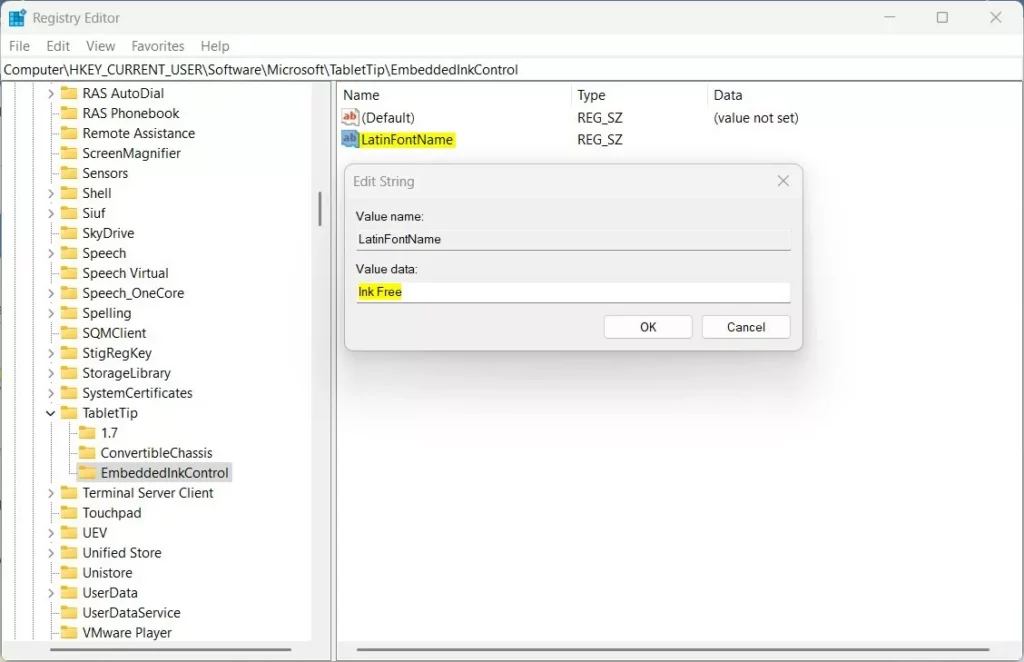
Change the handwriting penel font via Windows Registry - Save your changes and restart your computer. Registry Editor applies edits as soon as you confirm them, but the restart makes sure the handwriting panel loads the new value.
Avoid downloading unknown font files that could contain malicious code. If the panel shows the wrong font after the restart, check the font name for typos first.
Summary
You can change the handwriting font in Windows 11 using either the Settings app or the Registry Editor. Start with Settings, since it is quicker and carries no risk. Use the Registry Editor only if the font you want is not in the list, and keep a backup of the key before you edit it.
Was this guide helpful?

About the Author
Richard
Tech Writer, IT Professional
Richard is a writer at Geek Rewind who turns complex IT tasks into clear, step-by-step guides. He draws on years of hands-on experience in system administration and enterprise IT operations, focusing on Windows, Linux and WordPress: the problems people actually run into, and the fixes that work. His server and WordPress guides come from systems he runs himself. Richard builds and maintains the platform behind Geek Rewind, from its Ubuntu servers and Nginx configuration to its custom WordPress plugins. Many new tutorials start with readers' questions, and he's always glad to answer them in the comments.



[…] fingertip on the handwriting panel, the text you entered will automatically be converted to Ink Free font type with medium […]