How to Resize the Touch Keyboard in Windows 11

- 5 steps
- Needs administrator rights
- Includes a restart or sign-out
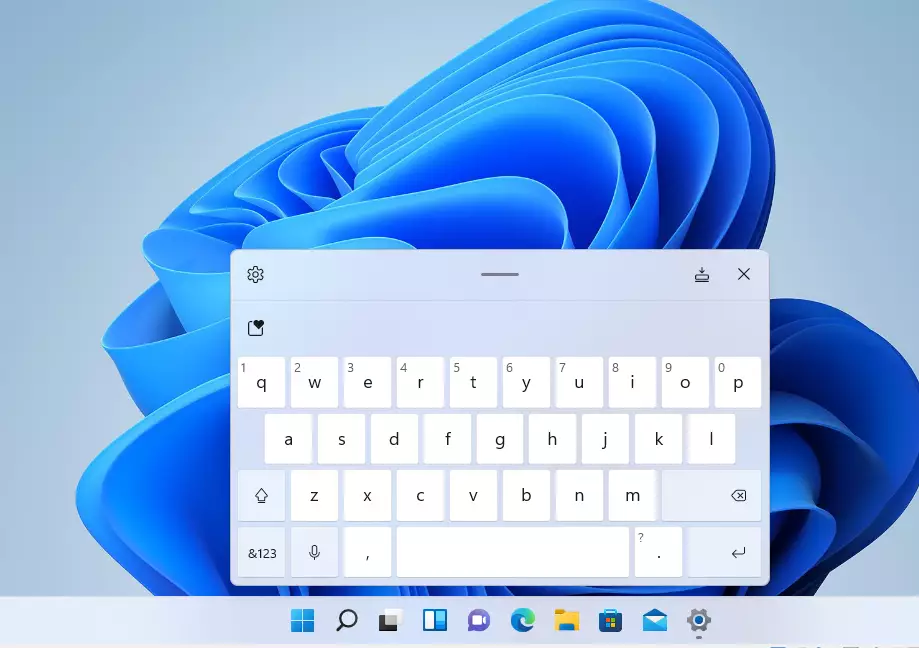
The touch keyboard in Windows 11 is a built-in virtual keyboard that lets you type on screen without a physical keyboard. Windows 11 version 22H2 and newer include a size slider in Settings. Use it to make the layout larger if you keep missing keys, or smaller if it covers too much of the screen.
Open Settings, go to Personalization, then Touch keyboard. Use the Keyboard size slider to adjust the width and height of the touch keyboard to your preference. The change takes effect immediately.
Why resize the Touch keyboard?
Resize the touch keyboard when the keys feel too small to tap accurately, or when it covers too much of the screen. This comes up most on tablets, 2-in-1 laptops and touchscreen monitors. A size that works on a 10-inch tablet is often too small on a larger display, and the reverse is also true. The slider needs Windows 11 22H2 or newer. If the option is missing, check your version at Settings System About and install any pending updates.
What happens when done?
Windows applies your new size immediately and remembers it the next time the keyboard opens. You don’t need to restart or sign out. To undo the change, go back to the same slider and set it to 100, the default.
Understanding TabTip vs. Touch Keyboard
Windows refers to the touch keyboard internally as TabTip. Don’t confuse it with the On-Screen Keyboard (OSK), which is a separate tool, usually used with a mouse or other pointing device. The setting in this tutorial changes only the touch keyboard, not the OSK.
How to resize the Touch keyboard
To resize the touch keyboard, open the main system settings and adjust the keyboard size slider. The same steps work on Home and Pro editions. Moving the slider makes the typing area larger or smaller, so it fits your screen and feels comfortable to use.
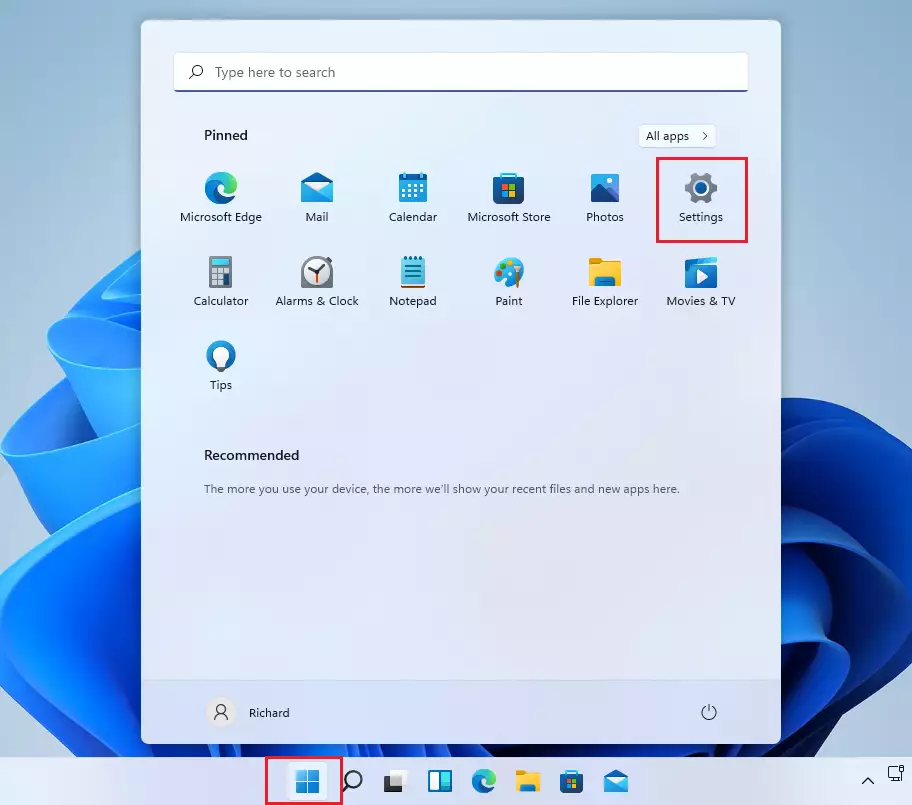
- Open the Settings app. Press Win+I, or click Start and select the Settings icon. The Settings window opens with a list of categories on the left. Official Microsoft Accessibility Guide
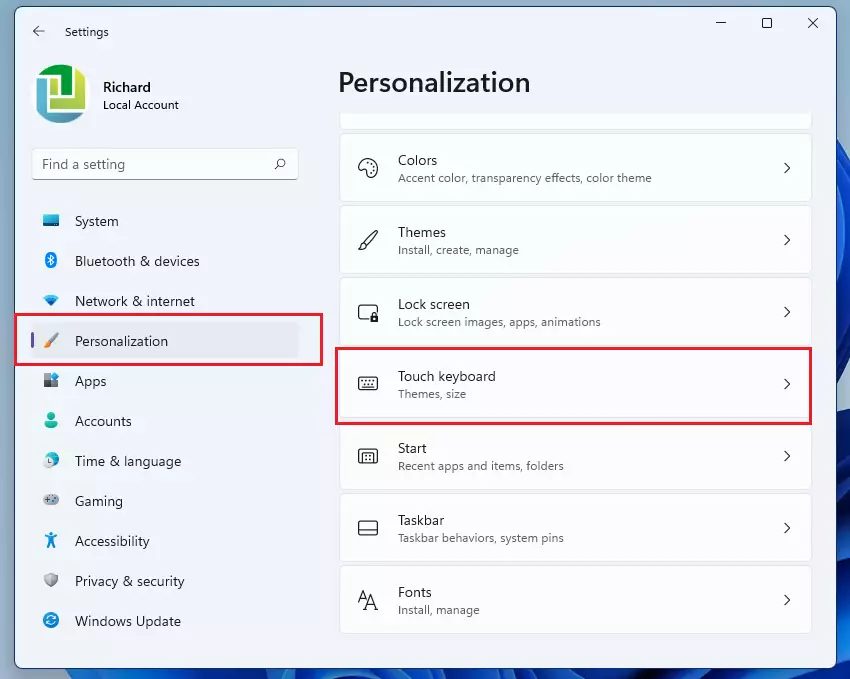
- In the Settings window, click Personalization in the left-hand list. The personalization options appear on the right.
- Look for Touch keyboard on the right side of the screen and click it. The touch keyboard settings page opens. On some builds these options sit under Personalization Text input instead, so check there if you don’t see the entry.
- Find the slider labeled Keyboard size. It is on the touch keyboard page, near the keyboard theme options.
- Slide it left to make the keyboard smaller, or right to make it larger. The default setting is 100. Note the starting value before you change it so you can get back to it easily.
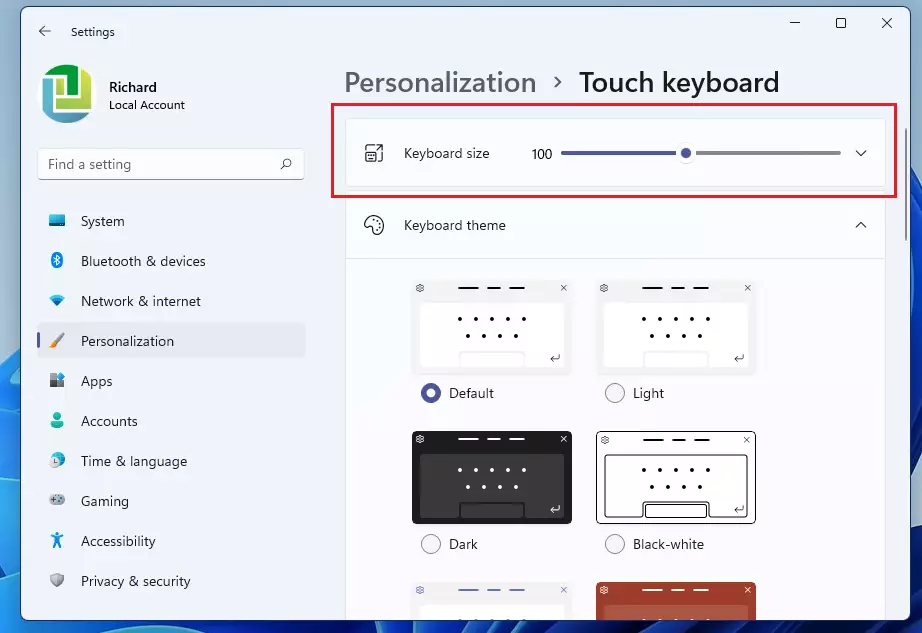
As you move the slider, the keyboard changes size right away, so you can judge whether it fits your screen better. If it’s still too big or too small, keep adjusting until the keys are easy to hit and the keyboard no longer hides the text you’re typing into.
Troubleshooting Common Bugs
If the touch keyboard looks cut off or scaled incorrectly, check your display scaling settings first (Settings System Display Scale). A high scale value on a small screen is a common cause. If the scaling is fine, restart the TabTip process. Restarting the PC also restarts it, and that’s the simplest way if you’re not sure how to end the process yourself.
Advanced Registry Workaround
If the slider is greyed out or has no effect, force a reset using the Registry Editor (a database for system settings). Navigate to HKEY_CURRENT_USER\Software\Microsoft\TabletTip\1.7 and adjust the KeyboardScale value. Editing the registry requires caution, as incorrect changes can affect system stability. Before you change anything, back up the key (in Registry Editor, right-click it and choose Export) or create a restore point. Sign out and back in, or restart, afterwards so the new value is picked up. If the slider is missing altogether rather than greyed out, you are most likely on a version older than 22H2, and updating Windows is the better fix.
Summary
Resizing the touch keyboard is a small adjustment that makes a real difference. The Keyboard size slider lets you change key sizes to fit your screen and your hands, which makes typing more comfortable. If you get it wrong, set the slider back to 100 and start again.
Have a question about this guide?
Answered by AI from this guide. Good questions may be added to this page — please don't include personal details.
Did this guide fix your problem?

About the Author
Richard
Tech Writer, IT Professional
Richard is a writer at Geek Rewind who turns complex IT tasks into clear, step-by-step guides. He draws on years of hands-on experience in system administration and enterprise IT operations, focusing on Windows, Linux and WordPress: the problems people actually run into, and the fixes that work. His server and WordPress guides come from systems he runs himself. Richard builds and maintains the platform behind Geek Rewind, from its Ubuntu servers and Nginx configuration to its custom WordPress plugins. Many new tutorials start with readers' questions, and he's always glad to answer them in the comments.
No comments yet — be the first to share your thoughts!