How to Change Desktop Icon Size in Windows 11


- 15 steps
- Needs administrator rights
- Includes a restart or sign-out
Windows 11 lets you change the size of your desktop icons, and the same idea applies to File Explorer, display scaling and the taskbar. The desktop has three presets: Large, Medium, and Small. You can also hold the Control key and use your mouse scroll wheel to set any size in between.
This guide covers four things: resizing desktop icons, changing the icon view in File Explorer, scaling everything on screen through Display settings, and changing taskbar icon size through the registry. None of the desktop or File Explorer changes need special permissions. They work the same on Home and Pro, and you can reverse any of them in a few seconds.
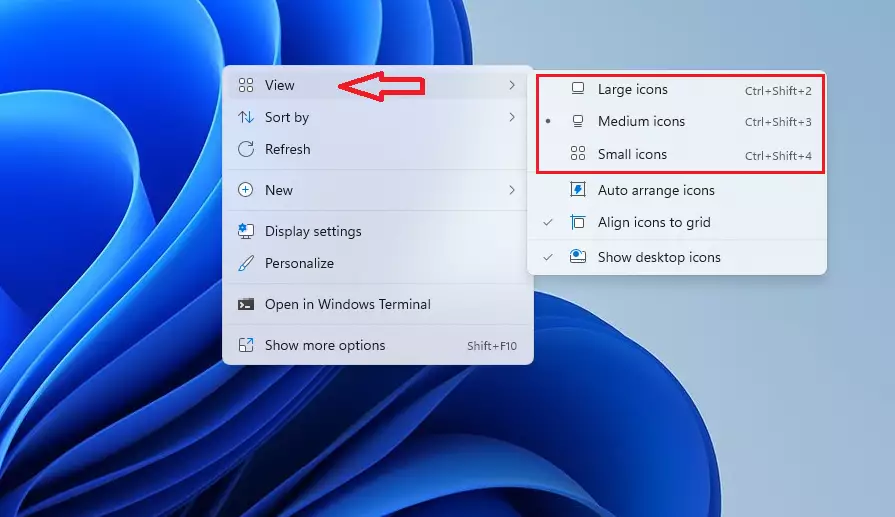
Hold Control and scroll your mouse wheel up on an empty part of the desktop to make icons larger, or down to make them smaller. For fixed sizes, right-click the desktop, point to View, and pick Large, Medium, or Small icons. The change applies immediately, and you can reverse it the same way.
Why Change Icon Sizes?
Larger icons help you spot items quickly if you have trouble seeing small details. They are also easier to hit on a touchscreen or a high-resolution monitor where everything looks tiny. Smaller icons clear screen clutter and give you more workspace, which helps if your desktop is full of shortcuts and folders.
Windows uses Medium icons by default. If you change the size and don’t like the result, you can go back to Medium at any time.
What Happens When Done?
Your screen layout changes immediately after you apply these settings. No restart or sign-out is needed. Your icons will be easier to click or will leave you more room to work, depending on the size you picked.
If your icons end up in odd places after a size change, right-click an empty area of the desktop and open View. There you can turn Auto arrange icons and Align icons to grid on or off. If the icons have disappeared completely, check that Show desktop icons in the same menu is ticked.
How to Resize Desktop Icons
Scrolling up makes the icons larger and scrolling down makes them smaller. You don’t need to open any settings menu. Click an empty spot on the desktop first, so the desktop has focus. On a laptop, hold Control and use a two-finger scroll on the touchpad.
This shortcut gives you sizes between the presets. If you prefer fixed sizes, right-click an empty space on your desktop, point to View, and pick Large, Medium, or Small icons. The steps are below.
- Right-click on any empty space on your desktop. A context menu opens. If you right-click an icon by mistake, you get a different menu, so click a blank area and try again.
- Click on View. A submenu opens with the icon sizes and a few layout options.
- Pick Large, Medium, or Small. The current size has a dot next to it. If you used Control + scroll earlier, none of the three may be marked, because you set a custom size.
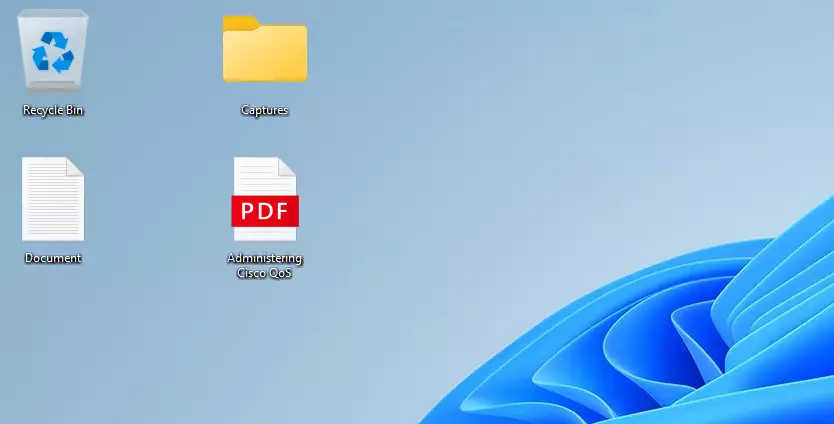
Your icons change size right away. To undo the change, repeat the steps and pick Medium.
How to Resize Folder Icons
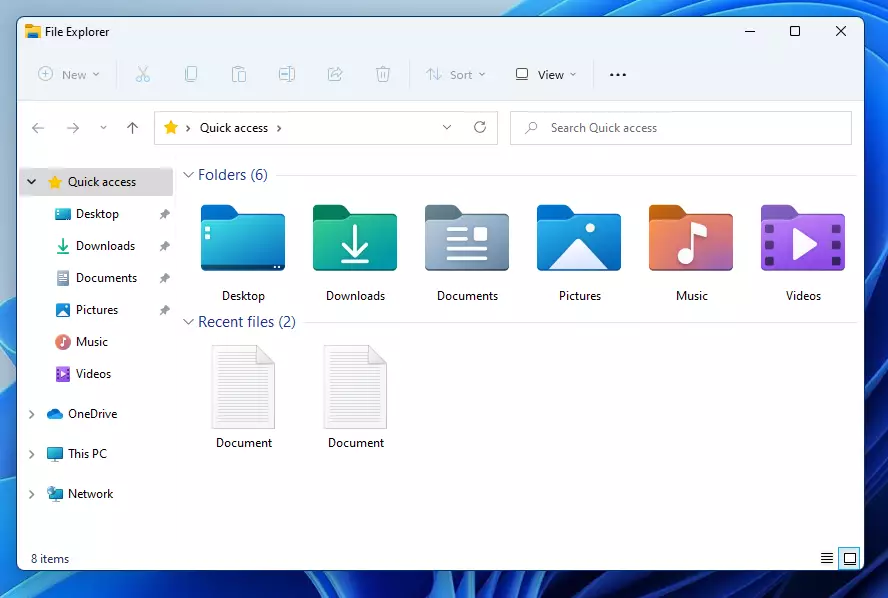
It’s also possible to change how your files and folders appear within File Explorer. This is separate from the desktop setting. Changing the view in a folder affects that folder (and folders of the same type), not your desktop icons.
- Open File Explorer and go to the folder you want to change. You can press Win+E to open it quickly.
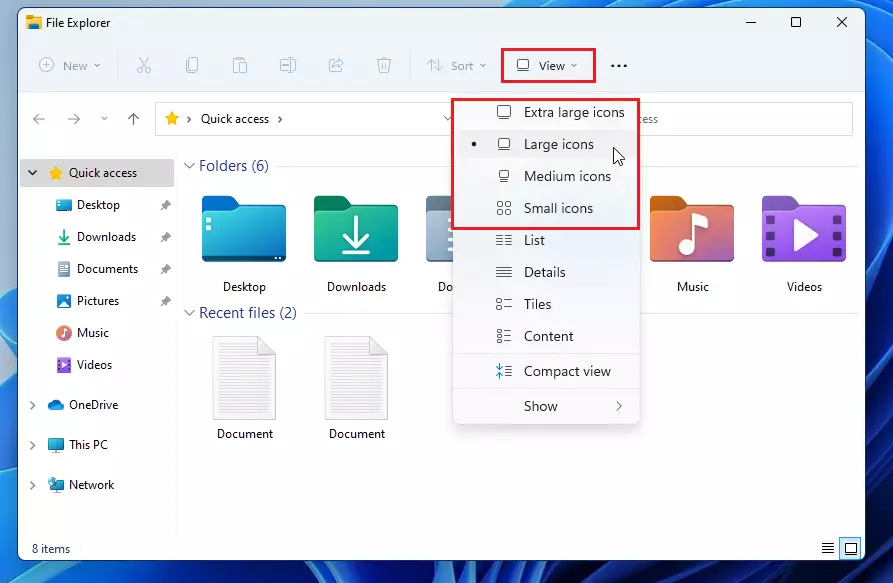
- Click the three dots icon at the top of the window. A menu opens. If you don’t see the size options there, look for View in the toolbar at the top of the window. In Windows 11 the layout choices usually sit under that menu.
- Select your preferred size from the list. The files in the folder resize at once. Extra large, Large, Medium and Small icons are available, along with list-style views such as Details.
Accessibility and Display Scaling
You can change display scaling in Windows 11 to make everything on your screen bigger, including your desktop icons, text and apps. Open Display settings by right-clicking your desktop, find the Scale option, and pick a higher percentage like 125% or 150%. This helps if you have trouble reading small text or seeing tiny items on a high-resolution monitor.
Scaling is different from the icon presets. It changes the size of the whole interface, not just icons. Windows marks one percentage as Recommended for your screen, which is a good starting point. You can also reach the same page from Settings System Display.
- Right-click your desktop and select Display settings. The Settings app opens on the Display page.
- Look for Scale under the Scale & layout section. If you use more than one monitor, select the screen you want to change at the top of the page first, because scaling is set per display.
- Choose a percentage like 125% or 150%. The screen resizes straight away. Some apps may look blurry until you close and reopen them, and Windows may ask you to sign out and back in. To undo the change, pick the previous percentage from the same list.
For more help with accessibility, visit the official Microsoft accessibility documentation.
How to Resize Taskbar Icons
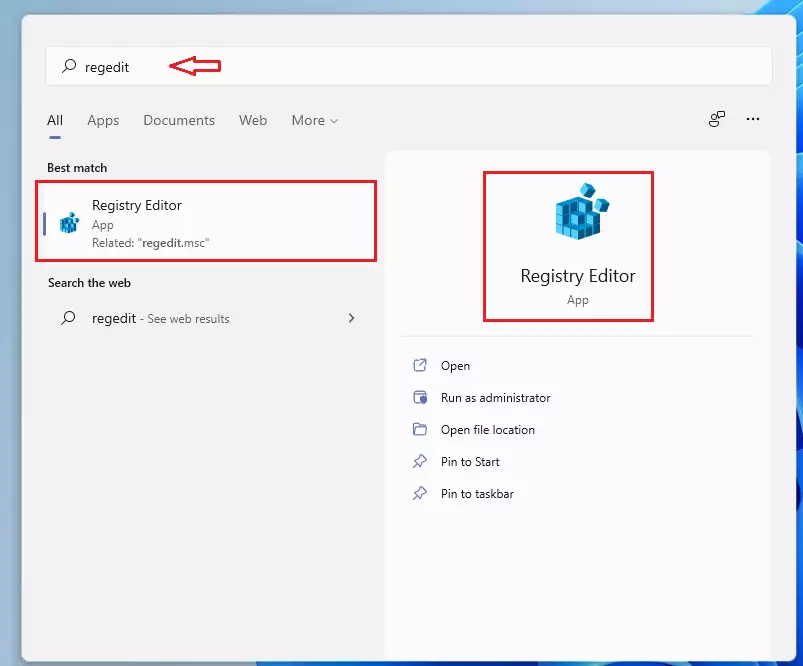
You can change taskbar icon size in Windows 11 by editing the Registry Editor (a database for system settings), since Microsoft removed the simple switch from the main settings menu. Because this method changes system configuration, you need administrator permissions to make it work. Press the Win+R, type regedit, and press Enter to open the tool and start the fix.
A wrong edit can cause problems, so change only the value described here. If you want a safety net, create a restore point first. This method works on both Home and Pro. On some recent Windows 11 builds the taskbar may ignore this value, so if nothing changes after the steps below, the setting is probably not supported on your version.
⚠️ Admin Privileges Required: You must have administrator rights to perform these steps. If you are signed in with a standard account, Windows asks for an administrator password when you open the tool.
- Press the Win+R on your keyboard. The Run box opens in the lower-left corner of the screen.
- Type
regeditand press Enter. Click Yes if User Account Control asks for permission. The Registry Editor window opens.
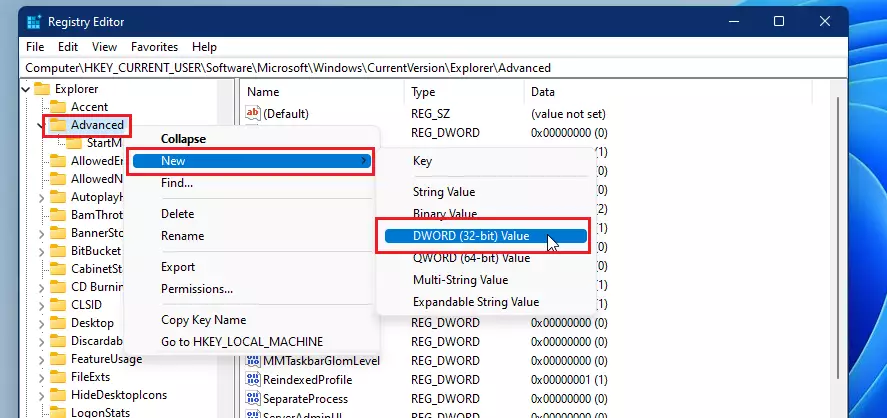
Use the path bar at the top to go to this location. Paste the path into the bar and press Enter. The left pane then jumps to the right key.
HKEY_CURRENT_USER\Software\Microsoft\Windows\CurrentVersion\Explorer\Advanced- Right-click on the Advanced folder in the left pane. A context menu opens.
- Select New, then click DWORD (32-bit) Value. A new entry appears in the right pane with its name highlighted for editing.
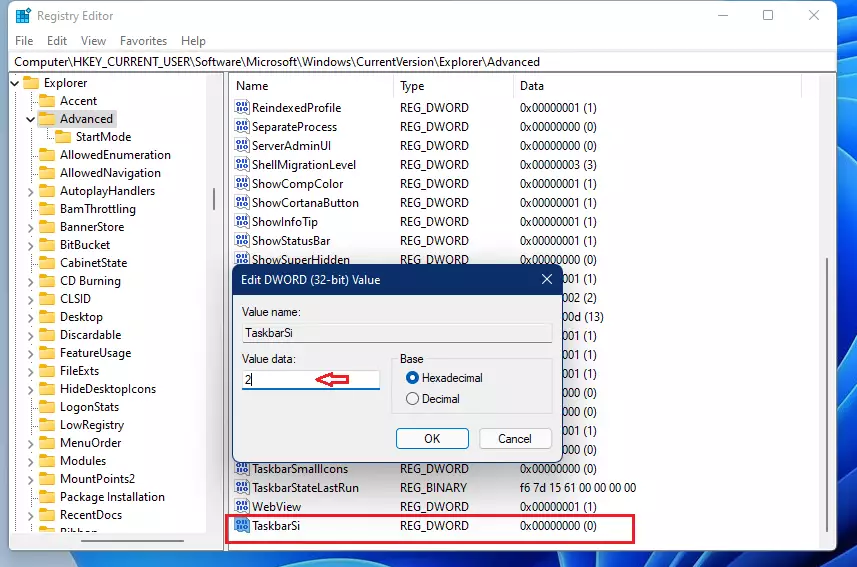
- Name this new value:
TaskbarSi. If a value with this name already exists, don’t create a second one. Just edit the existing one. - Double-click it and set the value to 0 (small), 1 (medium), or 2 (large). Click OK to save it.

Summary
Changing icon sizes in Windows 11 helps you make your computer easier to use, whether you need bigger icons to see them better or smaller ones to fit more on your screen. You can change desktop and folder icons using your mouse or a keyboard shortcut.
For a quick change, use Control + scroll. For a fixed size, use the View menu. For a bigger interface overall, use display scaling. Every one of these can be reversed, so try different sizes until your screen feels comfortable.
Have a question about this guide?
Answered by AI from this guide. Good questions may be added to this page — please don't include personal details.
Did this guide fix your problem?

About the Author
Richard
Tech Writer, IT Professional
Richard is a writer at Geek Rewind who turns complex IT tasks into clear, step-by-step guides. He draws on years of hands-on experience in system administration and enterprise IT operations, focusing on Windows, Linux and WordPress: the problems people actually run into, and the fixes that work. His server and WordPress guides come from systems he runs himself. Richard builds and maintains the platform behind Geek Rewind, from its Ubuntu servers and Nginx configuration to its custom WordPress plugins. Many new tutorials start with readers' questions, and he's always glad to answer them in the comments.
Hello good time!
In windows, for example on the desktop, can we resize the icons of some programs?
For example, there are 10 icons on the desktop, can we change the size of 3 icons?
Is this possible in windows?
Instructions on “View” and selecting icon size – DOESN’T WORK !!