How to Enable or Disable Drop Shadows for Icon Labels on Desktop in Windows 11

- 2 ways to do it
- Needs administrator rights
- Includes a restart or sign-out
Drop shadows for icon labels on the Windows 11 desktop add a faint dark outline behind the text. This makes filenames easier to read against colorful or busy wallpapers. Windows 11 turns the effect on by default for all desktop icons.
You can turn drop shadows off if they make the text look blurry. You can leave them on if you use bright or detailed wallpaper, where the shadow helps the labels stand out. Either way the change only affects how labels look. Your icons, files and shortcuts are not touched.
This guide covers two ways to change the setting: the Performance Options window and the Registry Editor. Both work on Windows 11 Home and Pro. Use the first one unless you have a reason to edit the registry.
Open the Run window with Win+R, type SystemPropertiesPerformance.exe and click OK. In Performance Options, click the Visual Effects tab, find Use drop shadows for icon labels on the desktop, check to enable or uncheck to disable, then click OK. The change appears immediately on your desktop.
Option 1Use Performance Settings
Performance Options is the quickest way to turn drop shadows for icon labels on or off. This built-in window controls Windows visual effects, so you can change how your desktop looks without editing any system files. Follow these steps to find the right checkbox.
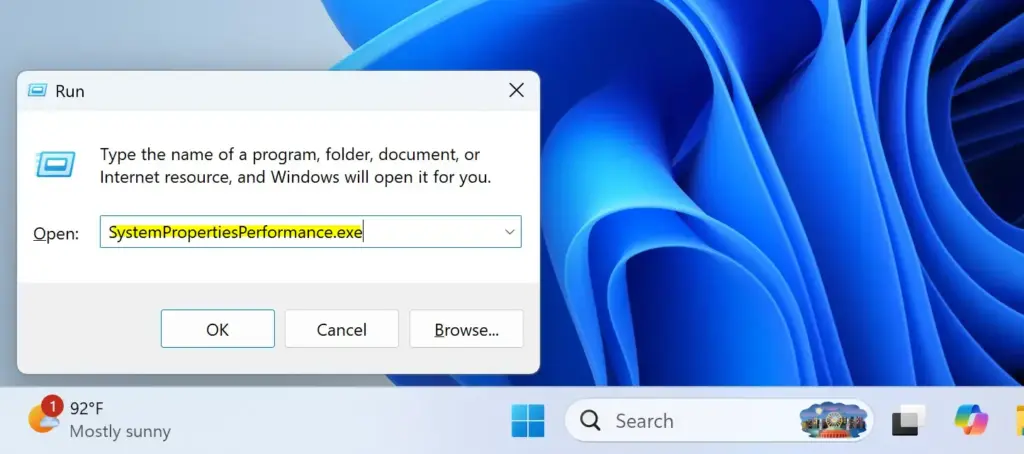
- Press Win+R on your keyboard. A small window called “Run” opens.
- Type
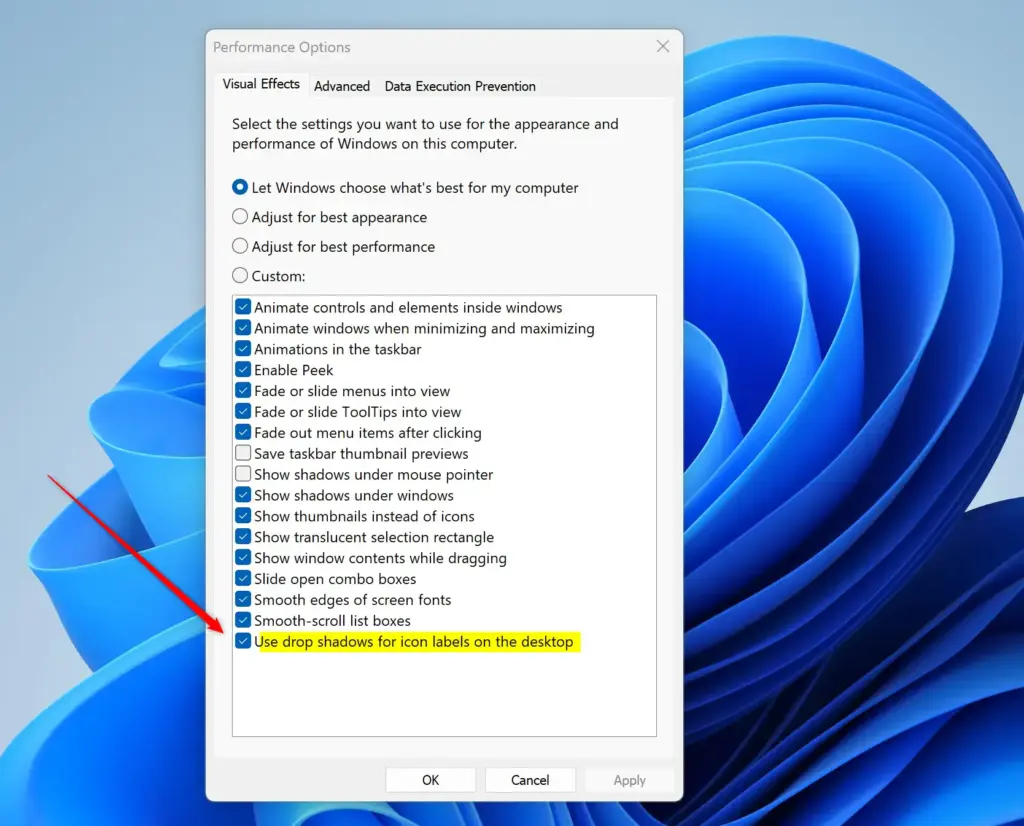
SystemPropertiesPerformance.exeinto the box and click OK. A window called “Performance Options” opens. - Click the Visual Effects tab at the top. You should see a list of checkboxes for visual effects.
- Scroll through the list until you find Use drop shadows for icon labels on the desktop.
- Check the box to turn the shadows ON. This is the default.
- Uncheck the box to turn the shadows OFF.
- Click OK at the bottom to save your changes. The window closes. Look at your desktop and the icon labels should now look different.
If you change one checkbox, the radio button at the top switches to Custom. That is normal. It just means you no longer use one of the preset profiles.
The change normally shows on the desktop straight away. If the labels look the same, sign out and sign back in. To undo the change, open the same window and tick or untick the box again.
Option 2Manually Edit the Registry
To make a quick backup, open Registry Editor, click File, then Export. Choose All as the export range, name the file, and save it somewhere safe. If something goes wrong, you can double-click that file to restore it. Creating a restore point is another safe option.
- Press Win+R on your keyboard.
- Type
regedit.exeinto the box and click OK. If Windows asks for administrator permission, click Yes. Registry Editor opens. - In the left-hand pane, go to this location. You can expand each folder in turn, or paste the path into the address bar at the top of the window.
HKEY_CURRENT_USER\Software\Microsoft\Windows\CurrentVersion\Explorer\Advanced - In the right-hand pane, find the item named
ListviewShadow. If you cannot see it, check that you are in the right location. You can also use the Performance Options method above instead. - Double-click
ListviewShadow. A small “Edit DWORD (32-bit) Value” window opens. - In the Value data box, enter one of these values and click OK:
- Type
1to turn the shadows ON. This is the default. - Type
0to turn the shadows OFF.
- Type
- Close Registry Editor. The change does not show up yet.
- Restart your computer, or sign out and sign back in, to see the change.
To undo the change, repeat the same steps and enter the other value. If you made a backup and something else broke, import the exported file to restore it.
Summary
Controlling Windows 11 drop shadows for your desktop icon labels is simple once you know where to look. Use the Performance Options window for a quick change that takes effect right away. Use the registry method if you prefer to edit the value yourself, and remember to back up first and sign out or restart afterwards. Both methods give you control over how your desktop text looks, and you can switch back at any time.
Frequently asked questions
My 🪟 Windows 11 desktop icons have names with shadows. how do I blow that shit away?
To remove the shadow behind desktop icon names, open Performance Options by pressing Win+R, typing SystemPropertiesPerformance.exe, and clicking OK. On the Visual Effects tab, uncheck “Use drop shadows for icon labels on the desktop,” then click Apply and OK. Your icons and files stay the same.
How to remove shadows on icon fonts?
Windows has no font setting for icon label shadows. The shadow is a visual effect, so turn it off in Performance Options. Press Win+R, type SystemPropertiesPerformance.exe, and click OK. On the Visual Effects tab, uncheck “Use drop shadows for icon labels on the desktop” and click OK. The font itself does not change.
How do I shadow text in 🪟 Windows 11?
Windows 11 does not offer a general text shadow setting. Its only built-in shadow is under desktop icon labels, and it is on by default. To change it, use Performance Options. For text in apps like Word, use that app’s font effects, such as the Text Effects button on the Home tab.
🪟 Windows 11 has a shadow under the text of the icons on the display. how do I remove the shadow?
To remove the shadow under the icon text on your desktop, open Performance Options by pressing Win+R, typing SystemPropertiesPerformance.exe, and clicking OK. On the Visual Effects tab, uncheck “Use drop shadows for icon labels on the desktop.” Click Apply, then OK. The labels update right away.
What causes shadows on my icons and file names?
Windows 11 turns on drop shadows for desktop icon labels by default. The shadow is a built-in visual effect that makes filenames easier to read against bright or busy wallpapers. It is not a fault or a virus. You can turn it off in Performance Options if you prefer plain text.
How to turn off the drop shadow on fontson my folders?
The drop shadow setting applies only to desktop icon labels, not to folders in File Explorer. To turn it off for desktop icons, open Performance Options with Win+R and SystemPropertiesPerformance.exe. On the Visual Effects tab, uncheck “Use drop shadows for icon labels on the desktop” and click OK. Folder windows keep their current text.
Still have a question?
Answered by AI from this guide. Good questions may be added to this page — please don't include personal details.
Did this guide fix your problem?

About the Author
Richard
Tech Writer, IT Professional
Richard is a writer at Geek Rewind who turns complex IT tasks into clear, step-by-step guides. He draws on years of hands-on experience in system administration and enterprise IT operations, focusing on Windows, Linux and WordPress: the problems people actually run into, and the fixes that work. His server and WordPress guides come from systems he runs himself. Richard builds and maintains the platform behind Geek Rewind, from its Ubuntu servers and Nginx configuration to its custom WordPress plugins. Many new tutorials start with readers' questions, and he's always glad to answer them in the comments.
No comments yet — be the first to share your thoughts!