How to Enable or Disable Windows 11 Touch Keyboard Sounds

Windows 11 touch keyboard sounds play a short click each time you tap a key on the on-screen keyboard. With the sounds on, you get audio confirmation for every key press. With them off, typing stays quiet on touchscreens and 2-in-1 devices such as a Microsoft Surface Pro 8.
The easiest way to change this is the Settings app , and it takes about a minute. If Settings won’t cooperate, you can use the Registry Editor or PowerShell instead. All three methods are covered below, and each one is easy to undo.
Go to Settings Time & language Typing Touch keyboard and toggle “Play key sounds as I type.” Uncheck the box to disable sounds, or check it to enable them.
Change Keyboard Sounds via Settings
The Settings app is the safest and quickest way to turn touch keyboard sounds on or off. You change one checkbox and don’t touch any system files. The setting applies to your user account only, so other people who sign in to the same PC keep their own preference. It works the same in Windows 11 Home and Pro.
The checkbox only matters when you use the touch keyboard. If you only type on a physical keyboard, you won’t hear any difference.
- Open the Windows Settings app by pressing Win+I. The Settings window opens with a list of categories down the left side.
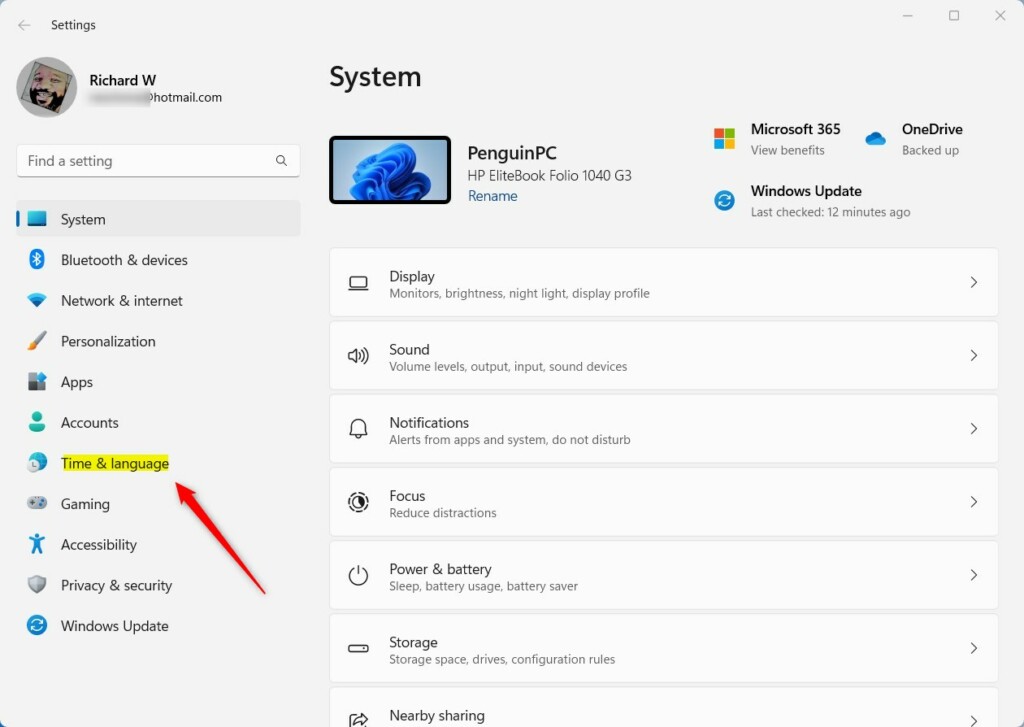
- Click on Time & language in the left menu. The page on the right changes to show date, time, language and typing options.
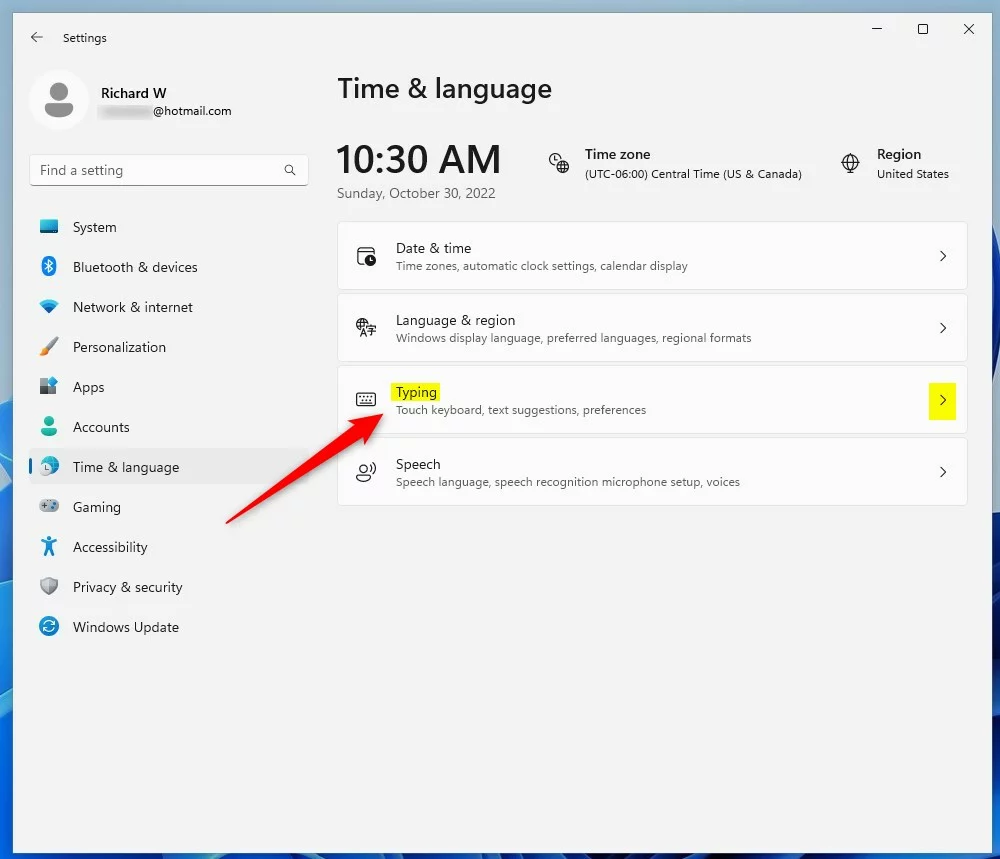
Windows 11 Time and language button in the Settings app - Click the Typing tile on the right. This opens the page with your typing and keyboard options.
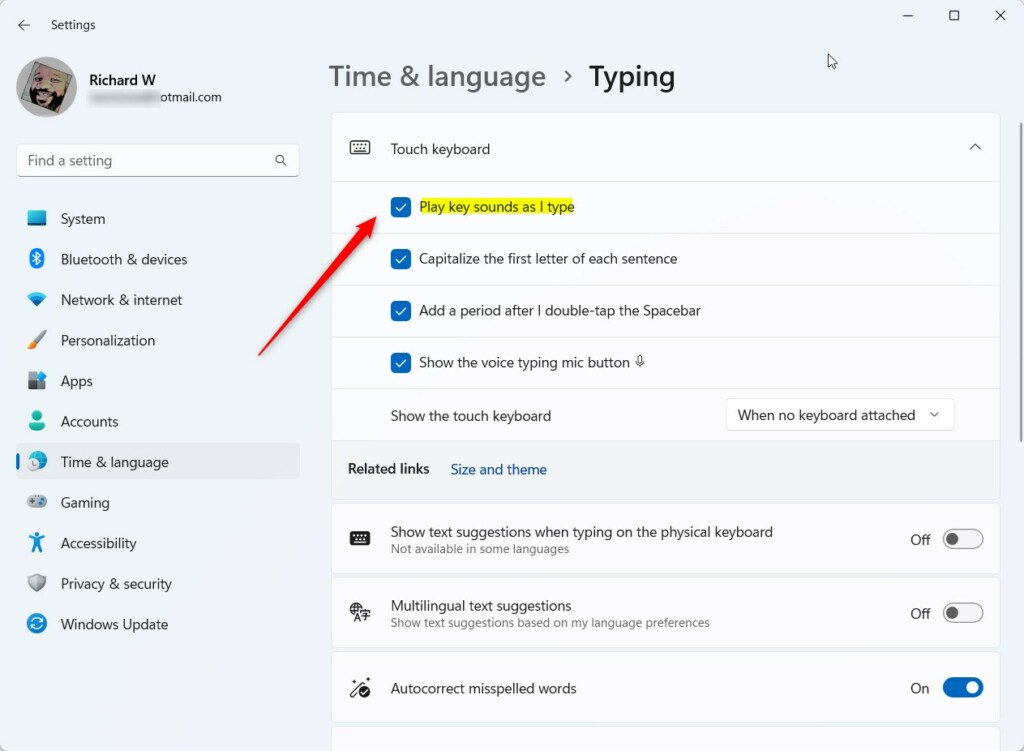
windows 11 time and language typing tile - Click on the Touch keyboard section to expand it. The touch keyboard options appear underneath, including the key sounds checkbox.
- Check the box for Play key sounds as I type to turn the sound on. Uncheck it to turn the sound off. The change takes effect straight away, so you can open the touch keyboard and tap a key to test it.
Windows 11 play key sounds as I type.
Change Keyboard Sounds via Registry Editor
Registry Editor (a tool for managing advanced system settings) lets you change this setting by editing a value in your user registry. Use it if the Settings page isn’t working or you prefer to make system tweaks this way.
Be careful here. A wrong edit in the registry can cause problems, so follow the steps exactly. If you want a safety net, export the key first in Registry Editor with File Export
- Press Windows key + R, type
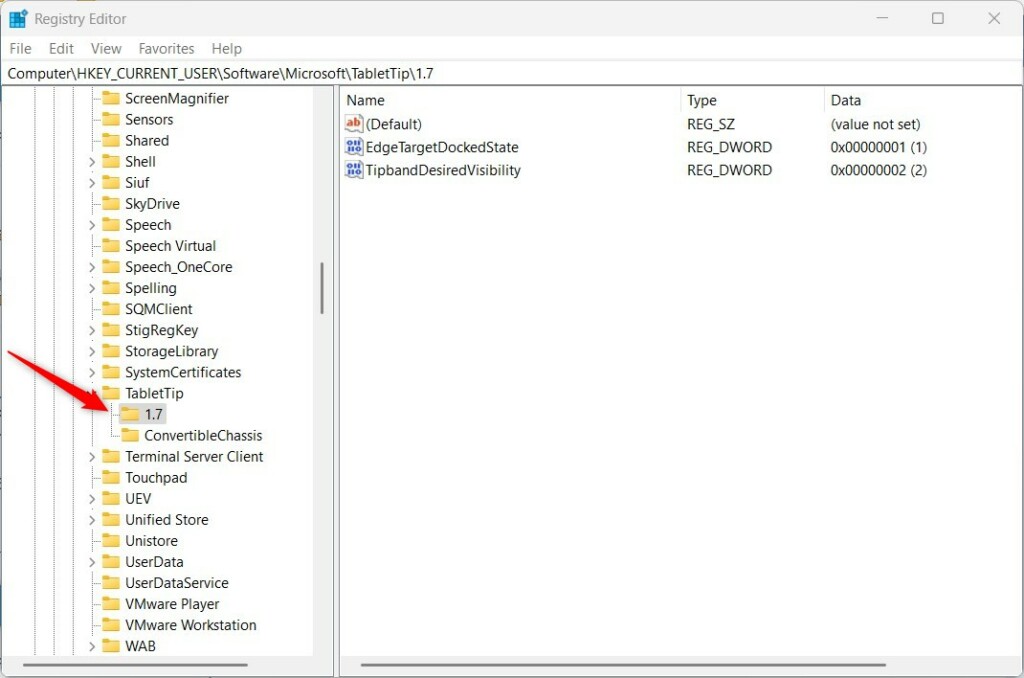
regedit, and press Enter. If User Account Control asks for permission, click Yes. Registry Editor opens. - Navigate to:
HKEY_CURRENT_USER\Software\Microsoft\TabletTip\1.0. You can expand the folders in the left pane one at a time, and the right pane shows the values stored in the key you select. - Right-click in the empty space in the right pane, select New, then DWORD (32-bit) Value. A new value appears with its name highlighted for editing. If the value already exists, skip this step and double-click the existing one instead.
- Name it
EnableKeyAudioFeedback. Press Enter to confirm the name. - Double-click it and set the value to
1for on or0for off. Click OK to save. If the new setting doesn't take effect right away, sign out and back in, or restart the PC.
To undo the change, open the same value again and switch it to the opposite number.
Automation via PowerShell
If you aren't signed in as an administrator, you'll be asked for admin credentials. You can automate this for multiple users using PowerShell, which saves you from repeating the registry steps on each account or PC.
Test any script on one account first. Then run it more widely once you've confirmed the sound behaves as you expect.
Set-ItemProperty -Path "HKCU:\Software\Microsoft\TabletTip\1.0" -Name "EnableKeyAudioFeedback" -Value 0
For more information on accessibility, visit the official Microsoft accessibility documentation. It covers other Windows 11 features that make typing and touch input easier to use.
Summary
You have learned how to enable or disable Windows 11 touch keyboard sounds using Settings, the Registry, and PowerShell. For most people, the checkbox in Settings is all you need. Use the Registry or PowerShell when Settings isn't an option or when you need to apply the change to several accounts. Whether you prefer a silent workspace or audible feedback, these methods give you full control over your typing experience. Always use caution when editing the registry, and keep in mind that you can reverse any of these changes by setting the option back.
Have a question about this guide?
Answered by AI from this guide. Good questions may be added to this page — please don't include personal details.
Did this guide fix your problem?

About the Author
Richard
Tech Writer, IT Professional
Richard is a writer at Geek Rewind who turns complex IT tasks into clear, step-by-step guides. He draws on years of hands-on experience in system administration and enterprise IT operations, focusing on Windows, Linux and WordPress: the problems people actually run into, and the fixes that work. His server and WordPress guides come from systems he runs himself. Richard builds and maintains the platform behind Geek Rewind, from its Ubuntu servers and Nginx configuration to its custom WordPress plugins. Many new tutorials start with readers' questions, and he's always glad to answer them in the comments.
[…] Touch keyboard is fully customizable, including enabling or disabling sound, capitalizing the first letter, enabling or disabling shift lock, adjusting the size, and many […]