
A hard page refresh in Microsoft Edge on Windows 11 forces your browser to ignore its saved cache and download the newest files for a website. A standard reload uses temporary files stored on your drive to load pages faster. That is why you sometimes see a broken layout, old images, or a change on a site that doesn’t show up.
Press Ctrl+F5 while viewing any tab to bypass the saved data and pull fresh files from the web server. Use this when a normal reload doesn’t show recent changes on a site. The sections below cover the other ways to do it: other shortcuts, the mouse, the tab menu, and Developer Tools.
Press Ctrl+Shift+R while viewing the page in Microsoft Edge to perform a hard refresh. The browser downloads fresh files from the web server instead of using cached copies, which fixes layout glitches and missing images that a normal reload doesn’t clear.
Option 1Refresh or Hard Refresh Using Keyboard Shortcuts
A hard refresh skips the stored copy of the page and asks the server for the newest version. This usually fixes layout glitches and missing images straight away.
After you press the shortcut, the page reloads. A normal refresh may reuse saved data. A hard refresh fetches everything again from the server.
- Open the web page you want to refresh in Microsoft Edge, and click on the page once so the browser has focus.
- Press one of the following keyboard shortcuts:
- F5 or Fn+F5: This does a normal refresh. On many laptops you need to hold Fn to use the function keys.
- Ctrl+R: This also does a normal refresh.
- Shift+F5: This does a hard refresh.
- Ctrl+Shift+R: This also does a hard refresh.
- Watch the page reload. It may take a little longer than a normal refresh, because Edge is downloading the files again.
If a shortcut does nothing, check that your laptop’s Fn Lock isn’t reversing the function keys, or try the Ctrl-based version instead.
Option 2Refresh or Hard Refresh Using the Refresh Button
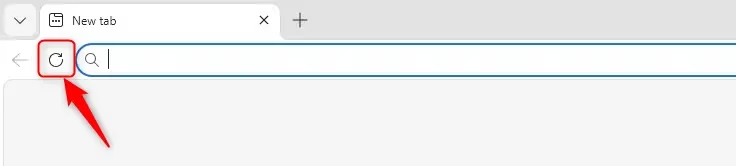
You can also hard refresh with the mouse. Hold a keyboard key while you click the refresh button next to the address bar. This tells Edge to request all the page files again instead of loading them from the copy stored on your computer.
After you click, the page reloads. A plain click does a normal refresh, and holding Shift while you click forces a hard refresh.
- Open the web page you want to refresh in Microsoft Edge.
- Find the refresh button. It looks like a circular arrow and usually sits to the left of the address bar.
- To do a normal refresh, click the refresh button.
- To do a hard refresh, press and hold the Shift key on your keyboard, then click the refresh button. Release Shift once the page starts loading.
Any kind of reload can wipe it.
Option 3Refresh or Hard Refresh from the Tab
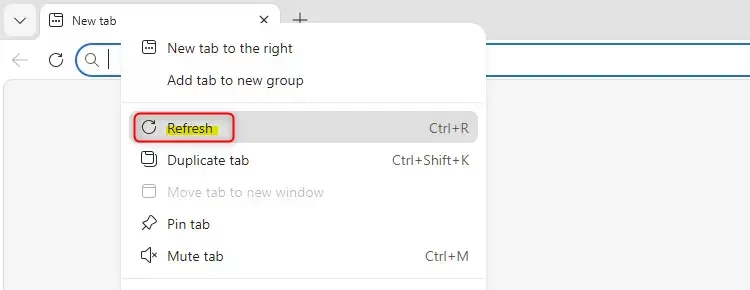
You can also refresh from the tab itself. This is handy when the address bar is hidden or when you want to target one specific tab among many. Only the tab you right-click is reloaded, so your other open pages stay as they are.
After you choose the option, the page in that tab reloads. A plain click on Refresh is a normal refresh, and holding Shift while you click it forces a hard refresh.
- Open the web page you want to refresh in Microsoft Edge.
- Right-click the tab that holds the web page. A context menu opens.
- To do a normal refresh, click Refresh.
- To do a hard refresh, press and hold the Shift key on your keyboard, then click Refresh.
You can do this on a tab that isn't the one you're viewing, which saves you from switching to it first.
Option 4Refresh or Hard Refresh Using Developer Tools
Developer Tools give you the most control. They let you hard refresh and also empty the cache (the temporary storage where Edge keeps website files) for the page you are on. With the panel open, you can right-click the refresh button to get a deeper reload that ignores all saved website data. Use this when a normal hard refresh still shows old content.
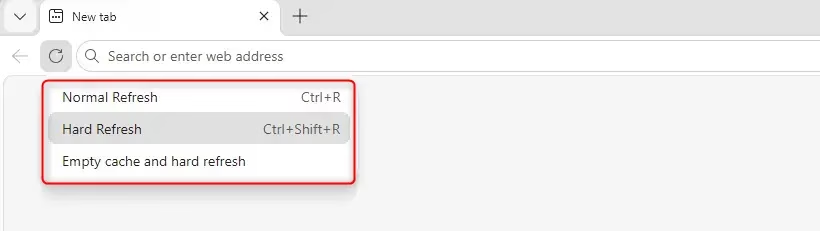
When the menu appears, you can choose a normal refresh, a hard refresh, or a hard refresh that also clears the cache for that page. The extra refresh options show up only while Developer Tools are open.
- Open the web page you want to refresh in Microsoft Edge.
- Open Developer Tools in one of these ways:
- Press the F12 key.
- Press Ctrl+Shift+I.
- Click the Edge menu (three dots), then select More tools, and then Developer tools.
- Once Developer Tools are open, right-click the refresh button (the circular arrow) in the browser window. A menu appears.
- Choose one of the following:
- Normal Refresh: reloads the page the usual way and may reuse saved files.
- Hard Refresh: reloads the page and ignores saved files.
- Empty cache and hard refresh: clears the cached files for that page first, then reloads it. Pick this one for stubborn problems.
- Close Developer Tools by pressing F12 again when you're done.
The wording in the menu may differ slightly between Edge versions, for example "reload" instead of "refresh". The three options are in the same order. If you don't see the extra options, make sure the Developer Tools panel is open and you right-clicked the refresh button itself.
Summary
A hard refresh bypasses the data stored on your computer, so you see the page as the server currently sends it. Keyboard shortcuts, the refresh button, the tab menu, and Developer Tools all get you there. Start with Ctrl+F5 or Shift plus the refresh button, and move to Empty cache and hard refresh if the page still looks wrong. If it looks wrong even then, the problem is probably on the website's side, not in your browser.
Was this guide helpful?

About the Author
Richard
Tech Writer, IT Professional
Richard is a writer at Geek Rewind who turns complex IT tasks into clear, step-by-step guides. He draws on years of hands-on experience in system administration and enterprise IT operations, focusing on Windows, Linux and WordPress: the problems people actually run into, and the fixes that work. His server and WordPress guides come from systems he runs himself. Richard builds and maintains the platform behind Geek Rewind, from its Ubuntu servers and Nginx configuration to its custom WordPress plugins. Many new tutorials start with readers' questions, and he's always glad to answer them in the comments.


No comments yet — be the first to share your thoughts!